Discovering Beedeez
This page reviews the different Beedeez interfaces, then focuses on the main building blocks of the back office.
Discovering Beedeez
This page reviews the different Beedeez interfaces, then focuses on the main building blocks of the back office.
The three interfaces
Beedeez consists of three distinct interfaces. Mixing them up is a common source of confusion early in a project.
| Interface | Who uses it | What for |
|---|---|---|
| The back office | Administrators | Creating, organising, animating and distributing training, and tracking statistics |
| The learner mobile app | Learners, on phone and tablet | Learning |
| The learner web platform | Learners, on a computer | Learning, from a browser |
Learners share the same account and the same progress on the mobile app and on the web platform. However, only the mobile app lets learners access training offline.
Departments and permission profiles
If advanced hierarchy is enabled on your account, you can model your org chart using departments and grant specific access to the main account as well as to a given department. A department is a partitioned structure: you see your department and everything below it, never above.
You can assign different permissions to each person who uses the back office. This determines which back office building blocks they can reach, and also what they are allowed to do.
Five predefined profiles exist: administrator, deputy, content editor and designer, content creator, and statistics. The account owner comes on top, with no restrictions. You can also create your own custom permission templates. See Assigning rights.
A second layer applies on top of these settings: the options enabled on your account. What exists at your company depends on many options, which are enabled on Beedeez’s side, not from your back office.
If a feature seems to be missing, the cause can come from either. Ask the account owner whether the feature is visible on their side. See Why can’t I see this feature?
Configuring your account
The main administrators of your back office account can customise a set of elements:
- the general options ;
- the social-learning blocks enabled or disabled ;
- the visual identity ;
- the widgets of your learners’ home page and menu.
This is also where the user schema and the custom fields are set.
The distribution chain: from content to learner
Create the content → Organise capsules into tracks → Distribute to user groups → Animate the training → Manage the rewards → Learners train → Track the statistics
Creating content
Capsules
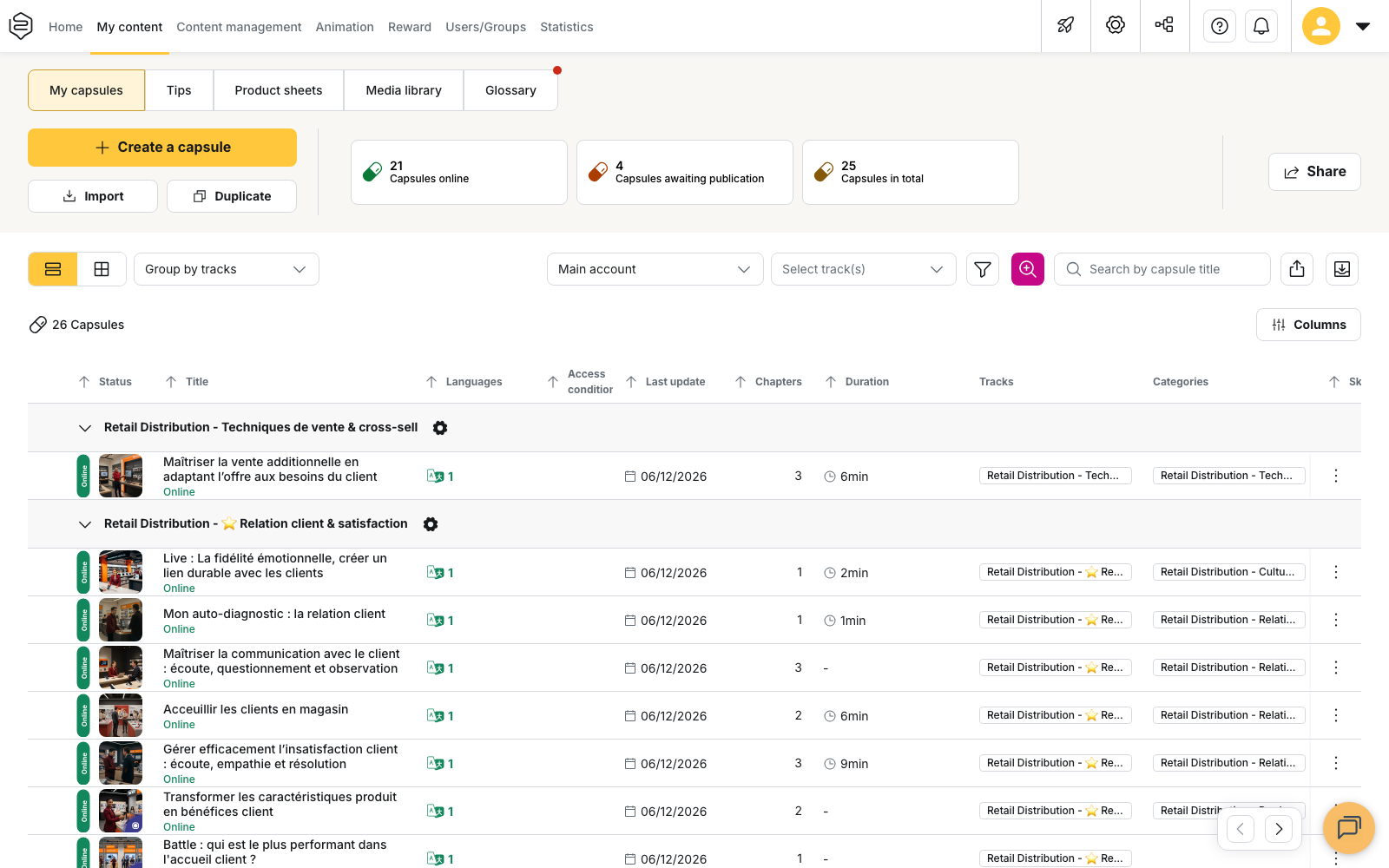
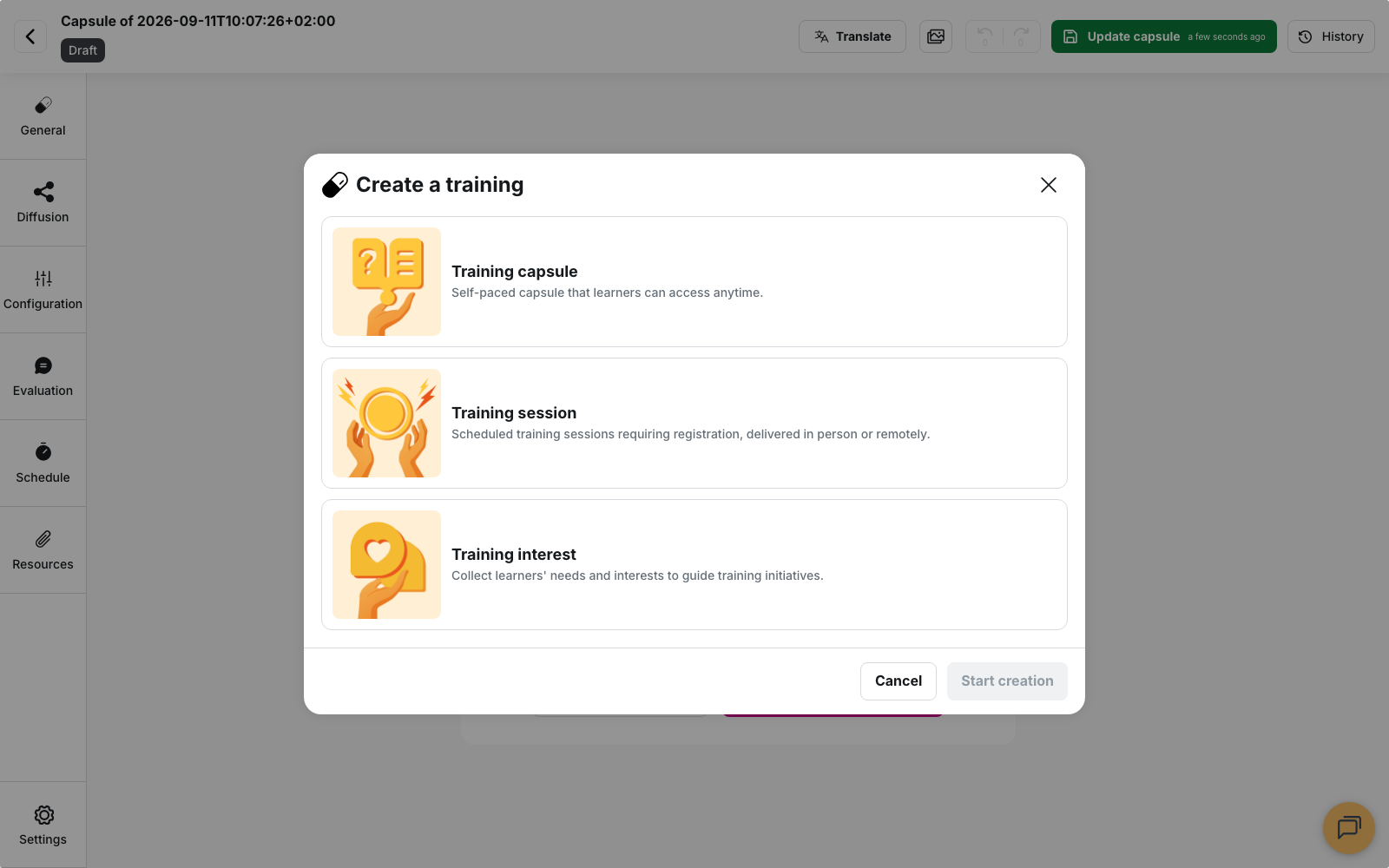
From the My content tab, Create a capsule opens the Create a training modal, which offers three types:
-
The Training capsule: a learning unit taken independently, whenever the learner wants. It is made of notions. A notion answers one key teaching intention (a method, a rule, a point to grasp), is summed up by an explicit title and description, and gathers the cards that carry the knowledge and the quizzes that support learning or check what has been understood. Its length is up to you: a few targeted notions in microlearning, or a full e-learning training;
-
The Training session: scheduled, requiring registration, delivered in person or remotely, with slots, seats and attendance to record. Slots are set under Animation > Sessions: with no slot, nobody can register. See Training sessions;
-
The Training interest: collects needs so you can steer what you offer. Learners can register for the different training interests you have created beforehand. See Training interests.
If needed, see Creating a capsule from scratch.
ℹ️ The back office refers to anything created from the Create a training modal as a “training.” For learners, what changes is the registration mode. See Understanding trainings for more information.
Tips
A tip is a short piece of content that is consulted, whereas a capsule is followed. From the Tips tab, the Create a tips button offers four types: Information tips, Question tips, Video tips and Document tips. The type is chosen at creation and cannot be changed afterwards.
A tip is not placed in a track: the learner comes across it in the platform feed, or finds it again by searching. See Tips and their variants.
Product sheets
A product sheet describes a product (name, references, description, images) and is consulted at the moment the question arises, in front of a customer or on the shop floor.
Under the hood it is a tip, but it has its own Product sheets tab, its own editor and its own fields: it does not appear in the list of tips. The Create a product sheet button opens three entries: from scratch, from a PDF with AI, or in bulk through Excel. Like a tip, it is not placed in a track and has no completion. See Product sheets.
Glossary
The glossary is the list of your company’s words: product names, acronyms, internal designations, job titles. It is not content that learners consult, but a reference base the AI draws on: a validated term is reused as it is instead of being rephrased or translated.
You fill it in by hand, by importing a file, or by letting the AI scan your existing content. Only validated terms reach the AI, and nothing is rewritten retroactively: fill it in before you run any large-scale AI generation. See The glossary.
Organising content
Tracks
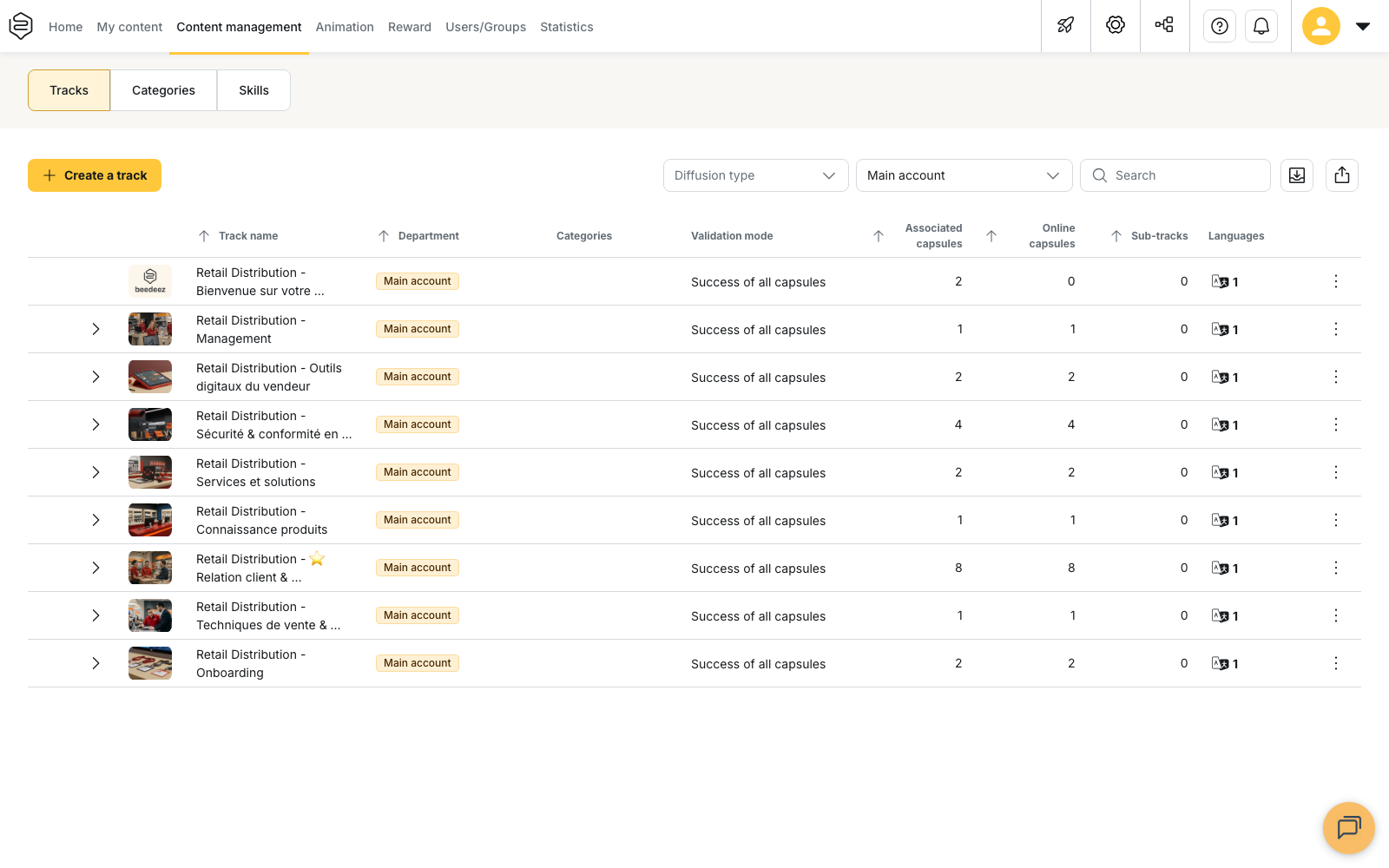
Creating is not enough. A capsule that is finished and published but isn’t included in any distributed track is invisible to everyone. This situation is frequent in the first weeks, and it is not a bug. See Tracks.
In the Content management tab, organise your capsules into tracks and link each track to the user groups it will be distributed to.
Categories
These are labels attached to content (capsules, tracks, tips, product sheets) that help learners find it easily from the learner platform. Categories are managed and modified from the Content management tab, Categories block. See Categories.
Skills
Skills development is a real challenge. Manage your skills framework directly from Beedeez.
From the Content management tab, Skills block, you can create skills and skill groups from scratch, or let the AI help you do it.
These skills can then be attached to many elements, including training capsules and the awarding of certificates. See Building the skills framework.
Distributing to user groups
From the Users/Groups tab, manage all your learners and organise them into groups.
A group can be static (you decide who belongs to it) or dynamic (predefined assignment criteria fill it automatically). A learner belongs to as many groups as needed, and access adds up.
-
From the editing interface of a capsule, decide to distribute it within a track intended for one or more specific user groups, or globally to your whole company or to specific departments, or customise the distribution to groups according to rules you define. See Understanding distribution.
-
From the editing interface of a product sheet, choose the user groups that will have access to it.
-
As for tips, learners choose which of their user groups to share their content with. Administrators can then make any change.
⚠️ A back office permission is not access to content on the learner side. An administrator who belongs to no distribution group sees nothing on the learner side, whatever their rights. See Understanding structure and permissions. Test with a real learner account, or use Signing in as one of your learners.
Groups also serve to run targeted animation and to filter statistics.
Animating your training
The Animation tab gathers everything that keeps the platform alive once the content is created: what you send to learners, what they register for, and what you answer.
- Notifications to distribute to learner groups and build engagement;
- Sessions to manage registrations, seats, attendance and other settings;
- Forum with the questions asked by learners, and to manage your answers;
- First Steps to set what learners see at their first sign-in;
- Training requests to handle open requests or registrations in the training interest catalogue;
- AI Agents to manage simulations and question-and-answer environments through AI.
Depending on the options enabled on your account and on your back office permission profile, some or all of these blocks may be absent.
Managing rewards
From the Reward tab, you can manage:
- The badges triggered by the points learners earn after completing capsules. A badge is a symbolic reward, tied to a gamification rule, with no administrative value.
- The certificates, a dated proof, the piece you would produce for an audit: they are triggered by passed capsules or by a threshold skill level, and you can set them to expire if you choose.
Depending on your back office permission profile, this tab may be absent.
Learning, on the learner side
Once the chain is complete, your learners access the training content from the mobile app or the web platform.
ℹ️ Offline mode is handled on the learner side and requires no back office setting. The learner downloads the capsules they want while on network, from the mobile app. Those capsules stay available with no connection, quizzes included, and progress resumes as soon as the network is back. Anything that needs an internet connection (leaderboards, battles, AI agents) stays unavailable offline.
Tracking the statistics
The Statistics tab answers three questions: who is learning, on what content, and with what result. Each screen can be filtered by period, by group and by department, and exported.
You will find global statistics there, statistics by learners or by user groups, by content (capsules, tips, tracks), those of the rewards (badges and certificates) awarded, and those related to the AI Agents.
See Measuring activity.
Here too, each tab depends on its own permission: two administrators do not necessarily see the same figures.
Where to find help from the back office
The question-mark button, in the menu bar at the top right of the back office, opens the support panel. It offers three entries:
- I have a question opens this knowledge base;
- I have a problem is used to report a malfunction to the support team;
- I need a new feature is used to suggest a product improvement.
You can also open the chat to find help, using the button at the bottom right of the screen.
The bell button, right next to it, shows your back office notifications.
Going further
- The Beedeez glossary: the platform’s words, starting with the five false friends (capsule, department, group, completed, unique rate).
- Understanding trainings: the three types in detail, and what each one implies for the learner.
- Technical requirements: to be checked against the real device fleet before announcing an opening date.
- Accessibility at Beedeez: the platform supplies the mechanisms, compliance depends on how you build your content.