The Glossary feature
Prerequisite: none. The Glossary tab, available under Content, is accessible to all users, with no specific permission or account setting required.
Glossary
Prerequisite: none. The Glossary tab, available under Content, is accessible to all users, with no specific permission or account setting required.
It allows you to define terms that are specific to your company: product names, acronyms, internal names, job titles, or terms specific to your business.
Once validated, a term is passed to AI features, which can then reuse it as is, without reformulating or translating it.
⚠️ Do not confuse this with the Beedeez lexicon, which explains the terms used throughout the documentation. The glossary described here is a back-office feature.
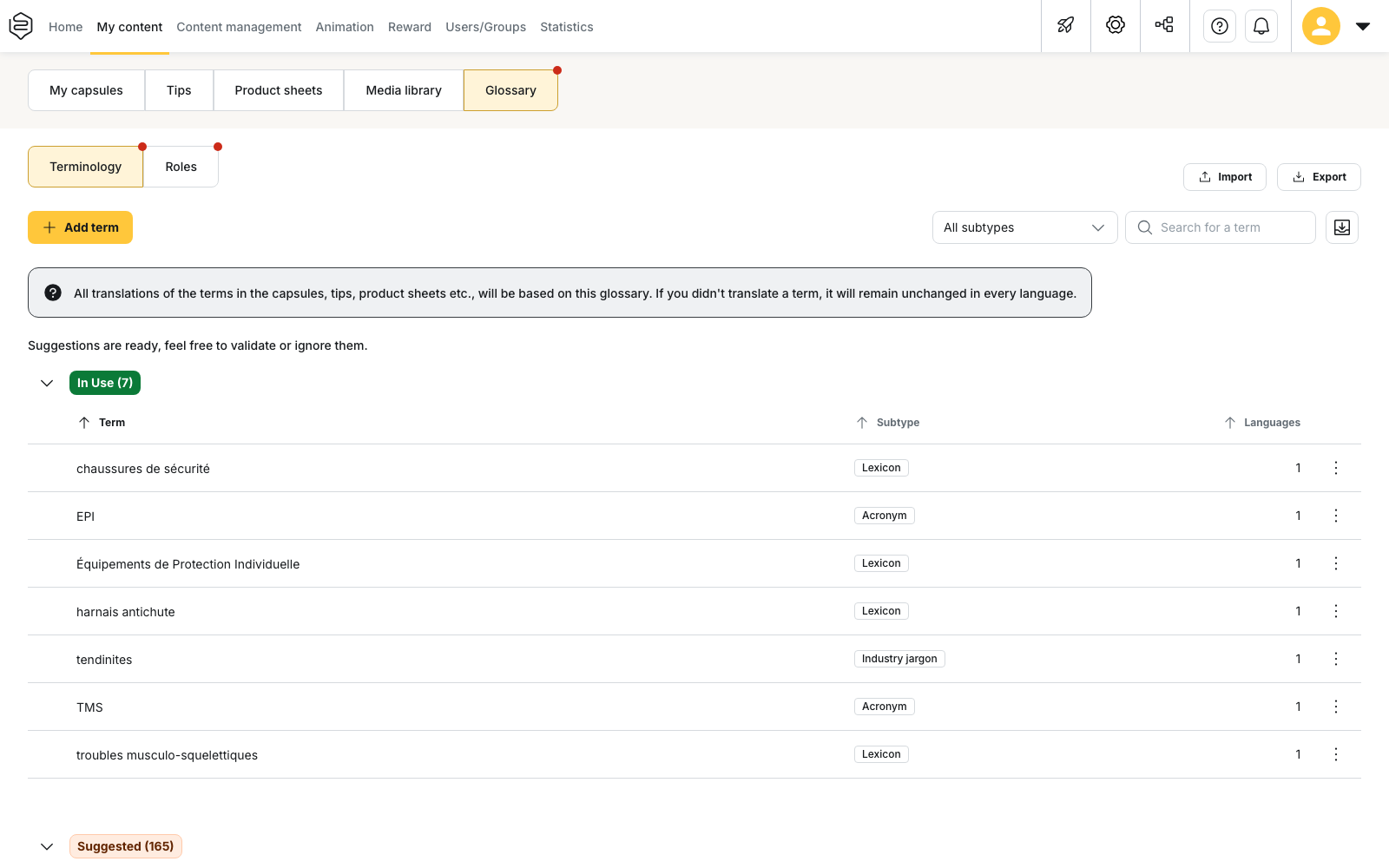
The two glossary tabs
The glossary has two tabs that serve different purposes:
- Terminology for words and expressions
- Roles for the jobs and functions within your company
These two sections are independent and are managed separately.
Terminology
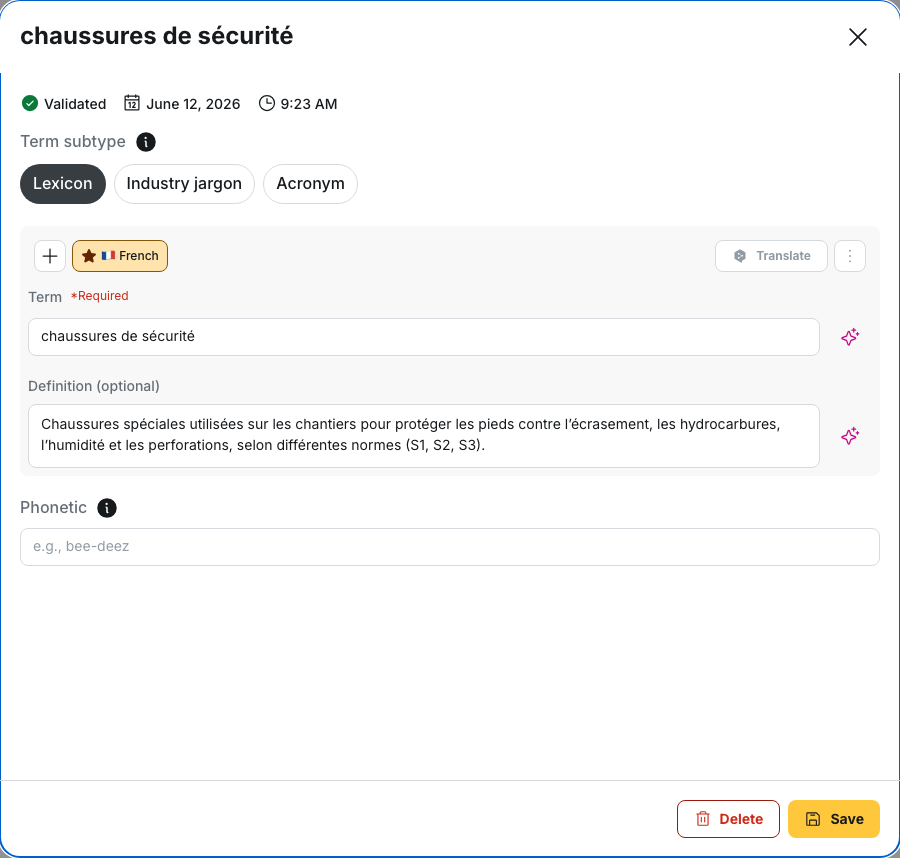
Each term can be assigned a Term subtype:
- Lexicon
- Professional jargon
- Acronym
You can also provide:
- a Definition
- a Phonetics field, which tells the AI how the term should be pronounced
Roles
The Roles tab allows you to describe the jobs within your company.
For each role, you can provide:
- the Role title
- the Role description
- the Mission
- whether the role Is a manager
- the associated Skills
- the Minimum required level for each skill
Roles cannot be added through the terminology import. They must be created separately from the Roles tab.
Adding terms to the glossary
Several methods are available to populate the terminology section.
Add a term manually
With Add a term manually, you can create a validated term directly.
It is therefore immediately available to the features that use the glossary.
Scan content with AI
Scan with AI automatically searches your existing content for terms.
The scan analyzes:
- Online capsules
- Pending publication capsules
- Tips that are not drafts
- PDF files available in the media library
Detected terms are then suggested in the Suggested section.
The scan may take a few minutes. A notification and an email let you know when it is complete.
Import terms
The Import button allows you to import a file in one of the following formats:
.xlsx.xls.csv
Use Download template to get the file to use as a basis for the import.
The import is limited to the first 7,500 rows. Terms that already exist in the glossary, as well as duplicates within the file, are automatically ignored.
⚠️ The import only adds terminology.
Roles must be created separately from the Roles tab.
💡 To avoid issues with accents and special characters, .xlsx is recommended. If you use a CSV file, save it using UTF-8 encoding.
Managing suggested terms
Terms detected by the scan are placed in two groups:
- Suggested
- In use
A term that has just been detected by the scan appears under Suggested. It does not yet have any impact on AI features.
To use it, select Validate suggestion. The term then moves to In use.
If you do not want to keep it, select Ignore suggestion.
Terms added manually or imported are placed directly under In use.
💡 Only validated terms are passed to the AI.
If you leave suggestions unvalidated, they will therefore have no effect on future generations.
Where is the glossary used?
Once validated, terms can be used by several AI features.
Content generation
The glossary is taken into account by the four generation prompts available under Content › Generation:
- Generate a course plan
- Generate a content sheet
- Generate a quiz
- Generate a question
It allows the AI, in particular, to preserve terms that are specific to your company.
Translation
When content is translated, terms defined in the glossary can remain unchanged from one language to another.
This is particularly useful for keeping product names, acronyms, or internal names that should not be translated.
Voice transcription correction
The Phonetics field can be used when correcting voice transcriptions.
It helps speech recognition when specific terms are misunderstood or transcribed incorrectly.
Simulation generation
Glossary terms are also used when generating a simulation, particularly for objectives, scenarios, and the customer profile.
Question/Answer Agent
The Question/Answer Agent searches validated terms alongside the content available on the account: capsules, Tips, pathways, and media.
Glossary terms can therefore be taken into account when it generates its response.
Roles and skills
Validated roles in the glossary can also be used to generate skill suggestions.
Please note: glossary terms are searched across the entire account. They are not filtered by group or department.
What the glossary does not do
It is not used during the initial analysis of a PDF
When you generate a capsule from a PDF, the AI first analyzes the document to extract concepts and build the capsule plan.
This initial step does not take the glossary or the configured AI tone into account.
The glossary is then used when generating content sheets and quizzes.
For example, if the PDF analysis alters the name of a product, you will need to correct the term manually in the plan or generated content.
See Generate a capsule from a PDF for more information about this generation process.
It does not modify existing content
The glossary applies to future generations.
Validating a new term does not automatically modify capsules, Tips, or other content that has already been generated.
💡 It is therefore recommended to add and validate important terms before launching content generation on a large scale.
Points to keep in mind
Deleting a term does not permanently remove it
When a term is deleted, it is archived.
It is no longer passed to AI features, but it can still be recovered from View archived terms, which allows you to restore it.
The export does not contain the entire glossary
The Export button only exports terminology that is:
- validated
- not archived
Roles and pending suggestions are not included in the export.
Term search depends on AI features
The Search for the term action appears in the row menu only when Enable AI features is enabled on the account.
⚠️ Disabling this setting does not only affect the glossary: it disables the platform’s AI features, including advanced search and content generation.