Exporting a capsule or a track as SCORM
You can package a capsule or a track as a SCORM module and upload it to your LMS. Learners then open the content from your LMS, and the LMS records their score, their time spent and their status.
Exporting a capsule or a track as SCORM
You can package a capsule or a track as a SCORM module and upload it to your LMS. Learners then open the content from your LMS, and the LMS records their score, their time spent and their status.
⚠️ Prerequisite: the LMS option must be active on your account. Your Beedeez contact switches it on.
⚠️ Rights needed: Authorized to generate SCORM exports from capsules and tracks, among the distribution rights. Without the option or without the right, the Scorm entry does not appear.
Exporting the package
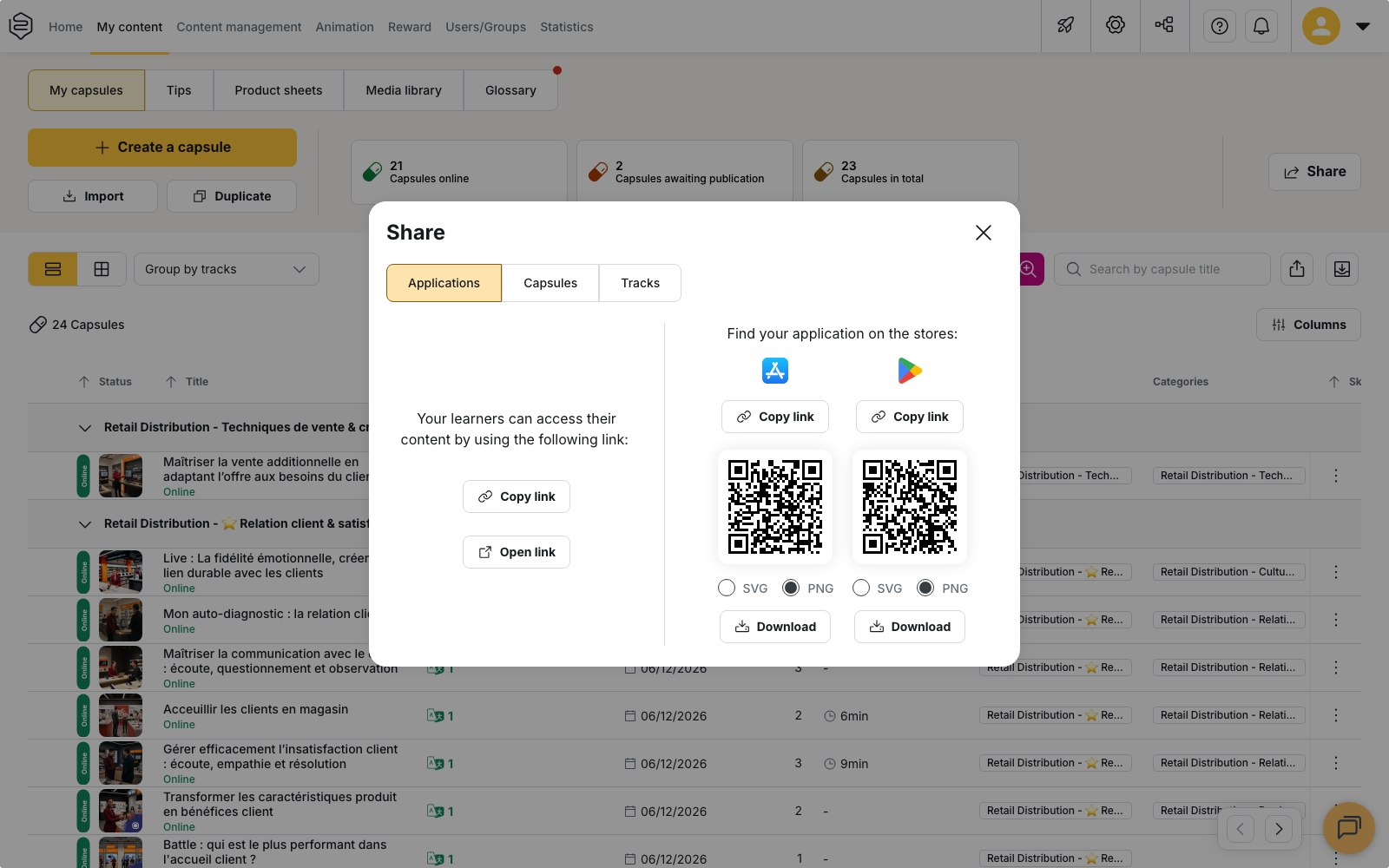
- From the capsule list, open Share.
- Open the Capsules or Tracks tab, then select one piece of content.
- Open Share with, then choose Scorm.
- Set SCORM Version. SCORM 1.2 is selected by default, and SCORM 2004 4th edition is the other option.
- Select Export the scorm. The ZIP is built on the spot and downloads straight away, with no job to wait for.
One export covers one piece of content, and only online capsules appear in the picker. The file is
named beedeez-scorm-module-<account>-<capsule title>.zip. For a track, the identifier replaces the
title, so the filename is not readable.
The ZIP carries a launcher, not your content
The package holds imsmanifest.xml, a launch page and a small .js settings file. The chapters,
images and quizzes are not in it: on opening, the launch page fetches the Beedeez player over the
network and displays it in a frame, inside the LMS.
- Content stays live. A capsule you correct in Beedeez changes immediately for learners in the LMS, with no re-export and no re-upload.
- A connection is required. There is no offline mode. The launch page also pulls scripts from
cdnjs.cloudflare.com: a network that filters that domain breaks the package. - Taking the capsule offline breaks the package. The file stays in the LMS and opens nothing.
How the learner is recognised
The launcher reads the identifier and the name the LMS hands it, then asks Beedeez for the matching account. With no existing account, one is created; a deactivated account is reactivated. With an SSO-based LMS configuration, the learner goes through a sign-in window first.
⚠️ Check which identifier your LMS sends. This is what decides whether the whole thing works. If your LMS passes an email address while your Beedeez accounts are keyed on a payroll number, every learner ends up with a brand new account.
What the LMS receives
The package writes three things: the score, scaled to 100 whatever the point total of the content; the time spent; and the status, which stays incomplete until the content is finished, then becomes passed or failed. Passed is decided by Select the validation mode, whose threshold sits at 50 % by default.
⚠️ In SCORM 1.2 the LMS receives a single status. Everything lands in cmi.core.lesson_status,
which here only ever takes incomplete, passed or failed. The LMS therefore never sees
completed: a learner who reaches the end without clearing the threshold is recorded as failed, and
an LMS that bases completion on completed records nothing at all. In SCORM 2004,
cmi.success_status and cmi.completion_status travel separately, and the score also travels
scaled between 0 and 1 in cmi.score.scaled. Neither manifest declares a mastery score, so your LMS
cannot apply a threshold of its own.
What the export does not cover
The LMS receives no detail: no per-question result, and no capsule-by-capsule tracking inside a track, which is exported as a single module reporting a single line. The package does not carry the rest of the Beedeez experience either: no notifications, no rankings, no AI agents.
Expiry and re-exports
The Enable exported SCORM package expiration checkbox reveals an Expiration date field. It is unticked by default, so an export leaves with no end date. Past that date the package stops opening; the file itself stays in your LMS, and removing it is up to you.
Each export opens its own access, and packages already uploaded keep working. The module identifier is derived from the content, so re-exporting the same capsule produces a package your LMS sees as the same module. Decide in your LMS whether that new file replaces the previous one or is added alongside it.
Choosing the LMS configuration
⚠️ The LMS Config picker does not choose the configuration that applies. It appears when several LMS configurations exist on the account, but the one applied at open time is the configuration whose declared address matches the LMS displaying the package. Changing the picker changes nothing.
Treat the exported file as an access key
⚠️ The ZIP carries an access to the content, with no end date by default, and deleting it from your LMS revokes nothing. Keep it out of circulation beyond the destination LMS, and tick the expiration for one-off sends.
A successful import proves nothing on its own: a package can import perfectly and still report nothing. Have a real learner account of your LMS play the content end to end, then check the numbers recorded by the LMS.
Going further
- Distributing your content in an LMS: choosing between the manual export, automated delivery and launching from the LMS
- Automated SCORM delivery to SFTP: the same package, uploaded on its own, for when exporting by hand turns repetitive
- Setting up launch from your LMS: the alternative when the LMS stays the entry point and offline matters
- Who can distribute what: the SCORM export right and the other distribution rights