Assigning rights: profiles and permission templates
⚠️ Rights required: the Edit / add authorizations right, on the parent account.
Assigning rights: profiles and permission templates
⚠️ Rights required: the Edit / add authorizations right, on the parent account.
Rights are granted through permission templates. A template carries a set of rights, and every person attached to it holds those rights. This article covers the actions you perform in the back office: creating a template, applying it to a person, detaching a person from a template, editing or deleting a template. To understand the profiles, the rights families and their gradations, start with Understanding custom permissions.
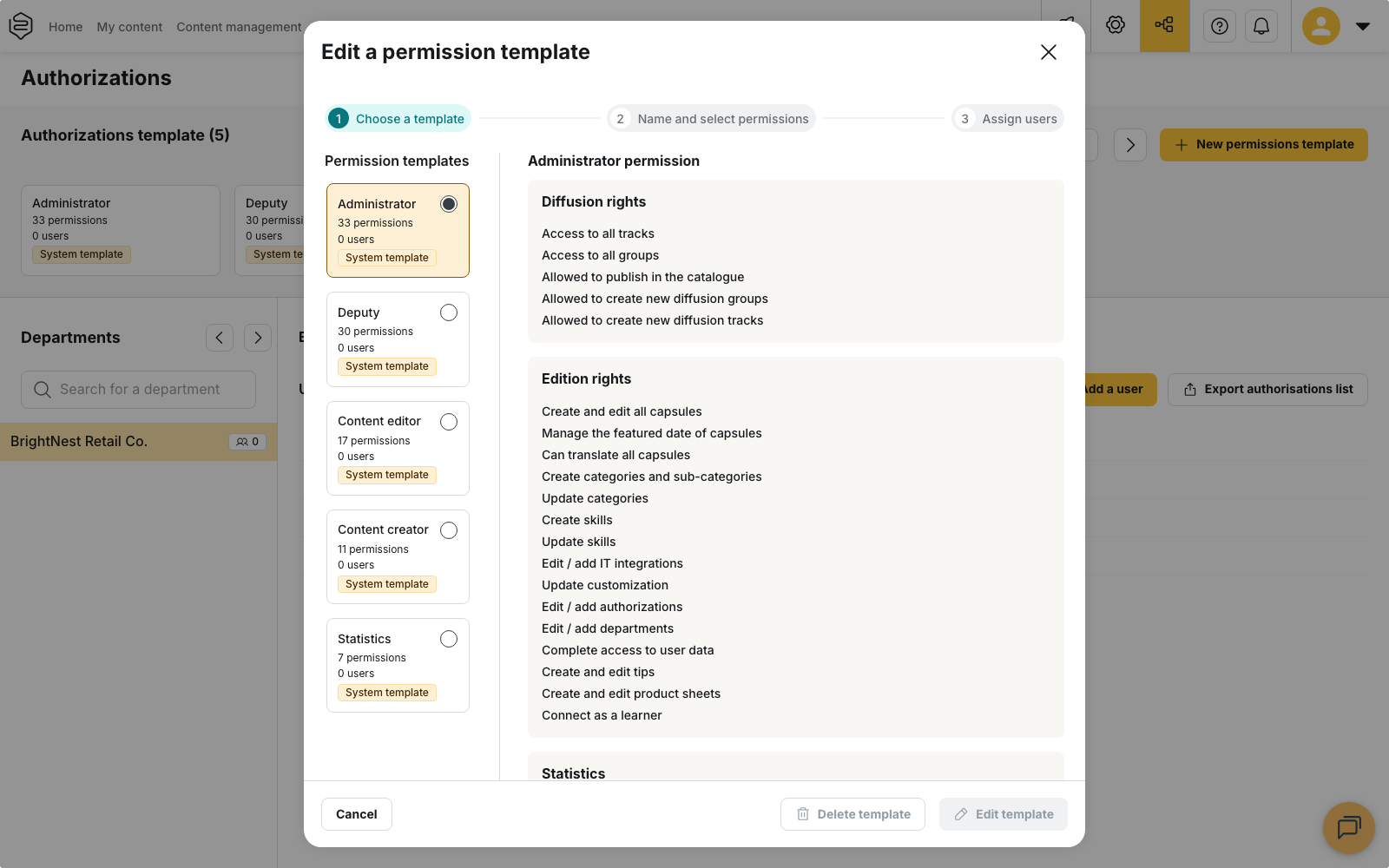
Everything happens in the Authorizations menu. The Authorizations template list at the top shows the built-in profiles, each carrying the System template tag, followed by the templates your organisation has created. The Departments column below lists the authorised people of each department.
Creating a template
Click New permissions template. Creation takes three steps:
- Choose a template: select the profile you start from, then Create new from this permission template.
- Name and select permissions: name the template and set the rights, family by family.
- Assign users: tick the people to attach, then Save and apply to users. To create the template without attaching anyone yet, choose Save template, assign later.
💡 Tip: start from the profile closest to the role you are equipping, then remove the rights that role does not need. You keep control over what the template actually grants.
Applying a template to a person
For a person who holds no authorization yet, open the department concerned in the Departments column and click Add a user. The New user panel asks for the Associated user, then for the template to apply through Choose this permission template. Tick Send an invitation email to notify the person.
For a person who already holds an authorization, open that authorization, select the new template, then click Apply personalized permission.
⚠️ The administrator profile is only available on the parent account. Inside a department, the list of built-in profiles does not include it. One person can hold authorizations in several departments.
Detaching a person from their template
Open the person’s authorization, click Customize permission, adjust the rights, then click Apply permission change. The screen states the consequence: this action Will detach user(s) of the current template.
A detached person no longer follows the template they came from: later edits to that template do not reach them. Use this for exceptions. If the need is durable and shared by several people, create a template instead.
Editing or deleting a template
Select the template, then click Edit template. When you save, the platform warns you that This action will modify the permissions for the users currently assigned to this template. This is the expected behaviour: every attached person receives the new rights, while detached people keep theirs unchanged.
Delete template stays greyed out in two cases: the template is a system template, or users are still assigned to it. Detach or move those users to another template before deleting it.
Templates carrying the System template tag can be neither edited nor deleted. To adapt one, start a new template from it.
Restrictions do not extend on their own
⚠️ A right restricted through Only access the following groups or Only access the following tracks covers only the groups and tracks selected at that moment. A group created later is not added to the lists of existing templates. Review your templates after each reorganisation.
An authorization does not give access to learner content
An authorization covers the back office. It grants no access to the content distributed to learners: to see the app as a learner does, you need to belong to a group, or to use Signing in as one of your learners.
Going further
- Understanding custom permissions: profiles, rights families and gradations.
- Understanding structure and permissions: how departments, groups and permissions fit together.
- Who can distribute what: the diffusion family in detail.
- Why can’t I see this feature?: settle whether an option or a right is missing.