Understanding custom permissions
Your access may not match any of the five profiles described in this section. That's normal: the predefined profiles are just starting points, and a back office access can be custom-built to fit. This article explains what an access consists of, what it governs and what it doesn't.
Understanding custom permissions
Your access may not match any of the five profiles described in this section. That’s normal: the predefined profiles are just starting points, and a back office access can be custom-built to fit. This article explains what an access consists of, what it governs and what it doesn’t.
Predefined profiles and custom templates
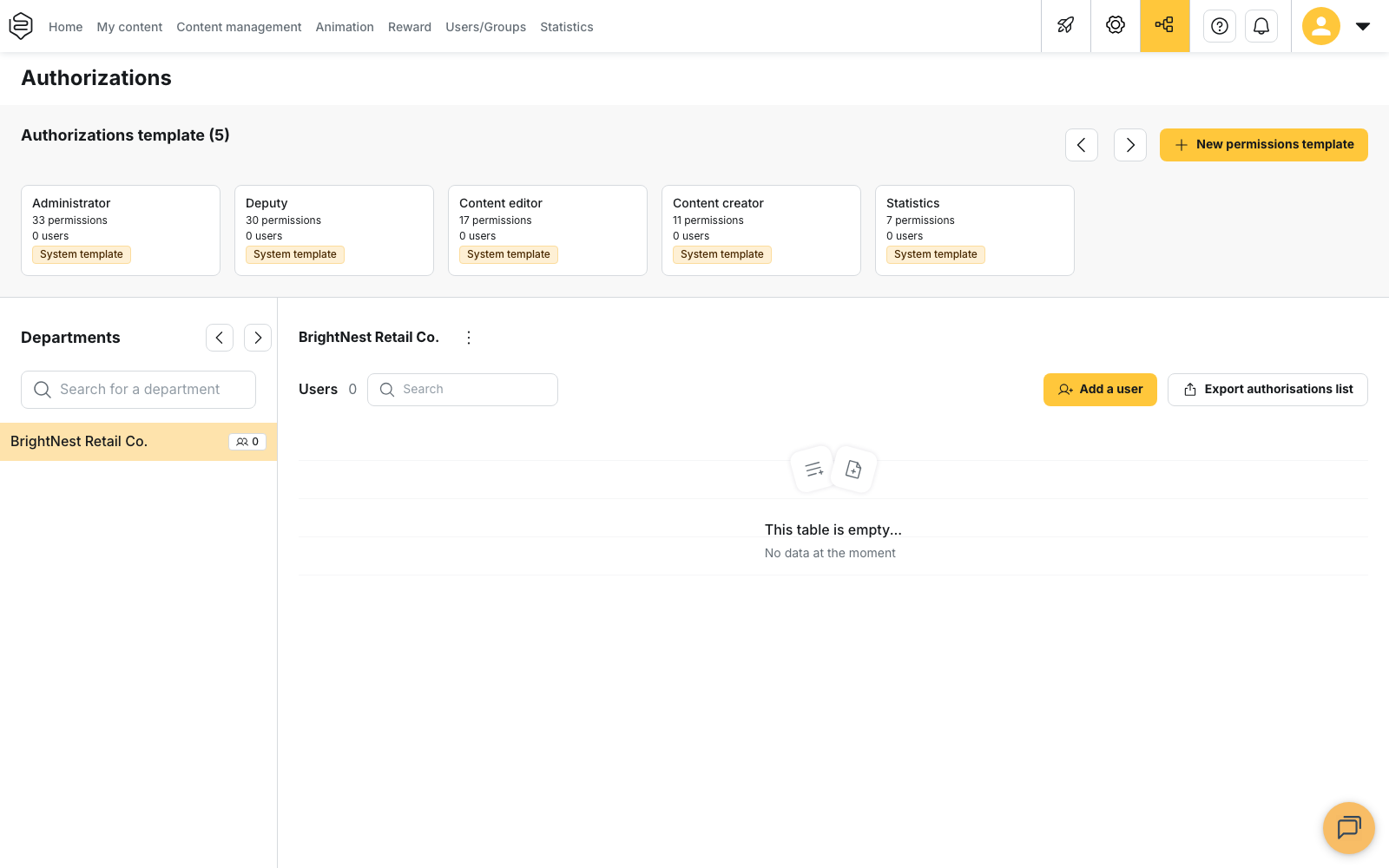
The Authorizations menu of the back office lists the Authorizations template entries:
- the five profiles shipped with the platform, Administrator, Deputy, Content editor, Content creator and Statistics. They can be neither edited nor deleted;
- the templates created by your company (New permissions template): a named set of rights, applied to as many people as needed. This is what a custom permission is;
- a person detached from their template (Customize permission), who is given an individual setup and no longer follows the template’s later changes. Their access is then identified as Personalized authorizations.
The account owner carries no authorization: that is what gives them every right.
The four rights families
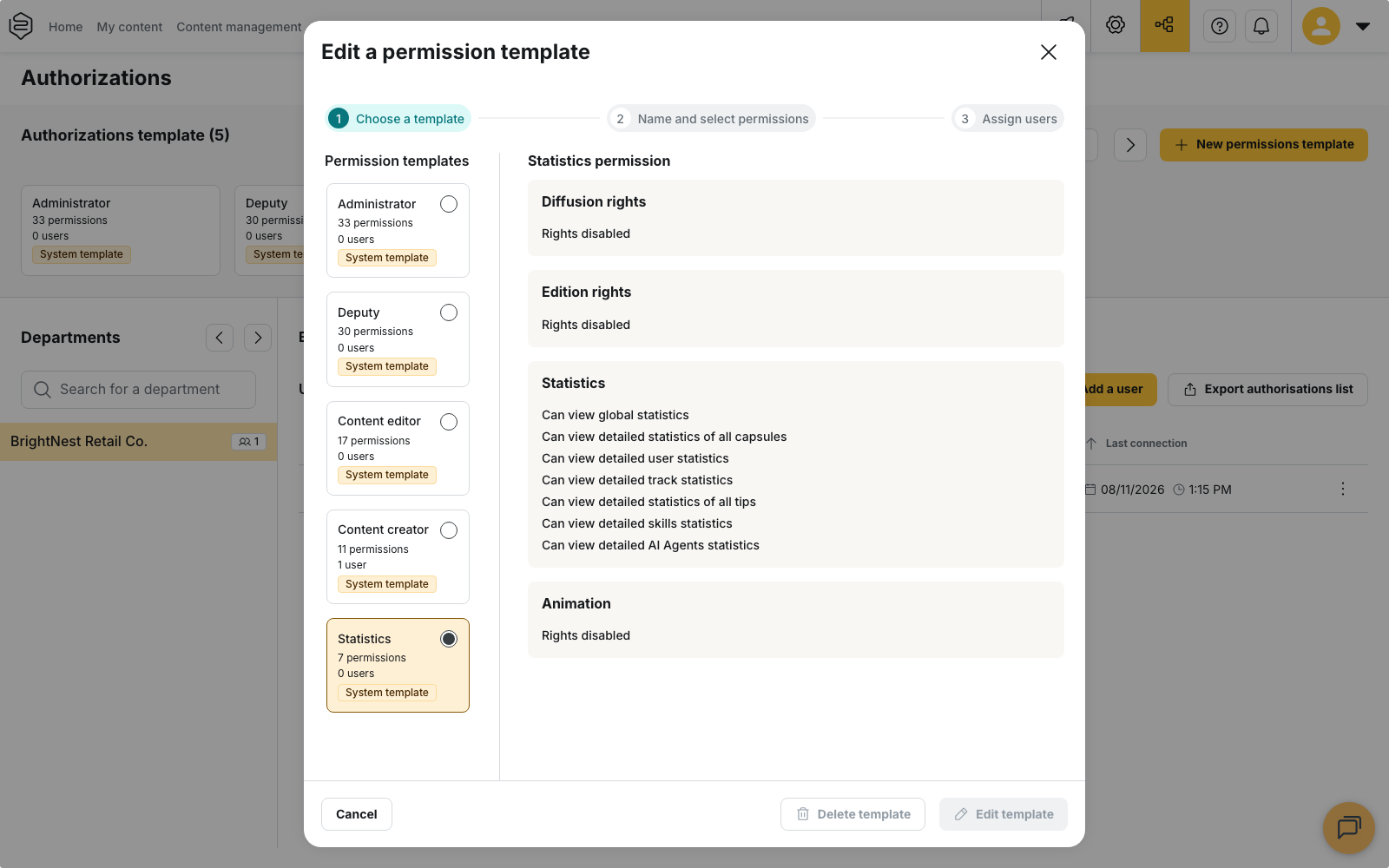
A back office access covers four independent families, each of which may be enabled or not:
| Family | What it governs |
|---|---|
| Edition | Content (capsules, tips, product sheets), categories, skills, and configuration: customization, authorizations, departments, user data, IT integrations |
| Diffusion | Access to groups and tracks, their creation, notifying groups, SCORM exports |
| Animation | Forum, notifications and emails, campaigns, sessions, rewards (badges, certificates), AI Agents |
| Statistics | What the person may consult, domain by domain: global, capsules, users, tips, tracks |
On top of these sits a separate administration right: impersonation (Connect as a learner). Among the predefined profiles, only the administrator holds it.
💡 This split explains accesses that can look inconsistent. A person can create content without being able to distribute it, or consult everything without being able to change anything, because these are separate families.
The gradations
Within a family, most rights are set by level.
On capsules, for instance, the available levels are:
- Create and edit all capsules,
- Create and edit one’s own capsules,
- Create capsules, require validation by admin,
- Cannot edit capsules.
Statistics add an intermediate level: instead of everything or nothing, the access covers a list of named groups or tracks, selected when the right is set.
That is what distinguishes the content creator from the content editor: the first creates only their own capsules, submitted for validation and sees only their statistics; the second creates without required validation and sees everything.
When a right is missing
The matching feature disappears from the back office: the menu entry, the tab or the button is not shown.
A right you lack and an option disabled on your company’s account produce the same effect. If needed, see Why can’t I see this feature?
What a permission does not do
It does not define your perimeter. Your profile says what you may do; your department says at which level of the organization your rights apply. You see your department and what sits below it, never sideways. Two people with the same profile therefore do not see the same thing.
It does not create the feature. An edition right on tips, for example, produces nothing if the matching option is not enabled on your company’s account.
It grants no access to learner content. To see the application as a learner, you must belong to a user group associated with the content.
The explicit-list trap
⚠️ An authorization granted through Only access the following groups or Only access the following tracks does not extend by itself. A newly created group is not added automatically to the list of groups covered by a custom permission.
This is the most frequent cause of “I can’t see the new team”, for diffusion as well as for statistics. Revisit your custom permission templates after every reorganization.
If you have to create a template
⚠️ Rights required: creating, editing or deleting a template requires the Edit / add authorizations right. On an account organized into departments, these actions are performed from the parent account.
Start from an existing profile template and remove what does not fit. Building from scratch often produces accesses that nobody can justify six months later.
Create a template only for a durable, shared need, not for one person: one template per individual becomes unmanageable by the tenth person.
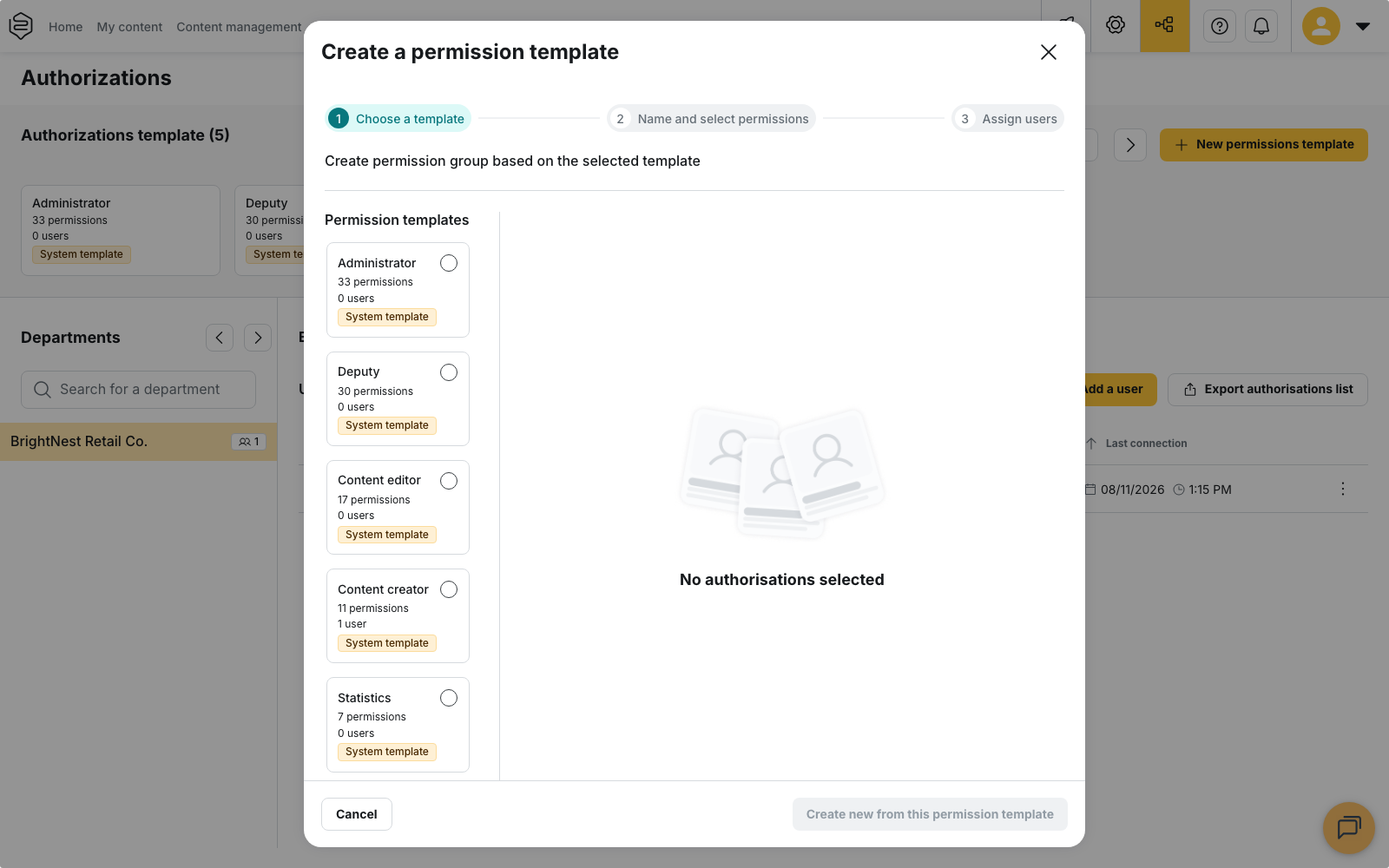
Two rules govern the deletion of a template:
- A template with users assigned to it cannot be deleted: reassign them to another template first;
- A deleted template cannot be recovered, as there is no bin for authorizations.
To find out what your own access contains, ask the person who granted it. They can see your profile and its perimeter from the Authorizations menu.
Going further
- Assigning rights: create a template and apply it, step by step.
- Understanding structure and permissions: how departments, groups and permissions fit together.
- Why can’t I see this feature?: settle whether an option or a right is missing.
- Who can distribute what: the diffusion family in detail.