Exploring the user list: columns, filters, export
The user list brings your whole population together in a single table: who exists, who has signed in, who has started learning. From it, you choose the columns displayed, filter the list, export it and act on several people at once. The model that determines which people you see is described in Understanding groups.
Exploring the user list: columns, filters, export
The user list brings your whole population together in a single table: who exists, who has signed in, who has started learning. From it, you choose the columns displayed, filter the list, export it and act on several people at once. The model that determines which people you see is described in Understanding groups.
⚠️ Rights required: you only see the people in the groups you have access to. Access to a user’s full data and the Log as button depend on separate rights.
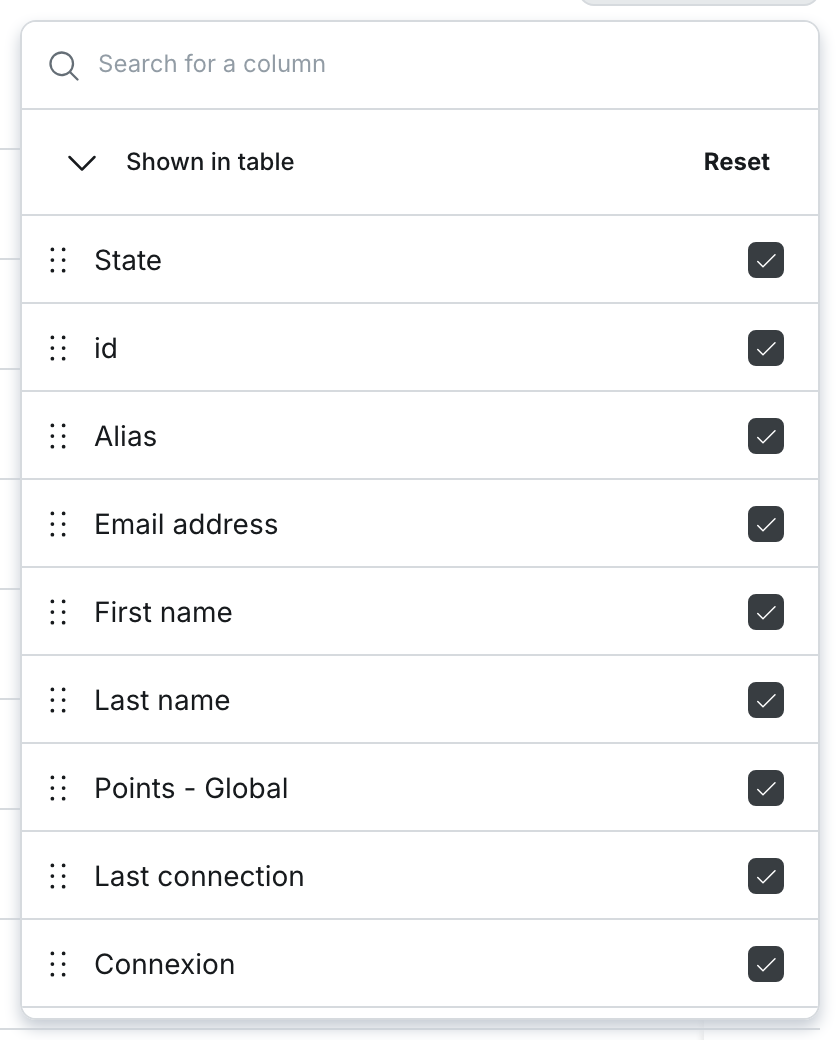
The Columns button opens the picker shown below: the search, the Shown in table and Hidden in table sections, and the handle in front of each displayed column.
Reading the statuses
The Status column sums up each person’s situation with an icon.
| Status | Meaning |
|---|---|
| Not connected | No one has ever signed in to this account. |
| Connected | The learner has signed in at least once but has not started any content. |
| Active | The learner has started at least one capsule or tip. |
| Pending | The account exists but is still waiting to be validated. |
Above the list, three counters show how many people are not connected, connected and active. Hover over them: the tooltip repeats these three figures and adds the number of declared users, which is the total of existing accounts.
⚠️ These statuses explain most gaps between the number of accounts created and the number of learners counted in your statistics. An account is not a learner.
Choosing the columns
The Columns button opens the picker. It offers a search field (Search for a column), a Shown in table section and a Hidden in table section. Tick a column to display it, untick it to hide it.
A handle sits in front of each displayed column: drag it to change the order of the columns in the table. Reset restores the default columns and Show all displays every available column.
Filtering, and saving your filters
The filter panel combines the department, the groups, the Include disabled learners button and Advanced filters that apply to the available columns, such as the status, the language or a date.
Save a set of filters with New filter: you then find it again under My filters. Common filters are shared. On a population of several thousand people, these saved filters spare you from rebuilding the same selection every time you open the list.
💡 Tip: use the advanced filters before writing a dynamic group criterion. Filtering on a field shows the values actually present in your data, including their case, and keeps you from writing a criterion that matches no one.
Exporting the list
The export produces an Excel file that reflects what you see on screen: the columns displayed, the active filters and the current search.
Check the active filters before you export. An export run with a forgotten filter produces an incomplete file, and nothing in it shows that it is incomplete. The Connexion column is never included in the exported file.
Acting on several people at once
Tick rows to open the action bar. Depending on your rights and configuration, it offers in particular Add to group, Send invitation, Schedule deactivation, Set onboarding date and Deactivate learner(s).
Signing in as a learner
If you hold the corresponding right, the Connexion column shows a Log as button on each row. This button does not appear on a deactivated account. The procedure is detailed in Signing in as a learner.
Manual edits and the HRIS
⚠️ A field edited by hand is overwritten at the next HRIS synchronisation. If a field must change for good, correct it at the source, in your HRIS: the change made in Beedeez only holds until the next import. How this synchronisation works is described in HRIS synchronisation and provisioning.
A learner missing from the list
When someone does not appear, they usually belong to a group you do not have access to, rather than not existing. Also check the Include disabled learners button: a deactivated account is hidden by default.
Going further
- Adding users: create the accounts that fill this list, one by one or in bulk.
- Dynamic groups: turn a filter you verified here into an automatic assignment criterion.
- Deactivating and reactivating a user: what deactivation changes for the learner and how to undo it.
- Common problems: the other reasons an account does not behave as expected.