Adding users
⚠️ Rights required: Allowed to update diffusion groups on the group concerned.
Adding users
⚠️ Rights required: Allowed to update diffusion groups on the group concerned.
Learner accounts are created from a group’s edit view, either one person at a time or in bulk from a list. This article covers both paths, what the import checks before creating anything, and what happens once the accounts exist.
If your accounts are fed by an HRIS synchronisation, account creation happens outside this screen. See HRIS sync and provisioning.
Where to start
Two buttons are available in the group’s edit view:
- Add/Create a learner adds or creates people one at a time.
- Add learners imports a list of people in bulk.
Add or create a learner
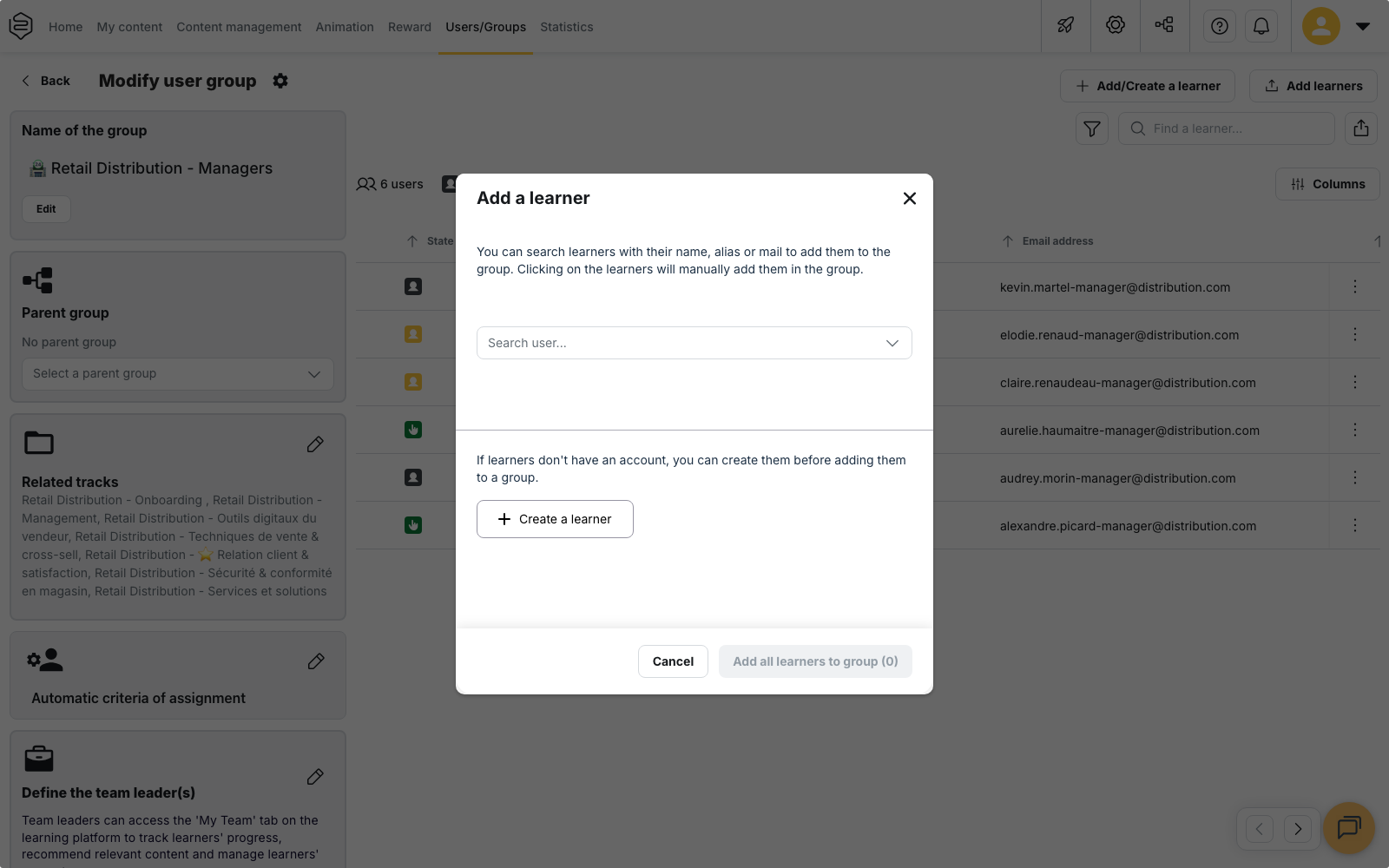
Add/Create a learner opens the Add a learner panel.
To add someone who already has an account:
- Search for the person in the search field, then click the result to keep it. The person is added to your selection.
- Repeat for each person you want to add. You can remove a line from the selection before confirming.
- Click Add learners to group.
To create an account that does not exist yet:
- Click Create a learner at the bottom of the panel. The creation form opens.
- Fill in the fields requested by your configuration. The identifier expected as the main field depends on your account: an email address, an employee identifier, or either of them.
- Click Create and continue. The account is created and added to your selection.
- Confirm with Add learners to group.
⚠️ If the email address you enter already belongs to an account, the panel switches to Add existing learner and a warning appears. The fields become read-only and show the existing account: no duplicate is created, the values you had typed are not applied, and the person is added to the group as they already exist. To modify their data, edit the account from the users list after adding them.
Import a list of learners
Add learners opens the Import a learner panel, which offers two paths.
Copy / paste a list of learners expects one email address per line. If your account identifies learners by identifier, it expects one identifier per line.
Import an excel file accepts an .xls, .xlsx or .csv file with one line per person.
Download template provides a file with the columns your account expects; use it to avoid
a column that will not be recognised.
In both cases, the Validate data to import screen lists the entries before anything is created. A search field lets you find a line in a long list, and you can correct a value directly in the table.
When some of the people already have an account, a message appears on that screen:
- if your configuration allows existing data to be overwritten, tick the line of the people concerned to replace their data with the imported values;
- otherwise, those people are added to the group and their existing data is kept unchanged.
Launch import runs the import.
After the accounts are created
Creating an account from these screens does not send an invitation email. Invitations are sent from the users list: select the people concerned, then Send invitation. That list is also where you check who has already signed in. See Exploring the users list.
Plan your launch communication accordingly: an account created here stays unused until the person receives an invitation or signs in through your authentication system.
Accounts identified by an identifier
The main identifier of an account depends on your configuration: an email address, an employee identifier, or either of them. The paste field and the import file follow that setting, and the import does not convert one into the other.
⚠️ Check what your configuration expects before a bulk import. A list of email addresses imported into an account that identifies learners by employee identifier records those addresses as identifiers. See Authentication and SSO.
Manual additions or dynamic groups
Adding people by hand keeps the group under your control, but every arrival, departure and internal move then requires a manual update. When the population is large or changes often, describe it by criteria in a dynamic group instead: membership then follows the criteria.
Creating an account before the person’s first day lets them prepare their arrival, provided the invitation is sent at the moment you choose.
Removing a learner from a group
From the group’s learner list, select the person, then click Remove from group.
The person loses access to what this group distributed. If they belong to other groups, they keep what those groups distribute. Removing someone from a group does not deactivate their account.
Going further
- Authentication and SSO: what your configuration expects as an identifier, to check before any import.
- HRIS sync and provisioning: automatic account creation from your HRIS.
- Dynamic groups: criteria-based membership instead of manual additions.
- Exploring the users list: checking who has signed in and sending invitations.