Automating activity export to your SFTP
A scheduled job builds a learner activity file and delivers it to your SFTP server at the time you choose. You control when the job runs. The contents of the file, its file format and the delivery address come from a reporting format configured with your support team, and no back-office screen exposes them.
Automating activity export to your SFTP
A scheduled job builds a learner activity file and delivers it to your SFTP server at the time you choose. You control when the job runs. The contents of the file, its file format and the delivery address come from a reporting format configured with your support team, and no back-office screen exposes them.
⚠️ Prerequisites: the HRIS reporting option must be active on your account, and at least one reporting format must be set up with your support team. Without a reporting format, no job line is displayed in the block. The run history shown under the job line depends on an additional option (Configured with your support team).
Scheduling the export
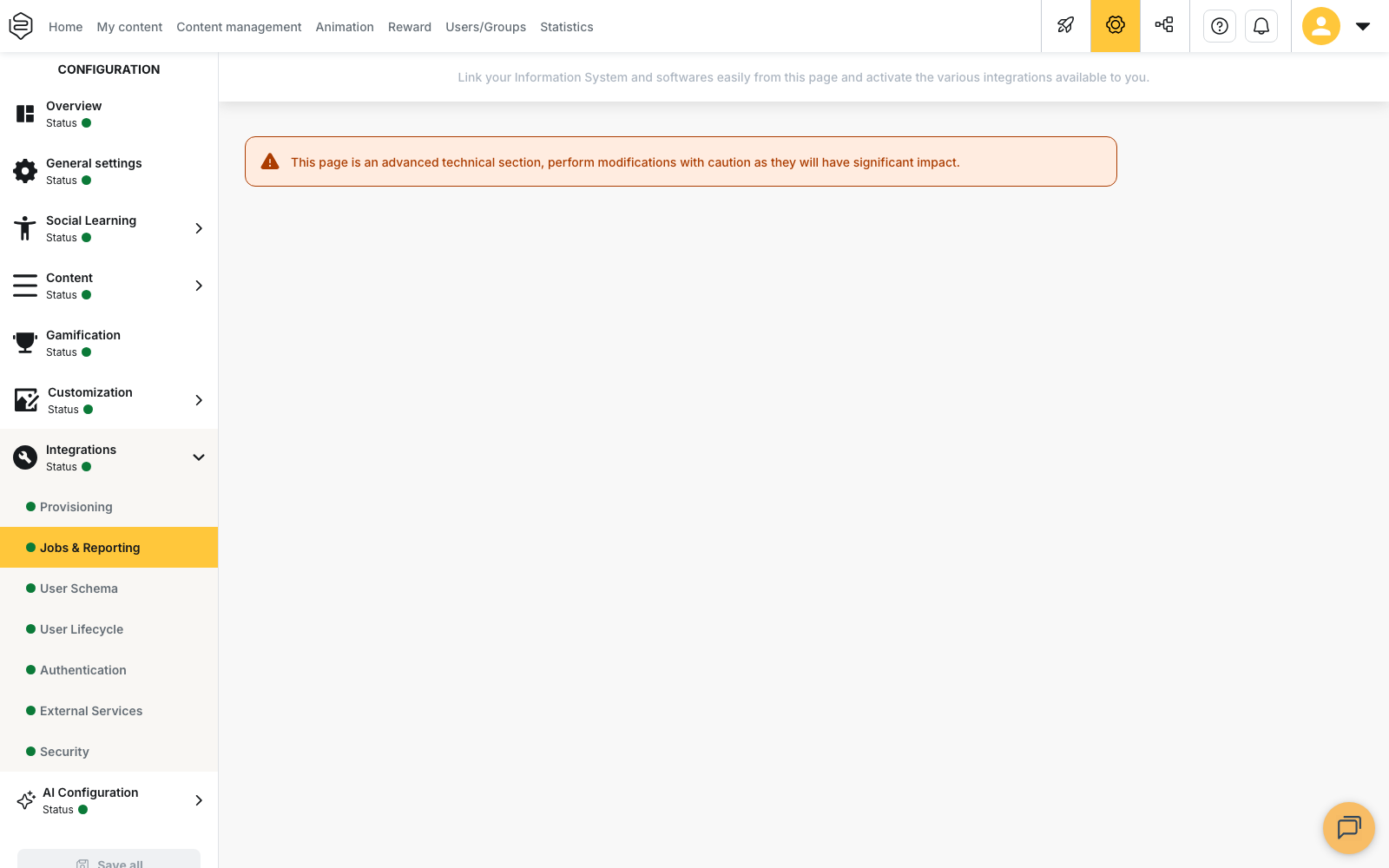
- Open Configuration > Integrations > Jobs & Reporting.
- In the Scheduled jobs block, find the line SFTP reporting of user activity and click Configure. The Schedule your task window opens.
- Choose a recurrence: Never, Weekly, Once or The first day of each month.
- Complete the fields for the recurrence you chose. Weekly asks for Choose which days of the week and an Hour. Once asks for a date and an hour. The monthly option asks only for an hour.
- Confirm to apply the schedule. The window closes and the job line shows the new configuration.
The Scheduled jobs block is not displayed while a department is selected. Switch back to the main account view to configure the job.
There is no daily recurrence. To obtain a delivery every day, select Weekly and tick all seven days.
⚠️ The hour you enter is read in the time zone of your browser, then stored in universal time. A daylight-saving change therefore shifts the delivery by one hour relative to your local time.
What each run produces
One file is produced for each reporting format configured on your account.
Two file formats are possible: an xlsx workbook, or a csv file with or without a header row. This choice belongs to the reporting format and cannot be changed from this screen. A csv file without a header row satisfies rigid imports, but it makes the file impossible to read on its own: only ask for it if the receiving system requires it.
Each run covers the activity recorded since the previous run. Some reporting formats extend the period a few days backwards to catch late entries.
The file name is defined by the reporting format. If your receiving system needs a dated file name, or needs the previous file to be preserved, confirm the naming rule with your support team before the first delivery.
Following the runs
Under the job line, a table lists Run date, Status and the files of each run, with the next run at the top. Click a row to open Advanced information, which shows the name of each of the files generated and a download icon next to it. Reading this table in detail is covered in Monitoring your synchronisations.
ℹ️ Every file is stored at Beedeez before it is delivered to your SFTP server, and it remains downloadable from this history. Delivery is therefore not the only access point to this activity data: the history gives access to named learner data to anyone who can open this screen.
What this job does not do
It sends no email notification. The Notify errors by email option exists only for the HRIS user list synchronisation. A failure of the activity export produces no email and no notification: it is visible only in the run history.
It does not retry a failed run. No automatic replay is triggered after a failure. If a delivery is missing, contact your support team to obtain a catch-up file.
It accepts no file name prefix. The File name prefix field is not displayed for this job, and no additional file describing the contents accompanies the delivery.
Points to check
A failure is only visible in the history. Since nothing is sent to you, plan a regular check of the run table.
An export with no data is reported as successful. If the scope of the reporting format stops matching anything, for example after a reorganisation, the file is still generated and delivered, and the run is reported as successful. Download the file and open it to confirm that it contains data.
No json file is produced. Only xlsx and csv are generated. If your integration expects json, the delivered file will not match and the failure will appear later, in the receiving system.
A failure rarely gives its cause. Advanced information displays Task failure explanation followed by Unknown error in most cases. Open a support ticket with the date and time of the run.
PGP encryption fails silently. Encryption is requested from your support team, who register your public key. The delivered file then carries a .pgp extension. If the key is missing, no file reaches your SFTP server and the run is still reported as successful. Check the first delivery with the file in hand.
The export scope is defined in the reporting format. Adding a department or a content type does not extend the export on its own. Ask your support team to update the reporting format.
Going further
- Ready-made reporting formats: what each format contains.
- On-demand statistics exports: the same data, downloaded when you need it.
- Configured with your support team: what to prepare before requesting the setup.
- Automated SCORM delivery to SFTP: the neighbouring job, for content instead of activity.