Skill levels
A level is a rank between 0 and 5. It is the only unit a skill is measured in, whether the rank comes from a coach, from completed content or from the team leader. The scale exists from the moment the account is opened, with its default names and descriptions, and you can adapt them to the vocabulary of your organisation.
Skill levels
A level is a rank between 0 and 5. It is the only unit a skill is measured in, whether the rank comes from a coach, from completed content or from the team leader. The scale exists from the moment the account is opened, with its default names and descriptions, and you can adapt them to the vocabulary of your organisation.
The scale you start with
The scale contains six levels, from level 0, the lowest, to level 5. The rank is part of the display: in the learner application, a level reads “2 | Competent”.
| Rank | Default name | Default theoretical points |
|---|---|---|
| 0 | Not Acquired | 0 |
| 1 | Novice | 1 |
| 2 | Competent | 3 |
| 3 | Apprentice | 6 |
| 4 | Proficient | 10 |
| 5 | Expert | 15 |
The number of levels cannot be changed. You cannot add a seventh level, delete an existing one or reorder them. Only the name and the description of each level can be edited.
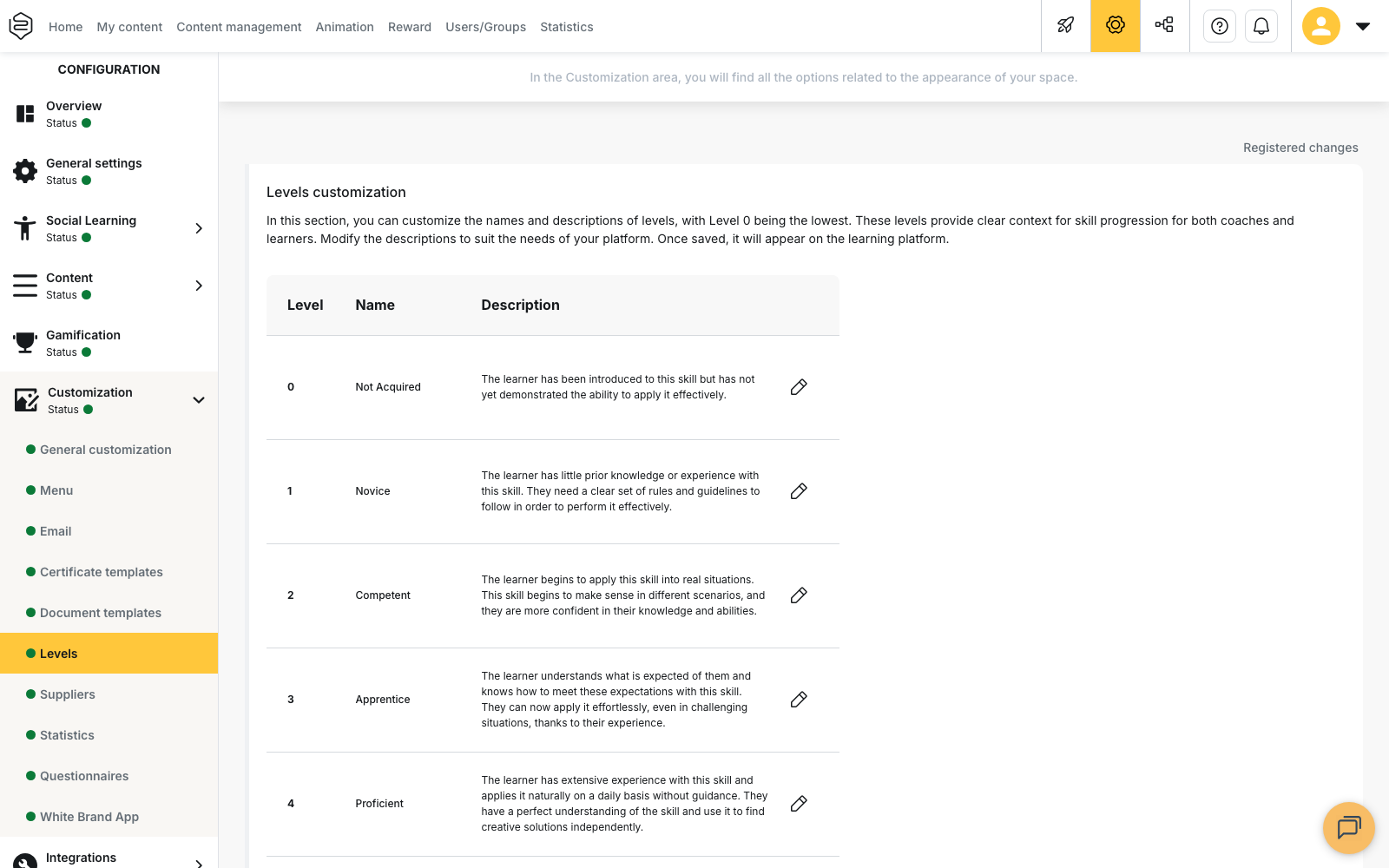
The scale is shared by the whole account: it cannot be set per department or per skill.
Change the name and the description of a level
- Go to Configuration > Customization > Levels.
- In the Levels customization block, find the row of the level you want to change, then click the pencil icon at the end of that row. The Editing panel opens next to the table.
- Fill in the Level name (18 characters maximum) field. A counter inside the field shows how many characters you have used.
- Fill in the Level description (220 characters maximum) field. This description is what the learner reads to understand what the level means.
- Click Confirm. The Cancel button closes the panel without keeping your entry.
- Repeat for each level you want to change, then save the page with Save all, at the bottom of the Configuration menu.
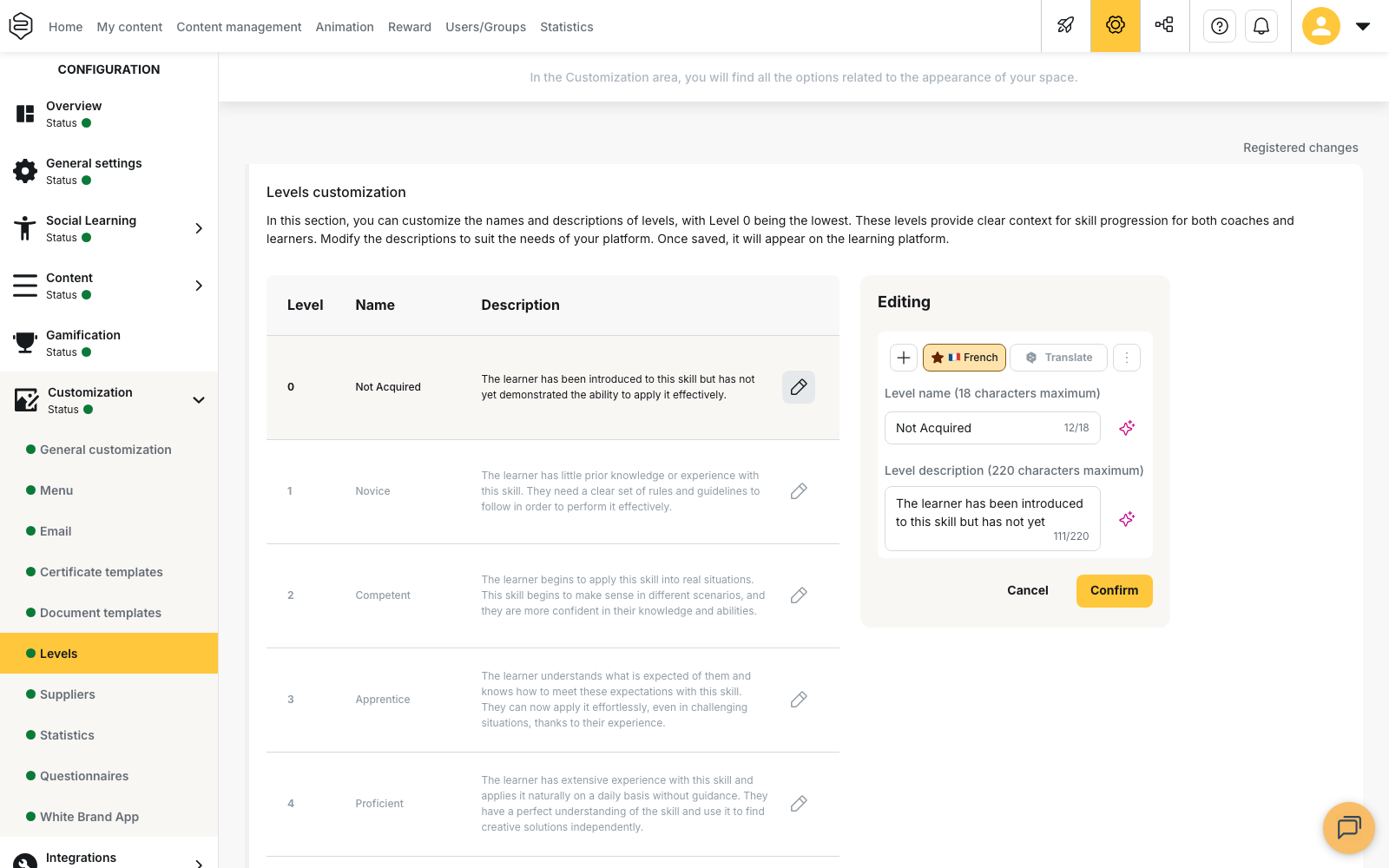
The Editing panel carries a language selector and a Translate button: the name and the description are entered language by language, like the other translatable content of the back-office.
⚠️ Leaving the panel without confirming discards your entry. The Unsaved Changes message warns you before the panel closes.
⚠️ Renaming a level also changes how past assessments are displayed. The new name replaces the old one everywhere, with no record of the previous wording: an assessment recorded six months ago at rank 4 is now displayed with the new name of rank 4. Settle the scale before the first assessed milestone.
The three readings of a level
The same learner can hold three levels on the same skill. These three values are independent of each other and none of them replaces the others.
- Theoretical: derived from the points accumulated on completed content, with no human input.
- Manager: entered by the team leader from the application, My team tab. They choose freely among the six levels. See Handing field assessment to the team leader.
- Coach: assigned by a coach when assessing a milestone. This value, and this value only, is the one skill-based certificates read.
In the learner application, these values appear as three separate rows, Theoretical, Manager and Coach, each labelled with its rank and its name.
How the theoretical level is calculated
Each piece of content attached to a skill is worth a number of points. These points are credited when the learner completes the content, and not before. The last threshold reached determines the rank displayed.
Thresholds are set skill by skill: open the skill concerned, then the Theoretical points tab. Unless you change them, the thresholds applied are the ones in the table above.
⚠️ Changing these thresholds does not recalculate the levels already reached. The new rule only applies to the points credited afterwards.
What levels do not allow
A level assigned by a coach never goes down. The assessment screen refuses to record a rank lower than the one the learner already holds.
Rank 0 is not displayed to the learner. A skill whose three readings are all 0 appears with no level row at all, and a learner who has never been assessed sees the message No skills evaluated. A learner sitting at the bottom of the scale therefore sees exactly the same thing as a learner who was never assessed.
No level is entered from the back-office. There you customise the scale, set the thresholds and read the results; the assessment itself happens in the application.
One thing to watch in the default names
⚠️ The names you start with do not follow the progression you would expect. “Competent” sits at rank 2 and “Apprentice” at rank 3. A coach who trusts the names without looking at the ranks would assess the opposite of what they intend. This is the first reason to rename the scale before launching an assessment programme.
Reading levels in the statistics
The Average level, Average theoretical level and Average manager level columns appear side by side in the skills statistics. Each one only covers the learners who hold the matching value: an assessed milestone for the first, accumulated points for the second, a team leader assessment for the third. These three figures therefore rest on different populations and cannot be compared directly. See Skills and coaches analytics.
Going further
- Building the skills framework: what the scale measures.
- Attaching skills to content: where the points that raise the theoretical level are entered.
- Assessing and following skills: the three routes by which a level changes.
- Handing field assessment to the team leader: the team leader’s screen.
- The skill-based certificate: the only award conditioned by a level.