Interest trainings
When you publish an interest training, learners put their names forward and each application becomes a request you have to approve or reject. This article covers that follow-up: where the applications are listed, who decides on them, and what the learner is told. Creating the interest itself is covered in Training interests.
Interest trainings
When you publish an interest training, learners put their names forward and each application becomes a request you have to approve or reject. This article covers that follow-up: where the applications are listed, who decides on them, and what the learner is told. Creating the interest itself is covered in Training interests.
⚠️ Prerequisites: the training requests feature must be enabled, as described in Training requests. You also need the Create and edit training requests permission. Without that permission, the tab does not appear.
Opening the list of interests
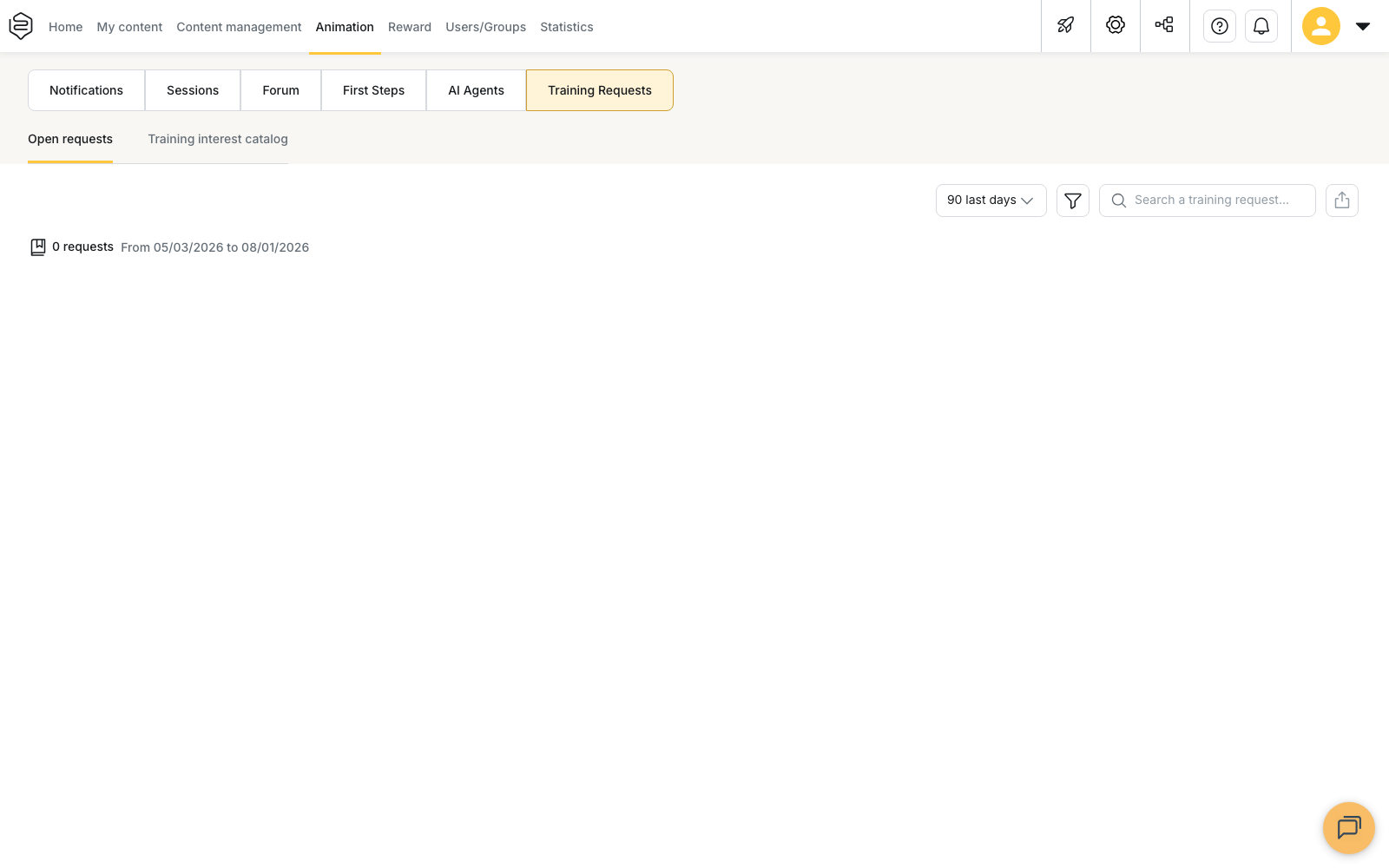
Go to Animation > Training Requests, then open the Training interest catalog sub-tab. The other sub-tab holds open requests, which learners submit on their own initiative.
⚠️ You cannot follow an interest from the capsule list. You can edit the capsule there, but the enrolled learners are not shown.
Reading the list of interests
Interests appear in two groups, Online and Draft, each followed by the number of interests it contains.
The table shows three columns:
- Title gives the name of the interest training.
- Pending requests validation counts the applications still waiting for a decision.
- Enrolled learners counts the applications already approved.
The column selector adds the custom fields defined on your capsules. The search field covers the title and the description.
Two actions are available on this screen. Create a training creates a new interest, which is covered in Training interests. Edit training, in the row menu, opens the capsule editor.
Approving or rejecting an application
Open a row to display the learners who applied. They are split into three groups, Pending, Approved and Rejected.
Each row shows the Learner, their Email address, the date matching the group (Creation date, Acceptance date or Refusal date) and a Validators column. That column shows how far the request has progressed, for example “1 out of 3”. Click it to display one line per required role, each with its status and its date.
To decide on a request:
- Open the interest, then find the learner in the Pending group.
- Click the Validators column to open the list of required roles.
- On the Administrator line, click Approve or Reject.
⚠️ You can only decide on the Administrator line. The Approve and Reject buttons appear there and nowhere else. The Team Leader and Validator lines show Waiting for validation, because those roles decide elsewhere: the team leader in the application, the validator by email. If any single required role rejects the request, the whole request is rejected.
When no validation role is required, there is nothing to decide on this screen. The application is recorded as approved immediately, so Pending stays empty and Enrolled learners increases on its own. The roles required are set in the capsule’s Interest request configuration tab.
Forcing a decision
The row menu also carries Force approve, available on Pending and Rejected requests, and Force reject, available on Pending and Approved requests. Both set the final status directly, without waiting for the roles that have not decided yet. The decision is recorded as an administrator validation, and it replaces the previous administrator validation when there was one.
💡 Tip: keep these two actions for situations that are genuinely blocked, such as a validator who has left the company or a deadline falling due. The roles that were bypassed keep no pending decision to make afterwards, so note elsewhere who decided and why.
Understanding who is notified
The learner is notified when the decision is made, and only then. The notification states whether the request was approved or rejected.
Every required role is notified when the request is created:
- the team leader receives a notification and an email;
- the validator receives an email only, containing a link that lets them decide without logging in;
- the administrator receives a notification in the back-office and an email whose link opens the interest page.
The Require sequential approval option staggers these messages: a role is notified only once the previous one has decided. No reminder is sent afterwards, so a pending request stays pending until somebody handles it.
Limits of this screen
This table has no export, unlike the one used for open requests, and it offers no filter and no period selector. From this screen you can edit an interest, but you cannot delete it.
A learner can withdraw their interest at any time, including after approval. Their request then takes the Cancelled status, which this table does not display. The row leaves the three groups and the counts drop, without anything remaining on screen.
Going further
- Training interests: create an interest, publish it and choose who validates the applications.
- Training requests: enable the feature and set the validation rules shared by both levers.
- Open requests: the other sub-tab, where the learner takes the initiative.
- Assigning roles in a group: appoint the validators without whom requests stay pending.