Training interests
A training interest capsule lets you measure demand for a subject before you build anything. Learners raise their hand, and you get a named list of the people who are interested.
Training interests
A training interest capsule lets you measure demand for a subject before you build anything. Learners raise their hand, and you get a named list of the people who are interested.
It is the third type offered by the Create a training dialog, and the only one that delivers no learning content. For what the three types have in common, see Understanding trainings.
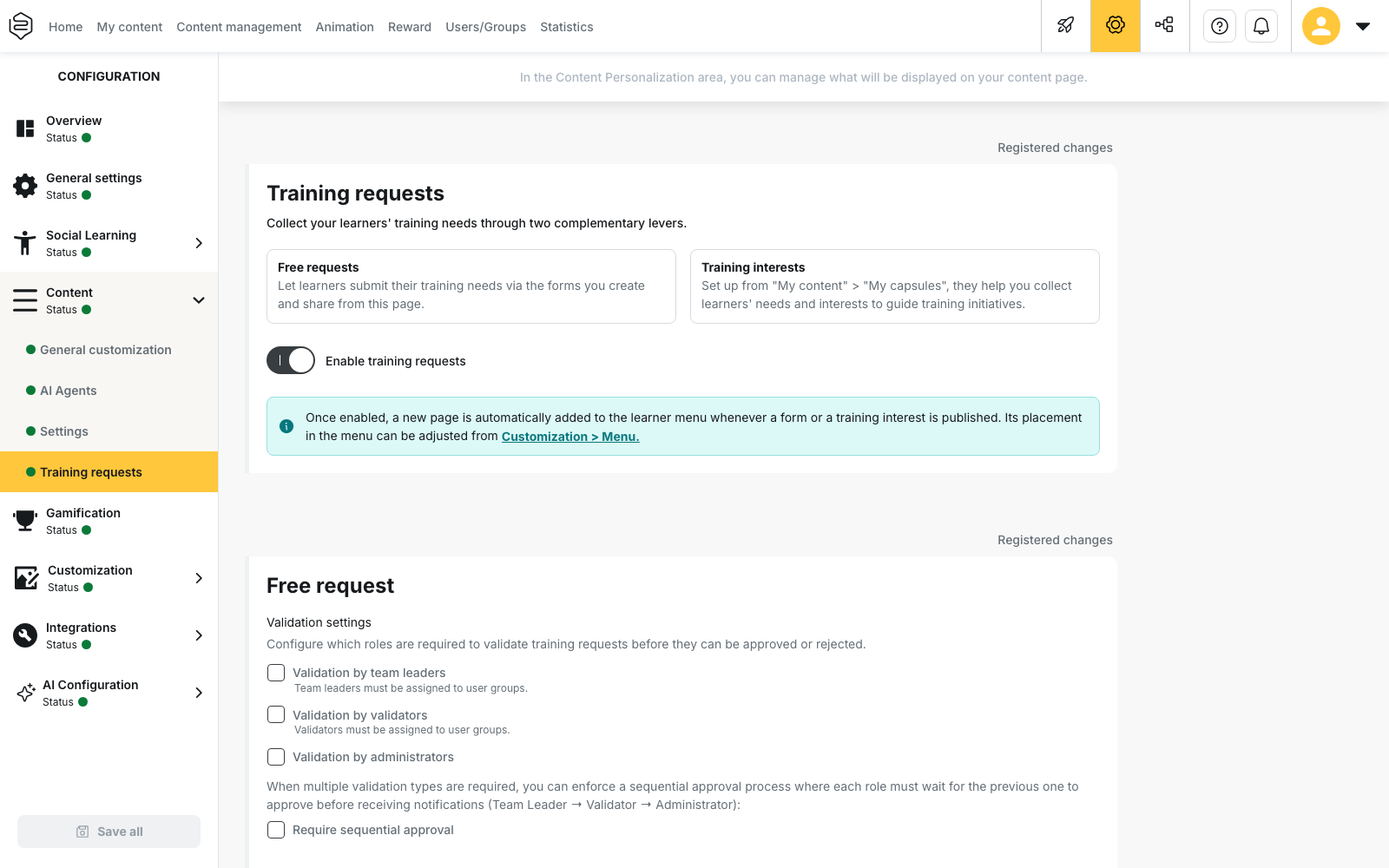
⚠️ Prerequisite: turn on Enable training requests under Configuration > Content > Training requests. While that option is off, a published training interest reaches no learner.
⚠️ Rights needed: creating a training interest follows the rights of an ordinary capsule. To open the list of learners who registered their interest, you need the Create and edit training requests right. Without it, the Manage interests button, which leads from the capsule editor to that list, is not displayed.
What a training interest is
A training interest is a capsule whose registration mode collects an expression of interest instead of delivering content. It carries a title, a description, an image and categories, and no notion.
The learner completes nothing. They state that they want the subject, and you collect a named count. The editor hides the parts that have no purpose here: there is no Evaluation tab and no Resources tab.
Creating a training interest
Two routes lead to a training interest, and they do not offer the same steps.
From My content > My capsules
- Click Create a capsule. The Create a training dialog opens.
- Select Training interest.
- Click Start creation.
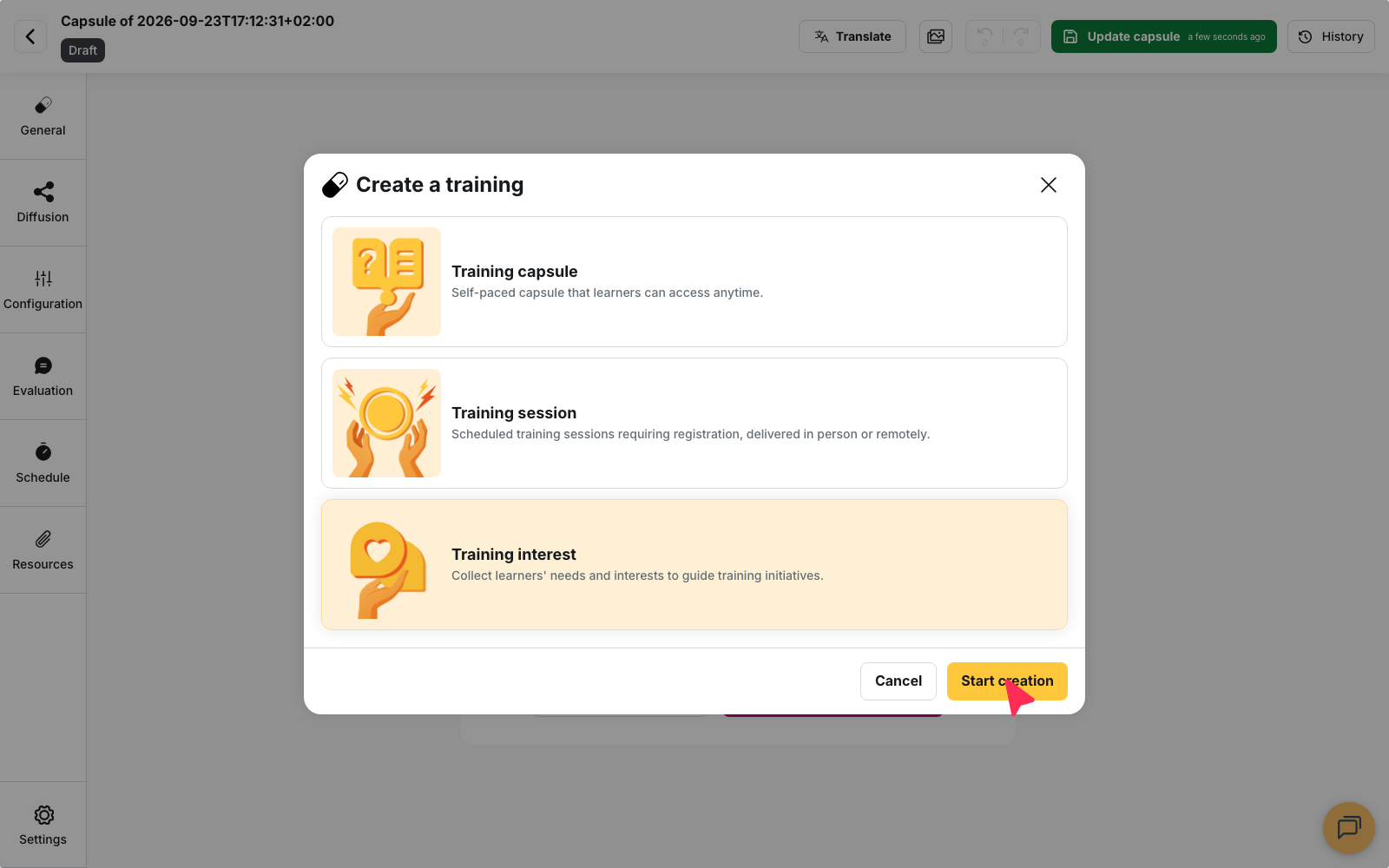
You land directly in the capsule editor and publish when you are ready. The distribution settings are set afterwards, in the editor.
From Animation > Training requests
Click Create a training on the Training interest catalog tab. A three-step flow opens, Information, then Classification, then Diffusion. It ends with publication and returns you to the list. The Diffusion step exists only on this route.
What publication requires
Publishing a training interest requires four elements:
- a title;
- a description;
- at least one category;
- a way for learners to reach it, either a listing set with To be displayed on the catalogue of, or a custom distribution rule carrying groups.
If one of them is missing, publication is refused.
Configuring the interest request
In a training interest, the Configuration tab of the editor becomes Interest request configuration. It holds two settings: who validates the requests, and an optional request form. The Manage interests button at the top of this tab opens the list of learners who registered their interest in this capsule.
Choosing who validates registrations
The Who can validate the registrations? section offers three options:
- Validation by team leaders;
- Validation by validators;
- Validation by administrators.
Require sequential approval enforces the order team leader, then validator, then administrator.
If you tick no option, the request is accepted as soon as the learner registers their interest, and no one is asked to approve it. That setting suits a simple count of raised hands. If you require several roles, a refusal by any one of them rejects the whole request.
Adding a request form
The Request form section lets you ask learners for details when they register their interest. The answers travel with the request to every validator.
- Open Select a form and choose an existing form, or click Create a form.
- To change the selected form, click Edit this form. To detach it, click Remove the form.
Manage all request forms opens the list of every request form of the platform.
When a form is attached, it is mandatory. Clicking Interested, count me in opens the form, and nothing is recorded until the learner submits it: a learner who closes the form without submitting it has not registered their interest. Without a form, the request is created as soon as the learner clicks the button.
What the learner sees
On the training interest page, the learner first sees an Interested, count me in button.
When no validation is required, the button becomes Withdraw interest as soon as the learner registers their interest.
When validation is required, the page shows the state of the request:
- Request under validation while the approval is pending;
- Request accepted once the request is approved, next to a Withdraw interest button;
- Request denied if the request is rejected, or as soon as one of the required roles refuses it.
A learner can withdraw their interest even after their request has been accepted. They then see the confirmation message Your interest has been withdrawn. and can register their interest again afterwards.
When validation is required, the learner receives a notification once the request is approved or rejected. When no validation is required, the request is accepted immediately and the learner receives no acceptance notification.
Where learners find a training interest
Two entry points lead to the training interest page:
- the Training interest catalog widget on the home screen;
- the training requests page in the learner menu.
The widget is not displayed when the learner has no training interest available. This is not a failure of the configuration. The training requests page is added to the learner menu only once something has been published: enabling the feature is not enough, a form or a training interest must be online. You can change its position in the menu under Customization > Menu.
Limits to know before publishing
A learner using an application older than version 12.53 does not receive training interests. The server removes them from the content sent to that learner, and updating the application is the only way to display them.
A training interest does not turn itself into a training. Once you have the count, you still create the capsule, the session or the booking with an outside provider yourself. There is no registration threshold, no seat count and no closing date: a training interest keeps collecting for as long as it is online.
Going further
- Understanding trainings: why a session and an interest are both capsules, and what the type actually changes.
- Interest trainings: read the list of registered learners and decide what follows.
- Training requests: enable the feature and set who validates.
- The home screen and the menu: turn the widget on and place the menu entry.