Dynamic groups: automatic assignment criteria
Rights required: Allowed to update the diffusion group on the group in question, or Allowed to update diffusion groups across all groups.
Dynamic groups: automatic assignment criteria
Rights required: Allowed to update the diffusion group on the group in question, or Allowed to update diffusion groups across all groups.
A dynamic group fills itself from criteria: you describe who belongs in it, and the platform automatically adds the people who match. To decide between a static and a dynamic group, see Understanding groups.
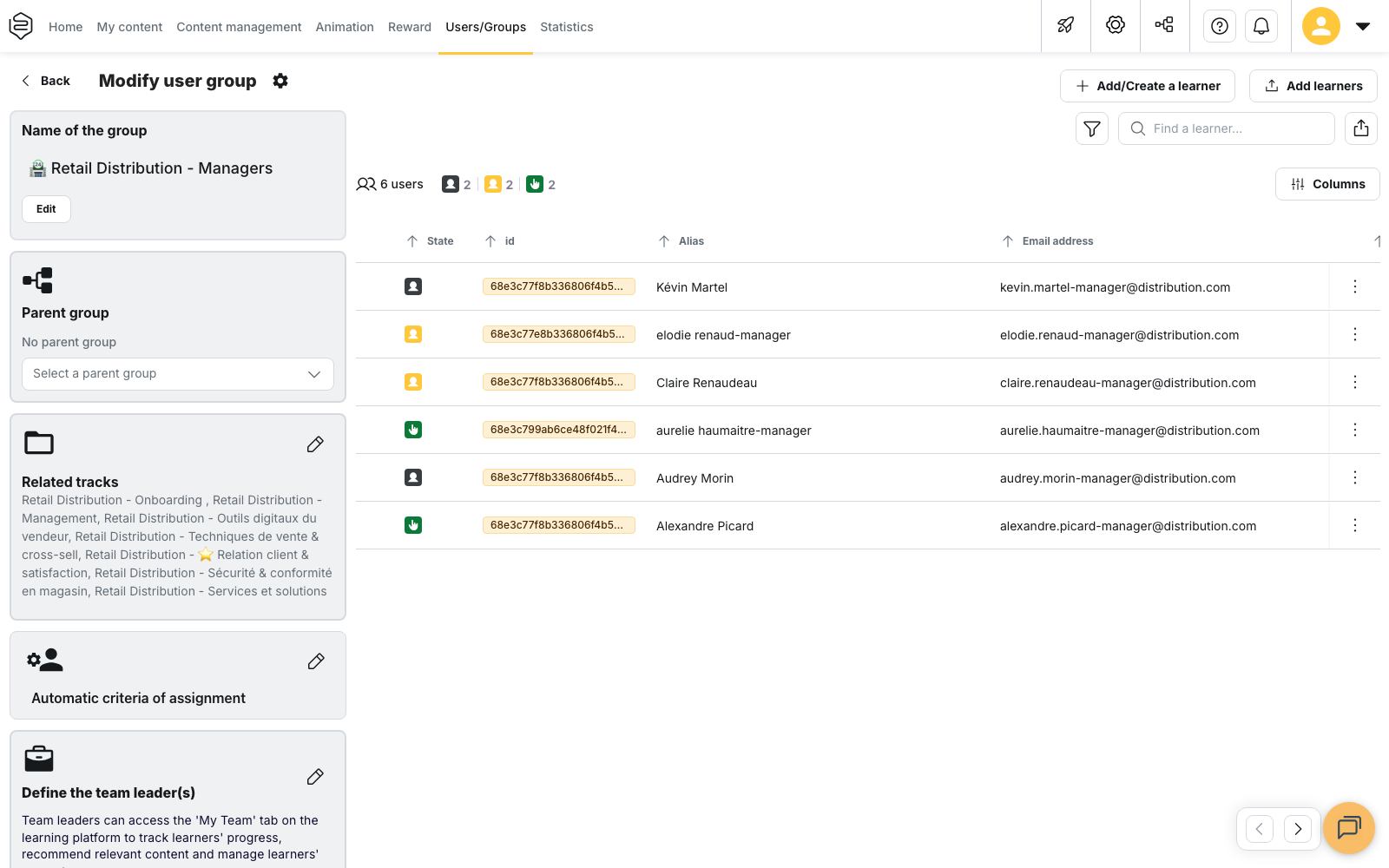
Opening a group’s criteria
- Open Users/Groups, then click the group’s name. The Modify user group page opens.
- In the Automatic criteria of assignment block, click the pencil button. The Automatic criteria of assignment drawer opens.
Once the criteria are saved, this block shows a summary of them.
Building the criteria
A condition applies to one of your users’ fields: a field from your user schema, filled by hand or by your HRIS, or one of the three fields the platform provides: Account creation date, First connection (app) and Onboarding date.
The Onboarding date field only holds the date you set for each user. If you haven’t set one, the field stays empty: the platform does not replace it with another date, such as the account creation date. These users therefore match no date condition on this field. To target them, use the No value operator.
To set this date, select the users in the user list, then click Set onboarding date.
In the drawer:
- Add a condition adds a row made of a field, an operator and a value;
- Add a group of conditions creates a subset of conditions with its own setting.
As soon as a level holds at least two elements, the Logic between conditions selector appears. Choose All conditions (AND) or Any condition (OR). At the top level, elements combine with OR by default. Inside a new group of conditions, they combine with AND by default.
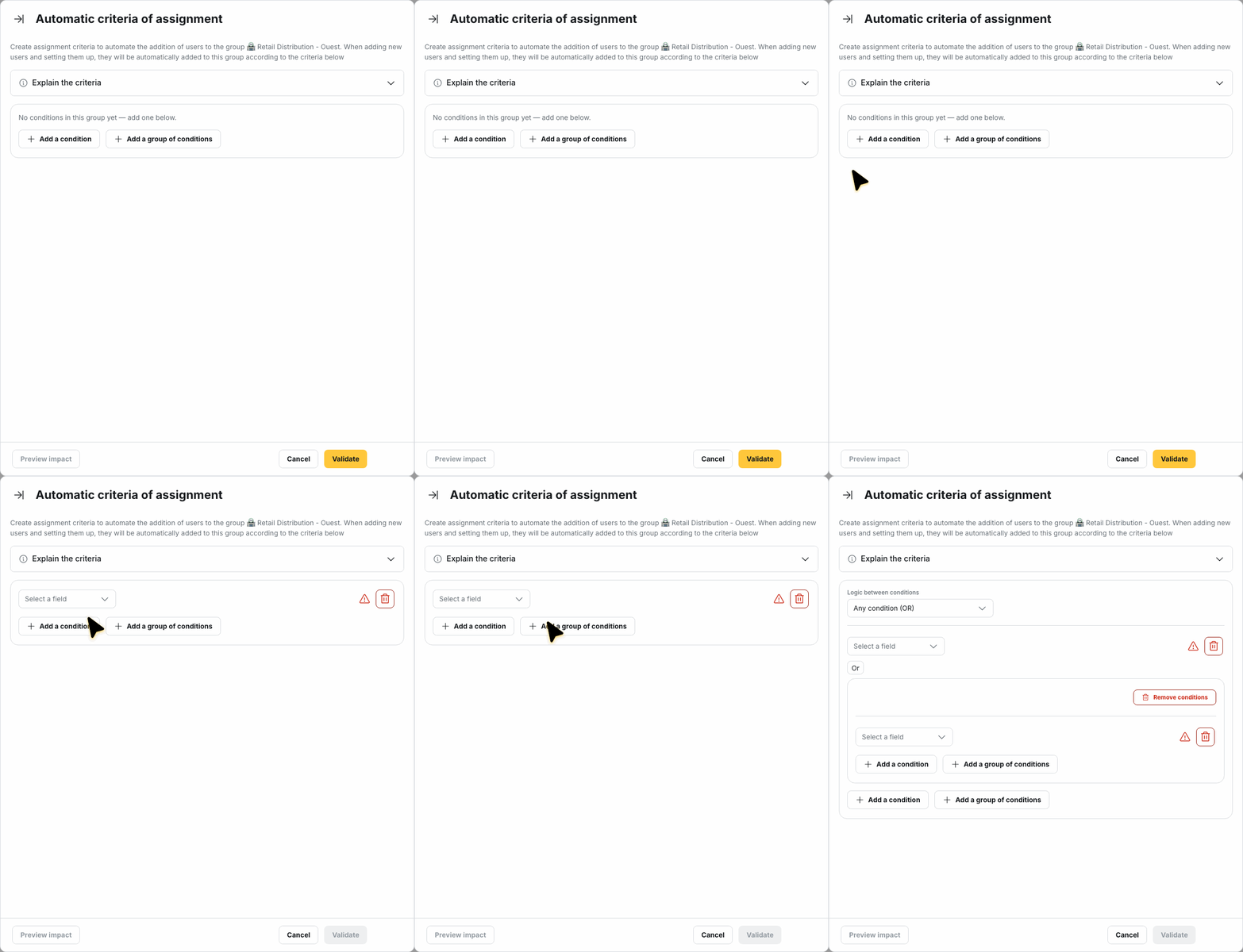
Example: to gather “permanent staff in Lyon, plus everyone in Bordeaux”, create two groups of conditions combined with OR:
- the first, set to All conditions (AND): Site Equal to Lyon and Status Equal to permanent;
- the second: Site Equal to Bordeaux.
The operators
For a text field: Equal to, Different from, Starts with, Does not start with, Ends with, Does not end with, Includes, Does not include, Any value and No value.
For a number field: Equal to, Different from, Greater than, Greater than or equal to, Lower than, Lower than or equal to, Between, Any value and No value.
For a date field: Within the last, Older than, On, Not on, On or after, On or before, Between, Any value and No value. Within the last and Older than are expressed in days, weeks, months or years, counted back from the day the criteria are evaluated.
For a yes/no field: Equal to, Any value and No value.
How values are compared
- Equal to on a text field accepts several values: matching one of them is enough.
- Different from with several values keeps only the users who match none of them.
- Text comparison ignores case: Lyon, lyon and LYON are the same value.
- Between includes the users whose value falls on either bound.
- Different from, Does not start with, Does not end with and Does not include also keep the users whose field is empty. For example, Site Different from Lyon includes users with no site. To exclude them, add the condition Site Any value and set the level to All conditions (AND).
- Within the last includes today and excludes future dates. A user whose date is empty never matches Within the last or Older than.
💡 Tip: before writing a criterion, check the values actually present in the field from the user list. A value that differs from what you expect gives an empty group, with no error message.
Checking before saving
- Expand Explain the criteria to read the rule restated in plain language.
- Click Preview impact to open Criteria impact: the window lists the Added and Removed users, with a Manual member column.
Nothing is applied until you click Validate in the drawer. Cancel closes the drawer without saving anything.
⚠️ If you delete all the conditions and then click Validate, the group’s criteria are cleared: no user is added to it automatically any more.
When membership updates
- When the criteria are saved: the group recompute runs in the background. Meanwhile the group shows The group is being recomputed with a progress percentage. Wait for it to finish before judging the group’s composition.
- When a user’s data changes: their profile is edited, or the HRIS synchronisation runs. A user created by the synchronisation is therefore assigned at import time, without waiting for their first sign-in.
- When a user signs in to the app: their first sign-in evaluates the criteria, so a criterion on First connection (app) applies from that sign-in. Accounts that sign in through SSO or a directory are evaluated again at every sign-in. Later sign-ins with email and password do not trigger an update on their own.
- Every night, for relative date criteria: a group that uses Within the last or Older than changes composition as time passes, even when no data changes. These groups are recomputed automatically once a day, around 4 a.m. (Paris time).
What criteria do not do
Criteria never remove a member added by hand, by identifier or by email: they only manage automatic assignments. Adding criteria to a group already filled manually therefore takes nobody out. The preview flags these users in the Manual member column.
Going further
- Understanding groups: choosing between a static and a dynamic group
- Creating and organising user groups: creating the group before giving it criteria
- HRIS synchronisation: feeding the fields your criteria rely on automatically
- The user list: checking the values actually present in a field