Importing a capsule
Required permissions: content editing rights.
Import a capsule
Required permissions: content editing rights.
Importing lets you bring a capsule into Beedeez that was exported from another Beedeez space. You can use it, for example, to move a capsule from one department to another or transfer it to another account.
⚠️ Key point: importing only works with the
.zipfile generated when exporting a capsule.
Export the capsule to import
Before you start, you need the capsule’s export file.
- Open the relevant capsule in the editor.
- In Settings, click Download capsule.
- Keep the downloaded file. Its name starts with beedeez-capsule-, followed by an identifier.
⚠️ Do not unzip the file. The import requires the .zip archive exactly as it was downloaded. If you unzip and then recompress it, the file will not be recognized.
Import the file / capsule
- Go to My content > My capsules.
- Click Import above the capsule list.
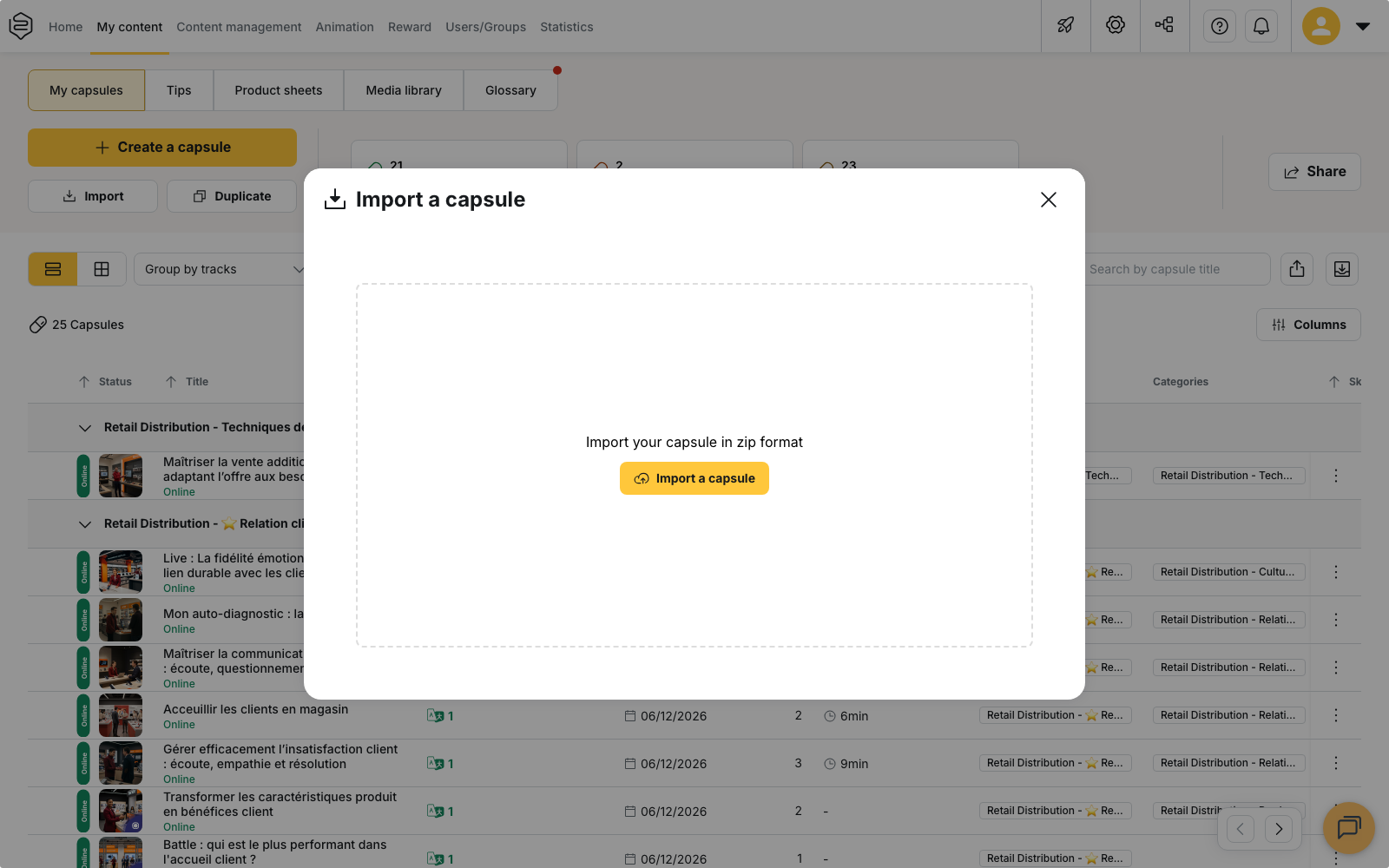
- In the Import a capsule window, click Import a capsule.
- Select the
.zipfile generated during the export. - Wait for the Capsule imported successfully message.
The file can contain one or several capsules.
- If it contains one capsule, Beedeez opens the imported capsule directly.
- If it contains several capsules, they are all created and you remain on the capsule list.
The file structure inside the archive does not matter, and there is no maximum upload size.
Import or duplicate a capsule?
The Duplicate button serves a different purpose: it lets you copy a capsule that already exists in your Beedeez space.
See Reuse content and work together.
Which files can be imported?
Capsule import does not convert files. It only works with a .zip archive exported from a Beedeez capsule.
The following formats therefore cannot be imported from this screen:
- SCORM: add the module directly to a capsule notion. See Import a SCORM module into a capsule.
- PDF: use the PDF-to-capsule generation feature. See Generate a capsule from a PDF.
- Presentation, text document and xAPI package: these formats are not supported by capsule import.
What does the imported capsule contain?
The export includes the capsule’s content, including:
- notions and their content
- quizzes
- existing translations
- media used in the capsule
⚠️ Media are not added to your library. Images and videos remain available in the imported capsule, but you cannot reuse them in other content from your media library.
Some information linked to the original capsule is not transferred:
- statistics
- categories
- the learning paths and groups the capsule was associated with
- declared authors
- creation, last modification and publication dates
- version history
- the sharing link and QR code
The imported capsule is therefore treated as a new capsule, with its own history and a new sharing code.
What is the capsule’s status after import?
The imported capsule is created in your account. You become its creator, and it is associated with your current department.
By default, it is created with the status Awaiting publication.
If capsule validation is enabled on your account, it is created with the status In validation and follows the usual validation workflow. See Have a capsule validated before publication.
Because the capsule is not associated with any learning path when it is imported, it cannot yet be made Online. To distribute it, you must first associate it with a learning path.
See Associate a capsule with learning paths.
What happens if I import the same capsule more than once?
⚠️ Import never updates an existing capsule.
If you reimport a file after correcting the original capsule, Beedeez creates a new capsule instead of modifying the one that was already imported. The two capsules can therefore have the same title.
To modify an already imported capsule, make the changes directly in Beedeez.
If you want to start again from the original file, delete the capsule created by the first import, then import the corrected file again.
What should I do if the file is rejected?
The message displayed helps identify the source of the problem.
“The file is not a valid zip file or does not contain a valid capsule”
The file is recognized as an archive, but it does not contain a valid Beedeez capsule export. This is also the message displayed when a SCORM module is imported from this screen.
“An error occurred while uploading the file”
The file upload failed, or the selected file is not a valid ZIP archive.
In both cases, use the file obtained directly from the capsule export again, without modifying or unzipping it.
Further reading
- Reuse content and work together: discover other ways to reuse existing content
- Import a SCORM module into a capsule: add a SCORM module to a capsule
- Generate a capsule from a PDF: create a capsule from a PDF document
- Associate a capsule with learning paths: associate the imported capsule with a learning path before distributing it