Procedures
Prerequisite: the Tips feature must be enabled on your account. Without this feature, the Tips tab does not appear under My content.
Procedures
Prerequisite: the Tips feature must be enabled on your account. Without this feature, the Tips tab does not appear under My content.
Required permission: you need the Create and edit tips permission under Permissions > Editing permissions.
A procedure allows learners to quickly find a sequence of instructions while performing a task: a series of steps to follow in a specific order, directly from the application.
Here, a procedure is created as a tip. You can then choose the format that best suits your content.
See Understanding custom permissions / Tips and their variants.
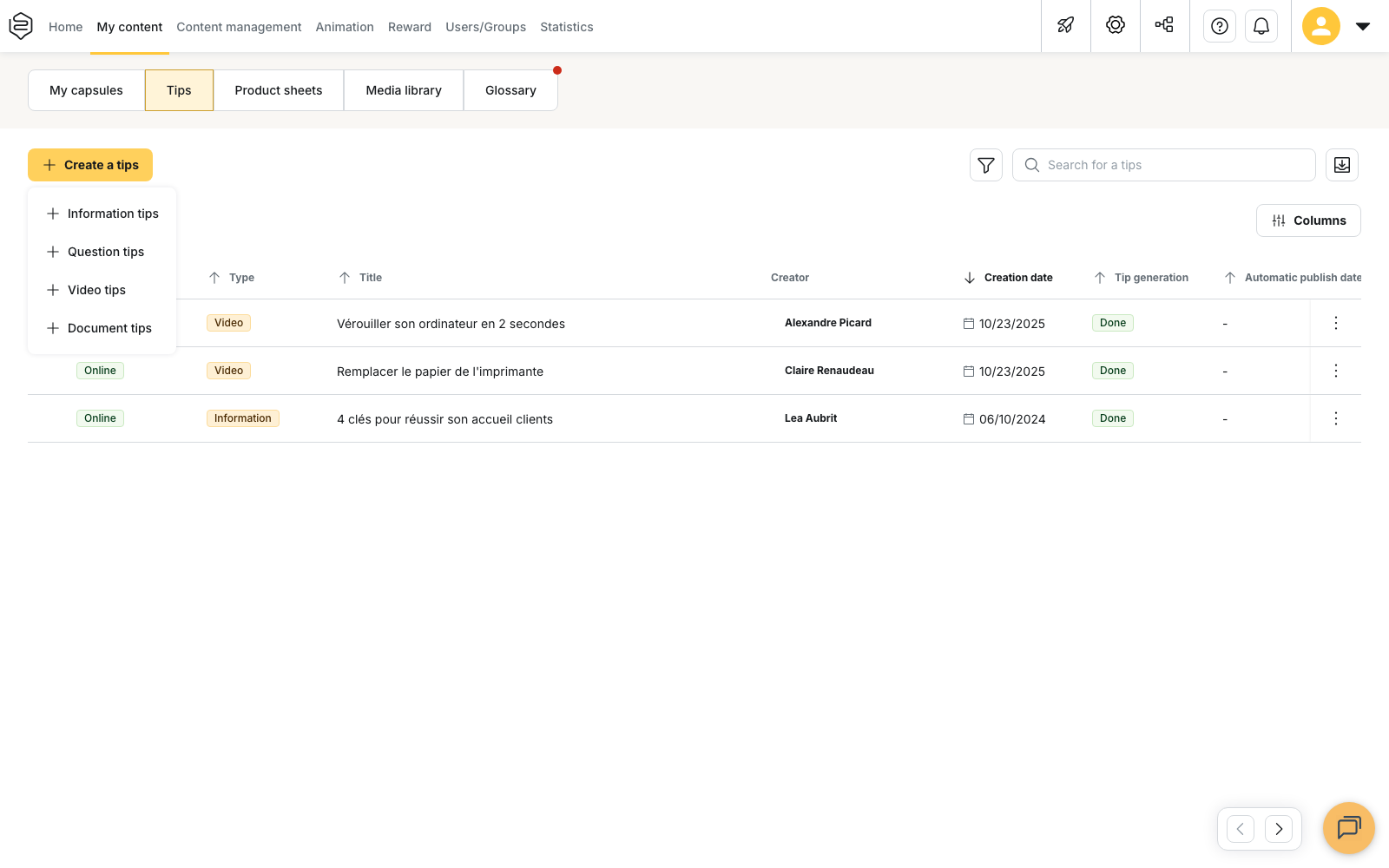
There is no “procedure” type
When you click Create a tip, four formats are available:
- Information tip
- Question tip
- Video tip
- Document tip
A procedure can therefore be:
- an Information tip, when you write the steps directly in Beedeez
- a Document tip, when the procedure already exists as a PDF
⚠️ “Procedure” describes how the content is used, not a tip type. To help learners find your procedure, use its title and categories to clearly describe its purpose.
⚠️ The type is selected when the tip is created and cannot be changed afterwards. The editor does not provide a selector to change a tip’s type. If you want to switch from an Information tip to a Document tip, for example, you must create a new tip.
What the tip type changes
The selected type mainly determines three things:
The content you can add
Each type has its own format:
- Information tip: a cover image
- Document tip: a PDF document
- Video tip: a video and its text overlays
- Question tip: no Media section
Publication from the application
The settings that allow learners to publish tips themselves are configured for each type under Social Learning.
You can determine, for example, which tip types learners can publish and which ones require approval.
⚠️ These rules only apply to tips created by learners from the application. A tip created from the administration platform does not go through this approval workflow: it becomes available once it has been published.
See The feed.
Display in the feed
Each tip type has its own widget in the feed.
For a procedure to appear in the feed, the widget corresponding to its type must therefore be active.
Everything else works independently of the tip type: categories, associated skills, department, scheduling rules and statistics work in the same way.
Write the procedure steps
For a procedure written directly in Beedeez, the Information tip format is generally the most suitable.
In the Content section, use the rich-text editor to write the different steps.
The numbered list is particularly suitable for procedures because it allows you to present the actions in the correct order.
⚠️ Beedeez does not have a separate “step” object. Steps are simply written in the content, particularly using a numbered list.
The Question section at the bottom of the editor allows you to add a question at the end of the procedure.
You can choose between Single choice, Multiple choice and True/False.
This question is optional.
It is available for the different tip types, except for the Question tip, which is already based on this format.
Complete the distribution settings
In the Distribution section, you can specify:
- Categories, to classify the procedure
- Communities with access to this tip, to restrict access to certain communities
- Associated skills, with their number of points
- Department, to which the tip is linked
⚠️ Restricting access to a community is not enough to automatically make the procedure visible to its members.
The community must also allow tips to be published in its advanced settings.
Without this permission, a procedure restricted to a community may not appear for its members.
Save the procedure
The Title and Content fields are required.
As long as either field is empty, the Save button remains disabled.
Translate a procedure
If your procedure needs to be available in several languages, click Translate at the top of the editor.
The translation panel allows you to add the different language versions of the tip.
In the tips list, the Translations column shows the languages that are already available.
Where learners can find the procedure
A procedure should be easy to find when learners need it.
There are several ways to access it in the application:
- the Tips screen, with the Catalogue and Direct tabs
- search
- the Tips widget on the home page
In Catalogue, tips are organized by category, among other things.
The Tips widget on the home page displays the most recent tips: up to six tips on a phone and nine on a larger screen.
💡 Tip: choose categories that match the situations in which learners are likely to search for the procedure.
The title is also important for search. Use the terms people actually use in the field rather than an internal title or procedure number.
See Categories.
What procedures cannot do
No images in the content
The Content section does not allow you to insert an image directly into the text.
An Information tip can only have a Cover image.
⚠️ If your procedure requires an image for each step, the tip format may not be suitable. In this case, use a Document tip if your procedure exists as a PDF, or create a capsule.
See Create a capsule from scratch.
No proof of completion
A tip is not a tracked learning activity.
It therefore cannot be used to check whether a learner has read the procedure or actually applied it.
⚠️ If you need to prove that a learner has followed or validated a procedure, use a capsule included in a learning path with completion tracking instead.
No version history
Tips do not have version history.
When you edit a procedure and save it, the new content replaces the content that was previously online.
You therefore cannot retrieve an older version from the editor.
Publish and unpublish a procedure
A procedure created from the administration platform must be published before it becomes available to learners.
From the Content > Tips list, click Publish tip on the relevant row.
Once published, it becomes Online.
⚠️ Unpublishing a procedure gives it the “Rejected” status.
This status does not necessarily mean that the procedure was rejected during an approval process. It is also used when a tip that was already published is unpublished, either manually or automatically.
To put the procedure back online, simply use Publish tip.
A tip that has never been published does not display any status in the list.