The feed
The feed is the activity stream of the learner app. It does not fill up on its own: every card comes from a widget you add. You configure the feed in Configuration > Social Learning > Feed area, where you choose who sees it, what appears in it and who can post in it.
The feed
The feed is the activity stream of the learner app. It does not fill up on its own: every card comes from a widget you add. You configure the feed in Configuration > Social Learning > Feed area, where you choose who sees it, what appears in it and who can post in it.
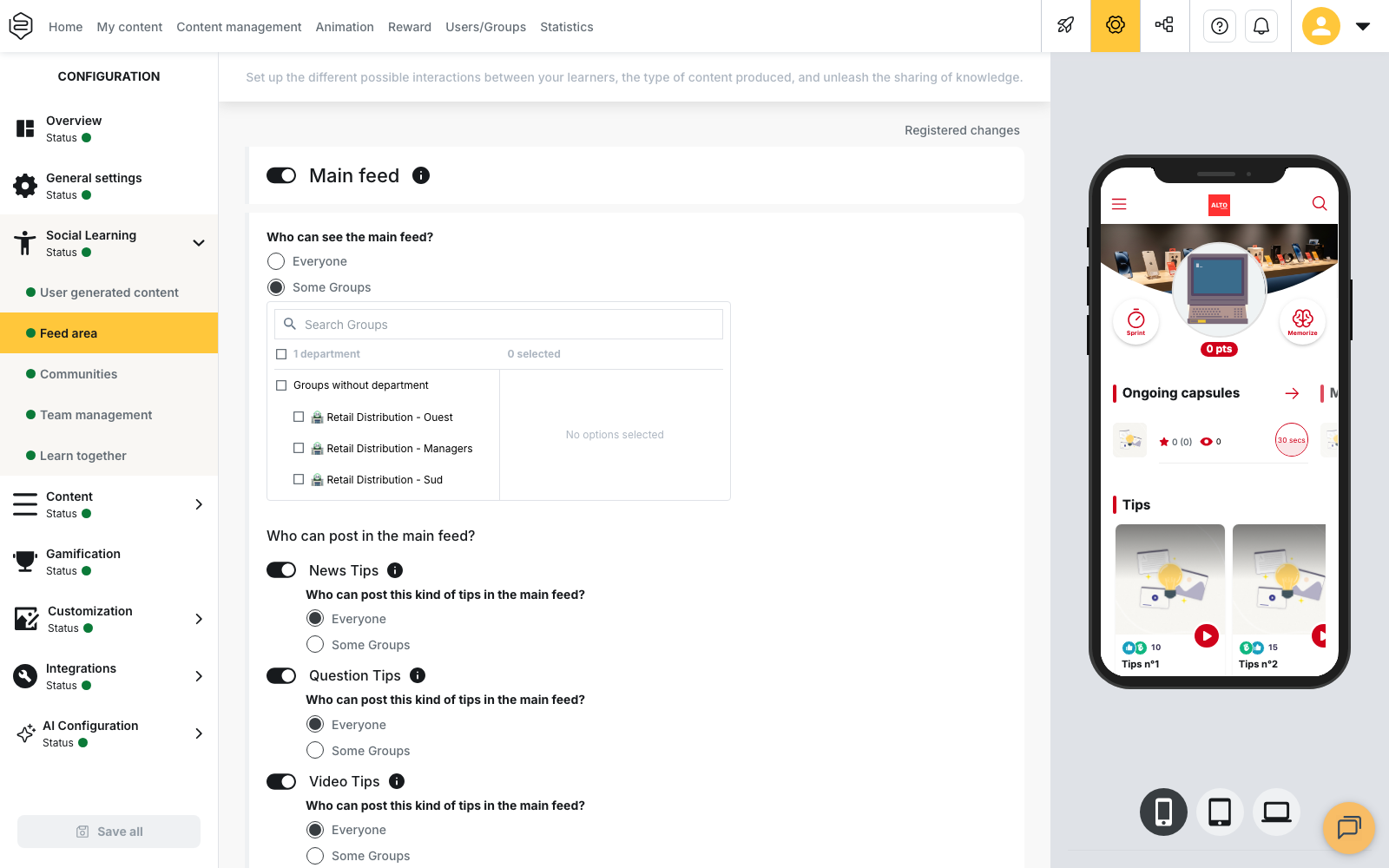
Turning the main feed on
The Main feed button commands the rest of the page: when it is off, the settings below it are not displayed.
Under Who can see the main feed?, select Everyone, Some Groups or Nobody. If you select Some Groups, a search list appears so that you can designate the groups concerned. A learner who is not concerned keeps only the feed of their communities.
Choosing what appears in the feed
Click Add a widget, then choose the widget in the Select a widget list.
These widgets are triggered by an action:
- New capsule: a capsule becomes accessible to the learner.
- New badge: the learner earns a badge.
- Share capsule: a capsule is shared.
- Share tips: a tips is shared.
These widgets are triggered at regular intervals:
- User ranking
- Launch a memorization
For these two widgets, fill in the Frequency and the Time. Both fields are required. The frequency is daily, weekly or monthly. With the weekly frequency, also select the days of the week concerned.
⚠️ The time is converted from your own timezone, then applied as is to every learner. A team located in another timezone therefore receives the card at a local time that differs from the one you entered.
Four widgets correspond to tips: Video tips, News tips, Question tips and Document tips. They appear in the widget list, but they cannot be edited from that list: their display depends on the posting settings described below. The Video tips widget only appears if the Tips option is enabled on your account.
To take a widget off the list, use Delete the widget.
The feed is read from the most recent card to the oldest one. The pinned tips is the exception and stays at the top.
Allowing learners to post tips
For each type of tips, the question Who can post this kind of tips in the main feed? determines the groups allowed to publish.
A type of tips only appears here if it is enabled on the User generated content page. Both settings apply: the User generated content page defines the groups allowed to create tips and the moderation that applies, while the Feed area page defines who can publish them in the main feed. For the detail of each type, see Tips and their variants.
Allowing a tips to be posted and displaying it in the feed are two separate settings: without the matching widget, a published tips does not surface in the feed.
Pinning a tips
The Define the animators of the main feed block designates the learners who will hold the right to pin a tips in the main feed. They then see a Pin button under the tips in their feed.
Only one tips can be pinned at a time: pinning a new tips replaces the previous one, and a message states it before you confirm. Only tips can be pinned; capsules and badges cannot.
You can also appoint animators for a community from the group’s Roles tab. See Assigning roles in a group.
Giving a group its own feed
The Communities page carries the general permission. Once it is enabled, a group becomes a community through its advanced option Sharing community. It then has its own feed, its own Feed widgets tab and its own animators.
The Share capsule and Share tips widgets are not offered in the feed of a community.
Limits to keep in mind
Feed widgets are configured for the whole account: the widget block disappears as soon as the configuration is filtered on a department.
No feed widget sends an automatic notification. To warn learners, use notifications: see Notifications.
The order of the cards cannot be configured. When a tips or a capsule is deleted, the matching card disappears from the feed of the learners who had access to it.
Going further
- Social learning: the other Social Learning pages.
- Common problems: empty feed, invisible widget, tips that never surfaces.
- Tips and their variants: each of the types you allow here.
- Assigning roles in a group: the roles that pin elsewhere.