MFA, password policy and application security
Two neighbouring entries carry the sign-in and device protections of your account. Configuration > Integrations > Authentication holds MFA and the Security level, Configuration > Integrations > Security holds the mobile application protections. Legal documents and GDPR are covered in Setting up security, GDPR and legal information.
MFA, password policy and application security
Two neighbouring entries carry the sign-in and device protections of your account. Configuration > Integrations > Authentication holds MFA and the Security level, Configuration > Integrations > Security holds the mobile application protections. Legal documents and GDPR are covered in Setting up security, GDPR and legal information.
⚠️ Rights needed: you must reach the Configuration section of the back office. See Assigning rights.
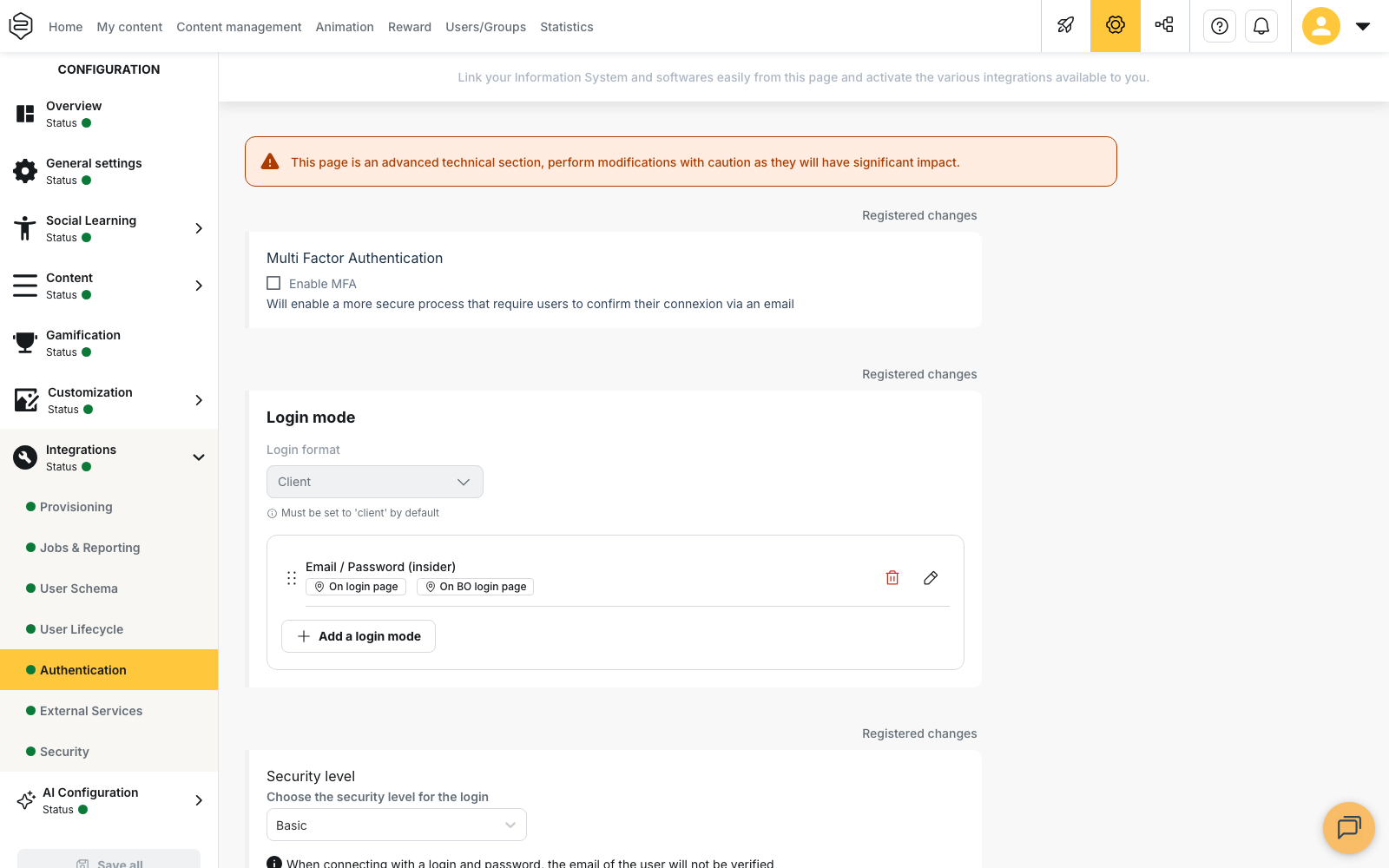
Turning MFA on
- Open Configuration > Integrations > Authentication.
- Tick Enable MFA in the first block, then save.
The block appears only when your account allows sign-in with an email address and a password. It does not appear on an account that only signs people in through SSO.
Once MFA is on, a person who signs in with a password sees a Connection screen telling them that an email has been sent to their address. They open that email, confirm the connection, then return to the application and select I have validated my connection. If the email does not arrive, the screen offers Resend the email.
Each confirmation link is valid for fifteen minutes. Asking for a new link invalidates the previous one, so only the most recent email can be used.
⚠️ MFA assumes every account carries an email address. Where learners are identified by a staff number with no address recorded, the confirmation cannot complete. Check your address coverage before ticking the box. For populations with no work mailbox, SSO covers the same need through your identity provider.
Choosing the security level
The Security level block sits on the same page, under Choose the security level for the login. Select one of the three options, then save.
- Basic: when signing in with a login and a password, the user’s email address is not verified.
- Secured: protected content cannot be opened until the user has verified that the email address is theirs.
- Maximal security: the user cannot access the application until the email address is verified.
The back office displays the effect of the selected level next to the list, so you can check your choice before saving.
💡 Tip: if your requirement is that nobody reaches the application without a verified address, select Maximal security. Secured only restricts protected content.
The password policy
A password must reach a minimum length and combine several character types among uppercase letters, lowercase letters, digits and special characters. When no specific policy is set on the account, eight characters and two different character types apply.
The values applied to your account are displayed while the person chooses their password, in the form ”… chars min.”. These values are not editable from the back office: they are set with Beedeez, and changed through your usual contact.
Periodic rotation, a ban on reusing previous passwords and central revocation are not part of this policy. Handle them in your corporate directory, with SSO sign-in.
Mobile application protections
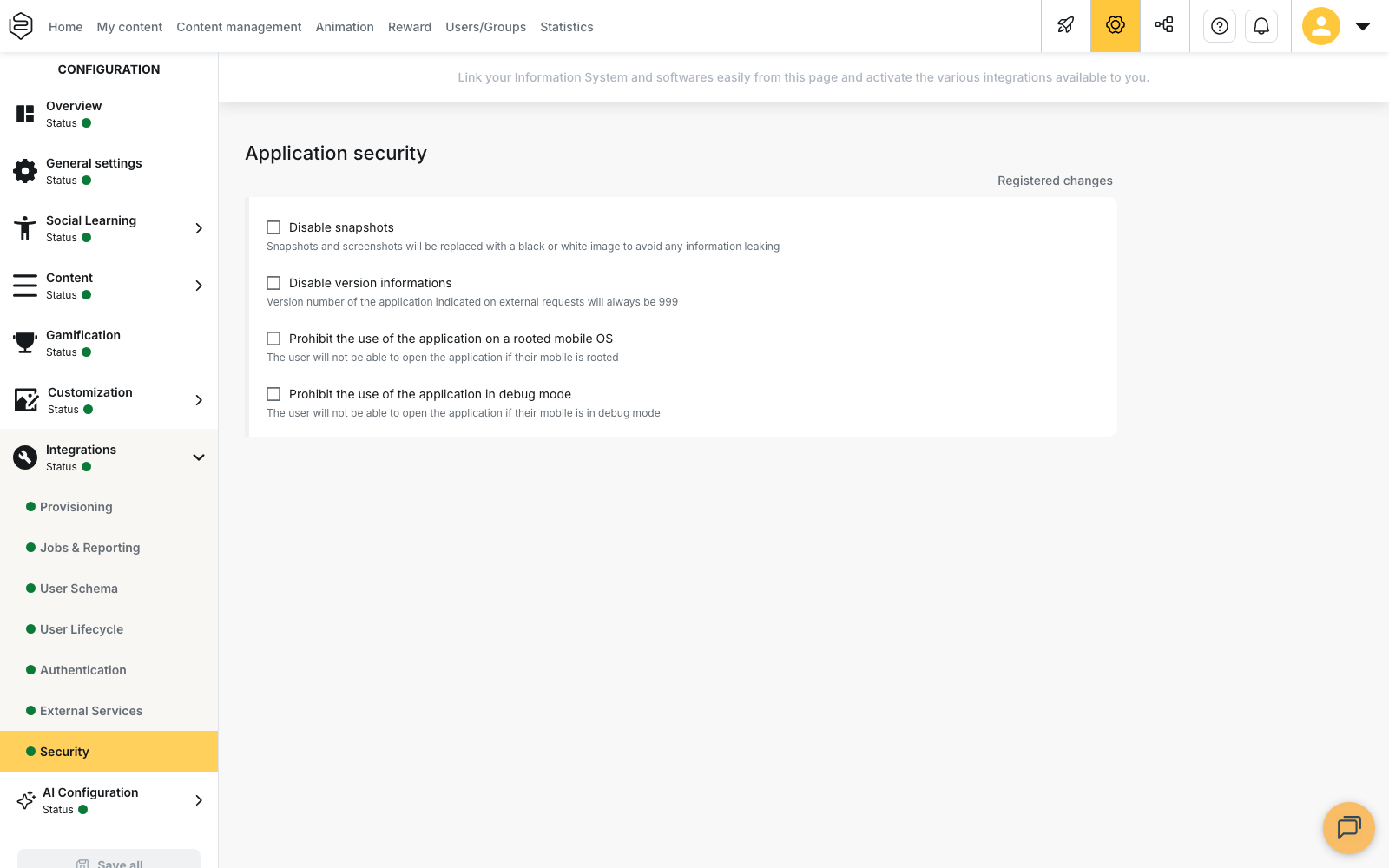
Open Configuration > Integrations > Security. The Application security block offers four independent checkboxes:
- Disable snapshots: snapshots and screenshots are replaced with a black or white image to avoid any information leaking.
- Disable version informations: the version number of the application indicated on external requests always becomes 999.
- Prohibit the use of the application on a rooted mobile OS: the user cannot open the application if their mobile is rooted.
- Prohibit the use of the application in debug mode: the user cannot open the application if their mobile is in debug mode.
In these last two cases, the application displays “The use of rooted devices or devices in debug mode is not permitted on this application.” and the person cannot go further.
Scope and limits
These rules do not apply to SSO sign-in. MFA, the security level and the password policy govern sign-in with an email address and a password. Over SSO, those rules belong to your identity provider.
Neither page can be set per department. Authentication and Security apply to the whole account. Selecting a department in the Configuration sidebar does not open them for editing.
The four checkboxes of the Security page concern the mobile application, not the version opened in a browser. Blocking screenshots also remains a deterrent: a second device can still photograph the screen.
⚠️ Blocking rooted devices applies to the whole account, with no exception list. Anyone whose device is detected as rooted or in debug mode is refused access for as long as the box stays ticked. On a mixed Android fleet, test a few devices before saving.
Going further
- Authentication and SSO: login modes, and why SSO moves these rules to your identity provider
- Setting up security, GDPR and legal information: legal documents, data retention, what the learner controls
- Assigning rights: who reaches Configuration, and how to narrow it
- Common problems: integrations: the most frequent integration symptoms and their cause