Setting up security, GDPR and legal information
Three subjects, three places: your legal documents are entered in the Legal information block of the Configuration, application security sits on the Authentication and Security screens of the integration settings, and GDPR compliance relies on mechanisms spread across the platform.
Setting up security, GDPR and legal information
Three subjects, three places: your legal documents are entered in the Legal information block of the Configuration, application security sits on the Authentication and Security screens of the integration settings, and GDPR compliance relies on mechanisms spread across the platform.
⚠️ Scope: legal information applies to the whole platform. The Legal information block is not displayed while a department is selected in the Configuration. Deselect the department to edit these documents.
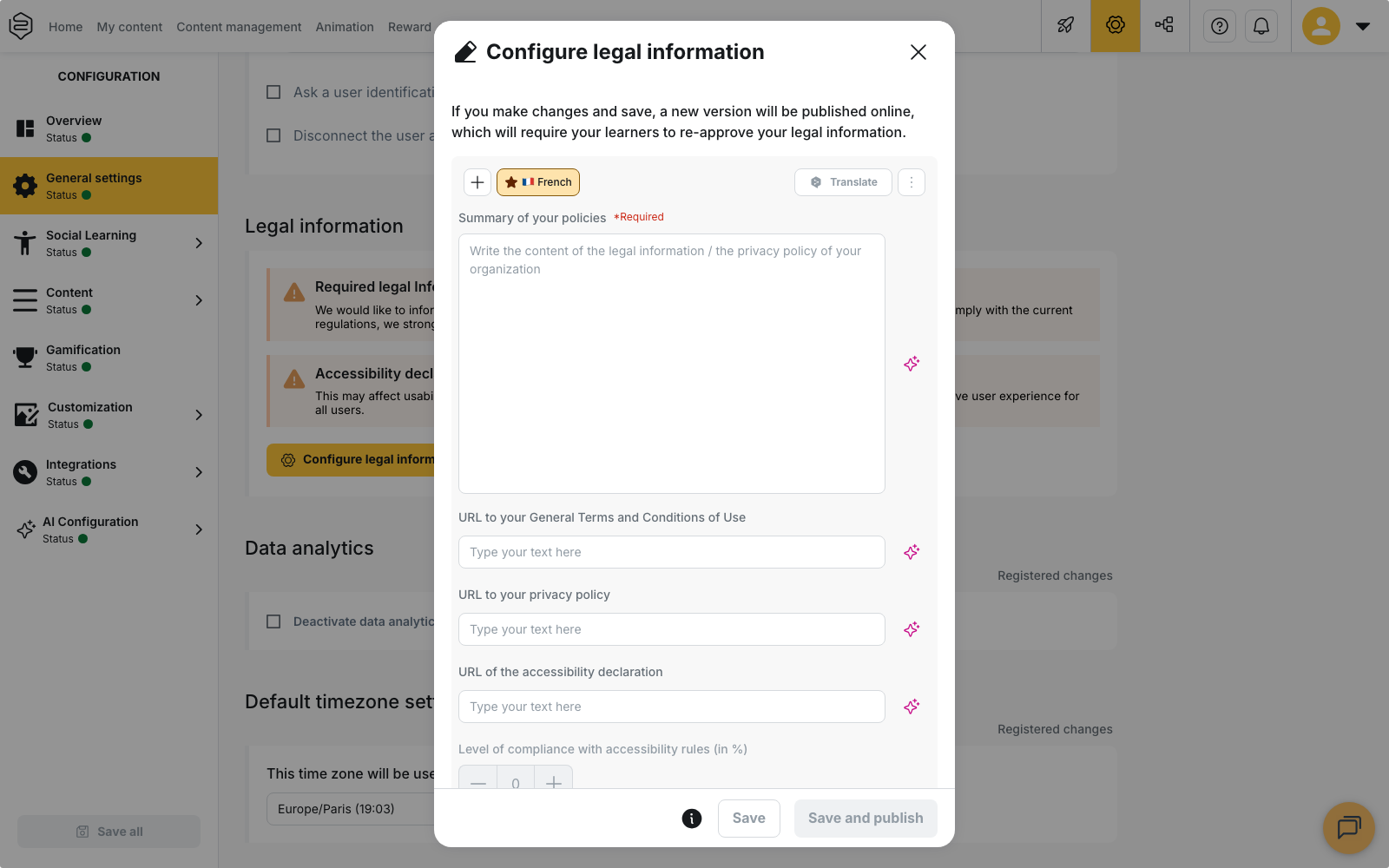
The Legal information block
-
Open Configuration, then go to the Legal information block.
-
Click Configure legal information.
-
Fill in the fields of the dialog:
- Summary of your policies: the text your learners read in the application. This field is required; without it, saving stays unavailable.
- URL to your General Terms and Conditions of Use.
- URL to your privacy policy.
- URL of the accessibility declaration, together with the Level of compliance with accessibility rules (in %).
-
Tick the options you need:
- Make legal notice acceptance mandatory: the learner is asked to tick a checkbox to accept the legal notice. The terms of use URL then becomes required.
- Make privacy policy acceptance mandatory: same principle for the privacy policy, whose URL then becomes required.
- Display the “Legal information” link on the login page.
-
Save with Save or Save and publish.
Beedeez does not write these documents: you host them, the platform links to them and displays the summary you entered. The block keeps a record of the last published legal information.
Every field of the dialog is set per language. Add a language in the dialog to publish a different summary, different URLs and a different compliance level for each audience.
Save or Save and publish
The two buttons do not have the same consequence for your learners:
- Save: only new learners have to approve the new terms.
- Save and publish: all learners have to approve the updated terms again.
Use Save and publish when the change concerns the content your learners already accepted.
The accessibility declaration
Two fields sit next to the other documents: the URL of the accessibility declaration and the Level of compliance with accessibility rules (in %). Two things the screen does not tell you:
- The compliance level cannot be entered before the URL. The field stays inactive until the accessibility declaration URL is filled in.
- The percentage is not checked. You enter the figure resulting from your own audit; the platform stores it and displays it without validating it.
As long as nothing is configured, the back office displays the Accessibility declaration not set up warning.
On the learner side, the Accessibility section of the settings carries a label derived from the percentage you entered:
- Accessibility: fully compliant at 100 %;
- Accessibility: partially compliant from 50 %;
- Accessibility: not compliant below 50 %.
The button that opens your declaration appears in that same section, and only once the URL is filled in.
What learners see
At first login, learners accept the legal information you published, when you made that acceptance mandatory. They can then open these documents at any time from the Legal section of their settings, described in the application as your terms, privacy policy and other legal documents.
Application security
Two screens of the integration settings carry it. Authentication holds the Enable MFA checkbox and the Security level block. Security holds four checkboxes that only cover the mobile application:
- Disable snapshots;
- Disable version informations;
- Prohibit the use of the application on a rooted mobile OS;
- Prohibit the use of the application in debug mode.
The last two prevent the application from opening on a device that is rooted or in debug mode.
⚠️ MFA and the password policy only apply to password authentication. With SSO, those rules are carried by your identity provider. Each setting is covered, pitfalls included, in MFA, password policy and application security.
GDPR in practice
Compliance rests on mechanisms spread across the platform, on the administration side as much as on the learner side:
Deactivation rather than deletion. You do not delete a learner, you deactivate them: their data and history are kept, their access is cut, and they leave the active-user count. See Deactivating and reactivating a user.
Automatic lifecycle. The User Lifecycle screen of the integration settings deactivates accounts from your data: a departure recorded in the HR system deactivates the account, with individual exclusions possible. See HR sync and provisioning.
Data access rights. Access to a user’s full data is a right distinct from access to the user list. See Assigning rights.
What the learner controls themselves. In their settings, the Analytics section allows or refuses the sharing of usage data, with no effect on their training; it disappears when data tracking is deactivated for the platform. The Delete account section, available only when self-service account closing is enabled on your platform, closes the learner’s account after a confirmation dialog and signs them out. See Managing your account and preferences.
Support access
The address or URL your learners use to ask for help is not set here, but in General options.
⚠️ Left empty, the platform falls back to Beedeez’s own support address.
Going further
- MFA, password policy and application security: every setting on the Authentication and Security screens in detail, pitfalls included
- Accessibility at Beedeez: the full picture, from the contrast score to alt text
- Deactivating and reactivating a user: what happens to data when someone leaves
- Authentication and SSO: how learners sign in, from passwords to SSO