Accessibility at Beedeez
What the platform provides, what depends on you, and where each setting lives.
Accessibility at Beedeez
What the platform provides, what depends on you, and where each setting lives.
Accessibility is handled at several levels
Some of it is set in the account configuration: the colours of your two themes and their contrast score, and the address of your accessibility declaration. This is the foundation, and you only set it once.
Most of it then happens in the content you create. Beedeez provides the mechanisms (alt description, transcription, subtitles, audio description), but none of them fills themselves in: a capsule whose images have no description remains inaccessible.
Finally, learners themselves control high contrast, descriptive audio videos and screen rotation, from the settings of their application.
On the platform side, the interface is built on the WCAG 2.1 AA and RGAA standards; the target level is “partially compliant” status as defined by the RGAA, meaning at least 50 % of the criteria. Beedeez holds no accessibility certification.
What is set in the account configuration
Graphical customization
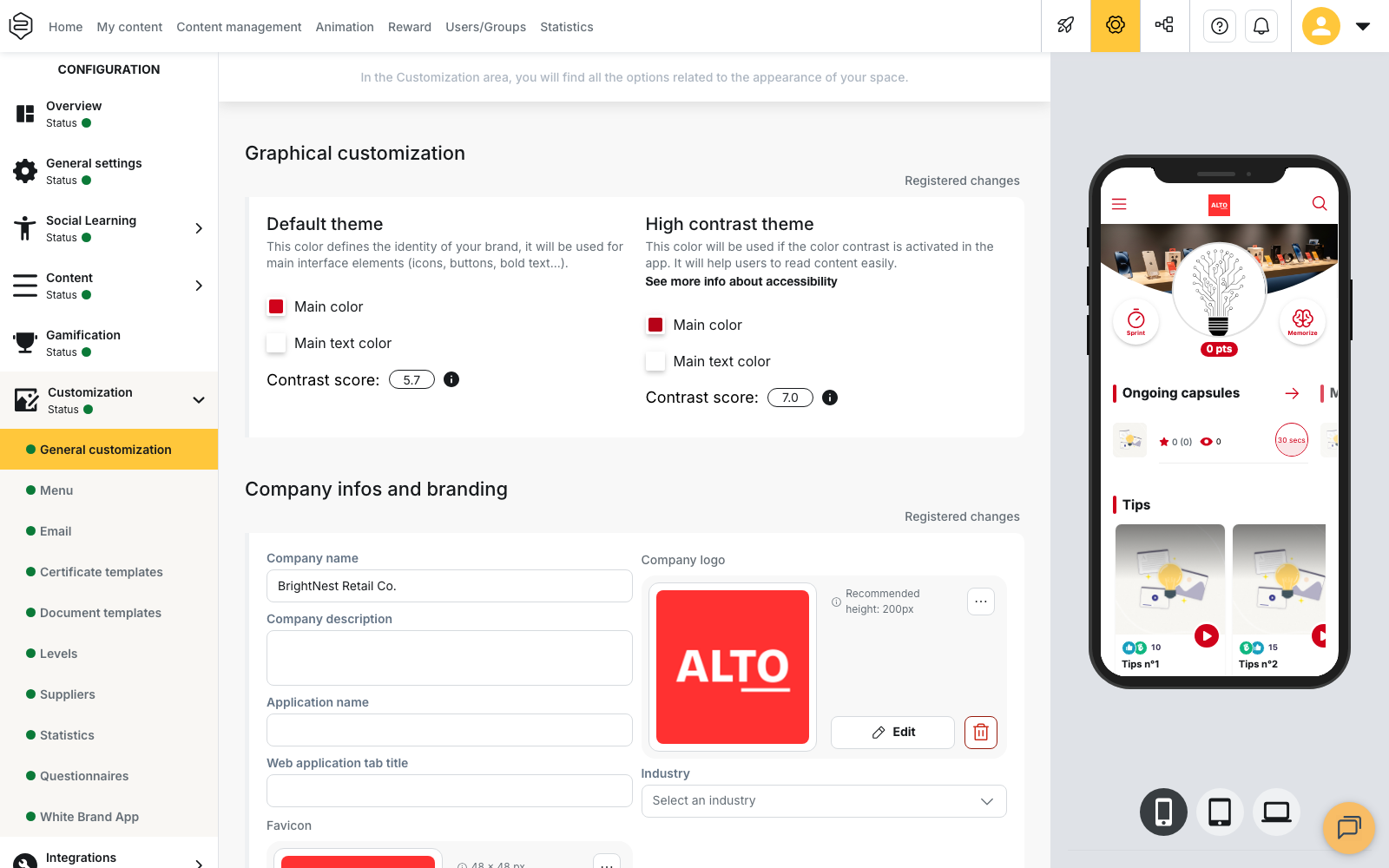
The contrast score. In Configuration > Customization > General customization, Graphical customization block, each pair of colours displays its background/text contrast ratio, calculated according to the WCAG and RGAA standards. The reference marks are 3, 4.5 and 7: the expected threshold is 3 for the default theme and 4.5 for the high contrast theme. Below that, the score turns red and a message states that the colour scheme does not have enough contrast. The score doesn’t block anything: it never prevents you from saving.
The high contrast theme. A second set of colours, generated automatically from your default colours as soon as you change them. This is the set learners switch on from their settings.
⚠️ The high contrast theme only swaps the main colour and the text colour: backgrounds, borders and surfaces do not change. It doesn’t fix a colour choice that was hard to read to begin with.
The accessibility declaration
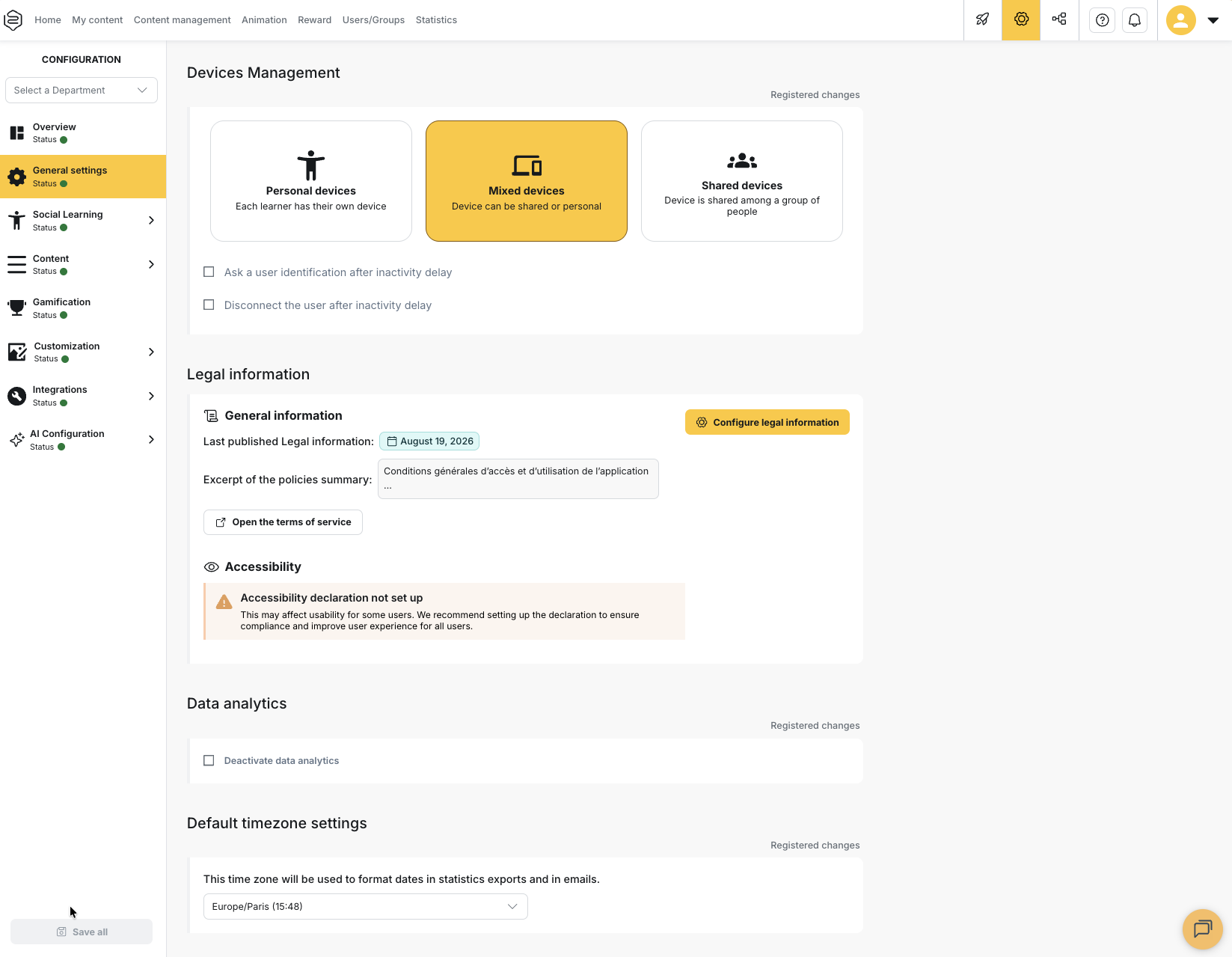 You fill it in under Configuration > General settings > Legal information,
Accessibility block. The Configure legal information button opens the two fields: URL of the accessibility declaration and Level of compliance with accessibility rules (in %).
You fill it in under Configuration > General settings > Legal information,
Accessibility block. The Configure legal information button opens the two fields: URL of the accessibility declaration and Level of compliance with accessibility rules (in %).
Beedeez does not write or publish a declaration for you: you host your own and the platform points to it. Until something is filled in, the block displays the warning Accessibility declaration not set up.
Two things the screen does not tell you:
- Both fields are entered per language. A multilingual account can point to a different declaration depending on the learner’s language, since requirements differ from one country to another. If you publish your legal information in several languages, fill in each version.
- The percentage is not checked. You enter the figure from your own audit, and the field remains inactive until the declaration’s address is filled in.
On the learner side, the link appears on the login screen and in the legal information of the settings. The wording displayed depends on the percentage entered: Accessibility: fully compliant at 100 %, Accessibility: partially compliant from 50 %, and Accessibility: not compliant below 50 %.
What depends on the content you create
| Media type | Accessibility mechanism | What it covers | Where it is managed |
|---|---|---|---|
| Image | Alt description | Images are read out by screen readers | The media library, not the capsule editor |
| Audio | Transcription | The script of podcasts and audio files is available to read | The media library, or from the Podcast activity in the editor |
| Video | Subtitles | Videos hosted by Beedeez | The media library, or from the Video activity in the editor |
| Video | Audio description | Videos, through a second video file | The Video activity |
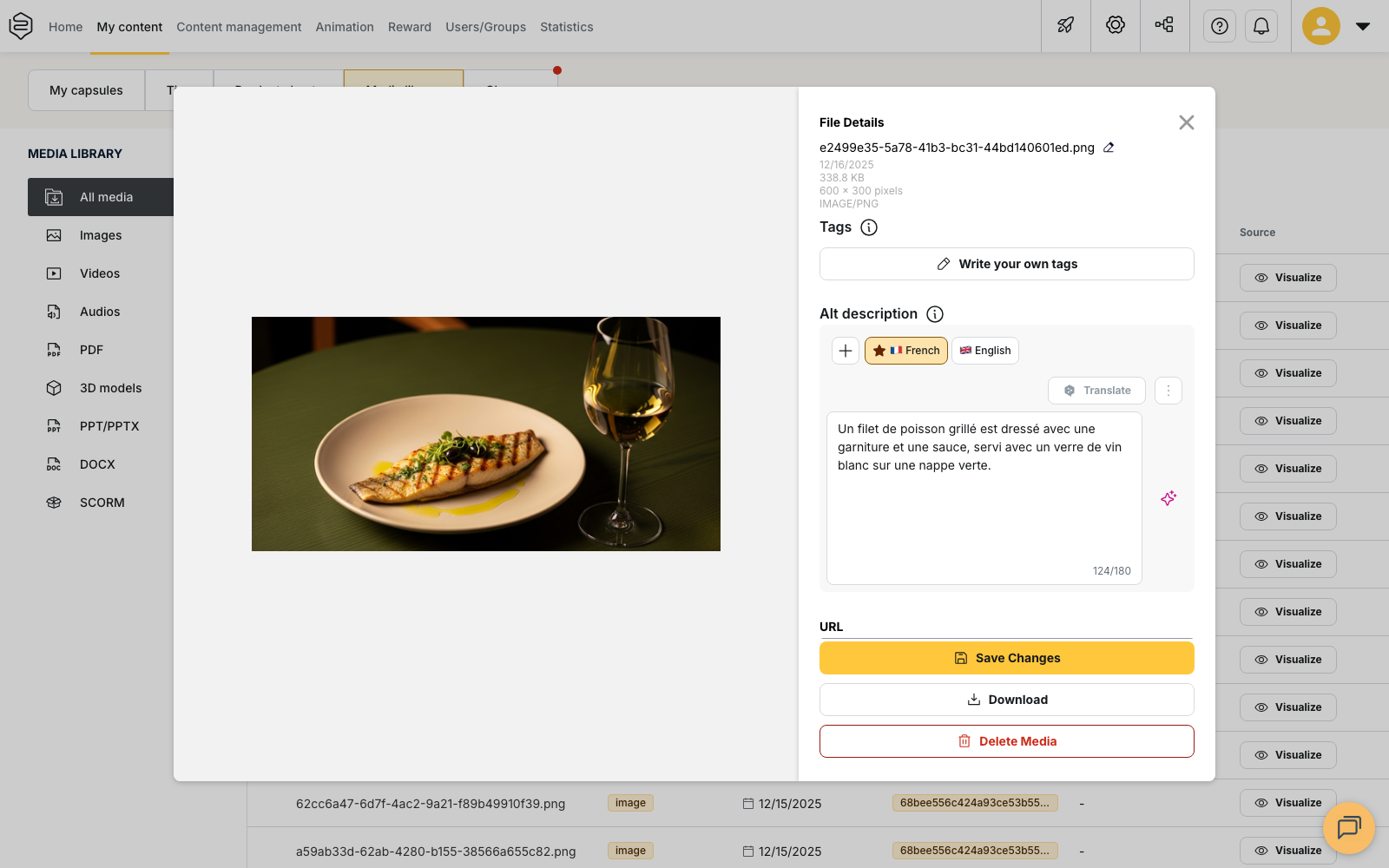
The alt description is entered in the media library, on the record of the image, through the Write your own description button or Generate with AI if AI content generation is enabled on your account. It’s limited to 180 characters and is translated like the rest of the content. Without a description, the screen reader announces only “Image”.
⚠️ This field does not exist in the capsule editor. When you insert an image into a notion, no description field appears: you need to go to the media library and describe the file there.
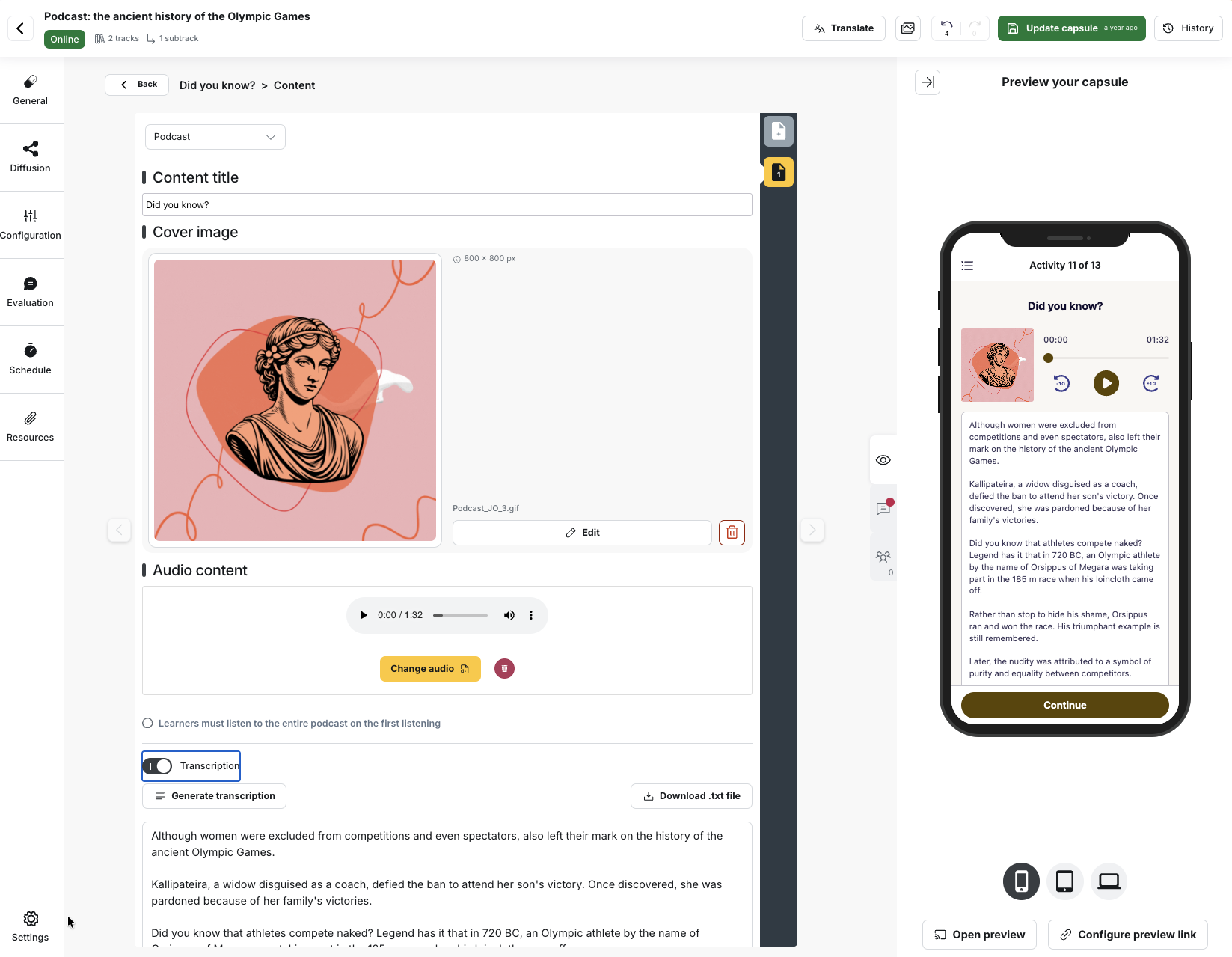
The transcription is managed in two places: on the media record in the library, or directly in the capsule editor, on the Podcast activity. The Transcription option becomes active as soon as the audio file is imported. You then have the choice: Generate transcription produces the text, which you review and correct, or you type the script yourself in the text area. Download .txt file exports it. Running the generation again replaces the existing text.
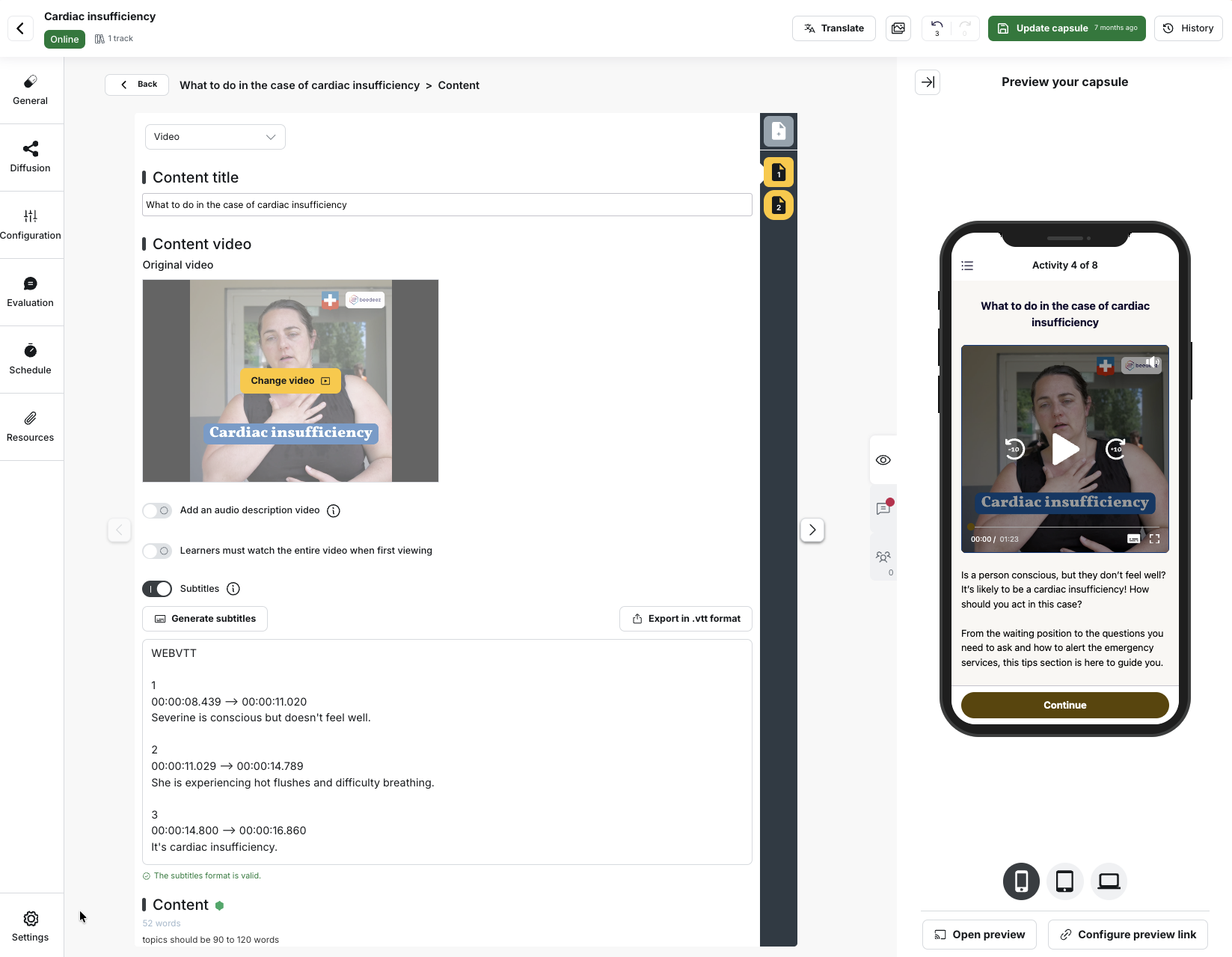
Subtitles are managed the same way: on the media record, or in the capsule editor, on the Video activity. The Subtitles option gives access to Generate subtitles and to Export in .vtt format; the WebVTT text stays editable, and the editor displays The subtitles format is valid underneath. Three conditions must be met, otherwise the button stays inactive or disappears entirely: speech recognition enabled on the account, the video hosted by Beedeez, and an audio track. Learners turn subtitles on or off during playback.
⚠️ Subtitles are never available on a YouTube or Vimeo video. A video hosted elsewhere does not go through Beedeez: see YouTube and Vimeo videos.
The audio description is a second video file, which you produce and upload separately. It is not managed in the media library, but on the Video activity of the capsule editor, with the Add an audio description video option placed under the original video. The platform then plays this second video first for learners who’ve turned on descriptive audio videos.
⚠️ The learner’s setting does not create the audio description. If the capsule contains no audio-described video, the original video is played. You decide, video by video, which ones have one.
What learners set for themselves
Three switches, under Settings > Accessibility: High color contrast, Descriptive audio videos and Allow screen rotation. The last one does not appear in the web version: the display is locked in portrait by default, and turning rotation on switches every screen in the learning path to landscape, capsules and quizzes included, without reframing media designed for portrait.
Text size, meanwhile, follows the phone’s own setting, up to twice the normal size: there is no setting inside the application, and a person who needs it has already set it on their device.
These settings can be combined freely: screen rotation works alongside enlarged fonts and voice navigation.
They are described, along with the rest of the application settings, in Managing your account and preferences.
What Beedeez does not do
These limits come up in every call for tenders, so they are worth having at hand:
- No dyslexia-friendly font;
- No text-to-speech of the content;
- No text size setting inside the application, the phone setting applies;
- No subtitles on external videos;
- No description field on the logo, the home banner or the avatars.
What’s supported with no setup required: keyboard-only navigation, right-to-left reading, and components that carry the roles and labels expected by screen readers (VoiceOver, NVDA, JAWS), on mobile as well as on the web.
Going further
- Configuring security, GDPR and legal information: the accessibility declaration field by field, with the rest of the legal information
- Visual identity: the contrast score and the high contrast theme, among the other colour and image settings
- The media library: describing an image, subtitling a video, transcribing a podcast, step by step
- Managing your account and preferences: the three accessibility settings as the learner sees them