Selling access: offers
An offer puts a price on content you already distribute. It replaces neither the distribution nor the access rights: the content stays out of reach for anyone who has no right to it, and becomes paid for everyone else. See Understanding distribution.
Selling access: offers
An offer puts a price on content you already distribute. It replaces neither the distribution nor the access rights: the content stays out of reach for anyone who has no right to it, and becomes paid for everyone else. See Understanding distribution.
⚠️ Prerequisites: the Offers account option must be enabled on your workspace for the tab of that name to appear. The Stripe Configuration block must also be filled in under Configuration > Integration: without a Secret key and a Webhook signing secret, no payment can start.
⚠️ Permissions: you need an animation right to open the Offers tab, and the rights that already open a track or a capsule to attach an offer to it.
Two kinds of offer, two buyers
Beedeez sells access in two ways, and the buyer is not the same:
- Track seats. The team leader buys seats on one or several invitation-only tracks from their own space. This is the only kind that supports degressive pricing.
- Capsule. The learner buys access to one capsule, one unit at a time.
Open Animation, then the Offers tab to see every offer of your workspace in one list. Each row shows the Offer name, the Type (Track seats or Capsule), the Content covered, the Price and the Audience, followed by an Edit button.
Create a track seat offer
⚠️ Prerequisite: configure the seats of the track before you give it a price. Without them, the offer is refused when you save it.
- Open Animation, then the Offers tab.
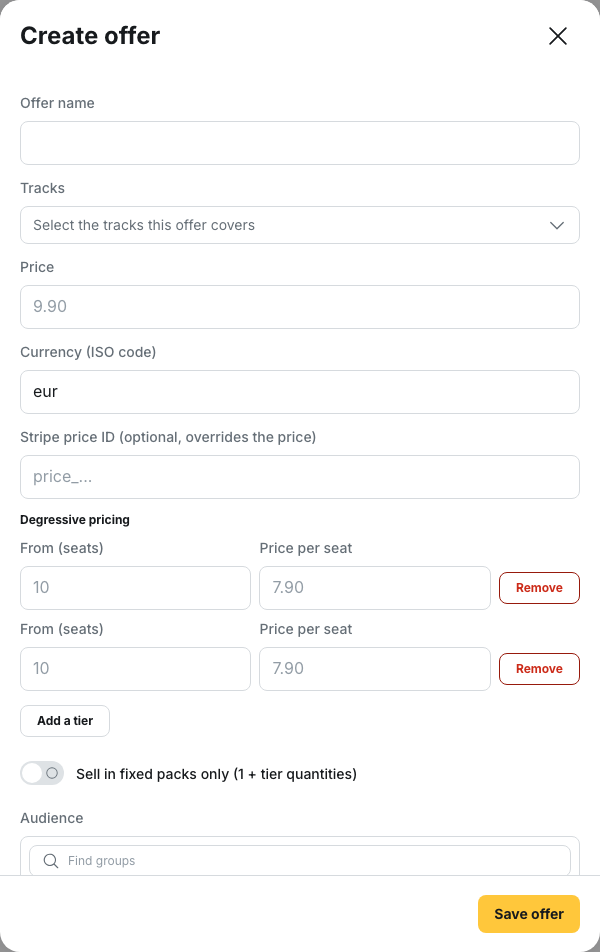
- Click Create an offer. The Create offer window opens.
- Enter the Offer name that identifies the offer.
- Select the tracks covered by the offer in Tracks. If you leave the field empty, saving is refused with Select at least one track.
- Set the price as described in the next section.
- Choose the groups in Audience, or leave the field on Everyone (select groups to restrict).
- Save the offer. It goes on sale immediately.
You can also open the same window from the track itself: Diffusion tab, Paid access block, Configure offers. The tracks you are configuring are then already selected.
Create a capsule offer
A capsule offer is created from the capsule, not from the Offers tab. Set the activation condition of the capsule to Paid access, then open Capsule offer and fill in the same name, price and audience fields.
A capsule carries a single offer. To charge different prices per group for the same content, you need several capsules or the offers API.
Set the price
An offer takes its price from one of two fields, and they exclude each other.
- Price and Currency (ISO code): an amount, plus a three-letter code,
eurby default. The code is typed, not picked from a list, and travels as typed to your payment account, which decides whether it accepts it. - Stripe price ID (optional, overrides the price): the price defined in your payment account applies and the amount typed above is ignored.
If neither field is filled in, saving is refused with Set a price or a Stripe price ID.
Choose who sees the offer
The Audience field reads Everyone (select groups to restrict) for as long as you select no group. Select one or several groups to reserve the offer for them.
When several offers could apply to the same buyer, a restricted offer takes priority over an offer addressed to everyone. Between two restricted offers that both match, the most recent one applies.
Set degressive pricing and packs
Degressive pricing is available on track seat offers only, and only when you set a manual Price.
- In the Degressive pricing section, click Add a tier.
- Enter the threshold in From (seats) and the corresponding Price per seat.
- Repeat for each tier, up to ten tiers.
The first tier starts at 2 seats and its price is below the base Price. Each further tier combines a higher quantity and a lower price than the tier before it. A grid that breaks these rules is refused with Each tier needs a quantity of at least 2 and a price below the previous one.
💡 Tip: the tier reached prices the whole order, not only the seats above the threshold. Announce your tiers as a total price per seat, not as a discount on the extra seats.
Sell in fixed packs only (1 + tier quantities) limits the purchase to one seat or to one of your tier quantities. Since the packs are the tier quantities, the option needs at least one tier: without one, saving is refused with Pack-only sales need at least one pricing tier.
⚠️ Tiers and a Stripe price ID cannot be combined. The window refuses the save with Degressive tiers require a manual price: remove the tiers or the Stripe price ID.
What the buyer sees
On a paid capsule, the learner sees Payment required and the message You must purchase access before starting this capsule., then an Unlock for button followed by the price. Once the payment is confirmed, the capsule shows Access purchased and opens.
The team leader finds the seat offers in Available offers, buys them with Buy for group and sees the tiers listed as a price per seat from a given number of seats.
In both cases the payment itself happens outside Beedeez, on a page hosted by the payment provider, and access opens once the payment is confirmed.
What an offer does not do
- It has no draft state. A saved offer is on sale. There is nothing between created and deleted.
- It does not allocate seats. A purchase increases the seat envelope of the buying group. The team leader still invites the learners afterwards, and a seat is only counted when the invitation is accepted.
- It does not produce an invoice or a receipt. Those come from your payment account.
⚠️ An offer covers up to fifteen tracks, and the quantity bought is added to each of them rather than split between them: ten seats on an offer covering three tracks means ten seats on all three. A multi-track offer is bought from the team leader’s Available offers list, not from one of the tracks it covers.
Going further
- Invitation-only tracks: seats and validation: the seat stock an offer feeds
- Capsule visibility and activation conditions: where Paid access is chosen, among the other conditions
- Inviting and approving requests: what the team leader does with the seats once they are paid for