Capsule visibility and activation conditions
Capsule distribution determines who can access a capsule. Visibility and activation conditions determine when it appears to learners and when they can start it.
Capsule visibility and activation conditions
Capsule distribution determines who can access a capsule. Visibility and activation conditions determine when it appears to learners and when they can start it.
These two conditions are independent. To understand how distribution works overall, see Understanding distribution.
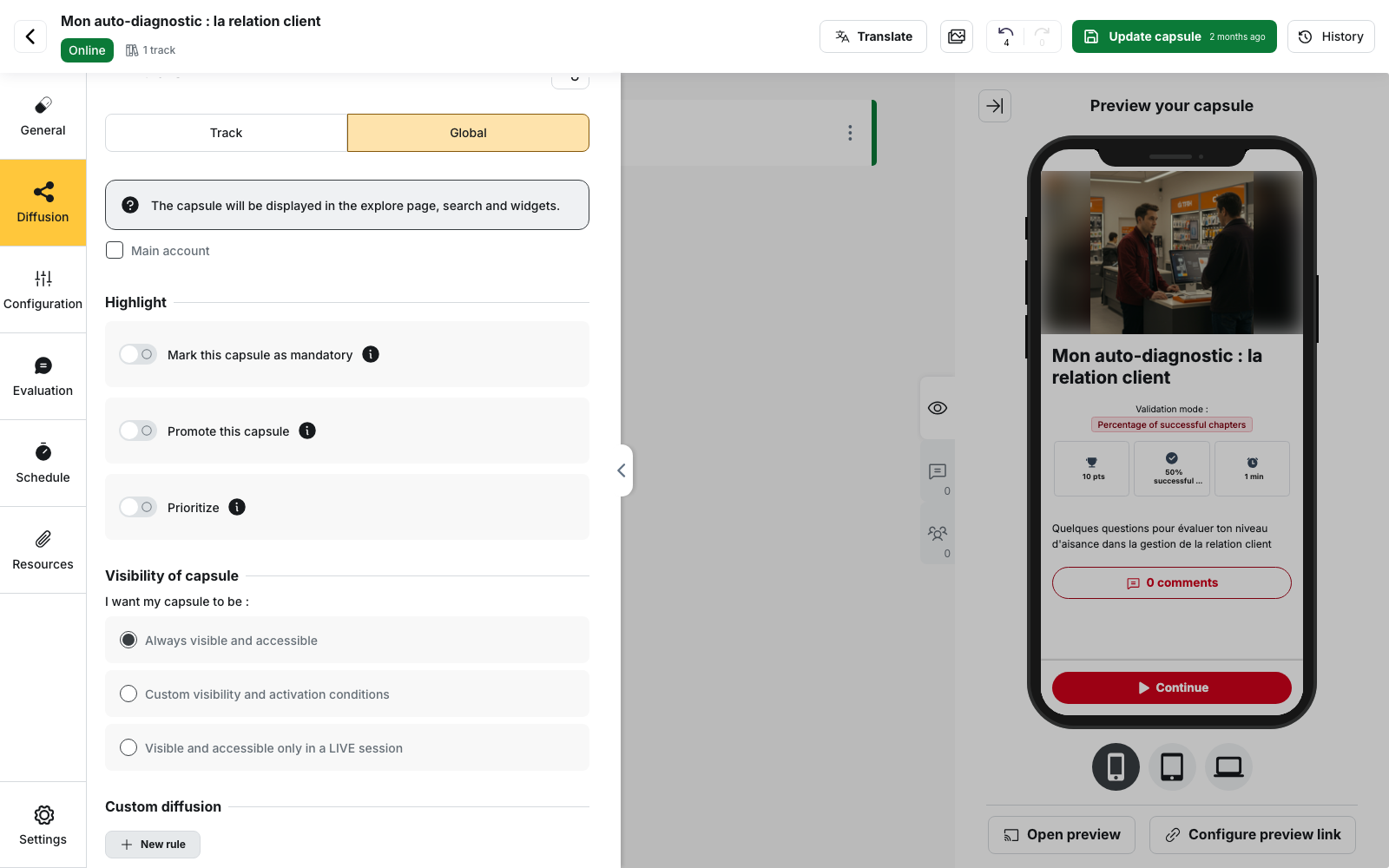
Where to set these conditions
Open the capsule in the editor, then go to the Distribution tab. In the Global sub-tab, the Capsule visibility section offers up to four options:
- Always visible and accessible: the default setting.
- Custom visibility and activation conditions: displays the Visibility condition and Activation condition selectors.
- Visible and accessible only from an LMS.
- Visible and accessible only in a LIVE session.
⚠️ Prerequisite: the last two options depend on your account configuration. They only appear if the corresponding LMS or LIVE option is enabled.
The same section is available in each custom distribution rule. See Distribute a capsule to a group with custom rules.
Visibility and activation: what is the difference?
The visibility condition determines whether the capsule appears in the app. Until the condition is met, the learner cannot find the capsule.
The activation condition determines whether the learner can start the capsule. The capsule remains visible, but the screen indicates what needs to be done instead of displaying the start button.
In other words:
- use the visibility condition to hide a capsule
- use the activation condition to show a capsule without allowing the learner to start it
⚠️ When you select Custom visibility and activation conditions, two values are applied automatically:
- Visibility condition: Always visible
- Activation condition: By code / QR code
The capsule therefore remains visible but cannot be started without a code. Make sure to update both selectors immediately after choosing this option.
Available conditions
Visibility condition
You can choose:
- Always visible
- By code / QR code
- After completing a capsule
- After successfully completing another capsule
- Based on a date
- User has specific fields filled in
Activation condition
You can choose the same conditions, with Always instead of Always visible, plus:
- Paid access
- After identity verification (Persona), if identity verification is enabled on your account
Each selector allows only one condition. To combine two conditions, set one as the visibility condition and the other as the activation condition.
🚧 The User has specific fields filled in option is not operational. The criteria can be selected and saved, but they are not evaluated for learners. The capsule therefore remains hidden or impossible to start, regardless of the learner’s profile information.
To target a population based on their data, use a dynamic group with a custom distribution rule instead.
Make a capsule dependent on another capsule
After completing a capsule requires the learner to complete the selected capsule.
After successfully completing another capsule also requires the learner to achieve the required score.
For a security or compliance prerequisite, use the success condition.
⚠️ If several capsules are selected, all of them are required. The learner must complete every selected capsule, not just one of them.
An incomplete condition can give everyone access
A condition such as After completing a capsule or After successfully completing another capsule with no capsule selected is considered fulfilled, making the capsule accessible to everyone.
The same applies to Based on a date when no date has been entered.
In the Global sub-tab, the No capsule selected warning indicates that no capsule has been defined. This warning does not appear in a custom distribution rule, so make sure the list contains the expected capsules.
What these conditions cannot do
- Based on a date only allows you to define a Start date and time. The date cannot be in the past, and no end date can be configured. To automatically unpublish a capsule on a specific date, see Schedule publication and unpublication.
- Paid access appears in the selector for a custom distribution rule, but the corresponding offer can only be configured in the Global sub-tab.
- The Access conditions column in the capsule list, with its Default conditions and Custom rules sections, only summarizes activation conditions. Visibility conditions are not displayed there.