Organising a track's content
The Content tab of a track decides which capsules the learner finds in it, how they are grouped and in which order they appear. You add capsules there, file them into sub-tracks and set their order. The two other tabs are covered in Creating a track and Distributing a track to groups.
Organising a track’s content
The Content tab of a track decides which capsules the learner finds in it, how they are grouped and in which order they appear. You add capsules there, file them into sub-tracks and set their order. The two other tabs are covered in Creating a track and Distributing a track to groups.
⚠️ Rights required: you need the Allowed to update tracks right. Without it, the tab opens in read-only mode: the actions to add, import, export, reorder or remove content are not available.
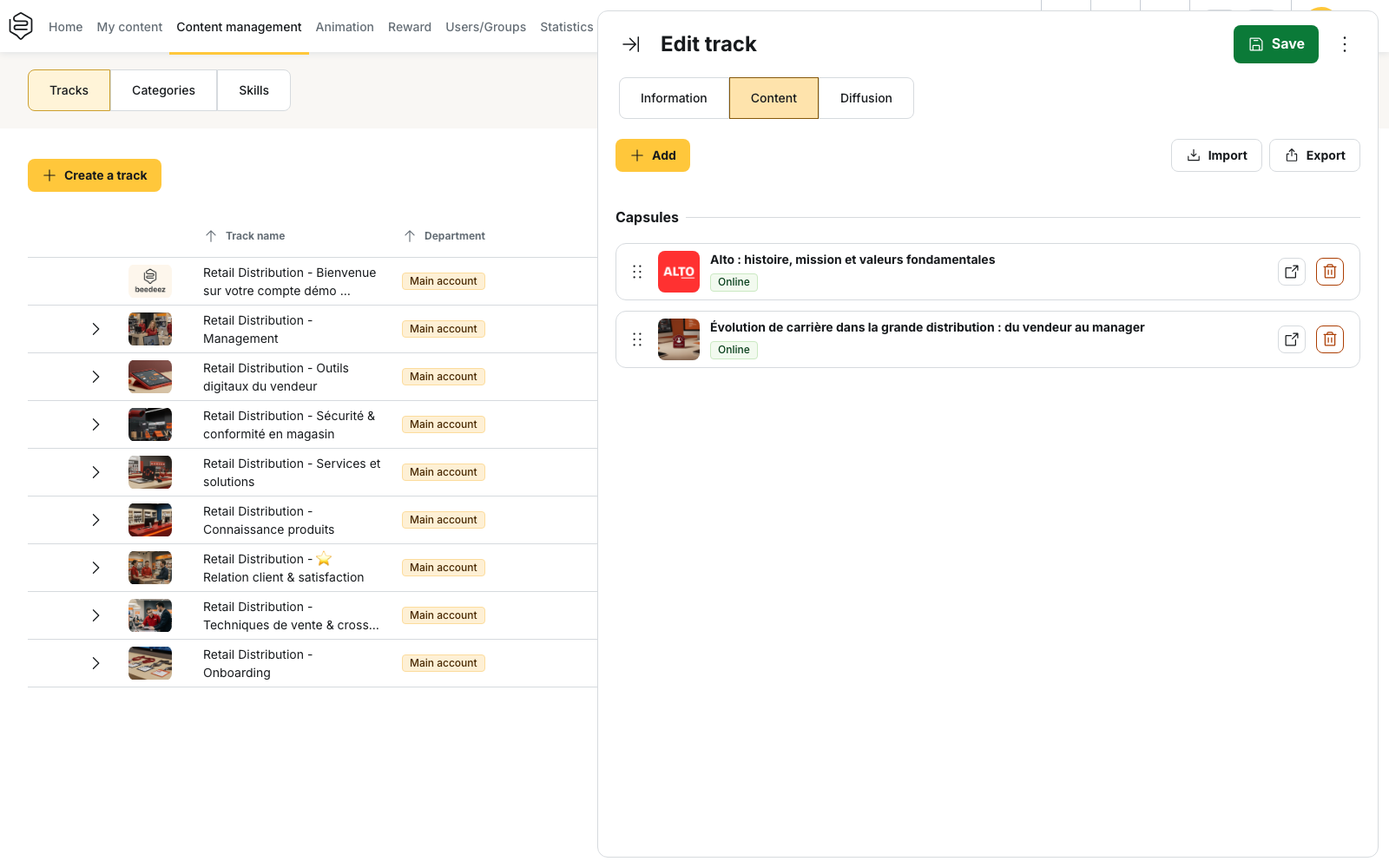
Where the content is organised
Open the track, then the Content tab of the Edit track panel. The header of the tab groups Create a sub-track, Add a capsule, Import and Export. Import and Export move the whole content of the track through a file, and require your current changes to be saved first.
Two sections appear as you fill the track: Sub-tracks first, then Capsules for the ones filed in no sub-track. On a track that is still empty, the tab displays No content has been added yet.
Adding capsules to a track
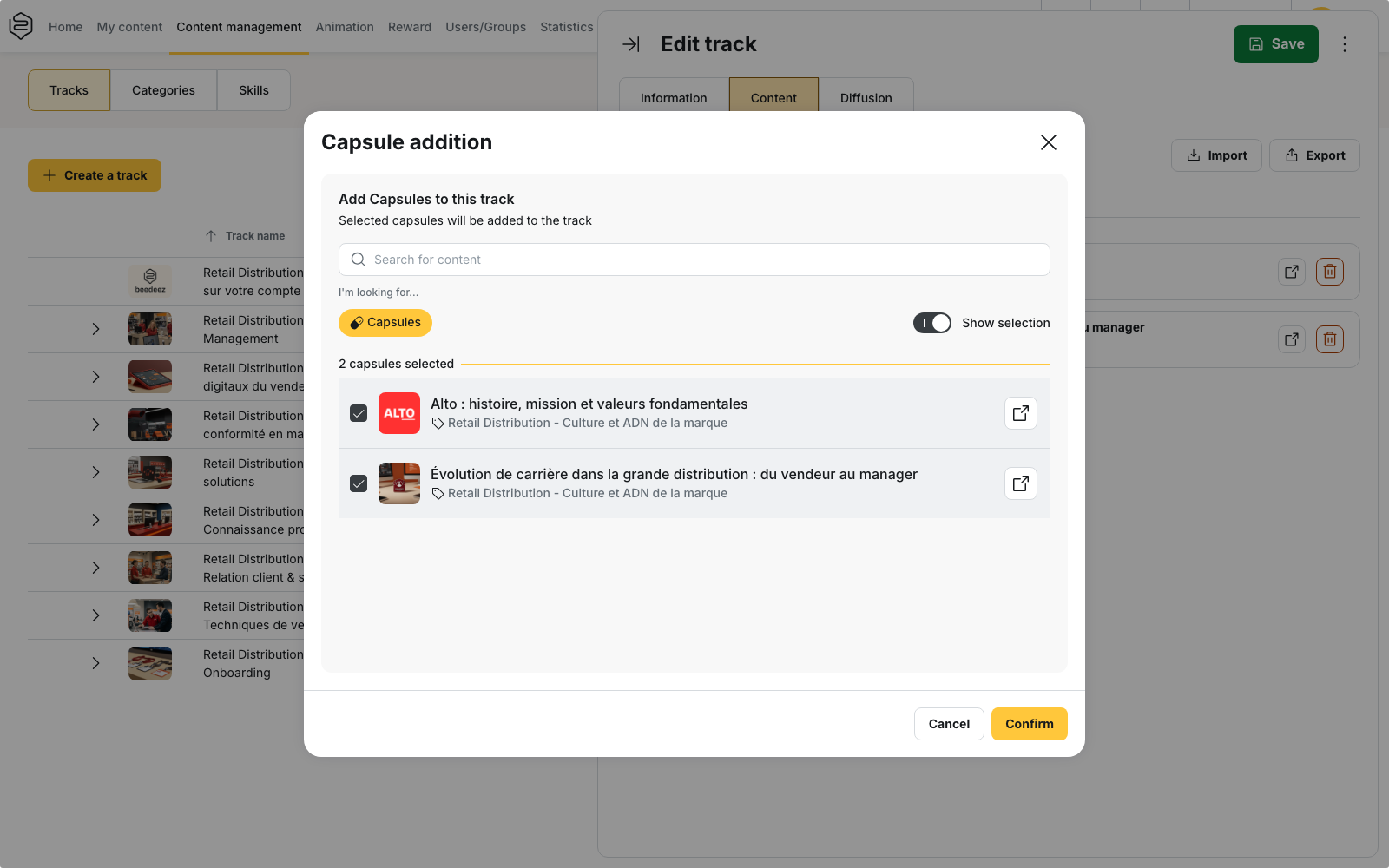
- Click Add a capsule. The Capsule addition window opens on the capsules you can access.
- Tick the capsules to include. Show selection displays only the capsules currently selected.
- Click Confirm. The capsules are added at the end of the list.
⚠️ This window holds a selection, not an addition. A capsule already in the track that you untick is removed from the track when you confirm.
To fill a sub-track, use Add a capsule on the sub-track itself: the window then opens on the capsules of that sub-track.
Removing a capsule from the track
Use Remove capsule from track on the capsule row, or untick the capsule in Capsule addition. The capsule is not deleted: it leaves this track and remains available elsewhere. A capsule removed this way is also withdrawn from the capsules selected for the validation of the track.
⚠️ Learners lose their access to the capsule through this track, and they are not notified. See Linking a capsule to tracks.
Grouping capsules into sub-tracks
- Click Create a sub-track.
- Fill in the Sub-track title, then confirm. The new sub-track is placed at the top of the list.
- Click Add a capsule on the sub-track, select the capsules, then confirm.
Use Rename and translate sub-track to change the title afterwards. A sub-track that contains no capsule carries an Empty tag.
Three rules govern this hierarchy:
- A track has a single level of sub-tracks. A sub-track cannot contain another sub-track.
- A capsule occupies one place in the track, at root level or in a single sub-track. Selecting it somewhere else moves it, after the Move capsules to a new location? confirmation.
- Delete sub-track deletes no capsule. The capsules it contained return to root level, at the end of the list.
Changing the order
Capsules and sub-tracks are ordered by drag and drop, with the handle on the left of each row. No field lets you type a position.
Each group is ordered independently: the capsules of a sub-track among themselves, the capsules left at root level among themselves. A capsule cannot be dragged from one group to another; that move goes through Capsule addition. Sub-tracks always appear before the capsules left at root level.
A capsule linked from the capsule editor arrives first
A capsule added from the Content tab takes the last position of its group. A capsule linked from the capsule editor, in the Select tracks block, arrives with no position, and is displayed before all the others, in the back-office and for the learner. Open the Content tab and drag it where it belongs.
What this tab does not do
- Lock a capsule until the previous one is completed. The order is a display order. To make it binding, see Visibility and activation conditions.
- Make a capsule mandatory. The Mandatory tag is displayed here, but it is set on the capsule, Diffusion tab. It is what the Success of mandatory capsules validation mode reads.
- Schedule content outside a campaign. The delay button and its Define the broadcast date window only appear on a capsule covered by a campaign, and the delay runs from the start of that campaign.
What the learner sees
The track page shows the image, the title, the description, the number of completed capsules, the points to win and the Validation mode. No completion percentage is displayed.
Each sub-track states its completed capsules, the training time left and a status: nothing while nothing has started, then In progress, then Success and Failure with their counts. Expand and Collapse open or close every sub-track at once, as soon as there is more than one.
Three filters help learners navigate: Completed, In progress and Unstarted, one at a time. An active filter hides the sub-tracks and flattens the list. A capsule whose visibility condition is not met is not displayed at all, with no greyed row and no padlock.
Going further
- Linking a capsule to tracks: the other way in, the one that leaves the capsule with no position
- Creating a track: the Information tab and the validation mode, which depends on what you put here
- Campaign tracks: the per-capsule delay in days, and the notifications that come with it
- Visibility and activation conditions: imposing an order instead of suggesting one