Distributing a track to groups
⚠️ Required permissions: access to the track and the relevant groups, as well as Authorized to edit tracks (or Authorized to edit the track if your permission model is restricted to a specific list).
Distribute a track to groups
⚠️ Required permissions: access to the track and the relevant groups, as well as Authorized to edit tracks (or Authorized to edit the track if your permission model is restricted to a specific list).
Without this permission, the Distribution tab is still accessible, but the selector is read-only and displays the message “You do not have the required permissions to edit this track.”
Distributing a track to a group gives learners in that group access to all online capsules included in the track.
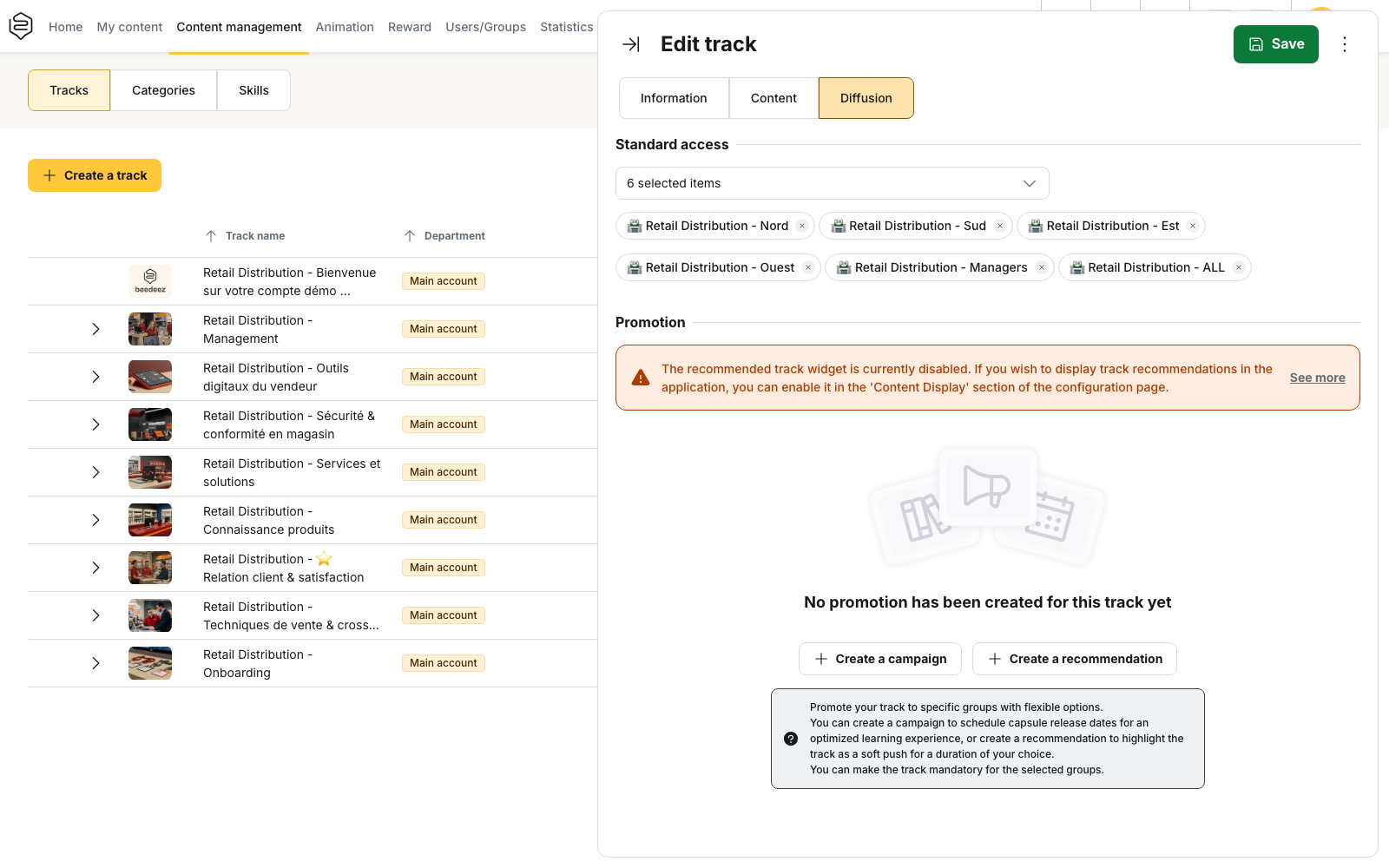
Add a group
- Open the track and go to the Distribution tab
- In the Standard access section, open Add a group and select the relevant groups
- Click Save
⚠️ Nothing is distributed until you save your changes.
In the list, a group already associated with a promotion displays a Campaign or Recommendation label. A disabled group is no longer offered in the selector, but remains displayed if it was already selected.
What the group receives
Learners get access to all Online capsules in the track, including those in sub-tracks, as well as any capsules added later.
The track appears in their app without an announcement or notification.
A capsule that is not Online remains inaccessible, even if the track containing it is distributed.
Distribute from a group
You can also create this association from a group:
Group > Associated tracks > Add a track.
This is the same association, viewed from the other side. The panel states: “From here, you can only edit standard access groups.”
Use the track to define its audience, or the group to check which tracks are associated with it.
See View and manage tracks linked to a group.
Remove a group
Uncheck the group under Standard access, then click Save.
Access to the track is removed from the app without sending a notification. Any progress already recorded is preserved, and the track statistics are recalculated based on the new audience.
⚠️ A group associated with a campaign or recommendation cannot be removed from Standard access.
The back office displays the message “You cannot remove promotion groups from track access” and cancels the change.
Remove the group from the Promotion section first.
What distribution does not do
⚠️ It does not allow you to distribute only part of a track. The entire track is distributed, including its sub-tracks.
⚠️ It does not highlight the track. It simply appears in the list of accessible content. To give it more visibility, use a campaign or a recommendation.
⚠️ It does not send any notifications. Learners receive no notification when a group is added or removed.
See Notify learners about a new distribution.
Selector scope
On an account organized into departments, Add a group lists all groups you have access to, including groups belonging to a different department from the track.
Department filtering only applies to invitation-based tracks. These do not have a Standard access section: access is based on seats distributed to groups, which team managers then assign to learners.
Points to keep in mind
A parent group does not include its subgroups. Each group has its own list of learners. Distributing a track to a parent group therefore does not automatically give access to learners in its subgroups. Add each relevant group separately.
A disabled group no longer provides access to the track. Learners lose the access they had through that group, even if the group remains associated with the track.
Removing a track does not necessarily hide its capsules. A capsule remains accessible if it belongs to another distributed track or is distributed directly to a group.
A restricted permission list is not updated automatically. If a profile is restricted to a specific list of tracks or groups, new items must be added to that list manually.