Viewing and managing the tracks linked to a group
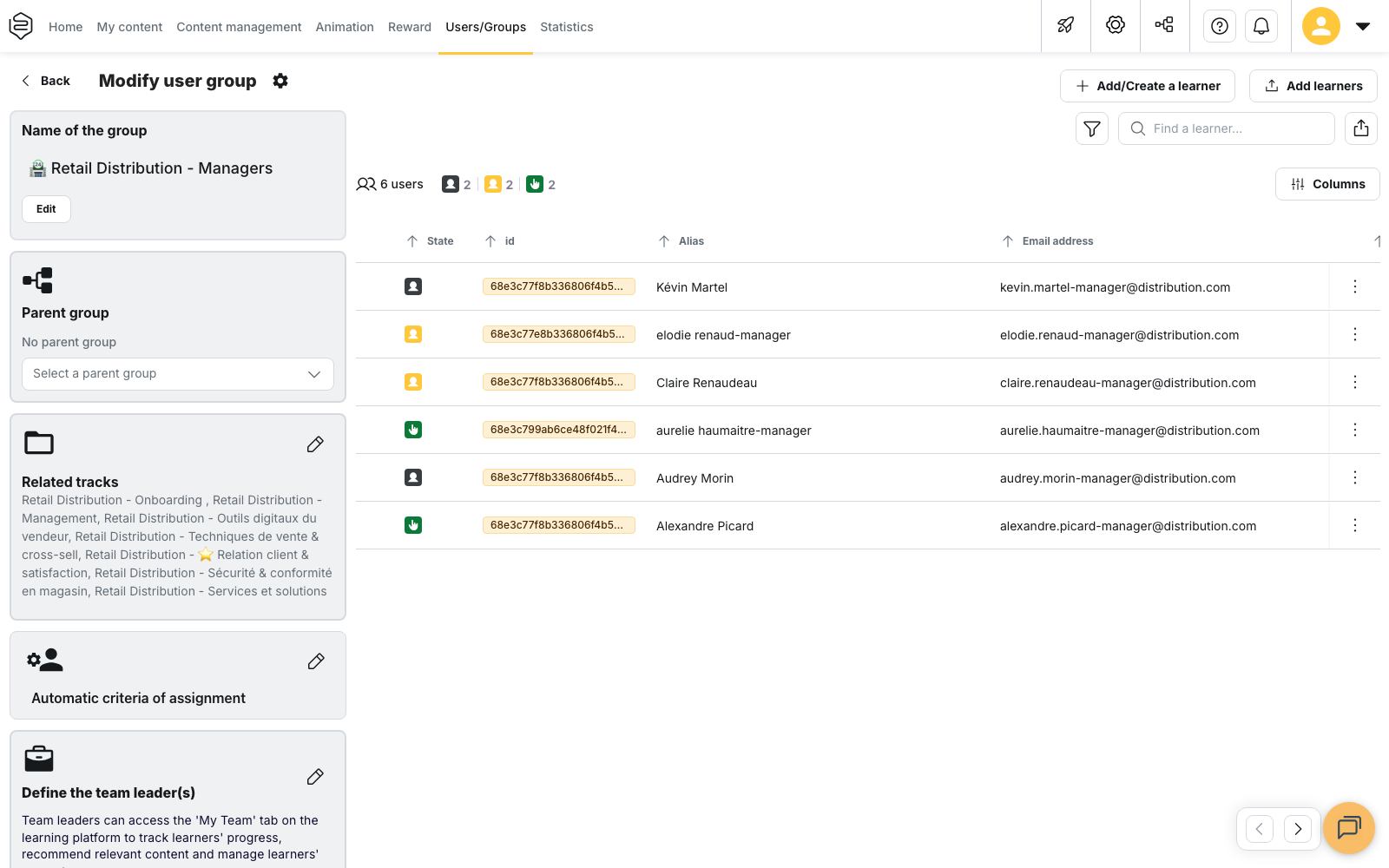
On a group's edit screen, the Related tracks card lists the tracks that population receives, and the pencil opens the panel where that list is changed. The card names the linked tracks, or reads No track selected when the group has none. For what a group governs elsewhere, see Understanding groups.
Viewing and managing the tracks linked to a group
On a group’s edit screen, the Related tracks card lists the tracks that population receives, and the pencil opens the panel where that list is changed. The card names the linked tracks, or reads No track selected when the group has none. For what a group governs elsewhere, see Understanding groups.
⚠️ Rights required: you reach this card from the group’s edit screen, so you need diffusion rights over that group. The panel offers only the tracks your own rights already let you see.
One link, two screens
Related tracks and the Standard access block on a track’s Diffusion tab are not two separate settings: the link between a track and a group is stored once, and these two screens are two views of it.
In practice:
- Adding the track from the group, or adding the group from the track, gives the same result.
- A change made on one side shows up on the other, with nothing to carry over.
- Removing a link here removes it from the track’s Standard access.
What changes is the question being asked. Start from the track when you are looking for its audience, see Distributing a track to groups. Start from the group when you are checking what a population receives: that direction has no other screen.
What the panel contains
The pencil opens the Related tracks panel, in two zones.
Edit associated tracks standard access, at the top. The Add a track field lists the tracks already linked, each marked with its type: Standard, Recommendation, Fixed campaign or Rolling campaign. This is the only editable zone; removing a track means deselecting it. The list offers the tracks you have access to, deactivated tracks excepted.
View associated tracks with promotions, at the bottom. A read-only table, split into Ongoing, Upcoming and Finished, with Track name, Type, Start date, End date and Rolling days. Each row carries the Show track in track management action, which opens the track in a new tab, on its Diffusion tab.
⚠️ That table only lists campaigns and recommendations. When the group receives none, it reads “No related tracks are linked to this group”, even when standard-access tracks are selected right above it.
Nothing is sent until you click Save. Closing the panel with pending changes opens Unsaved changes: Leave discards them, Stay keeps them.
Removing a track that a promotion opened
A campaign or a recommendation also opens standard access to the group it targets. The track therefore sits in the list, but deselecting it is refused: “You cannot deselect a promotion track. You can use the table below to go to the track diffusion page and edit the promotions there.”
As long as the promotion exists, the access exists. To cut the access, delete the promotion from the track: the deletion then asks whether you want to Delete and keep track accessible or Delete and remove access.
What the panel does not do
- It only edits standard access. The panel’s own notice says so: “From here, you can only edit groups from standard access. If you want to edit the promotions of any track, click on the concerned track below.”
- It does not tell you what one person sees. Access adds up: a learner sees the union of everything their groups open, and this panel shows only one of them.
- The pencil stays inactive until the group has been saved. On a group being created, link the tracks after the first save.
When to use it
This is the checking screen: before deactivating a group, after a reorganisation, or when someone reports seeing content that does not concern them.
If a track you are looking for does not appear in the list although it exists, start with your rights: those restricted to a named list of groups or tracks do not extend to whatever is created afterwards. See Who can distribute what.
Going further
- Distributing a track to groups: the same link seen from the track, and what distribution does not do
- Tracks: the track types and the rules on combining promotions
- Understanding groups: why the group is what decides who receives what
- Creating and organising user groups: the group’s department, its deactivation and reactivation