Who can distribute what: distribution rights
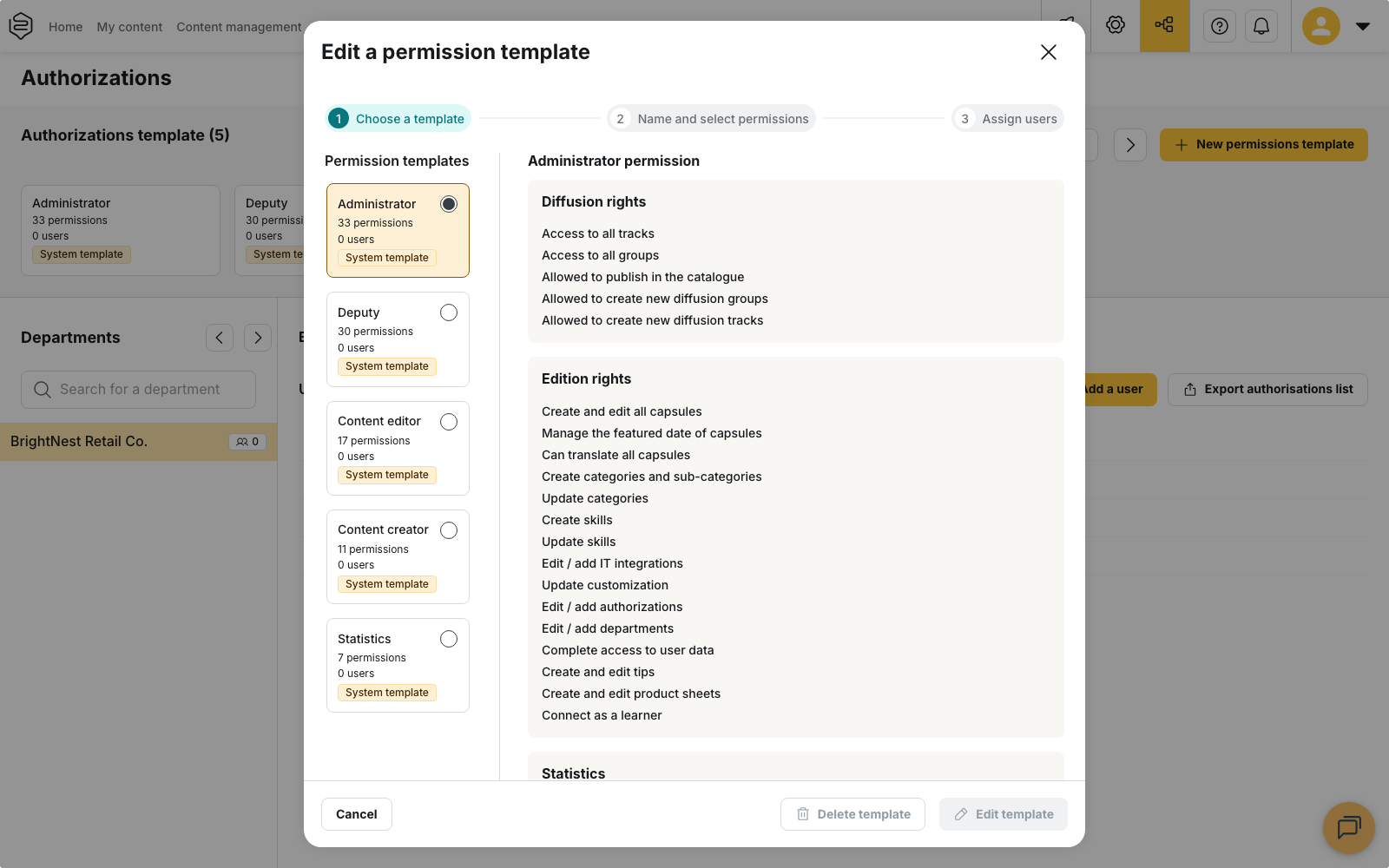
Distribution rights, labelled Diffusion rights in the back office, are one of the four families that make up an access (Understanding custom permissions). This one answers a single question: what can this person distribute, and to whom. It is set inside an authorization template, in the Diffusion rights section, in three blocks: The groups, The tracks and Other diffusion rights.
Who can distribute what: distribution rights
Distribution rights, labelled Diffusion rights in the back office, are one of the four families that make up an access (Understanding custom permissions). This one answers a single question: what can this person distribute, and to whom. It is set inside an authorization template, in the Diffusion rights section, in three blocks: The groups, The tracks and Other diffusion rights.
⚠️ Rights required: opening or editing an authorization template requires the Edit / add authorizations right.
When the whole family is disabled, the Users/Groups menu disappears from the back office. That is the case for the Statistics profile, which reads statistics without distributing anything.
Access is not management
The first two blocks separate two levels, and this is the most important distinction on the page. Access means seeing the object and working with it: distributing a track to a group you have access to. Management means changing the object itself, what it contains or how it is set up. The two are set separately: a trainer can have access to a group in order to distribute content to it, without being able to change who is in it.
Scope: all, a list, or none
For groups as for tracks, access has three mutually exclusive positions: Access to all groups, Only access the following groups, No access to groups, and their counterparts Access to all tracks, Only access the following tracks, No access to tracks.
Management rights appear under the position you pick and change shape with it. With access to everything, they are two global checkboxes on the group side, Allowed to update diffusion groups and Allowed to notify all diffusion groups, plus Allowed to update tracks on the track side.
With a restricted list, the same rights are ticked object by object: under each group, Allowed to update the diffusion group and Allowed to notify all diffusion groups; under each track, Allowed to update the track.
In a restricted list, ticking a management or notification right on a group or a track adds access to it automatically. Conversely, unticking access to an object also removes the management and notification rights you had ticked below it.
Notification is a right of its own, separate from access: someone can distribute content to a group without being able to send it a notification. See Notifying learners of new content.
The Other diffusion rights block
Six checkboxes, independent of the two blocks above.
- Allowed to publish in the catalogue: making content available to the whole account, outside tracks and outside groups, as in model 1.
- Allowed to create new diffusion tracks and Allowed to create new groups: creation is set here, not in the matching blocks. A profile can therefore reach every track without being able to create a single one.
- Authorized to generate SCORM exports from capsules and tracks: Exporting to SCORM.
- Display links to web app and Display links to application: Distributing by link, QR code or barcode.
What the predefined profiles carry
- Administrator and Deputy carry every distribution right. On an account organised in departments the Administrator profile is not offered: Deputy is then the most complete of the predefined profiles.
- Content editor reaches all groups and all tracks, creates and manages groups and notifies them, but neither creates nor manages tracks, and does not publish to the catalogue.
- Content creator reaches all groups and all tracks without managing anything: it updates no diffusion list, notifies no group, and creates neither groups nor tracks. See Getting started as a trainer.
- Statistics carries no distribution right at all: the whole family is disabled.
- The first four profiles carry SCORM exports and both link-display rights. Every one of these default positions can be changed in a custom template.
What distribution rights do not set
A distribution right does not define the perimeter. The template says what the person can do, the department says what on: you see your department and everything below it, never beside it. Two people on the same template in two departments do not distribute to the same learners.
Group roles are not distribution rights. Team leader, coach, validator and animator are exercised in the learner app and open no back-office access at all (Assigning roles in a group).
The account owner carries no template: that absence is what gives them every right.
Restricted lists do not extend themselves
⚠️ A ticked list stays frozen. A group or a track created afterwards enters no existing list, and nobody sees it until the templates concerned have been gone through again. Check this first when someone reports that they cannot see a new track.
⚠️ A missing right greys nothing out. The tab, button or menu entry simply is not shown, and an option that is off on the account produces the same absence: Why can’t I see this feature?.
Going further
- Understanding custom permissions: the four rights families and what a template does not do.
- Assigning rights: building a template and applying it to someone, step by step.
- Understanding structure and permissions: how departments, groups and permissions divide the work.
- Why can’t I see this feature?: telling a missing right from an option that is off.