Model 1: global distribution
Global distribution makes a capsule available across an entire scope without assigning it to a learning path or targeting specific groups.
Model 1: global distribution
Global distribution makes a capsule available across an entire scope without assigning it to a learning path or targeting specific groups.
The capsule is not added to the learner’s list of learning paths. Instead, it becomes available through the platform’s discovery areas, such as search or the catalog.
To compare the different distribution models, see Understand content distribution.
⚠️ Prerequisite: the Enable catalog option must be enabled on your account. If it is not, the settings described in this article do not appear in the capsule editor.
⚠️ Required permissions: the Allowed to publish in the catalog permission, available under distribution permissions in the permission model. Without this permission, catalog settings remain read-only and the Catalog column does not appear in the capsule list.
To learn more, see Who can distribute what?.
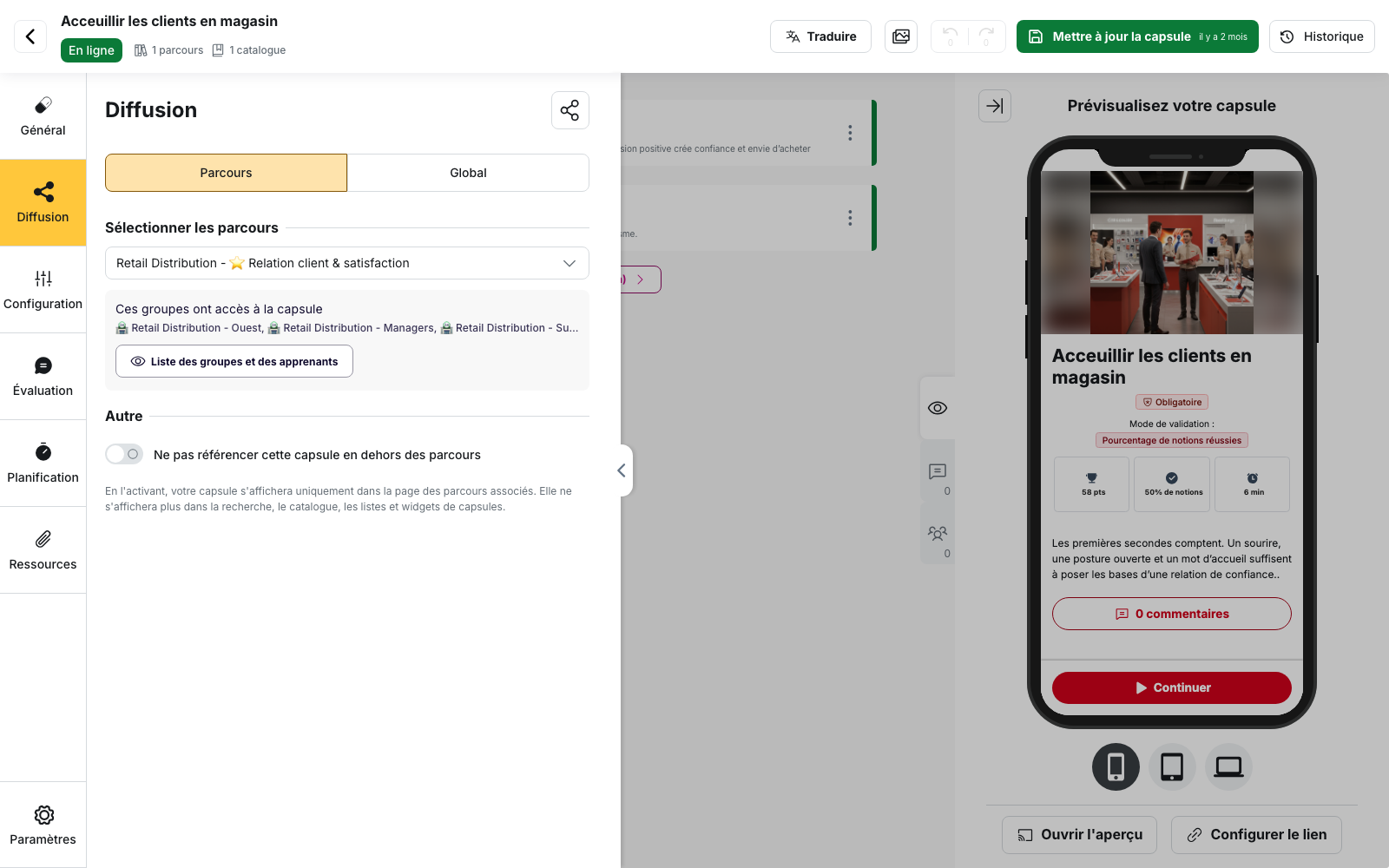
Configure global distribution
Open the capsule in the editor, then go to Distribution > Global.
An information box explains what the setting does: “The capsule will be displayed on the Explore page, in search results and in widgets.”
The Display in the catalog of section then lists the available scopes:
- the main account, identified by your company name;
- the different departments, if your account uses a department structure.
Select the scopes where the capsule should be available, then save your changes.
You can also manage this distribution from My content > My capsules.
The Catalog column lets you update one capsule at a time. To update several capsules at once, select them, then use the Catalog action to open the Add to catalog window.
Understand catalog scopes
When you select the company’s main scope, the capsule becomes available to all learners on the account.
When you select a department, it becomes available to learners in that department.
In both cases, the groups learners belong to are not used to determine access.
Understand inheritance between departments
Access configured for a parent department is also inherited by its sub-departments.
A capsule added to the catalog of a parent department is therefore available to learners in its child departments.
From a child department, an administrator sees the capsule in read-only mode with the following message: “This capsule has already been added to a catalog from a parent department.”
The capsule header also shows how many catalogs it belongs to, for example 1 catalog.
What learners see
A capsule available in the catalog can appear:
- in search;
- on the Explore page;
- in home page widgets, depending on your platform configuration.
To learn more about these entry points, see Home page and menu.
What global distribution does not replace
Make a capsule mandatory
The Global sub-tab also includes the Mark this capsule as mandatory option.
When enabled, learners must complete the capsule and their team manager can track their progress.
Making a capsule available in the catalog and making it mandatory are therefore two separate settings.
Send a notification
Making a capsule available in the catalog does not send a notification automatically.
You can still send a notification linking to the capsule. In that case, the recipient groups are selected in the notification settings, not in the capsule’s distribution settings.
Identify recipients precisely
Global distribution does not create a list of recipient groups.
The These groups have access to the capsule section appears when a capsule is distributed through a learning path and lists the groups associated with those learning paths. It does not represent the audience of global distribution.
Restrict a capsule to its learning paths
The Do not list this capsule outside learning paths option has the opposite effect of global distribution.
It is available under Distribution > Learning paths, in the Other section.
When enabled, the capsule remains accessible only through the learning paths it belongs to. It no longer appears in:
- search;
- the catalog;
- capsule lists;
- capsule widgets.
💡 Use this option for capsules that only make sense within the context of a learning path, such as an assessment linked to a specific stage.
Avoid enabling it at the same time as catalog distribution, as it prevents the capsule from appearing in discovery areas.
Assign the capsule before publishing
A capsule must have at least one distribution method before it can be published.
It must be associated with at least one of the following:
- a learning path;
- a catalog scope;
- a Custom distribution rule containing at least one group.
If none of these is configured, publishing is blocked and the following message is displayed: The capsule is not in any learning path and is not attached to any catalog.
The back office then takes you back to the Distribution tab so you can complete the configuration.
When to choose another model
When access must be restricted to specific groups
Global distribution applies to the entire selected scope. It does not let you exclude specific groups within that scope.
If only certain groups should have access to the capsule, use custom distribution by group, particularly with the Restricted access option.
When the capsule is part of a learning journey
If a capsule only makes sense within a specific sequence, use learning path distribution instead.
You can also enable Do not list this capsule outside learning paths to prevent it from appearing independently in search or the catalog.
Learn more
- Model 2: distributing content through learning paths: distribute a learning path to a defined audience and track its progress.
- Model 3: custom distribution by group: adapt or restrict access to a capsule depending on the group.
- Who can distribute what?: understand the Allowed to publish in the catalog permission and other distribution permissions.
- Common issues: content distribution: troubleshoot cases where a capsule appears to be configured correctly but learners still cannot find it.