Linking a capsule to tracks
⚠️ Rights required: you must have access to the relevant tracks. A profile restricted to specific tracks can only select those tracks. See Who can distribute what.
Linking a capsule to tracks
⚠️ Rights required: you must have access to the relevant tracks. A profile restricted to specific tracks can only select those tracks. See Who can distribute what.
Linking a capsule to a track makes it accessible to the groups the track is distributed to. This is Model 2: distribution through tracks, configured from the capsule.
A capsule can be linked to several tracks at the same time, allowing the same content to serve multiple populations without duplication.
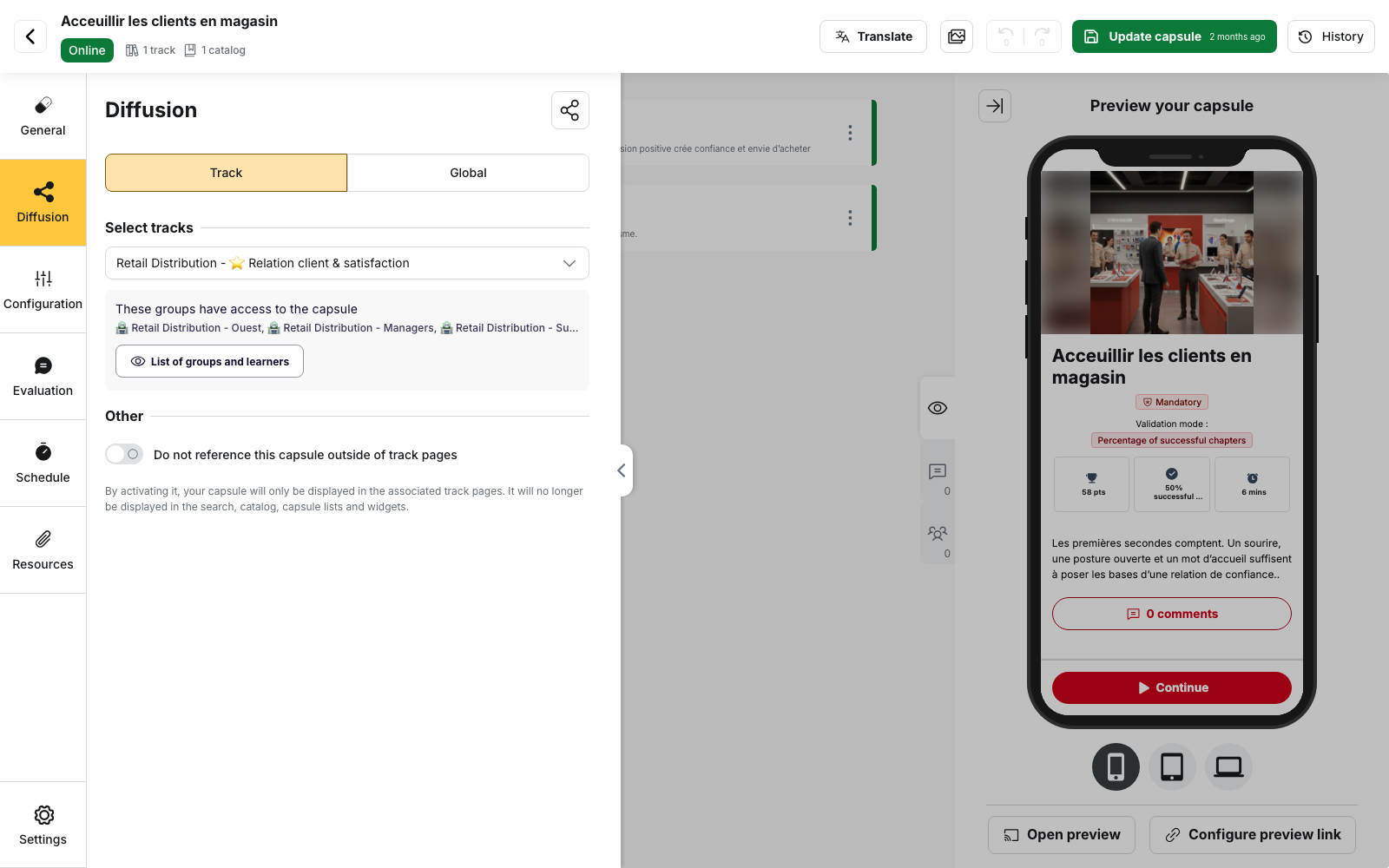
Link a capsule to tracks
In the capsule editor:
- Open Diffusion from the left menu
- Select the Track tab
- Under Select tracks, open the selector and choose one or more tracks
- Click Update capsule to save
The Global tab provides the two other distribution methods:
- To be displayed on the catalogue of Model 1: global distribution
- Custom diffusion Model 3: custom diffusion per group
Link a capsule from a track
You can also add capsules directly from a track. Open the track and use Add a capsule to select the capsules to add.
This is useful when you want to organise several capsules within the same track.
Choose between a track and a sub-track
Sub-tracks appear in the selector under their parent track:
- selecting a track places the capsule at the track’s root
- selecting a sub-track places it inside that sub-track
A track and one of its sub-tracks cannot be selected at the same time. For a given track, the capsule is either at its root or inside one of its sub-tracks.
Only active tracks that your profile can access are available in the selector.
Check who will have access
Once a track is selected, the These groups have access to the capsule card appears below the selector and shows the groups reached by the distribution.
Use List of groups and learners to view the details group by group. Check this list before saving if you need to confirm the scope of the distribution.
If no group is linked to the selected tracks, the back office displays The selected track(s) are not linked to any group.
The capsule is still linked to the track, but no learner can access it until the track is distributed to groups.
See Distributing a track to groups.
Restrict the capsule to track pages
Under Other, enable Do not reference this capsule outside of track pages to limit the capsule to the pages of its associated tracks.
The capsule is then removed from:
- search results
- the catalogue
- capsule lists
- capsule widgets
⚠️ This setting is incompatible with catalogue referencing. Enabling it clears the selection made in To be displayed on the catalogue of.
Remove a track
Remove the track from the selector, then click Update capsule.
Learners who accessed the capsule only through that track will no longer have access to it.
A track linked by another author but unavailable to your profile does not appear in the selector and cannot be removed from the capsule.
What linking a capsule does not do
⚠️ It does not publish the capsule. A capsule in Draft or Awaiting validation remains unavailable, even when linked to a distributed track. See Publishing and unpublishing a capsule.
⚠️ It does not notify learners. Adding or removing a track does not send a notification. See Notifying learners of a new distribution.
⚠️ It does not define the order, mandatory status or release delay. These settings are managed from the track, in the Content tab.
A capsule must have a distribution method
A capsule that is not linked to a track, catalogue or group cannot be published.
The message The capsule has no associated tracks is cleared when at least one of the following is configured:
- a track
- an entry in “To be displayed on the catalogue of”
- a Custom diffusion rule with groups
Campaign tracks
Adding a capsule to a campaign track adds it to the campaign with a D+0 release delay by default.
The delay can then be changed from the track. Removing the track also removes the capsule from the campaign.
See Campaign tracks.
ℹ️ Interest capsules: a capsule created as an interest capsule does not have a Track tab. It is distributed through the catalogue only.