Notifying learners of new content
Rights required: Can send / edit notifications and emails, in the animation rights. The Allowed to notify all diffusion groups right, in the diffusion rights, is set group by group or for all of them at once.
Notifying learners of new content
Rights required: Can send / edit notifications and emails, in the animation rights. The Allowed to notify all diffusion groups right, in the diffusion rights, is set group by group or for all of them at once.
Distributing warns nobody. A track opened to a group appears in the app with no announcement, and it can sit there unseen for weeks. See Distributing a track to groups.
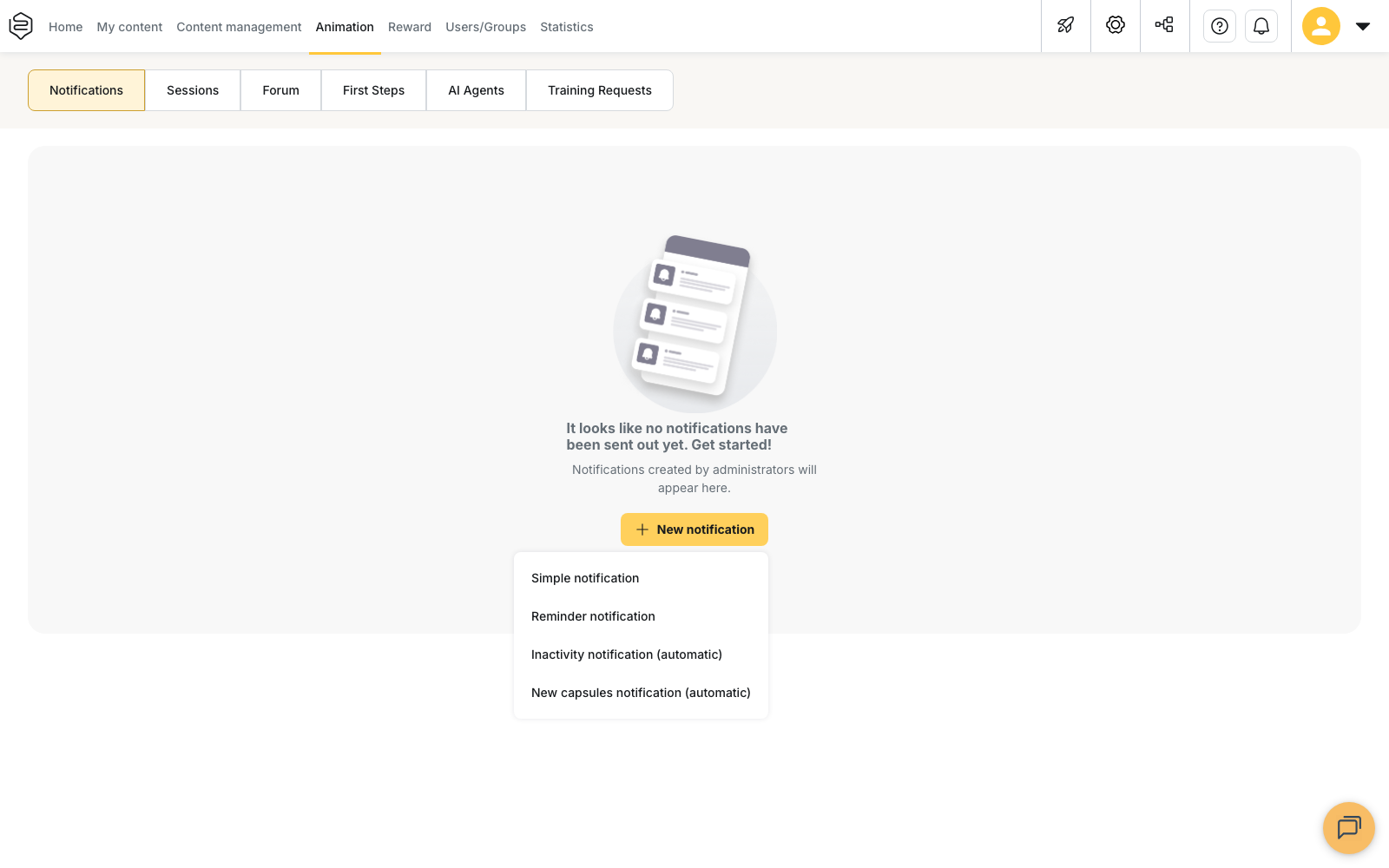
Where to create a notification
Animation menu, Notifications tab, New notification button. Four entries: Simple notification, Reminder notification, Inactivity notification (automatic) and New capsules notification (automatic). The window then opens in three blocks: Notification general informations, Notification destination and Notification scheduling.
Announcing a piece of content
The first block carries the Notification title, the Notification content, the Group(s) that will receive it and the Associated departments. The Also send an email button doubles the send, and the email repeats the same title and the same content.
The second block decides where it lands: Notification opening redirects to A track, A capsule, A tip, A product sheet, The ranking, The memorization or The feed.
Two lists, two behaviours. A capsule also offers capsules made available without any track: content distributed globally is announced like any other, and the groups picked on the notification are what decide who receives it. See Model 1: global distribution. A track only keeps tracks distributed to the groups you targeted.
Reminder notification adds a choice at the top, Capsule or Track, then Send a reminder to: those who have not finished, or those who have not validated, with the Include only learners that have started the capsule box. What that box actually does is in Notifications.
Sending manually or scheduling
The Notification scheduling block offers two modes.
Manual send leaves the notification unscheduled. You save it, then choose yourself when to send it from the notification list.
Schedule for a specific date and time shows the scheduling fields:
- Start date and the send time. Both are required, and the calendar offers no date earlier than today.
- Recurrence: to repeat the send on one or more days of the week.
- Recurrence end, shown only once at least one day is selected: Never, or an End date.
As long as the scheduling is incomplete, saving is blocked and the matching message appears under the fields: “Choose a date.”, “Choose a time.” or “The date and time must be in the future.”
The bottom of the window carries Cancel and Save. When Save is inactive, its tooltip lists what is still missing: title, content, target group, destination content or scheduling.
💡 Tip: switch back to Manual send to disarm a schedule without losing what you entered. The days, time and end date you already set are restored if you come back to Schedule for a specific date and time.
Sending from the list
The Scheduling column carries the send action. A notification that has never gone out shows Send, one that has already gone out shows Resend: a confirmation window opens before the send, then a progress bar replaces the button while it goes out. A scheduled notification shows its due date instead, with the Schedule action, which reopens the scheduling block.
The Status column shows where each notification stands: Awaiting send, Scheduled, Sent, Canceled, Failed or Suspended. A notification saved with an active schedule stays Scheduled until it goes out.
See history, in the Historic column, opens the detail of the sends already made: recipients, status per learner, and content progress before and after the notification.
What goes out without being scheduled
A campaign notifies on its own, three times: at the start, at each capsule that comes out, and five days before the end date. That last one needs an end date, so it does not exist on a rolling campaign. A capsule placed on day one has no announcement of its own, and on a fixed campaign, a capsule whose release day has already passed when you save triggers nothing. See Campaign tracks.
What it does not do
- It opens no access. A notification announces, it does not distribute: the group receiving it gains no right over the content it points at.
- It does not replace the invitation. A learner who never activated their account is chased from the user list, with the Send invitation action. Accounts created by the HRIS synchronisation receive no invitation email at all.
- The two (automatic) entries do not switch themselves on. No account setting triggers them: they are created by hand on this screen, and stopped with Suspend.
The trap
Deactivating a track does not stop what is already running. A campaign under way keeps notifying. A reminder aimed at a deactivated track, on the other hand, does not go out when it comes due and is never rescheduled: reactivating the track does not bring it back, you have to create it again. See Deactivating and reactivating a track.
A push notification does not carry its department. A learner who receives one for content in another académie than the one they are in does not switch by opening it, and nothing opens. See Switching between universes.
Going further
- Notifications: fine-grained reminder targeting.
- Campaign tracks: the three notifications that go out without you scheduling them.
- Follow-up and nudging: nudging from a capsule’s statistics.
- Exploring the user list: the Send invitation action, for accounts that were never activated.