Deactivating and reactivating a track (formerly "deleting")
⚠️ Required permission: Authorized to edit learning paths.
Disable and re-enable a learning path (formerly “delete”)
⚠️ Required permission: Authorized to edit learning paths.
A learning path cannot be deleted. It can be disabled and re-enabled at any time. Disabling a learning path does not delete the path, its capsules, or learners’ progress.
Everything is managed from Content management > Learning paths.
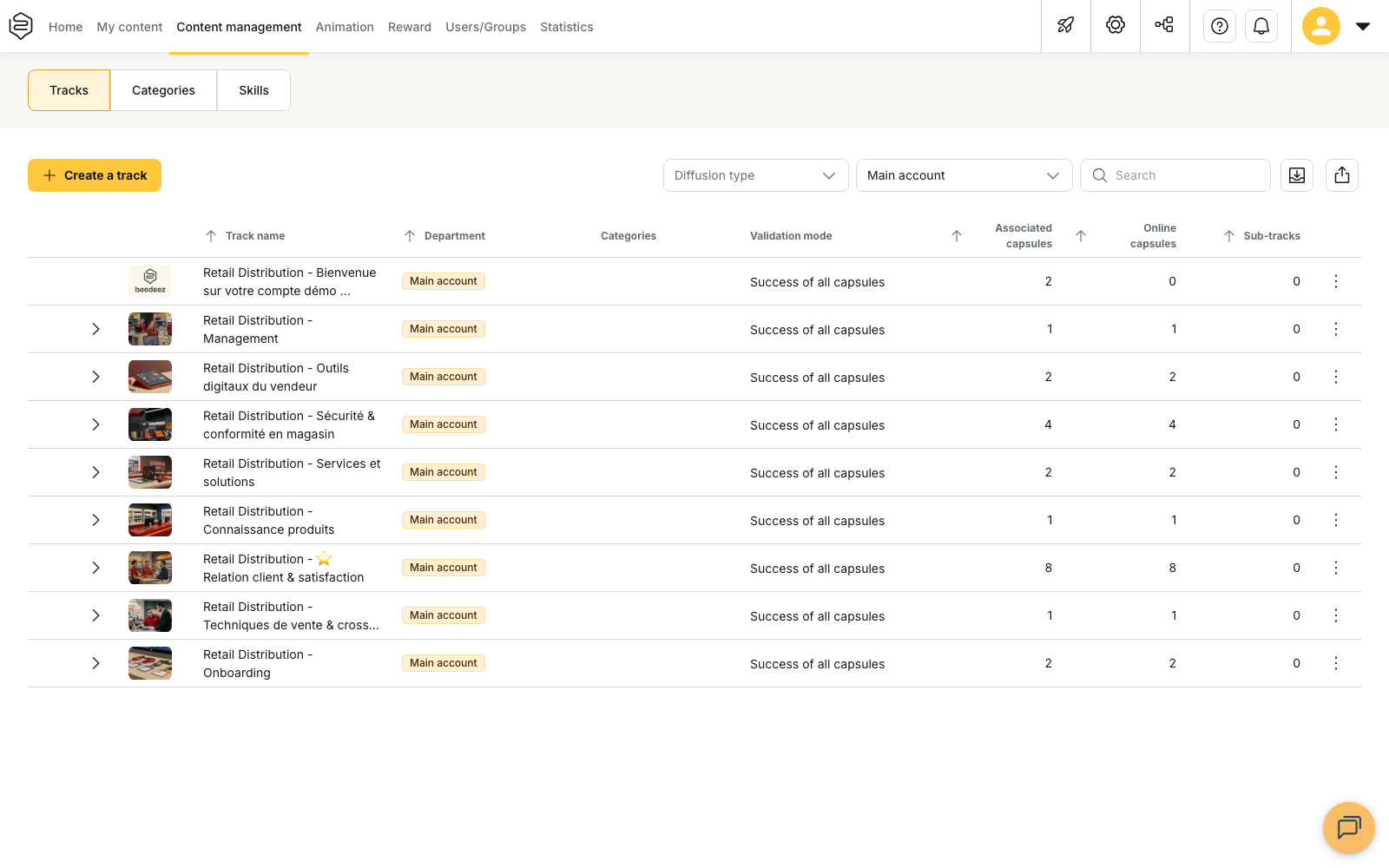
Disable a learning path
From Content management > Learning paths, you can disable:
- One learning path: open the action menu at the end of the row and select Disable learning path. The action is also available from the Edit learning path panel.
- Multiple learning paths: select them from the list, then launch the disable action.
The Disable learning path window asks for confirmation and indicates the number of affected capsules and sub-learning paths.
The action is only available for learning paths your profile allows you to edit.
What disabling a learning path changes
Once disabled:
- the learning path disappears from the learning path list and is no longer visible to learners
- its capsules are no longer accessible through this learning path;
- it is removed from profiles whose Distribution rights are set to Restrict to specific learning paths
- Scheduled reminders for this learning path are canceled
What disabling a learning path keeps
Disabling a learning path does not delete any content or data:
- the learning path, its capsules, learners’ progress, and history are preserved
- the capsules keep their status and are not unpublished
- groups in Standard access remain associated with the learning path
- the learning path remains visible in statistics when Include disabled content is enabled, which is the default setting
Find and re-enable a learning path
Click View disabled learning paths at the top of the list to open the Re-enable disabled learning paths window.
Only disabled learning paths that your profile allows you to edit are displayed. They are sorted from most recent to oldest and can be filtered by title.
To re-enable a learning path:
- Click Restore on the corresponding row.
- Or select multiple learning paths and click Restore selection.
When multiple learning paths are selected, the individual Restore buttons are disabled. Use Restore selection, or deselect the learning paths to return to individual actions.
The Re-enable this learning path? window asks for confirmation. Once re-enabled, the learning path becomes visible again.
⚠️ The Date of deletion column corresponds to the learning path’s last modification date, not the date it was disabled.
Check distribution when re-enabling a learning path
Disabling a learning path does not remove groups from Standard access.
When you re-enable the learning path, it therefore becomes immediately accessible to the relevant groups, without requiring new distribution or sending a notification to learners.
Before re-enabling a learning path, check its content and distribution settings.
What re-enabling a learning path does not restore
Two elements are not automatically restored:
- Restricted distribution rights: if a profile used Restrict to specific learning paths, the learning path must be added to its list again
- Scheduled reminders: a reminder canceled when the learning path was disabled must be recreated