Creating a track
A track is the unit of distribution: you distribute a track to a group, not an individual capsule. Creating a track defines its name, validation rules and visibility. Distribution itself is covered in Model 2: distribution through tracks.
Creating a track
A track is the unit of distribution: you distribute a track to a group, not an individual capsule. Creating a track defines its name, validation rules and visibility. Distribution itself is covered in Model 2: distribution through tracks.
⚠️ Rights required: Allowed to create new diffusion tracks. Without this right, Create a track is disabled and you can only work with existing tracks. See Who can distribute what.
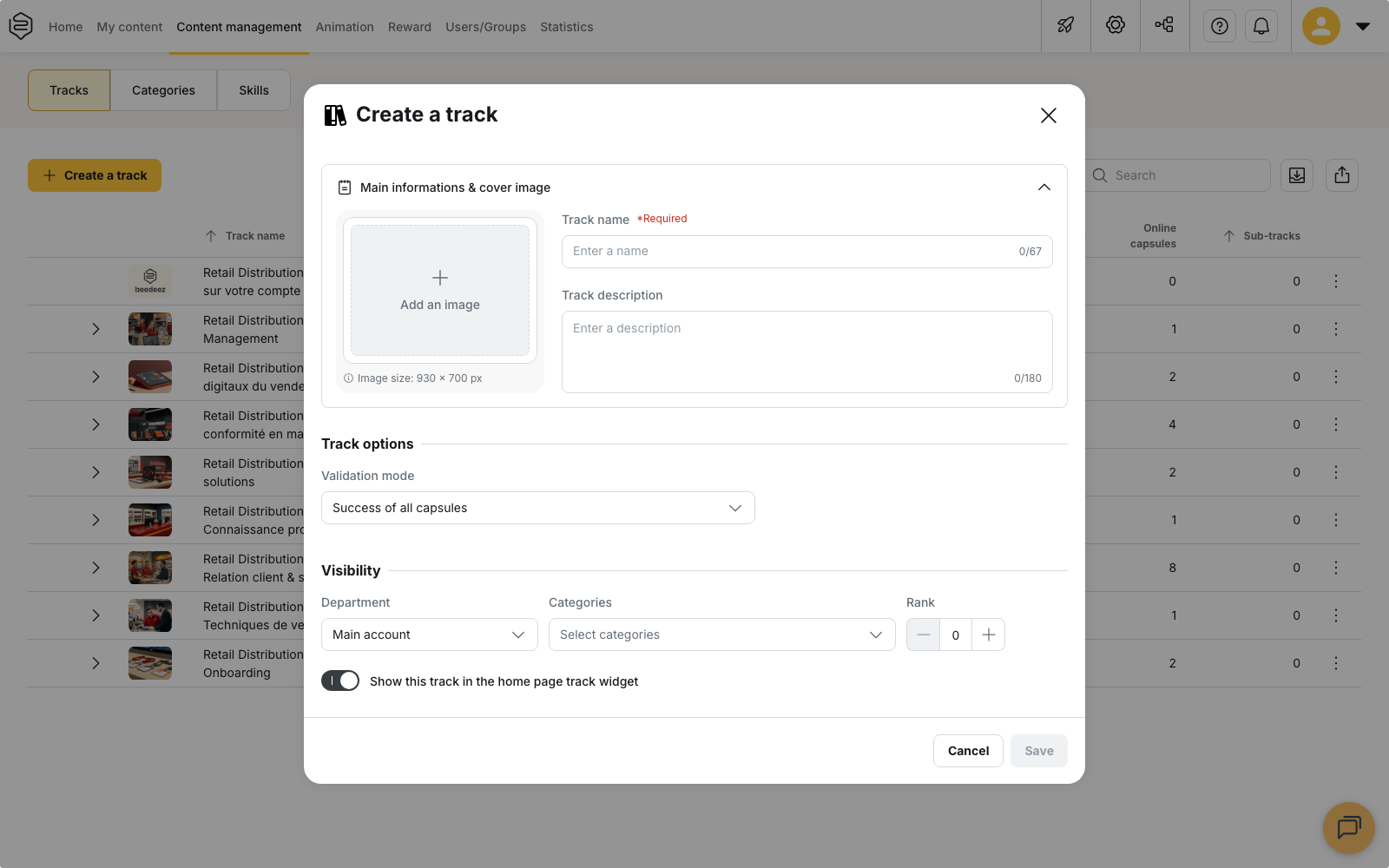
Creating the track
- Go to Content management > Tracks
- Click Create a track
- Enter a Track name. This is the only required field and is displayed to learners on the track thumbnail
- Add a Track description and Cover image if needed
- Under Track options, select the Validation mode
- Under Visibility, configure the Department, Categories, Rank, and whether the track appears in the home page widget
- Click Save. The track is created and the Edit track panel opens on the Information, Content and Diffusion tabs
Name, description and cover image
The Main informations & cover image block contains the information displayed to learners:
- Track name: maximum 67 characters, required
- Track description: maximum 180 characters
- Cover image: the expected size is displayed in the dialog: 930 × 700 px
The name and description can be translated into several languages. See Translating a track.
Validation mode
The Validation mode in Track options defines when a track is considered validated.
| Mode | Validation condition |
|---|---|
| Success of all capsules | All capsules in the track must be passed. This is the default mode. |
| Percentage of successful capsules | The required percentage of capsules must be passed. |
| Success of selected capsules | All selected capsules must be passed. |
| Success of a percentage of selected capsules | The required percentage of selected capsules must be passed. |
| Success of mandatory capsules | All capsules marked as mandatory must be passed. |
The two modes based on selected capsules require at least one capsule to be added to the track. Since the track is empty when created, select the capsules later from the Content tab.
⚠️ Success of mandatory capsules requires mobile app version 12.54.0 or later. The back office also warns you if no capsule is marked as mandatory for the relevant groups, since the validation condition could not then be met.
Track only-invite
Track only-invite is available in Track options when the invitation feature is enabled on your account.
⚠️ This setting cannot be changed after the track is created. Once saved, the option is no longer available on the Information tab. Other settings on this tab can be changed later. See Invitation-only tracks.
Visibility
The Visibility block contains:
- Department
- Categories
- Rank
- Show this track in the home page track widget
The widget option is enabled by default. Disable it when the track should remain accessible without being displayed on the home page.
Rank determines the track’s position in the home page widget. See Setting the order of tracks on the home page.
Configuration-dependent settings
Some blocks on the Information tab only appear when the corresponding features are enabled:
- Track access from other departments: available when cross-department track sharing is enabled
- Advanced options: contains External Id and External title when external reporting is enabled
- Additional information: available when additional track fields have been configured
If a block is not displayed, the corresponding feature or configuration is not active for your account.
Sub-tracks
A sub-track lets you organise capsules within a track. Create one from the Content tab of the Edit track panel using Create a sub-track.
A sub-track has a Sub-track title only: it has no image or description and cannot be distributed independently. See Organising a track’s content.
What creating a track does not do
Creating a track does not distribute it. Until a group is added on the Diffusion tab, no learner has access to it.
A validated track does not necessarily mean that every capsule was passed. This depends on the selected Validation mode.
Tracks are not deleted. They are deactivated instead, and can be reactivated later.