Setting the order of tracks on the home page
You set the order of tracks in the back-office, one track at a time, with the Rank field. The order applies on the home page of the learner app, in the Tracks widget, which lists the tracks each learner has access to.
Setting the order of tracks on the home page
You set the order of tracks in the back-office, one track at a time, with the Rank field. The order applies on the home page of the learner app, in the Tracks widget, which lists the tracks each learner has access to.
To see which widgets make up this page and which ones are on for your account, read The home page and the menu.
⚠️ Rights needed: you need the Allowed to update tracks right to change these settings. Without it, the fields in the Information tab can be viewed but not edited.
Changing the rank of a track in the back-office
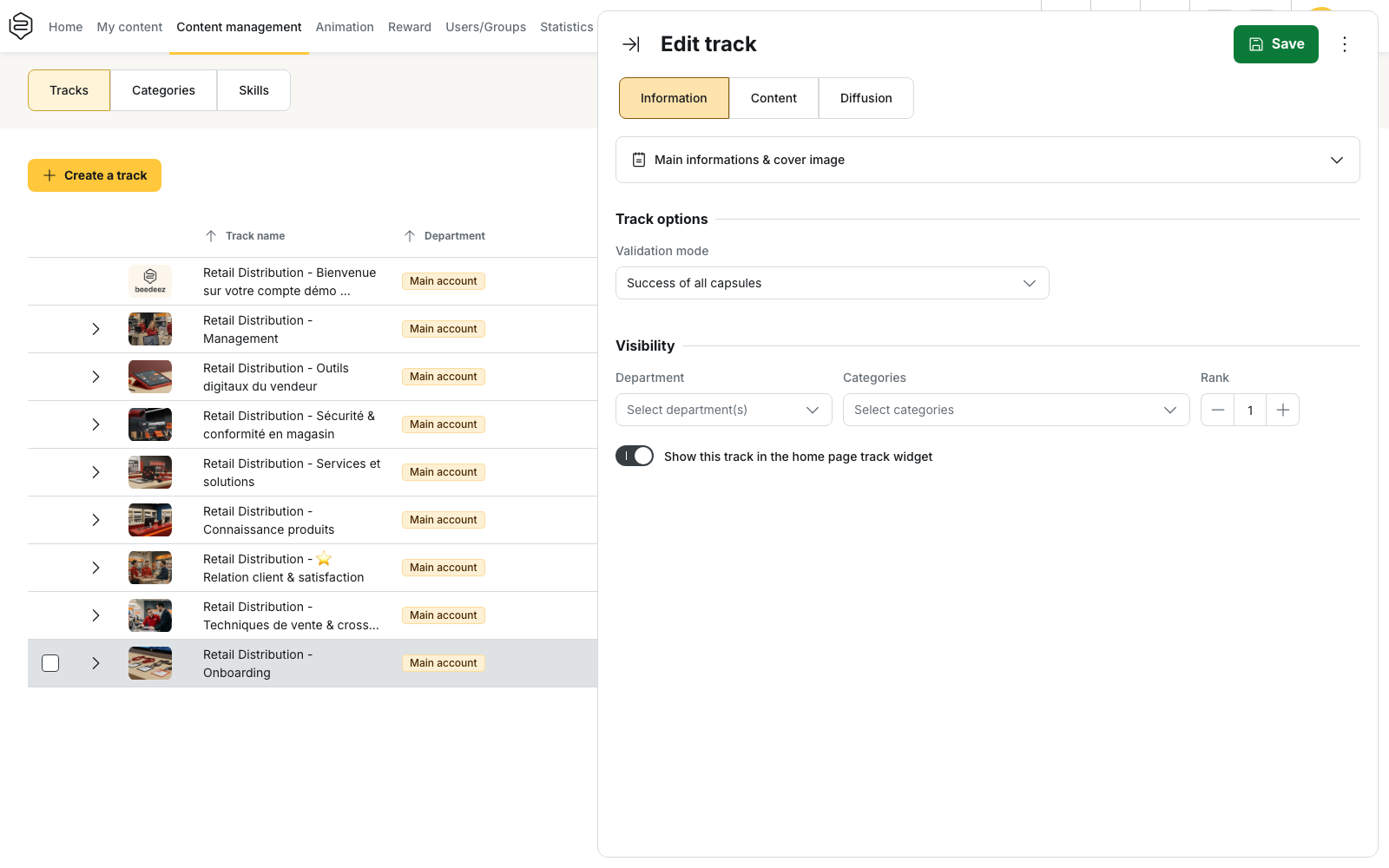
- Open Content management > Tracks.
- Click the track. Its edit panel opens on the Information tab.
- In the Visibility section, set the Rank field. The counter is at 0 by default and does not accept negative values.
- Click Save. The new value is not applied until you save.
How the rank shows on the learners’ home page
Rank 0 gets display priority: tracks at 0 appear at the top of the Tracks widget. Tracks are then shown from the lowest rank to the highest. Tracks with the same rank are sorted alphabetically by title.
A track whose rank has never been changed counts as 0. It therefore appears at the top, at the same level as a track explicitly set to 0.
Putting one track at the top of the list
Because every track is at 0 by default, giving a track a rank of 1, 2 or 3 moves it down the home page, behind every track still at 0.
To show one track first, leave it at 0 and give every other track a rank above 0.
Example: you have four tracks and want Onboarding for new managers to appear first. Leave that track at 0 and set the other three to 1, 2 and 3. On the home page of the learner app, Onboarding for new managers appears at the top, followed by the other three in the order you chose.
💡 Tip: numbering all your tracks lets you suggest a learning path to learners, from the first track to follow to the last.
Removing a track from the Tracks widget
The Show this track in the home page track widget setting is in the same Visibility section of the back-office. It is on by default. Turning it off removes the track from the Tracks widget on the home page without making it inaccessible: learners can still open it from the other content screens of the app. Click Save to apply the change.
💡 Tip: use this setting for reference content that learners can find when they look for it, rather than content shown on the home page at all times. The other settings in the Information tab are described in Creating a track.
What the rank does not change
- It does not change the Recommended tracks widget on the home page, which builds its list independently of the rank: that list shows two tracks at most, drawn from the learner’s current recommendations.
- It does not replace prioritisation. Prioritisation reorders no widget: it opens a pop-up when the learner arrives in the app, on top of the widgets. Read Prioritising a capsule.
Ordering in the other home page widgets
The Rank field only applies to tracks. No other widget is ordered content by content.
The capsule widgets each apply their own sort, given by their title: Featured capsules, Most recent capsules, Most viewed capsules and Best rated capsules.
The Catalogue widget is the only one whose sort you choose in the back-office, with its Sort mode: alphabetical order of categories, or number of capsules in each category.
Going further
- The home page and the menu: which widgets make up the home page and which ones to turn on.
- Recommended tracks: the other track list on the home page, the one the Rank does not affect.
- Featuring a capsule: what fills the Featured capsules list.
- Creating a track: the other settings in the Information tab.