The home page and the menu
⚠️ Required permission: access to Configuration.
Home page and menu
⚠️ Required permission: access to Configuration.
The home page and menu determine what learners see when they open the application and how they access the different content and features.
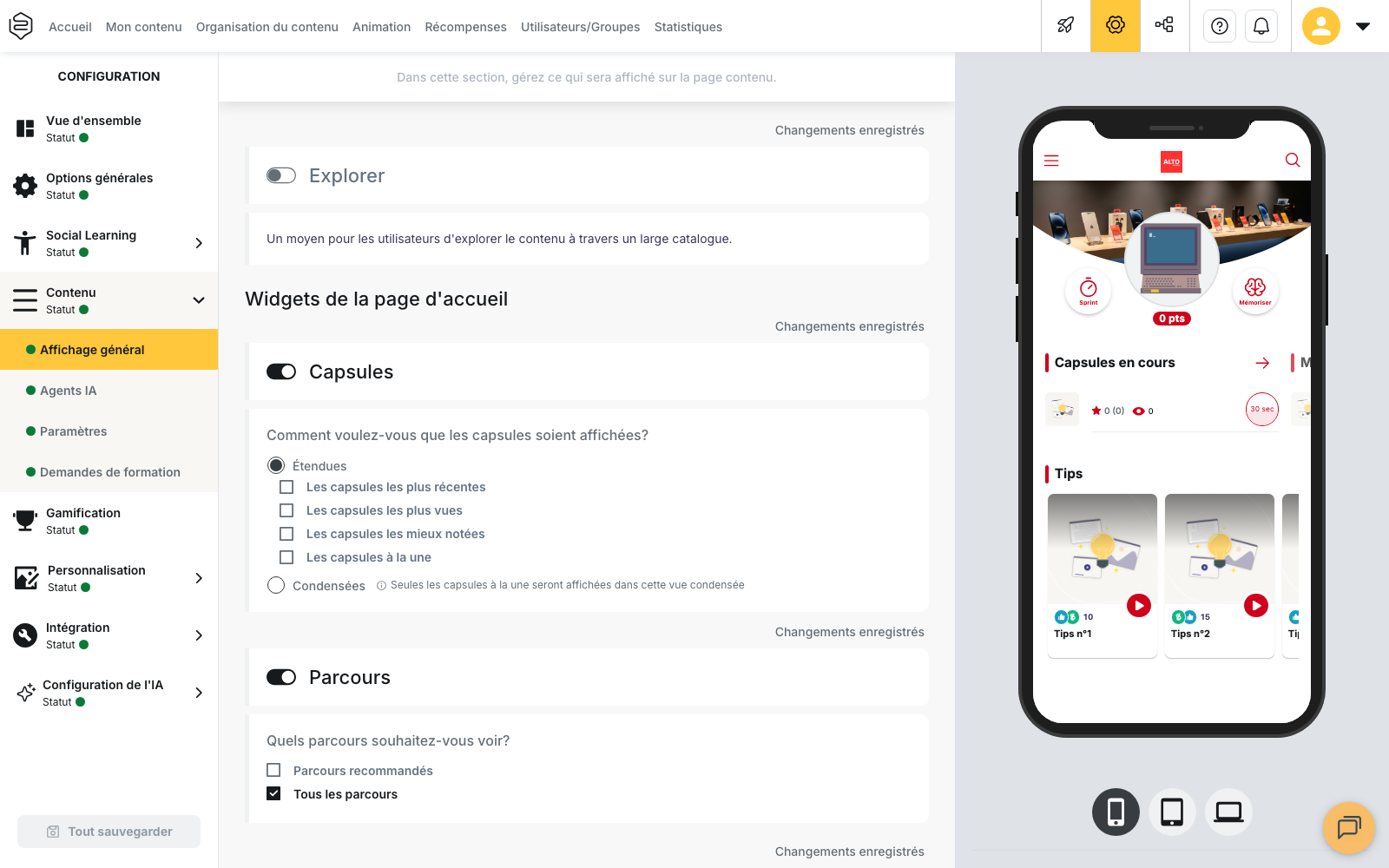
Home page widgets are configured under Configuration > Content > General display.
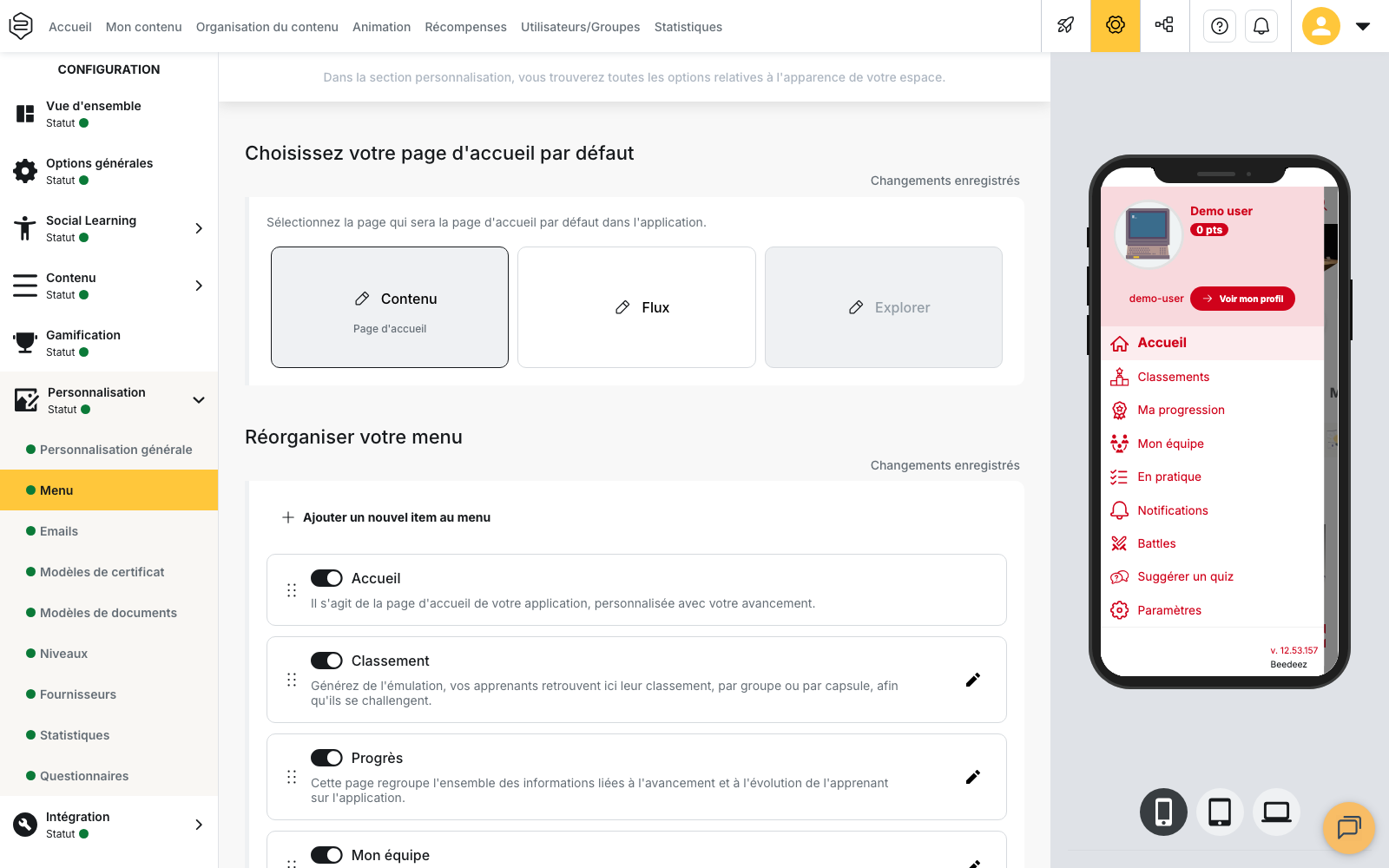
The menu is configured under Configuration > Personalization > Menu.
Both screens provide a live mobile preview.
Choose the default home page
Under Choose your default home page, three tabs are available:
- Content: the page made up of the widgets configured under Home page widgets
- Feed: the Social Learning feed
- Explore: access to content by category
The selected tab is identified as the Home page.
You can rename each of the three tabs using the pencil icon and Rename tab, for each language available on the account.
Feed cannot be selected if the main feed is disabled. Similarly, Explore is only available if the Explore page is enabled.
If you disable the feed while it is set as the home page, Content automatically becomes the home page.
Configure the home page widgets
The Home page widgets section allows you to build the Content page.
Each widget can be enabled or disabled. Its display order cannot be configured from this section.
Capsules
In Expanded view, you can display:
- Latest capsules
- Most viewed capsules
- Best-rated capsules
- Featured capsules
In Condensed view, only Featured capsules are displayed.
⚠️ If no capsule is featured, the widget is therefore empty in condensed view.
Learning paths
You can display the following two lists separately or together:
- Recommended learning paths
- All learning paths
The order of the learning paths is defined directly within each learning path.
Catalog
The Catalog widget provides quick access to categories.
The Sort order options are:
- Alphabetical order
- Descending order by the number of capsules in each category
You can also set the number of categories displayed separately for small and large screens, from 4 to 25.
This widget is no longer available in the settings if the Explore page is disabled.
Tips
The Tips widget displays the latest tips created.
It is only available when user-generated content is enabled.
Leaderboard widget
The Leaderboard widget ranks categories from 1 to 5 based on their points.
Once enabled, choose the criterion used to group the leaderboard:
Entity, Group, Department, Job, Team, Region, Country, Zone, BU, or Job title.
A tooltip recommends contacting your project manager to set up this widget. The setting remains available, but its functionality depends on population data being correctly configured on your account.
Other widgets
The following widgets each have their own activation toggle:
- Global statistics
- Contributors
- Product sheets
- Training interest catalog
What is configured elsewhere
Some elements displayed on the home page are not configured under Home page widgets:
- The Selected content widget, with the For me and Communities sections, is configured under Social Learning > Team management. You can choose to hide all completed capsules, only successful capsules, or no capsules.
- The order of learning paths is defined directly within each learning path.
- Prioritizing a capsule does not affect the widgets: it opens a specific window when the learner arrives in the application.
Customize the menu
Under Configuration > Personalization > Menu, the Reorder your menu section allows you to modify the entries displayed in the application.
Drag an entry to change its position or disable its toggle to hide it.
The default order is:
Home, Leaderboard, Progress, My team, Coaching, In practice, Training requests, Tip creation, Sessions, AI Agents, Notifications, Ongoing Battles, Contributors, Suggest a quiz, Settings, and Search by code.
Some entries depend on features enabled on the account:
- Tip creation, Sessions, and AI Agents only appear in the list if the corresponding feature is enabled.
- If a feature is disabled elsewhere in Configuration, its entry remains visible but is greyed out. This applies in particular to Leaderboard, Contributors, Tip creation, Sessions, and Quiz suggestion.
- Settings and Training requests cannot be disabled from this list.
Add a custom entry
Add a new item to the menu allows you to create a custom entry.
You must provide:
- A name of fewer than 25 characters
- A URL, which can open either in the application or in a new tab
Use the pencil icon to edit a custom item and the trash icon to delete it.
Reserve an entry for a specific population
The pencil icon also opens Advanced settings, which allow you to restrict an entry to a population defined according to specific criteria.
This option is available for all menu entries, whether standard or custom, except:
- Home
- Notifications
- Settings
These three entries do not have a pencil icon.
Rename entries
Standard menu entries cannot be renamed.
However, the three home page tabs (Content, Feed, and Explore) can be renamed using Rename tab.
Configuration by department
These settings apply to the entire account.
The Menu page cannot be configured separately for each department. Similarly, the Home page widgets section is no longer available when a department is selected.