Promoting a capsule (formerly "featured")
Rights needed: Manage the featured date of capsules. It is the only setting in the Diffusion tab that depends on a right of its own.
Promoting a capsule (formerly “featured”)
Rights needed: Manage the featured date of capsules. It is the only setting in the Diffusion tab that depends on a right of its own.
Promoting displays the capsule in a home page widget of the learning platform, for a period you set. It acts on attention, not on access: a promoted capsule distributed to nobody stays invisible. See Model 2: distribution through tracks.
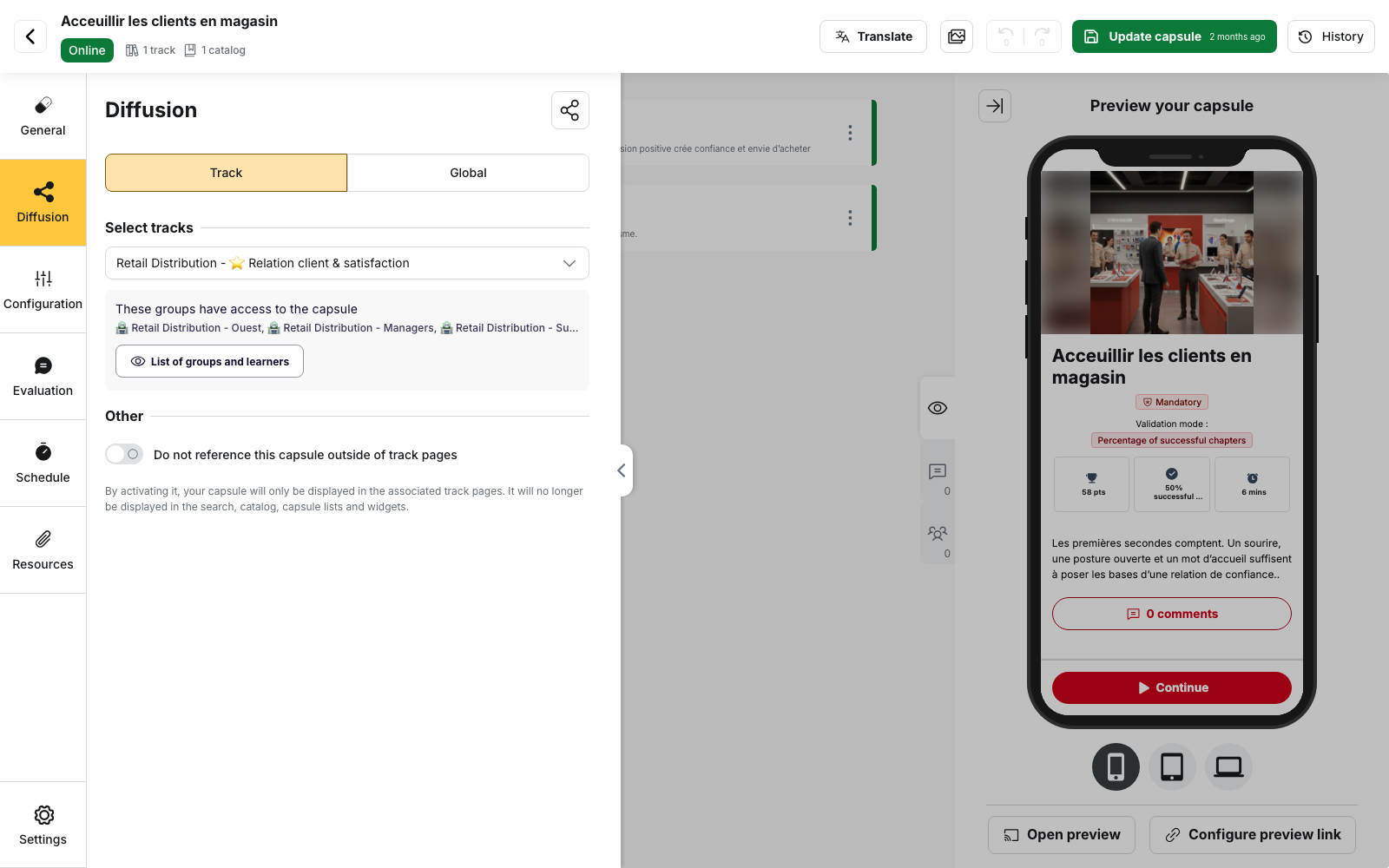
Where it is set
In the capsule editor, Diffusion tab, Highlight block: tick Promote this capsule.
Setting the period
You enter a Promotion start date, then choose how the promotion ends:
| End mode | What you enter |
|---|---|
| Duration (default) | A number and a Unit: day(s) (default), week(s), month(s) or year(s) |
| End date | A Promotion end date |
The two end modes stay in sync. If you switch from Duration to End date, the end date is filled in from the start date plus the duration you had entered. If you switch back, the duration is recalculated from the two dates.
⚠️ There is no indefinite promotion. A capsule appears in the widget only while its promotion period is running.
The editor flags two inconsistencies: an end date before the start date, and a promotion date before the capsule’s visibility date. See Capsule visibility and activation conditions.
What it does not do
⚠️ Promoting grants no access. It changes where a capsule sits in a widget, never the right to open it. So “nobody sees my capsule” is not solved here. See Common problems: distribution.
It does not open a window in front of the learner either: that is the Prioritize block, in the same tab. See Prioritising a capsule.
What leaves the widget
A capsule leaves the widget when its promotion period has passed.
Completion does not remove it: a capsule the learner has already finished stays in the list while its period is running. This is what separates Featured capsules from the Short-lived capsules list, which does hide what the learner has completed. Two lists can therefore be built from the same promotion settings and still show a different number of capsules.
Ordering inside the widget
Capsules are sorted by promotion end date, furthest away first. A long promotion therefore comes before one that is about to end.
The extended view displays three promoted capsules at most. Beyond that, promoting more capsules changes which ones appear through the sort order, not how many are shown.
Promoting for certain groups only
Promote this capsule also exists inside each Custom diffusion rule, with its own dates. See Model 3: custom diffusion per group.
The trap: condensed view
The home page Capsules widget is set under Configuration → Content → General customization. In the Extended view, Featured capsules is one list among others; in the Condensed view, it is the only one displayed.
⚠️ When no capsule qualifies, the widget disappears from the home page. On an account set to condensed view, promoting nothing therefore empties the page. That is the first thing to check when an administrator reports their capsules are gone.
See The home page and the menu.
Checking the result
Sign in as a learner who is in the scope of the distribution, and check the home page while the promotion period is running. If the capsule does not appear, check in this order: the promotion period covers today, the capsule is distributed to that learner, and the Capsules widget is enabled on the home page.
Going further
- Prioritising a capsule: the other attention lever in the same tab, the one that cannot be missed
- The home page and the menu: switching the Capsules widget on and choosing between extended and condensed view
- Model 3: custom diffusion per group: setting the promotion group by group rather than for everyone
- Signing in as a learner: checking the result on a learner account