The skill-based certificate
⚠️ Required permissions: you need the Access/edit certificates permission, in the reward section of the Animation permissions. See Assigning rights.
The skill-based certificate
⚠️ Required permissions: you need the Access/edit certificates permission, in the reward section of the Animation permissions. See Assigning rights.
A skill-based certificate is awarded to learners who have reached the required mastery level for each selected skill. Skill levels are assigned by coaches as part of coaching (see Coaching).
⚠️ Prerequisite: your framework must contain at least one active skill. Without an active skill, the Skills step cannot be completed and the certificate cannot be saved. See Building the skills framework.
For an overview of how certificates work, including how to create certificate templates, see Certificates. To award a certificate to learners who have completed selected capsules and met the required success threshold for each one, use the capsule-based certificate instead.
Creating the certificate
Go to Reward tab, then Certificate, select the By skill tab and click Create a certificate.
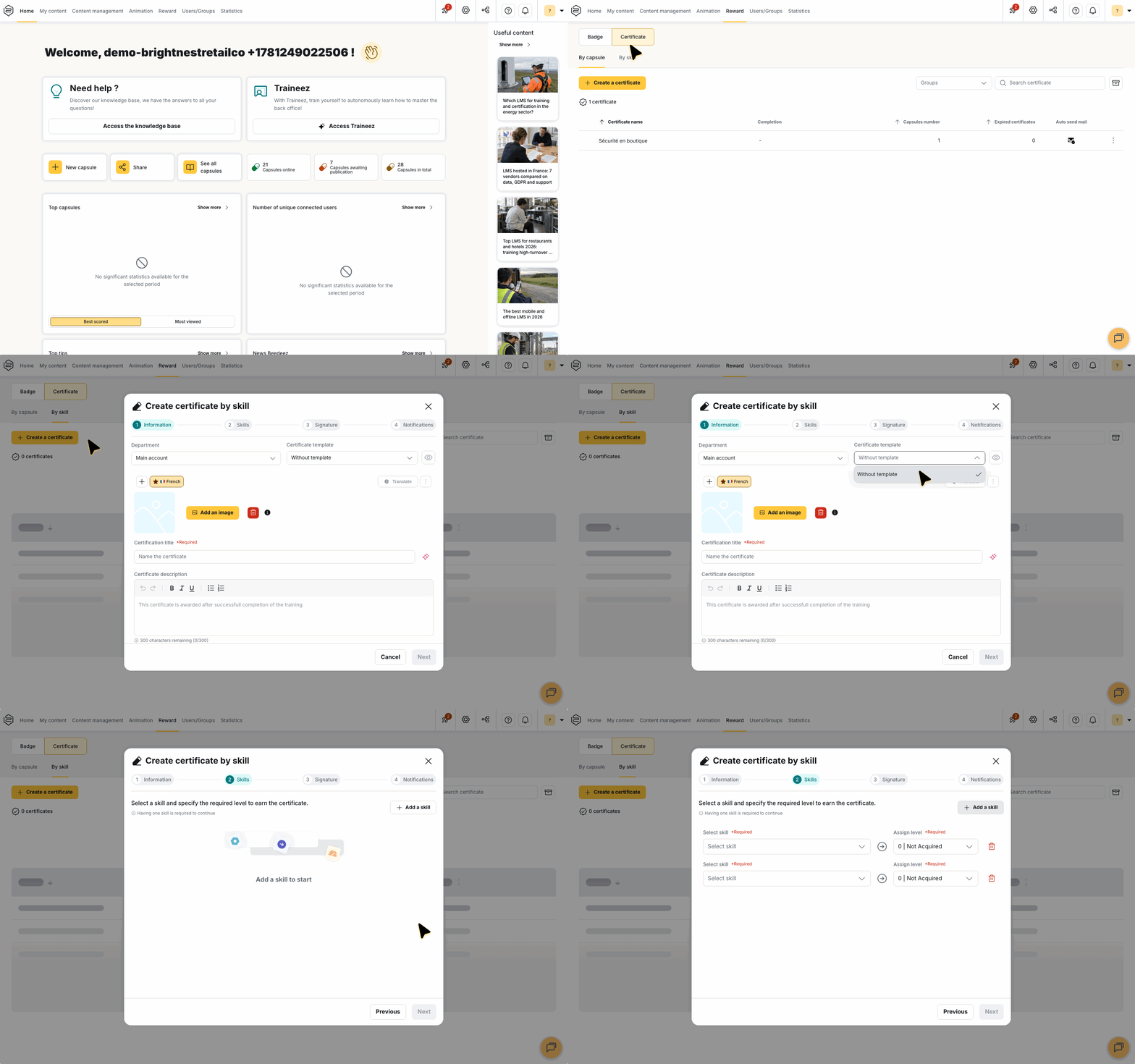
A window opens with four steps:
- When creating a certificate, complete the required fields at each step before moving on to the next.
- When editing a certificate, you can access any of the four steps directly.
-
Step 1 – Information: Select a certificate template if you have one; or use the default Beedeez template. Fill in the Certification title (required) and the Certificate description. If your organisation uses a hierarchy, also choose the Department the certificate belongs to.
-
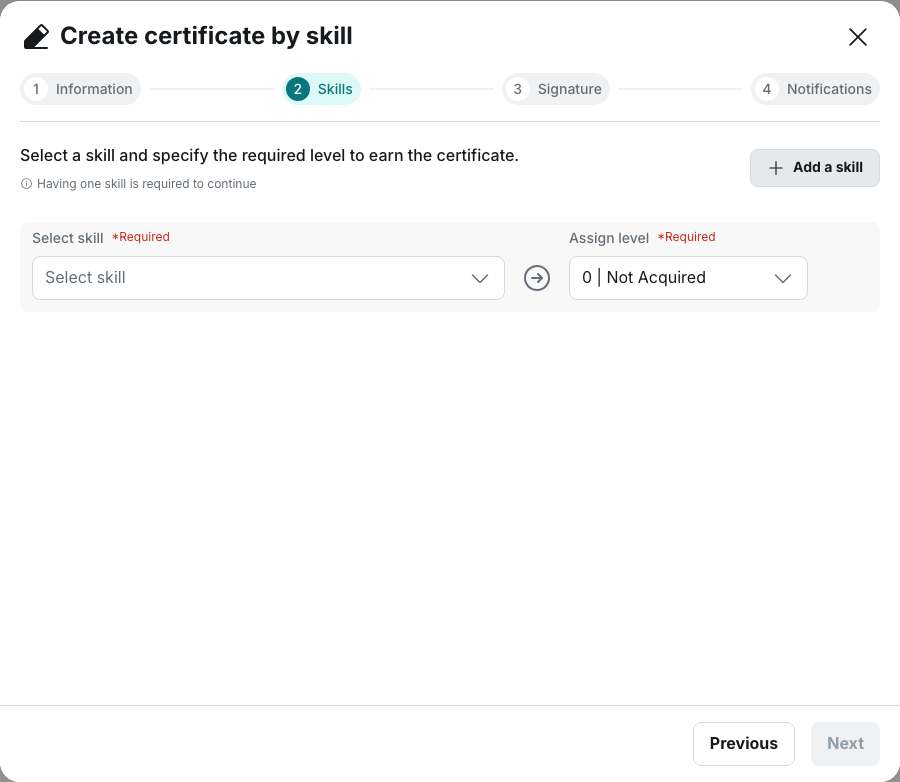
Step 2 – Skills: select the skills required to earn the certificate and set the minimum mastery level for each one. To add another skill, click Add a skill.
The available levels come from your mastery scale, for example 2 | Competent., for example 2 | Competent. To find out how to customise them, see Mastery levels.
If a skill is disabled after the certificate has been created, it remains visible in red with the label (Disabled). Learners who have not reached the required level for that skill before it is disabled can no longer meet the certificate requirements and therefore cannot receive it.
💡 Tip: before disabling a skill, check which certificates require it.
- Step 3 – Signature: tick Add signature if the certificate must be signed. The Full name and Job title fields are required when this option is selected. You can also add an image of the signature.
ℹ️ The signature is not saved in the media library. Keep a copy of the file so you can reuse it on another certificate.
- Step 4 – Notifications: choose who receives the certificate by email when it is awarded:
- the learner;
- the team manager (to learn more about this role, see Equipping the team manager);
- other recipients, such as an HR manager, whose email addresses you enter.
If no recipients are selected, the certificate is still awarded and appears in the learner’s profile on the platform, but no email is sent.
ℹ️ To learn how to send, resend and export certificates, see Sending and exporting certificates.
- Confirm to create the certificate.
How the certificate is awarded
The certificate is awarded when the learner has reached at least the required mastery level for every selected skill.
A learner receives a given certificate only once.
See Assessing and tracking skills.
Certificates and earlier assessments
Learners who reached all the required mastery levels before the certificate was created do not receive it automatically. If they are reassessed on one of the required skills and meet or exceed the required level, the platform checks their eligibility again and awards the certificate if all requirements are met.
Further Reading
- Assessing and following skills: learn how coaches assess a learner’s mastery of a skill and assign the corresponding level.
- Mastery levels: understand what each level means and how to customise your mastery scale.
- The capsule-based certificate: learn how to award a certificate to learners who complete the selected capsules and meet the required success threshold for each one
- Skills and coaches: view statistics on the mastery levels learners have reached and the assessments carried out by coaches.