Creating a Use Case quiz
A Use Case Quiz puts the learner in a situation before asking any questions. You write a shared Context (a scenario, the tools available, the goal to reach), then questions that all relate to it. The learner reads this context before the first question and can read it again at any point during the quiz.
Choosing the Use Case type
- Open the capsule in the editor and go to the notion you want to work on.
- Add a quiz to the notion, as an Entry quiz or an End quiz.
- In the quiz type selection, select Use Case Quiz, described as “Practice to perfect each answer”. In the compact view, the button reads Create a Use Case Quiz.
The Context screen then opens directly.
Writing the context
- In the Context field, describe the situation that all the questions of the use case will rely on.
- Click Create questions. This button stays disabled as long as the context is empty.
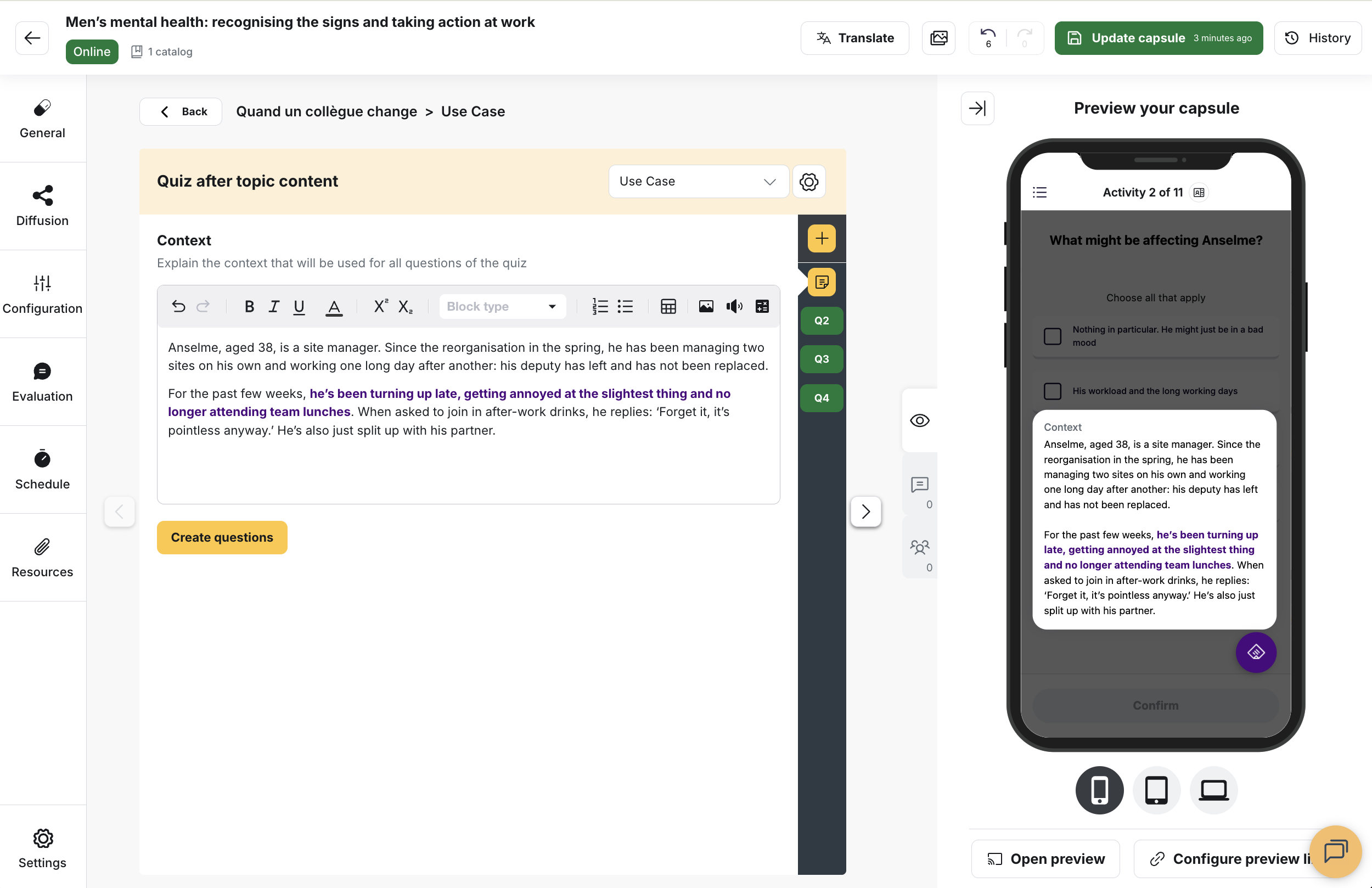
Example: “You have worked with Anselme for five years. Worried that he seems to be changing, you invite him for a one-to-one coffee and tell him he doesn’t seem himself lately. He smiles: ‘I’m fine, don’t worry.’ You gently insist. He ends up telling you that he can’t sleep anymore, that he has felt alone on his sites since his deputy left, and that he feels he is getting everything wrong. Then he adds, quietly: ‘Sometimes I think everyone would be better off without me.’”
In the notion, the context is then displayed above the list of questions. The pencil icon reopens it for editing, and the eye icon shows how it looks in the preview.
💡 Tip: put everything the learner needs to answer in the context. The questions can then stay short and focus on the decision to make.
Adding the questions
Click Add a question and choose the type of each question, as in a standard quiz.
What the learner sees
Before the first question, the learner sees a Context page that shows your text and the number of questions, for example “This quiz has 3 questions related to the context.” They click Begin questions to start.
During the questions, a floating bubble lets them reopen the context at any time.
⚠️ This quiz type requires a recent version of the mobile app. The editor shows a warning with the required version. A learner who has not updated their app may not see the quiz correctly.
Further reading
- Activity formats: the other quiz types and the settings shared by all questions.
- Testing a capsule before publishing it to everyone: check how the use case looks before you distribute it.