Testing a capsule before publishing it to everyone
Before you distribute a capsule to all the learners it targets, you can check it in three ways. Each one checks something different, and none of them replaces the other two.
Testing a capsule before publishing it to everyone
Before you distribute a capsule to all the learners it targets, you can check it in three ways. Each one checks something different, and none of them replaces the other two.
- Preview the capsule in the editor: you check the content yourself, as the learner app displays it. This method is handled entirely in the back-office.
- Have the capsule reviewed with a preview link: you send a link to a reviewer to get their opinion on the content. The link is configured and generated entirely in the back-office, without publishing the capsule.
- Test the capsule with a test group: you publish the capsule for a few testers, who find it in the learner app. This method requires going to the app side: it is the only one that shows the capsule in its real context.
Preview the capsule in the editor
On the right edge of the editor, the eye icon opens the Preview your capsule panel. The capsule is displayed there as the learner app renders it. Three icons let you change the device frame: phone, tablet or computer.
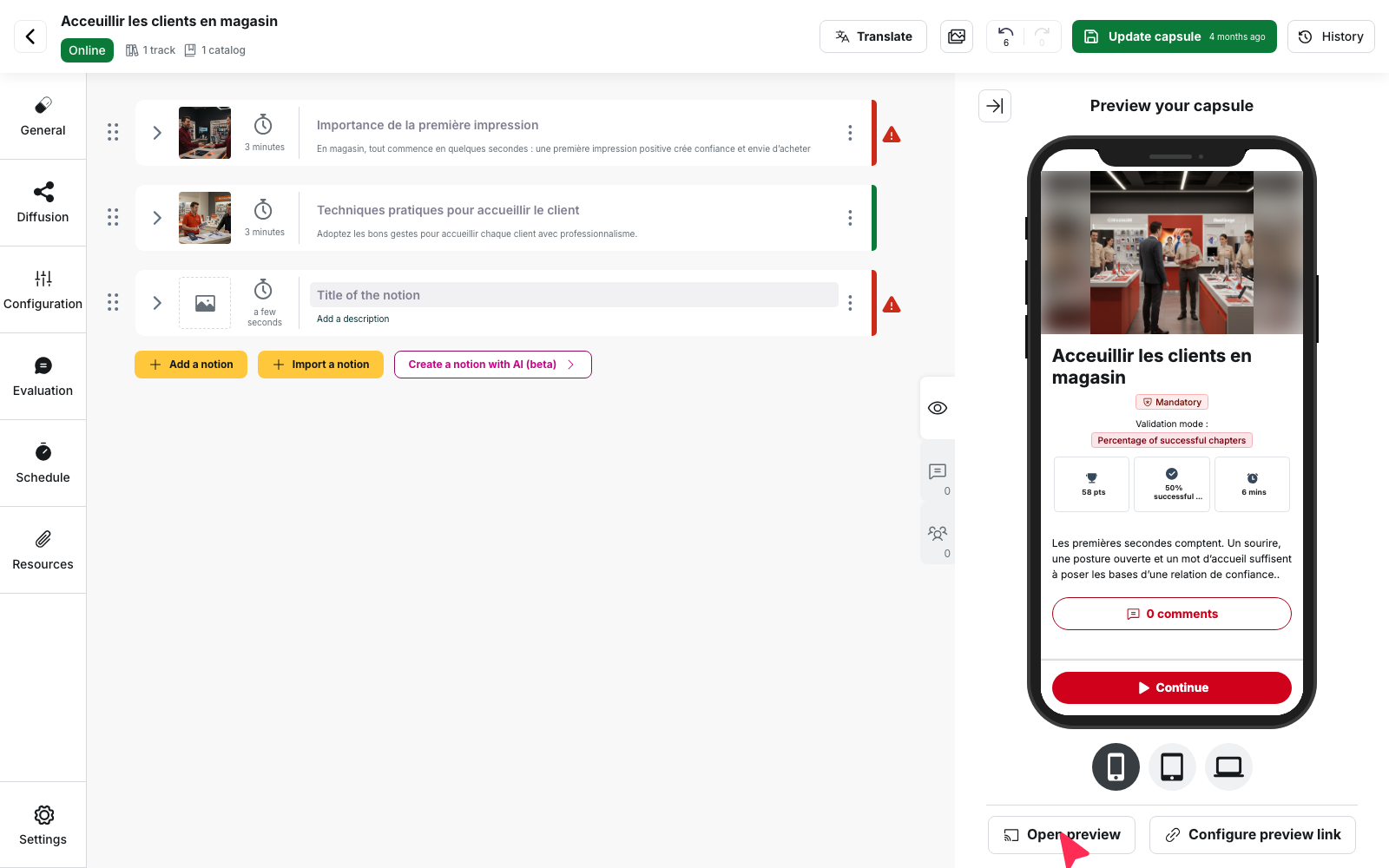
The preview panel follows what you are editing in real time. When you select a notion, a card or a question, the preview moves to the same place. It reflects your changes before they are saved.
The Open preview button displays the capsule full screen. From the capsule list, the Preview action opens the same preview.
The preview only shows the capsule. What surrounds it in the app, such as tracks, categories, the home page, badges and the profile, is not represented. So it tells you nothing about distribution or visibility conditions: a capsule that looks right in the preview can remain invisible to a learner if no distributed track contains it or if a visibility condition is not met.
Have the capsule reviewed with a preview link
The Configure preview link button, below the capsule preview panel, opens the settings of the link you will send to the reviewer.
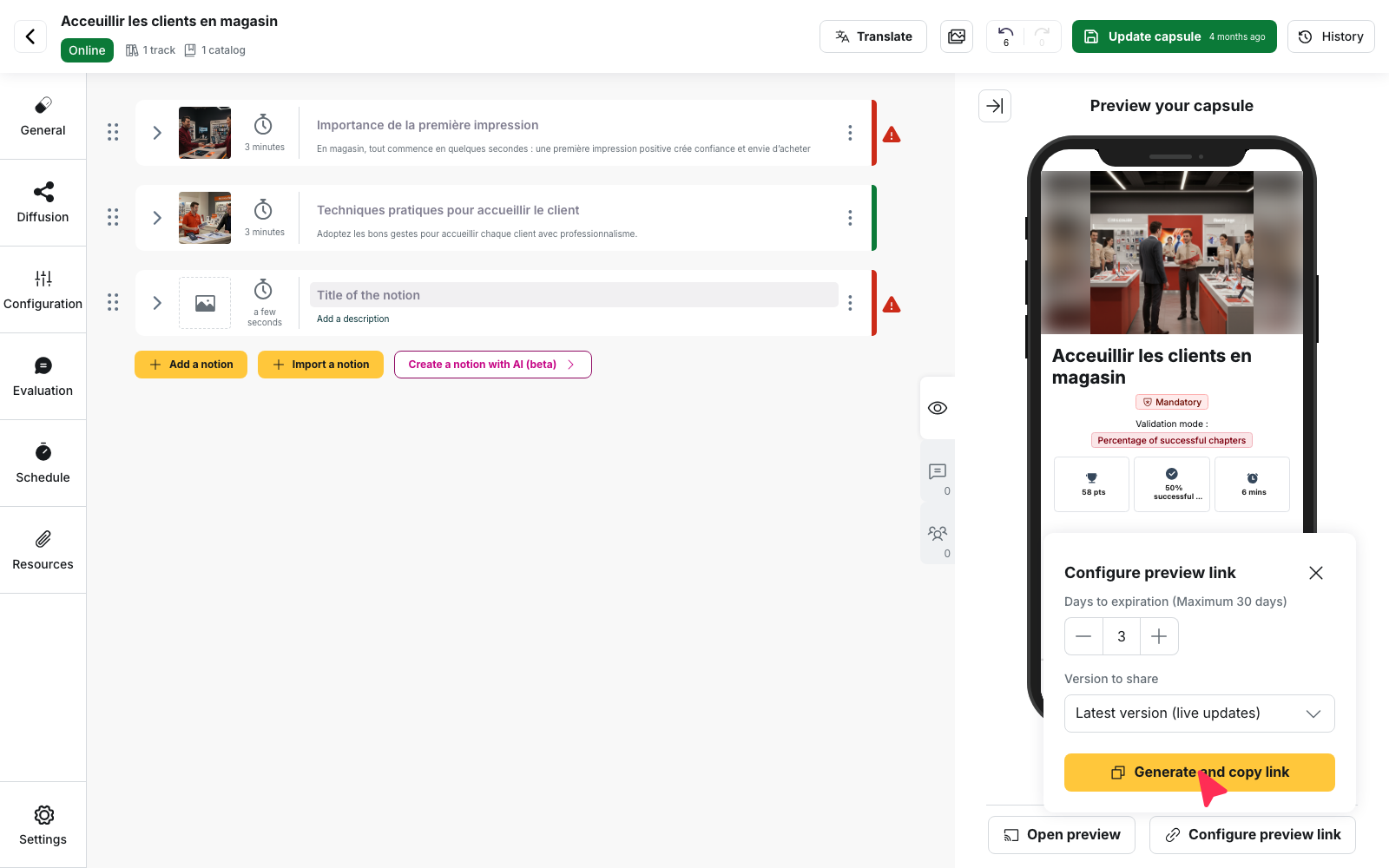
- In Days to expiration (Maximum 30 days), choose a duration between 1 and 30 days.
- In Version to share, choose Latest version (live updates) so that the reviewer sees your corrections as you make them, or a saved version to freeze the content they review.
- Click Generate and copy link. The link is copied to your clipboard and the button shows Link copied.
This link is for getting feedback on the content, not for testing distribution: the reviewer does not see the capsule where the learner will come across it.
Test the capsule with a test group
This method requires publishing the capsule, but for a narrow circle. The testers then open it in the learner app.
- Create a group of a few testers, including at least one person from the trade concerned and one person who is not comfortable with digital tools.
- Create a dedicated track in which you place the capsules to test.
- In the track’s Diffusion tab, select only the test group in Standard access.
- Set the capsule Online. As long as it is Draft or awaiting validation, nobody sees it, testers included.
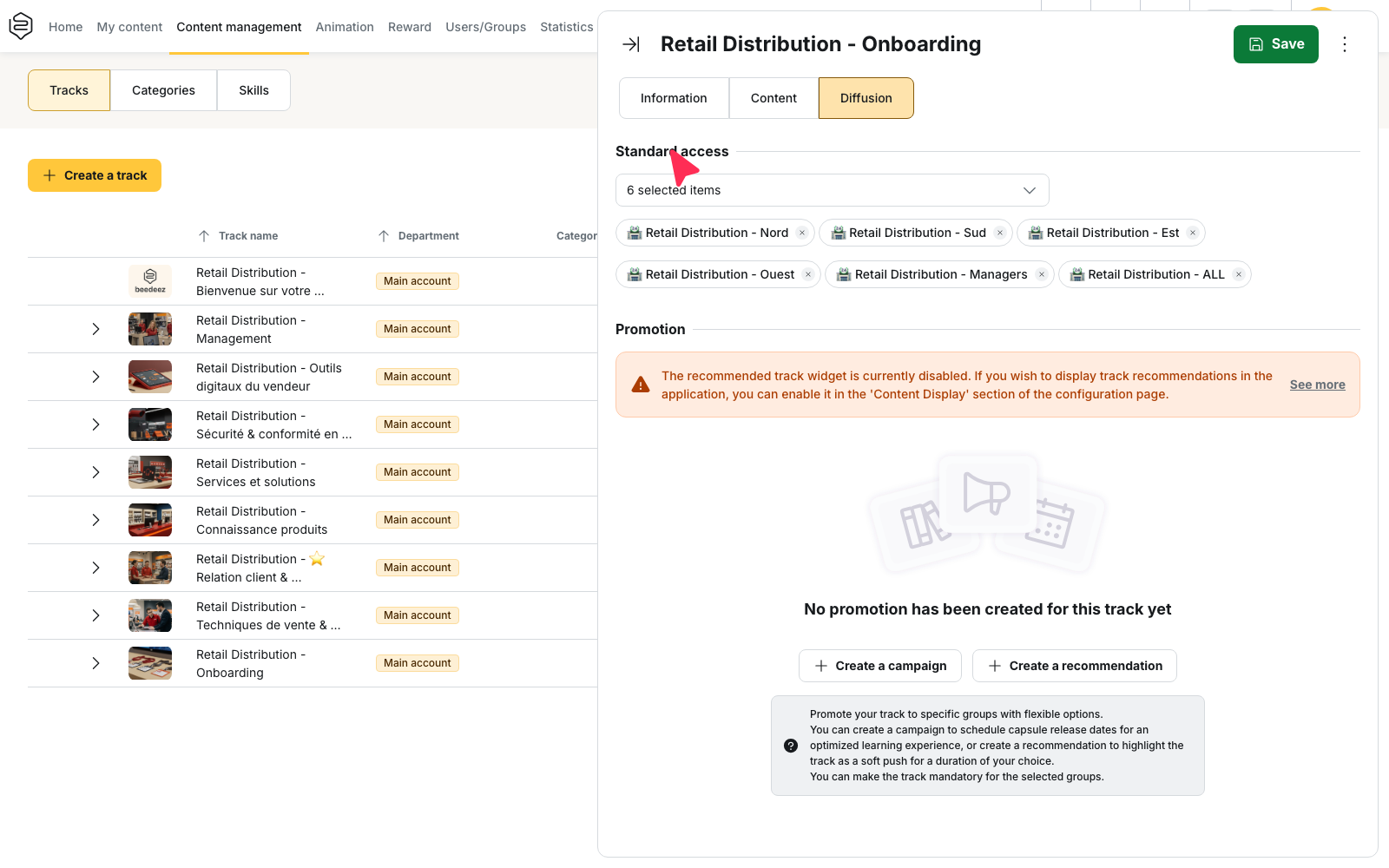
A capsule cannot be published without an attachment: it needs a track, an academy or a custom distribution rule targeting groups. The test track fills that role.
This test lets you check what the author cannot observe alone: understanding without explanation, how long the capsule lasts, ambiguous questions and the display on a real phone.
After the test, remove the capsules from the test track before distributing them for real. A capsule that stays in both tracks appears twice for the testers and their progress is counted.
Another option: signing in as a learner
Independently of the three methods above, you can open a learner’s session from the Connexion column of the user list, with the Log as button, to see exactly what they see.
Rights required: this option requires the Connect as a learner right.
⚠️ The platform records this sign-in as the learner’s own: their Last connection date is updated and their account no longer shows as never connected. On an account used to prepare a launch, it then becomes impossible to check whether that person manages to sign in. Keep this option for a dedicated test account.
Going further
- Publishing and unpublishing a capsule: the three statuses, and why publishing is not distributing.
- Capsule visibility and activation conditions: what the preview cannot show you.
- Signing in as one of your learners: the details of this option and the trace it leaves.
- Common problems: distribution: the steps to follow when the tester sees nothing.