Signing in as one of your learners
When a learner cannot see a piece of content, you can open the app with their account to see exactly what they see: their tracks, their capsules and the state of each one.
Signing in as one of your learners
When a learner cannot see a piece of content, you can open the app with their account to see exactly what they see: their tracks, their capsules and the state of each one.
⚠️ Prerequisites: the option to sign in as a learner must be enabled on your platform, and your permission model must include the Connect as a learner right. The predefined Administrator profile includes this right; for any other model, add it. See Understanding custom permissions.
Opening a learner’s session
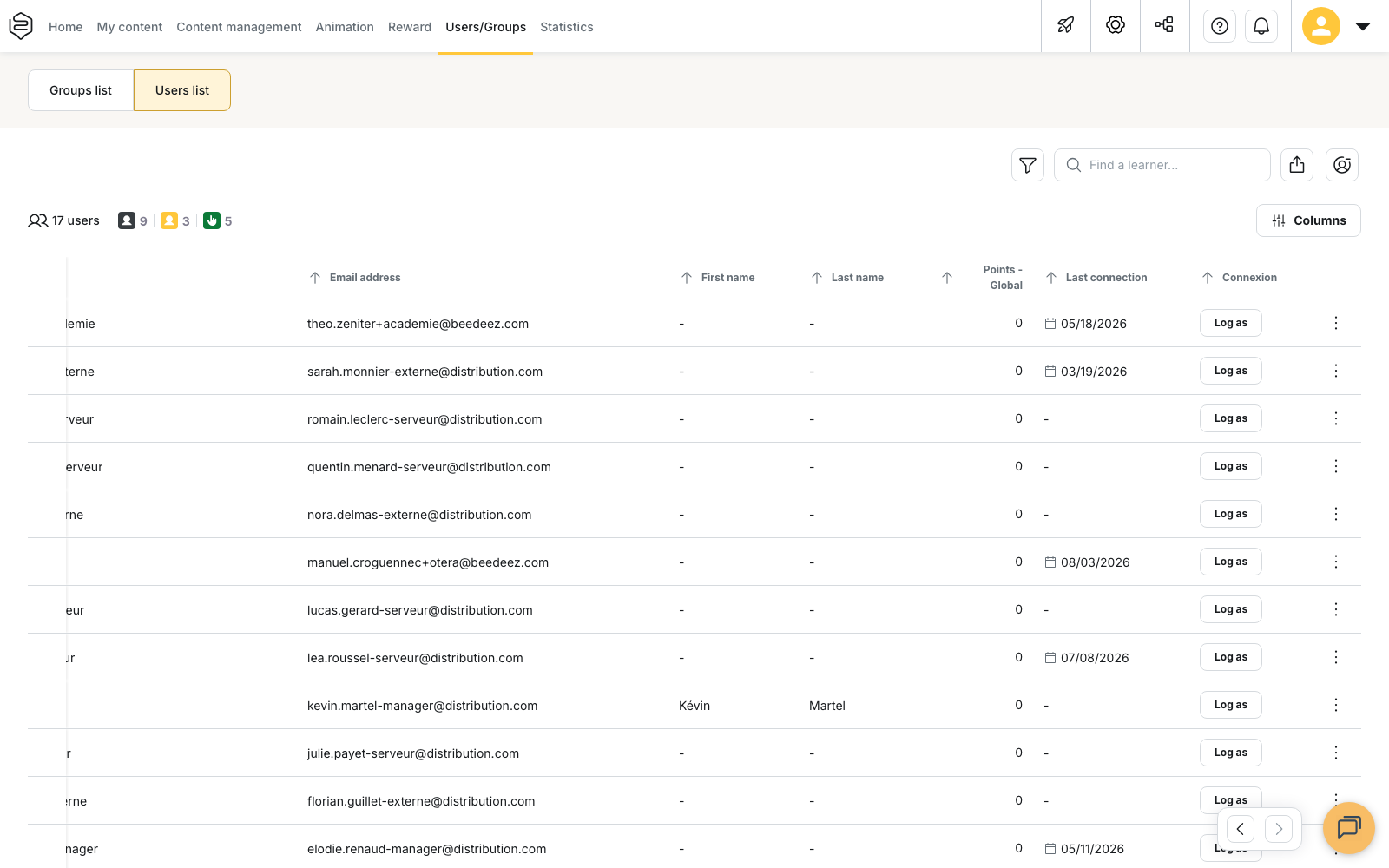
- Go to the Users/Groups tab > Users list.
- Find the learner with the Find a learner… field, for example by typing their email address.
- Scroll the table to the right until you reach the Connexion column.
- If the Connexion column is not displayed, add it: click Columns, then tick Connexion.
- Click Log as on the learner’s row. The learner app opens in a new browser tab, signed in with their account.
Your back-office tab stays signed in to your own account, so you can adjust a distribution on one side and check its effect on the other.
If the Connexion column is not available, either the option is not enabled on your platform or your permission model does not include the right. The Log as button is not offered on the row of a deactivated learner.
Why use the learner’s own session
⚠️ Back-office access does not give access to learner content. A permission model is not a group: an administrator who belongs to no group sees no content in the app.
Joining a test group yourself shows what your account sees, not what the learner’s account sees. Content with conditions is displayed according to each person’s progress, so only their session shows what they see.
Everything you do counts for the learner
You act under the learner’s identity: a capsule you open or an answer you give is recorded on their account, as if they had done it themselves.
💡 Tip: use this session to observe, not to make progress on their behalf. To test a track from start to finish, use a test learner account instead.
Ending the session
When you are done, sign out from inside the learner app, so the browser does not stay open on that person’s account.
What to check, in order
- Does the track appear? If not, check that the learner belongs to a group that has access to this track.
- The track appears but the capsule does not? Check that the capsule is online and whether it has conditions.
- The capsule appears locked? The learner has not yet met its visibility conditions.
The full diagnosis is detailed in Common problems.
Going further
- Understanding custom permissions: where to find the Connect as a learner right.
- Common problems: my learners cannot reach their content: the full diagnosis, step by step.
- Pilot and launch: checking what each wave will see before opening it.
- Exploring the user list: the screen the session starts from, its statuses and its filters.