Tips
Prerequisite: the Tips feature must be enabled on your account.
News
Prerequisite: the Tips feature must be enabled on your account.
Required permission: you need the Create and edit tips permission in your authorization settings.
See Assign permissions.
A news item is an Information tip: a short piece of content consisting of a title, formatted text and, optionally, a cover image.
It is one of the four available tip types, alongside Question tips, Video tips and Document tips.
See Tips and their variants and Assign permissions.
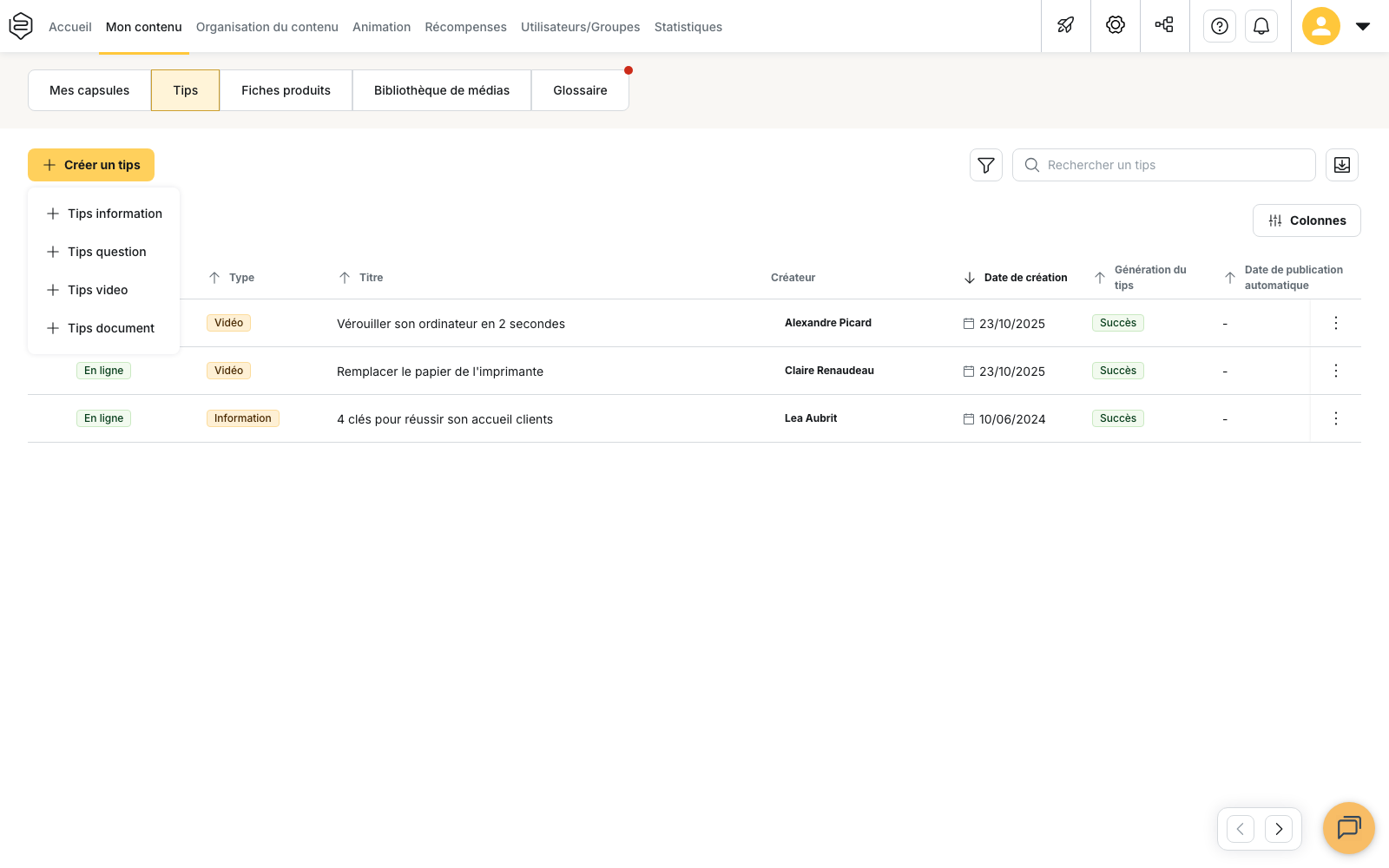
Create a news item
From Content > Tips, click Create a tip.
A menu displays the four available tip types:
- Information
- Question
- Video
- Document
Select Information tip.
Add a cover image
The editing screen is divided into several sections.
In the Media section, you can add a Cover image.
This image is optional.
Write the content
In the Content section, enter the Title and Content.
Both fields are required.
The content is written in a rich-text editor that allows you to add:
- different heading levels
- lists
- tables
- links
- emojis
Define distribution
The Distribution section determines where and for whom the news item will be available.
You can specify:
- Categories
- Communities with access to this tip
- Department
- Associated skills
⚠️ If no community is selected, the tip is accessible to everyone. It can also appear in the main feed if the feed is enabled and a widget is configured to display it.
Add a question
The Question section is optional.
You can add a question in one of the following formats: Single choice, Multiple choice or True/False.
A question adds an interaction to the news item, but it does not turn the tip into a learning activity with completion tracking.
Save the news item
When your content is ready, click Save in the top right-hand corner.
⚠️ The Save button remains disabled until the Title and Content fields are completed.
It is also disabled when no changes have been made since the last save.
💡 Preview tip lets you check how the content will appear to learners before saving it.
If you click Back while you have unsaved changes, Beedeez warns you before returning to the tips list.
The tip type is permanent
⚠️ The type of a tip is selected when it is created and cannot be changed afterwards.
The editing screen does not allow you to convert an Information tip into a Document tip, for example.
If you want to change the type, you must create a new tip.
What does the type change?
The tip type does not change its content, title or distribution rules.
It mainly determines:
- the type of media available
- the feed widget that can display the tip
Available media types
Each tip type has its own format:
- Information tip: cover image
- Video tip: video and text overlays
- Document tip: PDF document
- Question tip: no Media section
The widget used in the feed
Each tip type is associated with a specific widget in the feed.
An Information tip is displayed by the Tips news widget.
⚠️ A widget designed for another tip type does not retrieve news items. For example, the Tips video widget does not display Information tips.
ℹ️ Information tip and Tips news therefore refer to the same type of content in two different parts of the interface:
- Information tip is the name used when creating the content, in filters and in the configuration
- Tips news is the name used for the feed widget
Publish a news item
Publishing is done from the Content > Tips list, not from the editing screen.
- Create your news item and click Save.
- Return to the tips list.
- On the relevant news item’s row, click Publish tip.
The news item then changes to the Online status.
⚠️ Saving a tip does not automatically publish it. Until it is published, it does not appear in the feed available to learners.
Schedule publication and unpublication
You can schedule publication and unpublication dates from the Distribution section.
Enable Enable automatic publication/unpublication scheduling to display:
- Automatic publication
- Automatic unpublication
The schedule is processed every minute, based on Paris time.
ℹ️ Scheduling is only available when the tip is complete.
Once the tip is online, its automatic publication date can no longer be changed.
If scheduling dates have already been saved, manually publishing or unpublishing the tip requires confirmation. The manual action then takes precedence over the scheduled action.
What happens after unpublishing?
⚠️ An unpublished news item is given the “Rejected” status.
This status does not necessarily mean that the tip was rejected during moderation. It is also used when a tip that was online is removed from distribution.
A scheduled unpublication therefore produces the same result.
You can find these contents under Rejected tips.
Filter tips by status
From the Content > Tips list, the Filter by status filter lets you find content according to its status.
The available options are:
- All tips
- Online
- Awaiting approval
- Rejected
⚠️ A tip displayed under “Rejected tips” may simply have been unpublished. This status therefore does not necessarily mean that it was rejected during an approval process.
Pay attention to the feed widget
⚠️ The widget must be created before publishing the news items you want to display.
The Tips news widget only retrieves publications made after the widget was created.
If you create the widget after news items have already been published, those items are not automatically added to the feed.
See The feed.
What news items do not do
They do not send notifications
Publishing a news item does not automatically send a notification or email to learners.
The news item only appears in the spaces where it is made available through the configured feed and widgets.
They do not track completion
A tip is not a tracked learning activity.
It therefore does not generate a completion rate.
You can, however, view interactions with the content, including views, reactions, comments and shares.
💡 If you need to check that a learner has completed a piece of information, use a capsule included in a learning path with completion tracking instead.
They do not disappear automatically
A news item remains available until it is unpublished.
It does not have an automatic expiration date.
If you want it to be removed on a specific date, use Automatic unpublication.