Notifications
Rights required: Can send / edit notifications and emails or Can view all notifications and emails, in the animation rights. Either one opens the screen; without the second, an administrator only sees their own notifications.
Notifications
Rights required: Can send / edit notifications and emails or Can view all notifications and emails, in the animation rights. Either one opens the screen; without the second, an administrator only sees their own notifications.
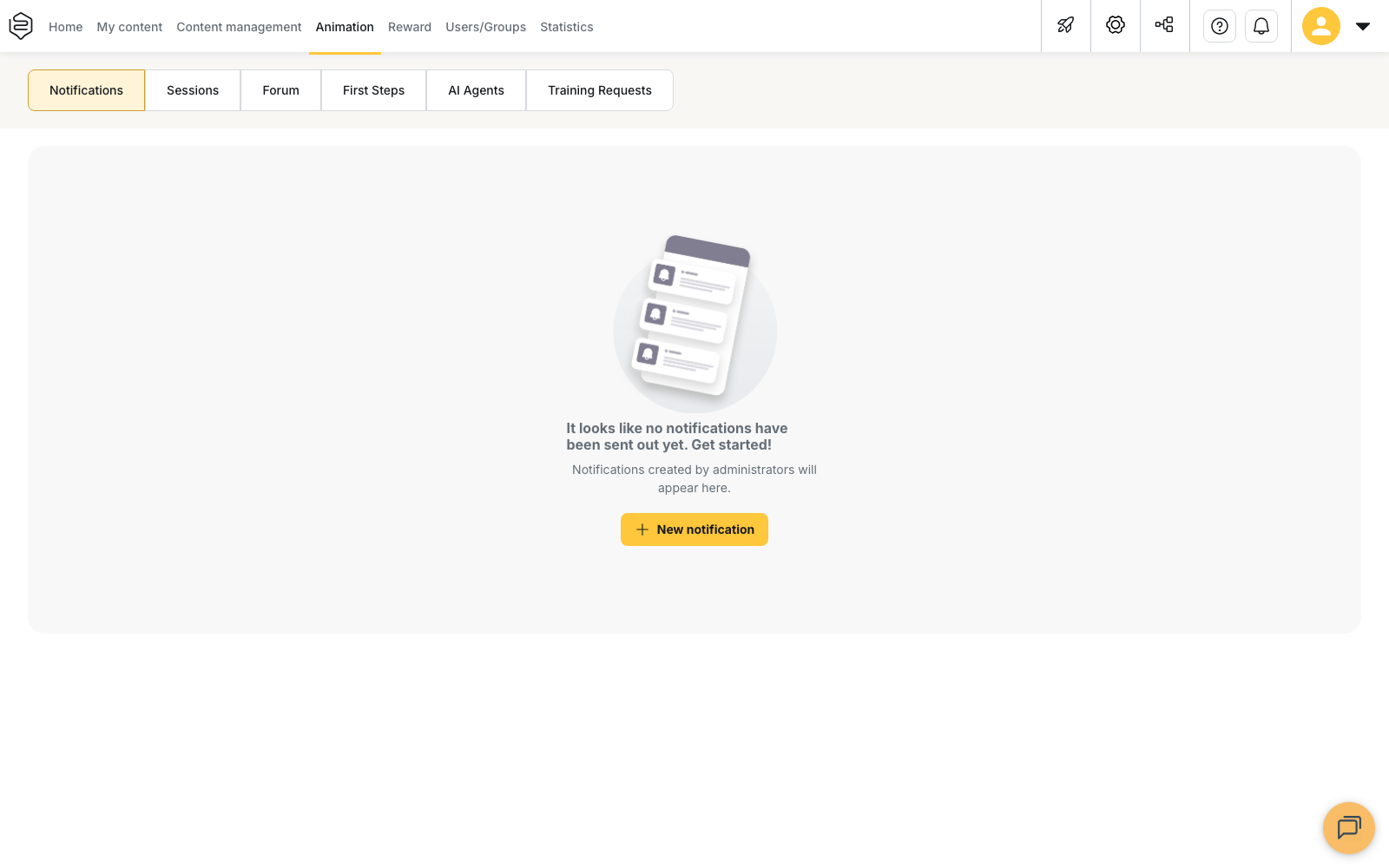
Animation menu, Notifications tab. The screen lists what has gone out and what is scheduled. Creating a notification to announce a piece of content is covered in Notifying learners of new content; here, who receives what and at what time.
Who receives what
A Simple notification goes to the Group(s) ticked, with no further condition: it is the only type that reads no statistics. A Reminder notification goes to part of those groups only, based on each learner’s progress on the content it points at. An Inactivity notification (automatic) and a New capsules notification (automatic) recompute their recipients on every send.
⚠️ A deactivated learner receives nothing, whatever the type and whatever the groups ticked.
A push notification also reaches a phone only if the learner has opened the app at least once and has not turned off notifications for it. Ticking the email copy is what reaches the rest of the ticked groups.
Targeting a reminder
Send a reminder to: offers two targets, Learners that have not finished the capsule or Learners that have not validated the capsule (“the track” on a track reminder). Finishing and validating are not the same thing: a capsule can be finished without reaching the required score. Under the chosen target, the Include only learners that have started the capsule box narrows the send to those who have already opened the content.
⚠️ Unticked on a capsule reminder, it also includes everyone who never opened the capsule. So you cannot target the absentees alone: either both audiences, or starters only, when the wording that reaches one does not reach the other.
The two automatic notifications
Inactivity notification (automatic) asks for a duration under Send notification to inactive users since, in day(s), week(s) or month(s), then a Day of the week and a Time. A learner counts as inactive when their last connection to the app or the learner portal is older than that duration; a back-office connection does not count.
New capsules notification (automatic) asks for a Frequency: Every day, Every week, Every two weeks or Every month. On each pass it keeps only the learners whose group was given access to at least one capsule since the previous pass.
⚠️ The message sent is the one you wrote: neither of them lists the capsules concerned. No account setting switches them on either, both are created by hand from New notification, and Suspend is what stops them afterwards.
The time a recurring notification goes out
A notification sent once goes out at the instant you picked, read in the timezone of the machine you composed it on. A recurrence instead converts the time you type into universal time once, when you save, using the offset in force on your machine that day. That converted time is what runs from then on, and it is never adjusted again.
⚠️ A recurrence saved in winter goes out an hour later in summer. Set to 9am in January, it reaches France at 10am from the switch to summer time, then returns to 9am at the next switch, and so on until it is saved again. The screen follows the same shift: reopened in summer, that notification shows 10am, which is the time it will actually go out. Composed from a timezone other than the learners’, it likewise carries the administrator’s offset, not theirs.
Saving the notification again, from the timezone and the season you want it aligned with, is what sets the send time back.
⚠️ The Default timezone settings block plays no part here. That account setting formats dates in statistics exports and in emails; it shifts no send. See General options.
Following what went out
On each row, See history opens the Delivery History panel: one send per row, with Date & hour and the number of Notified users. Opening a send gives the named list of recipients and, for each one, Push notification sent and Email notification sent, ticked or crossed. On a notification that opens onto a capsule, a track or a tip, Content status before notification, Content status after notification and three Before and After counters are added: that is the only measure of effect available on a send.
An entirely crossed email column means the notification carried no email copy, not that the sending failed.
What it does not do
- It says neither why a red cross is red, nor whether the message was read. A learner who never opened the app on a phone has no registered device, and the history stops at delivery to the device.
- It does not fix a missing distribution. A very low completion rate is not recovered with a reminder: check first that the content is actually distributed to the group. See Common problems: distribution.
- It flags no overlap. Two reminders can hit the same population on the same day. The Scheduling column shows Next occurrence: row by row: that is the only place to spot a pile-up before it goes.
Going further
- Notifying learners of new content: creating the notification and choosing where opening it leads.
- Follow-up and nudging: chasing from a capsule’s statistics rather than from this screen.
- General options: what the Default timezone settings block actually governs.
- Assigning rights: the animation rights that open this screen.