General options
⚠️ Rights required: access to the Configuration menu depends on the Edition rights of your permission model. See Understanding custom permissions. To change someone's access to the back office, see Assigning rights.
General options
⚠️ Rights required: access to the Configuration menu depends on the Edition rights of your permission model. See Understanding custom permissions. To change someone’s access to the back office, see Assigning rights.
The General settings page of the Configuration menu gathers your environment’s preferences: languages, support access, the offline cache, device sharing, legal information, data analytics and local time.
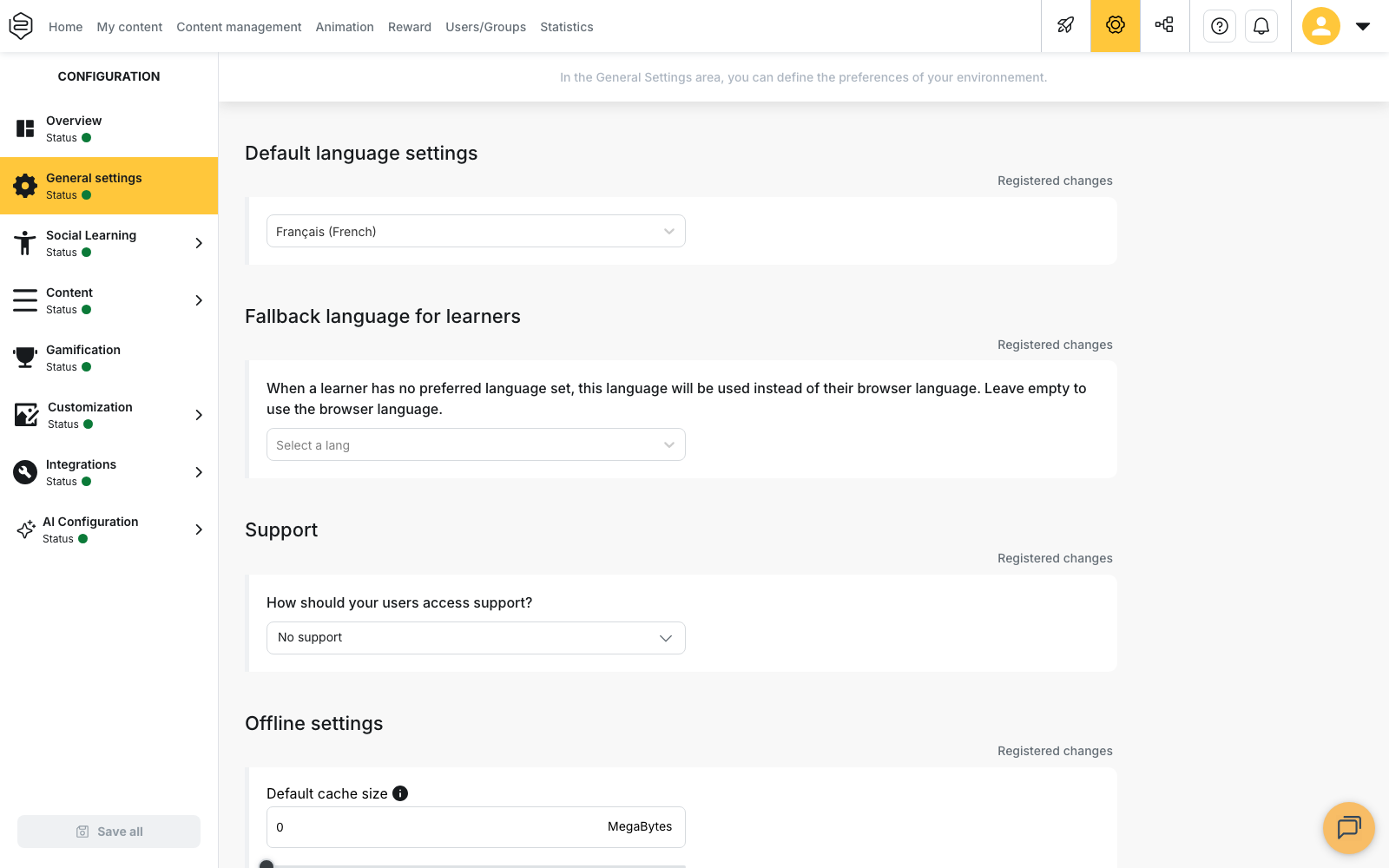
Each block shows its own save status, and the Save all button, at the bottom of the menu, saves any pending changes.
The account’s default language
The Default language settings block sets the account’s reference language. It is used in two places.
For your content. When you translate a piece of content, its default language serves as the source language: the other languages are added alongside it. If no language is recorded for that content, the account’s default language plays this role. To produce the language versions of your content, see Translating a track.
For messages sent by Beedeez. Emails and notifications sent to a learner are written in that person’s language when it is known. Otherwise, the account’s default language is used.
This setting does not determine the language in which a learner or an administrator sees the interface: each person keeps their own.
The fallback language for learners
The Fallback language for learners block sets the language used for a learner who has not yet chosen a preferred language in their settings.
- If the field is filled in: this language replaces the learner’s browser or device language.
- If the field is empty: the learner sees the language of their browser or device.
- If the learner has chosen a language in their settings: their choice always wins, and the fallback language does not apply.
Example: your learners are in France, but some of them have a browser set to English. With French as the fallback language, they see the platform in French until they choose another language.
Support access
The support block asks “How should your users access support?” and offers three answers:
- No support: no point of contact is offered to the learner;
- Email address: the learner writes to the address you enter;
- Support URL: the learner is redirected to the web address you enter.
For the Support URL mode, placeholders replaced with the user’s data can be inserted into the address: User ID, User Email, User Internal ID and User Locale. Click one of them to add it to the end of the URL.
Example: https://support.example.com/help?email=:userEmail.
As soon as the selected mode is not No support, the Display support link on login page checkbox appears. Check it to offer this entry point before authentication.
⚠️ The Support URL mode requires an up-to-date app. The back office displays the warning “Available in mobile app from version 12.55.0”. On an earlier version, this link is not offered to learners.
💡 Tip: for the Email address mode, use a dedicated address, such as
training@your-company.com, rather than a personal mailbox. Learner requests then stay
centralised and their follow-up does not depend on a single person.
The offline cache
The Offline settings block sets the Default cache size, with the field or the slider, between 0 Byte and 2 GigaBytes. The field is expressed in MegaBytes.
The field’s tooltip explains that, at launch, the default value is set to 300 MB so as not to overload the storage of learners’ devices, and that each learner can then change it from the settings tab of their app. What you set here is therefore the starting value, not an enforced limit.
Devices management
The Devices Management block describes how your learners share, or do not share, devices:
- Personal devices: each user uses their own device;
- Mixed devices: devices can be shared or personal;
- Shared devices: devices are shared between users.
As soon as the choice is not Personal devices, two additional options appear. Check the ones you need, then enter a duration in minutes:
- Ask a user identification after inactivity delay: the Time of inactivity before user identification field sets the delay after which the person reopening the app must confirm their identity;
- Disconnect the user after inactivity delay: the Time of inactivity before disconnection field sets the delay after which the app returns to the login page.
These two options reduce the risk of a learner continuing a colleague’s session on a device left open. For the mobile deployment framing, see The mobile app.
Legal information
The Legal information block gathers the legal texts shown to your learners. As long as no information has been saved, the back office displays the warning “Required legal Information”.
The Configure legal information button opens the entry window. Once the information is published, the block displays:
- the date of the Last published Legal information;
- an Excerpt of the policies summary;
- the Open the terms of service and Open the full privacy policy buttons, when the corresponding addresses have been entered.
The Accessibility part of the same block contains the Open the accessibility declaration button and the Percentage of compliance with accessibility rules. As long as neither is filled in, the back office displays the warning “Accessibility declaration not set up”.
For the general framework, see Security, GDPR and legal framework.
Data analytics
The Data analytics block contains a single checkbox, Deactivate data analytics. When checked, it deactivates usage data analytics for the whole account.
Local time
The Default timezone settings block sets the account’s default timezone.
Going further
- Offline mode: what the learner sees of the cache set here.
- Managing your account and preferences: the settings the learner can change themselves.
- Technical requirements: the conditions for using the app.
- Translating a track: producing the language versions of your content.
- Understanding custom permissions: who can access the Configuration menu, and with which rights.