Creating a capsule-based certificate
⚠️ Required permissions: you need the Access/edit certificates right, in the Reward section of the Animation rights. See Assigning rights.
Creating a capsule-based certificate
⚠️ Required permissions: you need the Access/edit certificates right, in the Reward section of the Animation rights. See Assigning rights.
This feature awards a certificate and/or a document to learners who have passed each of the selected capsules with the required success rate.
For an overview of how certificates work, including how to create certificate templates, see Certificates. To certify the acquisition of skills, use a skill-based certificate instead.
Creating the certificate
Open Reward > Certificate, select the By capsule tab, then click Create a certificate.
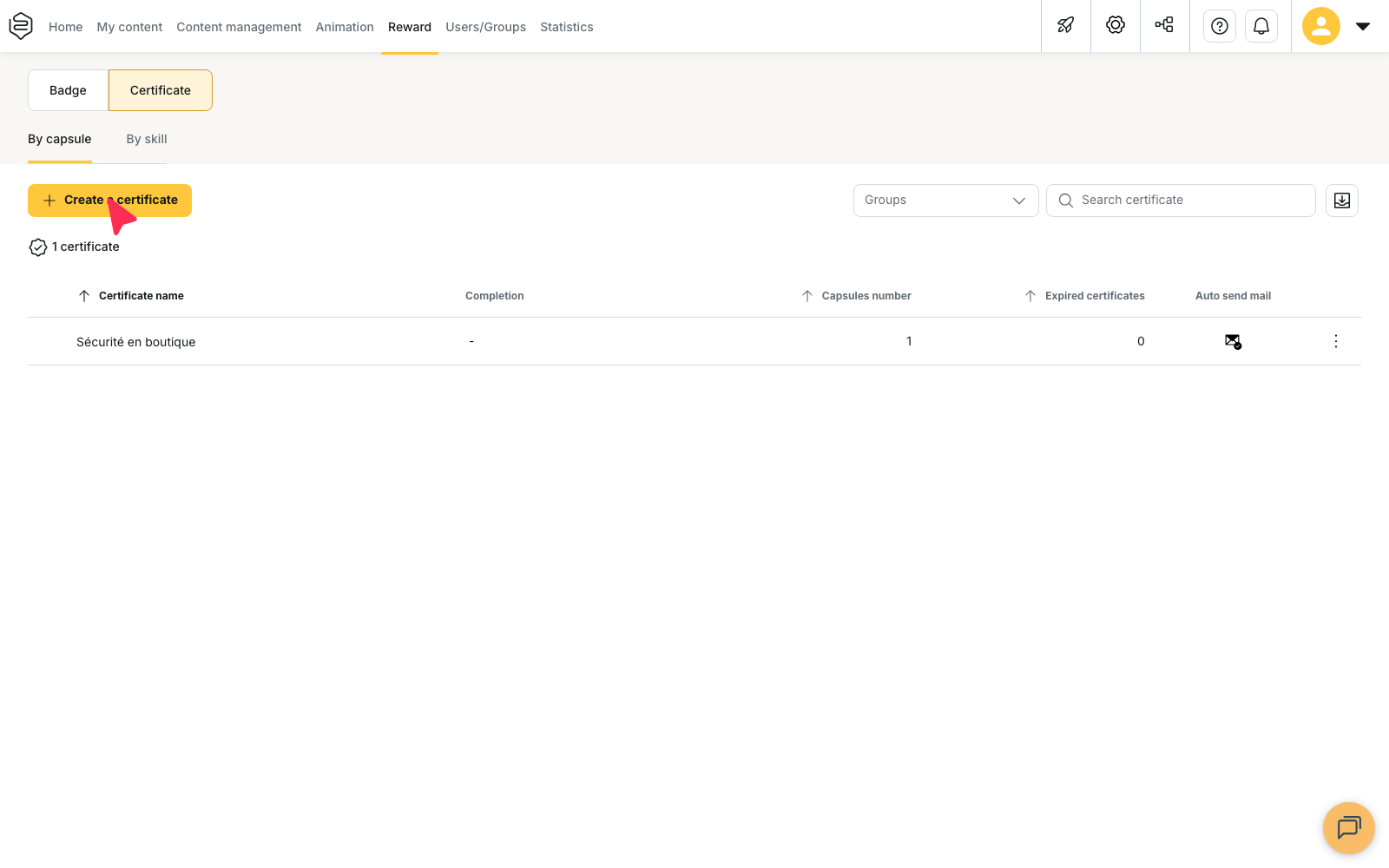
A five-step setup window opens:
- When creating a certificate, complete the required information at each step before moving on to the next.
- When edditing a certificate, you can access any of the five steps directly.
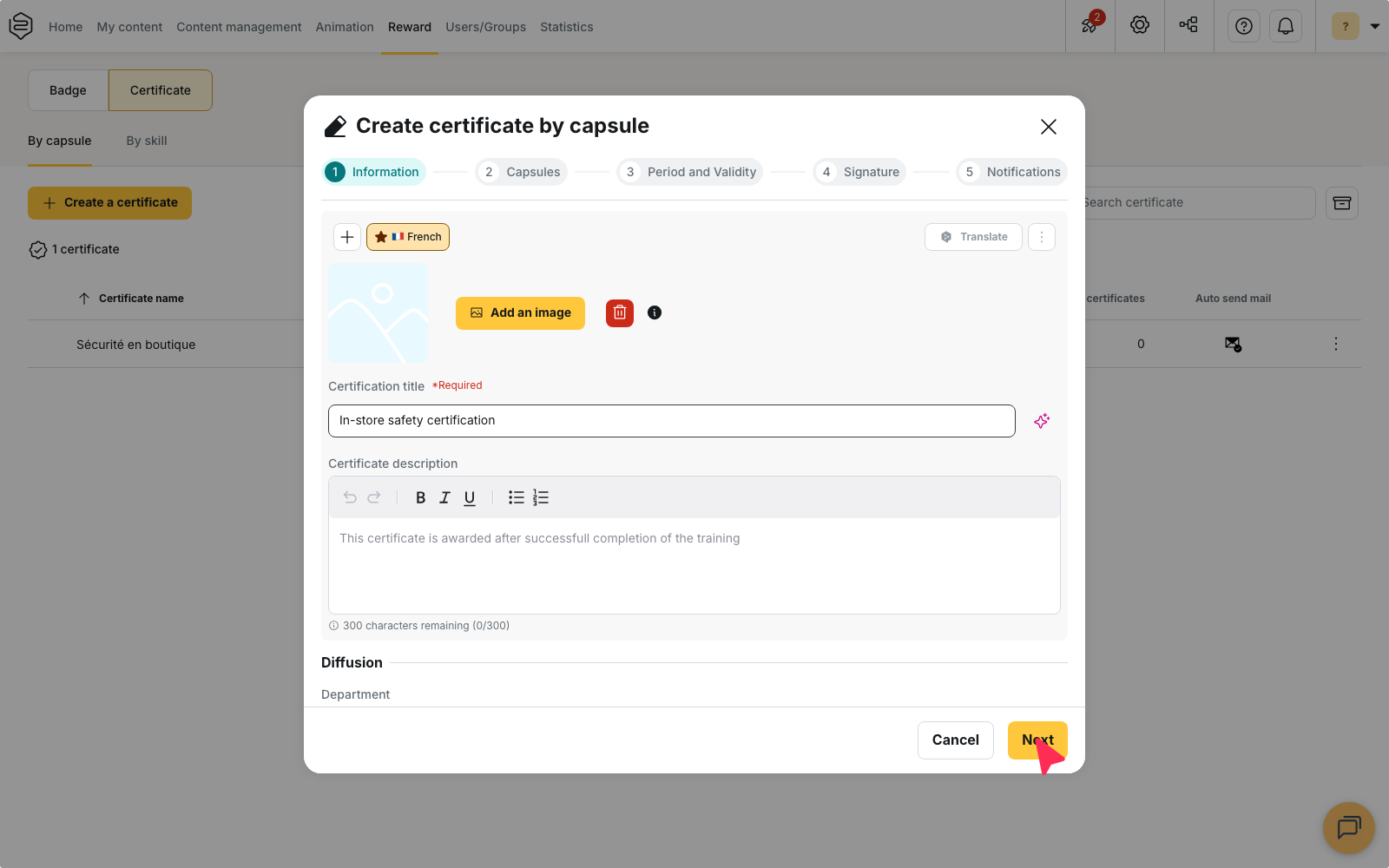
Step 1: Information
- Add an image if you wish.
- Enter the Certification title. This field is mandatory.
- Enter the Certificate description (300 characters maximum).
- Choose the department the certificate belongs to, if your platform uses a hierarchy.
- Choose what the learner will receive:
- a certificate only;
- a document only (acknowledgement of a procedure, internal authorisation form, etc.);
- both a certificate and a document.
- Depending on your selection, choose a certificate template and/or a document template. Selecting a certificate template is optional: the Beedeez certificate template is used by default. A document template is required if a document is to be awarded. Certificate templates are described in Certificate templates.
- Click Next.
ℹ️ Remember to translate the title and description into each language.
Step 2: Capsules
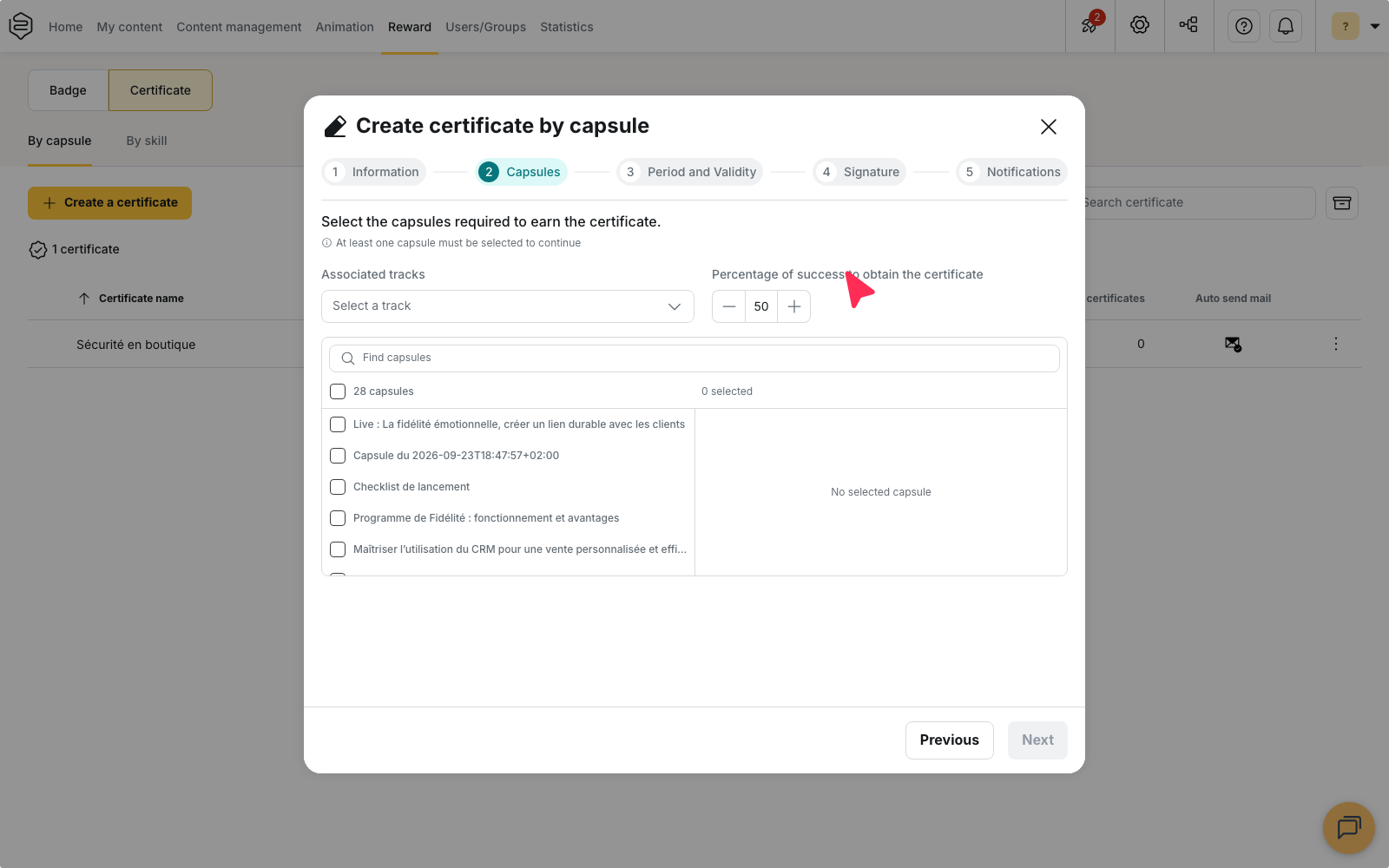
- Select the capsule(s) the learner must pass to obtain the certificate. The selected capsules appear on the right.
- Set the Percentage of success to obtain the certificate to a value between 20 and 100. The default is 50.
- Click Next.
ℹ️ The Associated tracks selector filters the list to tshow capsules from one or more tracks, making it easier to select them. It does not automatically select any capsule.
Step 3: Period and Validity
- Set how long the certificate remains valid. For details, see Validity, expiry and renewal.
- If needed, enter the start and end dates of the Training period. Outside that period, a learner who passes the certificate’s capsules at the required rate does not receive the certificate.
- If needed, tick Certificate to be awarded only during the training period. The learner must then also complete and pass the capsules within the training period.
- If needed, turn on Customization of certificate duration. By default, the duration shown is the sum of the capsule durations. If this total does not reflect the actual training duration (including classroom sessions, practice time, etc.), you can adjust it.
Step 4: Signature
- Turn on Add signature if the certificate must be signed.
- Enter Full name and Job title. Both fields are required when this option is enabled.
- Add an image of the signature if you wish.
ℹ️ The signature is not saved in the media library. Keep a copy of the file so you can reuse it on another certificate if needed.
Step 5: Notifications
Select who should receive an email when the certificate is awarded. It can include:
- the learner;
- the team manager (this role is described in the article on team managers);
- anyone else, by entering their email address (for example, an HR manager).
If no recipients are selected, the certificate is still awarded and appears in the learner’s profile on the platform, but no email is sent. Sending, resending and exporting certificates are described in Sending, resending and exporting.
How the certificate is awarded
The platform awards the certificate whenboth of the following conditions are met for every selected capsule:
- the capsule is completed, with progress at 100%;
- the success rate for that same attempt meets or exceeds the certificate’s required threshold.
The threshold applies to each capsule individually, not to the average score across all capsules. For example, a learner who scores 90% on three capsules and 40% on a fourth will not receive the certificate if the threshold is 50%.
ℹ️ **Good to know. The certificate’s threshold is independent of the capsule’s threshold. The Success percentage to validate capsule, set under Capsule success, determines whether the learner passes the capsule. For the certificate, the learner’s success rate is checked against the certificate’s own threshold. A learner who scores 60% therefore passes a capsule with a 50% threshold but does not qualify for a certificate that requires 80%.
No success rate is recorded for capsules without questions. In this case, the platform checks whether the capsule has been completed and passed. A certificate can therefore still be awarded for content without questions.
The conditions are checked when a learner finishes a capsule. Once a certificate has been awarded, it cannot be awarded again until it expires, subject to the rules described in Validity, expiry and renewal.
Retroactive awarding of certificates
A learner who completed all the capsules before the certificate was created does not receive it automatically. To allow these learners to receive the certificate, ask them to retake one of the capsules included in it. Completing that capsule with a success rate that meets or exceeds the required threshold triggers a new evaluation. The certificate is awarded if all the other capsules also meet the conditions.
The certificate’s validity period also limits how far back the platform checks for completed activities. When awarding a certificate for the first time, the platform only considers activities completed within that time frame. For example, if the certificate is valid for one year, a capsule completed eighteen months ago is not taken into account.
Further reading
- Validity, expiry and renewal: how long certificates remain valid and how renewal works.
- Certificate templates: how to include the description, score, training period and duration on the certificate.
- Sending, resending and exporting: details on notifications and certificate exports.
- Creating a skill-based certificate: how to certify skill mastery rather than the completion of specific content.