Send learner reminders from Statistics
⚠️ Required permissions: you must have the Can edit / send notifications and emails permission, available under Engagement permissions, as well as access to Statistics. Without both permissions, the reminder options described below are not displayed.
Send learner reminders from Statistics
⚠️ Required permissions: you must have the Can edit / send notifications and emails permission, available under Engagement permissions, as well as access to Statistics. Without both permissions, the reminder options described below are not displayed.
From a capsule’s statistics, you can send reminders to the relevant learners without going through the Engagement menu. When sending the reminder, you can target learners who have not completed or passed the capsule and, if needed, only those who have already started it.
To learn more about the available indicators, see Content statistics.
Send a reminder
There are two ways to open the same reminder form.
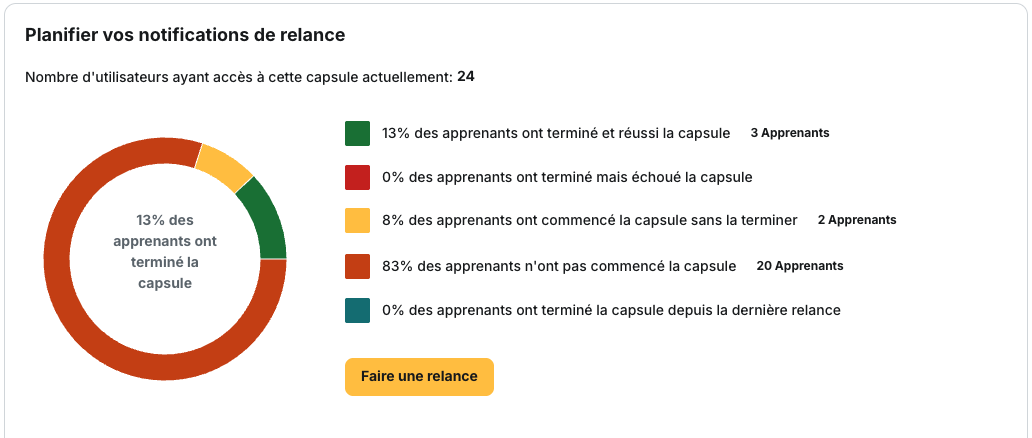
From a capsule’s statistics. The Schedule your reminder notifications widget shows how learners are distributed by status. Click Send a reminder.
From the capsule statistics list. Open the actions menu for a capsule and select Send a reminder. This action is available only for capsules that are Online.

In both cases, the title and message are pre-filled, and the capsule name is automatically included in the message.
The Notification destination step is not displayed because the capsule has already been selected. Learner targeting, sending and scheduling are explained in Notifications.
Why is the “Send a reminder” button not displayed?
If you do not have the required permission, the button is not disabled or greyed out: Send a reminder simply does not appear.
It is also hidden in three situations related to the capsule itself.
- The capsule is not Online. A capsule that is in Draft, unpublished or deleted cannot be used for a reminder. In this case, neither the widget button nor the corresponding action in the capsule statistics list is displayed.
- All learners have completed the capsule. The widget hides the button once completion reaches 100%, as there is no one left to remind. However, the action remains available from the capsule statistics list, which only checks the capsule’s publication status.
- No learner has access to the capsule. The widget then displays an empty donut chart. In this case, the issue is related to content distribution rather than reminders. See Common issues: content distribution to check the capsule’s configuration.
Understand the widget
Click any segment of the donut chart to display the list of learners included in that segment.
The Completed since the last reminder segment shows the number of learners who completed the capsule after the most recent reminder was sent.
Below the donut chart, a table lists the reminders already created for the capsule and displays their status:
- Draft;
- Scheduled;
- Sent;
- Cancelled;
- Failed;
- Suspended.
For each reminder, the actions menu lets you edit, duplicate, view its history or delete it.
The History action opens the details of the sends associated with the selected reminder.
Good to know
- A reminder can target only one capsule at a time. You cannot select several capsules and send a single reminder for all of them.
- Learning path statistics do not include a reminder option. To remind learners about a learning path, go to Engagement > Notifications, click New notification, then select Reminder notification. From there, you can choose either a Capsule or a Learning path.
- The Distribution group(s) field can be left empty. In this case, the reminder is sent to learners in groups that have access to the capsule. If you select one or more groups, only learners belonging to those groups are targeted.
⚠️ Deactivated learners never receive reminders, even when Include deactivated learners is enabled in the Statistics filters. The number displayed in the widget may therefore differ from the number of learners who actually receive the reminder.
⚠️ The same learner can receive several reminders. Each time you send a new manual reminder, it is sent to all learners who still meet the selected criteria. There is no minimum delay between two reminders.
The “Resend this notification?” warning appears only when a one-time reminder has already been sent within the last 15 minutes.
Learn more
- Notifications: understand how reminder targeting and scheduling work, and how to view send history.
- Filters and audiences: understand how Include deactivated learners affects the statistics displayed.
- Notify learners about newly available content: notify learners as soon as new content becomes available.
- Prioritize a capsule: highlight a capsule and make it more visible to learners.