Publishing and unpublishing a capsule
Publishing a capsule moves it to the Online status; unpublishing it removes it from the learner app without deleting it. You can do this one capsule at a time from the editor, or for several capsules at once from the My capsules list.
Publishing and unpublishing a capsule
Publishing a capsule moves it to the Online status; unpublishing it removes it from the learner app without deleting it. You can do this one capsule at a time from the editor, or for several capsules at once from the My capsules list.
An online capsule only reaches the learners it is distributed to. Publishing does not choose the audience: see Understanding distribution.
Rights required: to publish or unpublish a capsule, you must be able to edit it. Bulk actions also require the right to create capsules.
Publishing a capsule from its editor
- In My content > My capsules, find the capsule with the search bar or the filters, then click its name to open the editor.
- Click Update capsule, at the top right. The Save & Publish capsule panel opens and shows the current status of the capsule.
- Click Publish capsule. The status changes to Online and the panel reads “Your capsule is published”.
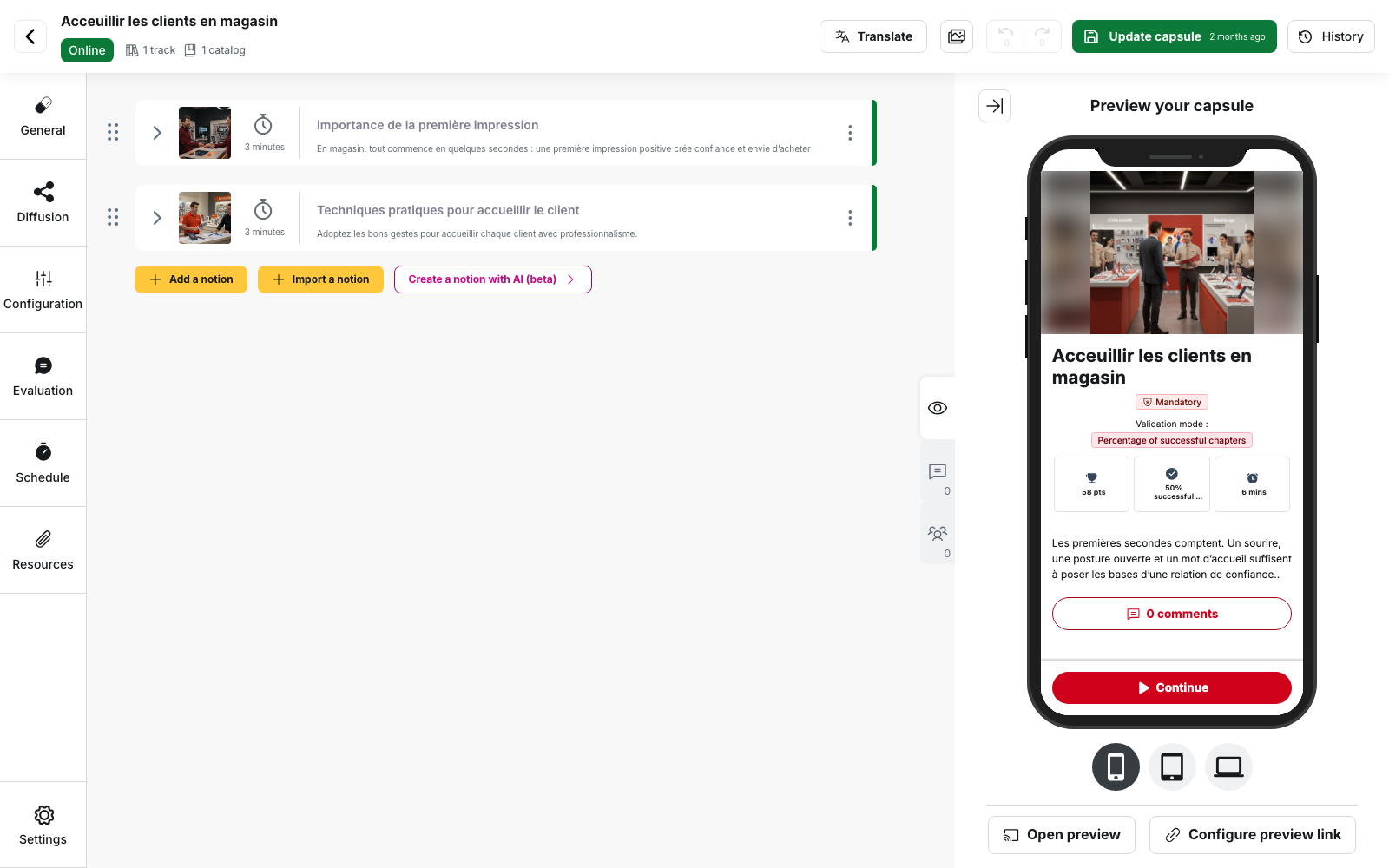
The Publish capsule button only appears if the capsule passes all the checks described below.
If the capsule exists in several languages, the panel also reminds you: “Don’t forget to modify the translated versions of your capsule.”
Fixing an incomplete capsule
If something is missing, the Save & Publish capsule panel shows Warning, your capsule is incomplete instead of the Publish capsule button. Errors are grouped by level: those of the capsule first, then those of each notion, with their count. Each line is clickable and opens the setting to fix.
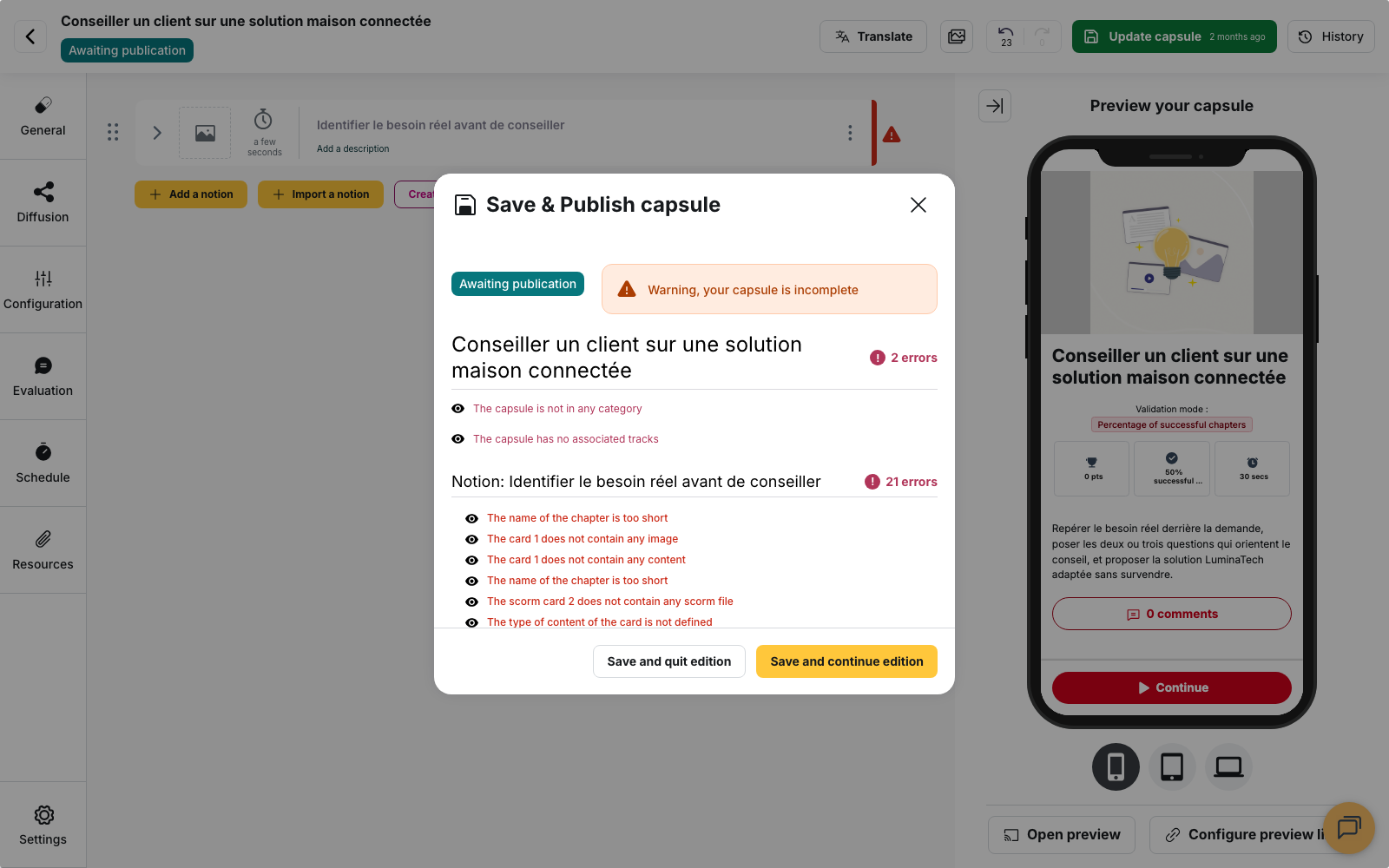
The checks include:
- a title, and a description that is not empty, except on a capsule with registration. The recommended lengths shown by the field counter do not block publication;
- at least one category;
- at least one notion, each holding content or a quiz, except on a capsule with registration;
- at least one validating notion, if the validation mode relies on selected notions;
- a way in. The message The capsule has no associated tracks disappears as soon as the capsule is in a track, uses the To be displayed on the catalogue of setting, or has a custom distribution rule carrying groups.
As long as a capsule is not online, you can save it while incomplete with Save and quit edition or Save and continue edition, then publish it once the errors are fixed.
If the capsule is already online
The same checks apply when you edit an online capsule. If one of your changes creates an error, for example a quiz question left empty, Save and quit edition and Save and continue edition are disabled: the online version cannot be replaced by an incomplete one. The tooltip on these buttons gives the two options:
- fix the errors listed in the panel, then save;
- click Unpublish capsule so you can save it as it is. Learners then lose access to it until you publish it again.
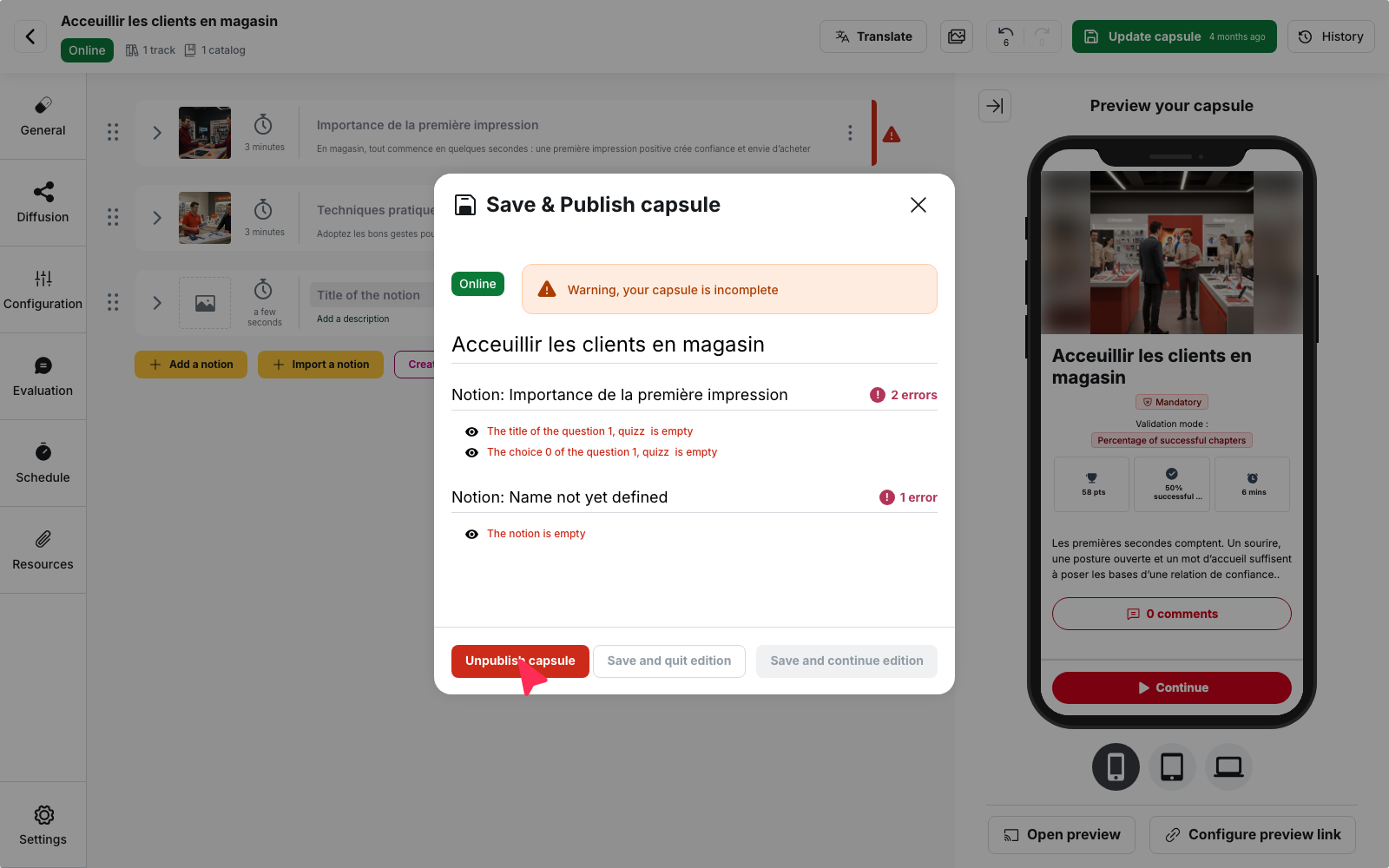
Unpublishing a capsule from its editor
- Open the capsule from My content > My capsules.
- Click Update capsule.
- In the Save & Publish capsule panel, click Unpublish capsule. The status goes back to Awaiting publication.
The capsule disappears from the learner app, including for learners who had already started it, and the statistics of the tracks that contain it are recalculated.
Unpublishing:
- does not delete the capsule: it stays in the list, editable and ready to be published again;
- does not delete the progress already recorded: learners’ results are kept and found again if you republish the capsule;
- notifies nobody, and neither does publishing. To inform learners, see Notifying learners of new content.
Publishing or unpublishing several capsules at once
Bulk publishing and unpublishing are done from the capsule list, not from the editor.
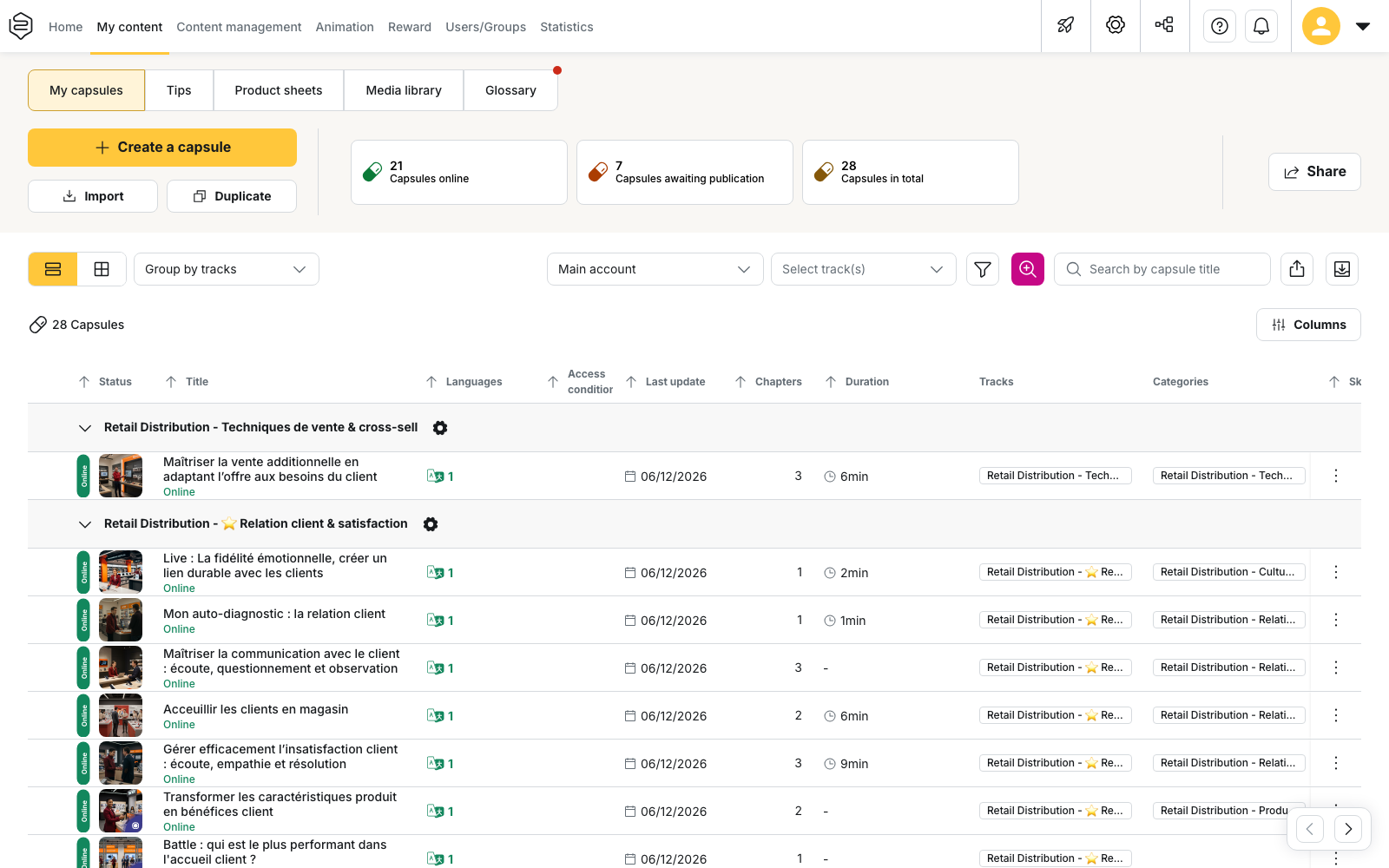
- In My content > My capsules, tick the capsules you want. Only the capsules you can edit can be selected.
- In the action bar that appears, click Publish or Unpublish. Publish is only offered if the selection contains at least one capsule that is not online, and Unpublish only if it contains at least one online capsule.
- In the Bulk publish capsules or Bulk unpublish capsules window, check the list of capsules that will be processed, for example “Will be published (3)”. Capsules that fail the checks are left out of this list.
- Confirm. A message gives the number of capsules processed, and those that failed, if any.
⚠️ Only the last saved version is published. The Bulk publish capsules window reminds you: “Publishing uses each capsule’s latest saved version. Unsaved edits will not be included.” Save the capsules you are editing before publishing them from the list.
If a publication or unpublication is scheduled
Publishing or unpublishing a capsule by hand removes the automatic action scheduled on it. Before you confirm, a Publishing conflict or Unpublishing conflict window tells you so.
If a capsule with a scheduled publication contains errors, saving it also opens a Publishing conflict window: fixing the errors keeps the automatic publication, while saving now removes it.
To schedule these actions, see Scheduling publication and unpublication.
Capsule statuses
| Tag | What the learner sees |
|---|---|
| Draft | Nothing, the capsule has never been saved |
| Awaiting publication | Nothing, your capsule is not visible to users |
| In validation | Nothing, the capsule is waiting for a validator |
| Online | The capsule, if it is distributed to them |
The validation circuit
On an account where the author’s profile is subject to validation, the capsule goes through the In validation step. The panel reads “Your capsule is being validated” and no learner receives it until a validator has acted. Check this first when an author reports that their content does not show up.
On the capsule page, the Capsules to validate tab lists the pending capsules for the people who have the right to validate; the author sees the same tab named Capsules in validation. The Validate button on the card releases the capsule. See Submitting a capsule for validation.
Going further
- Linking a capsule to tracks: the way in that clears the most frequent blocker.
- Testing a capsule before publishing it to everyone: what you can check while the capsule is still invisible.
- Common problems: distribution: what to do when an online capsule shows up for nobody.