Getting a capsule validated
When several people create content, you can set up an approval step before a capsule becomes available to learners.
Get a capsule approved
When several people create content, you can set up an approval step before a capsule becomes available to learners.
Capsules created by contributors who require approval remain invisible to learners until a reviewer approves them.
⚠️ Required permissions: to create a capsule that requires approval, you need “Create capsules requiring approval”. To approve a capsule, you need “Create and edit all capsules”.
These permissions are configured under Permissions, in the Editing permissions section, under Content editing.
The account owner can approve capsules without this permission.
See Understanding custom permissions.
Which capsules require approval?
When someone has the “Create capsules requiring approval” permission, all capsules they create automatically require approval.
This also applies to capsules they import or duplicate.
The capsule is therefore marked Awaiting approval until a reviewer approves it.
⚠️ The “Publish capsule” button does not trigger the approval process. The capsule already requires approval as soon as it is created. Publishing simply makes it appear in the reviewers’ approval queue.
Until it is approved, the capsule remains invisible to learners, even when it is associated with a learning path.
In the editor and under My content > My capsules, its status is Awaiting approval.
⚠️ Changing a contributor’s permissions does not approve their existing capsules. Capsules that were already created still require approval and must be approved individually.
The five capsule statuses
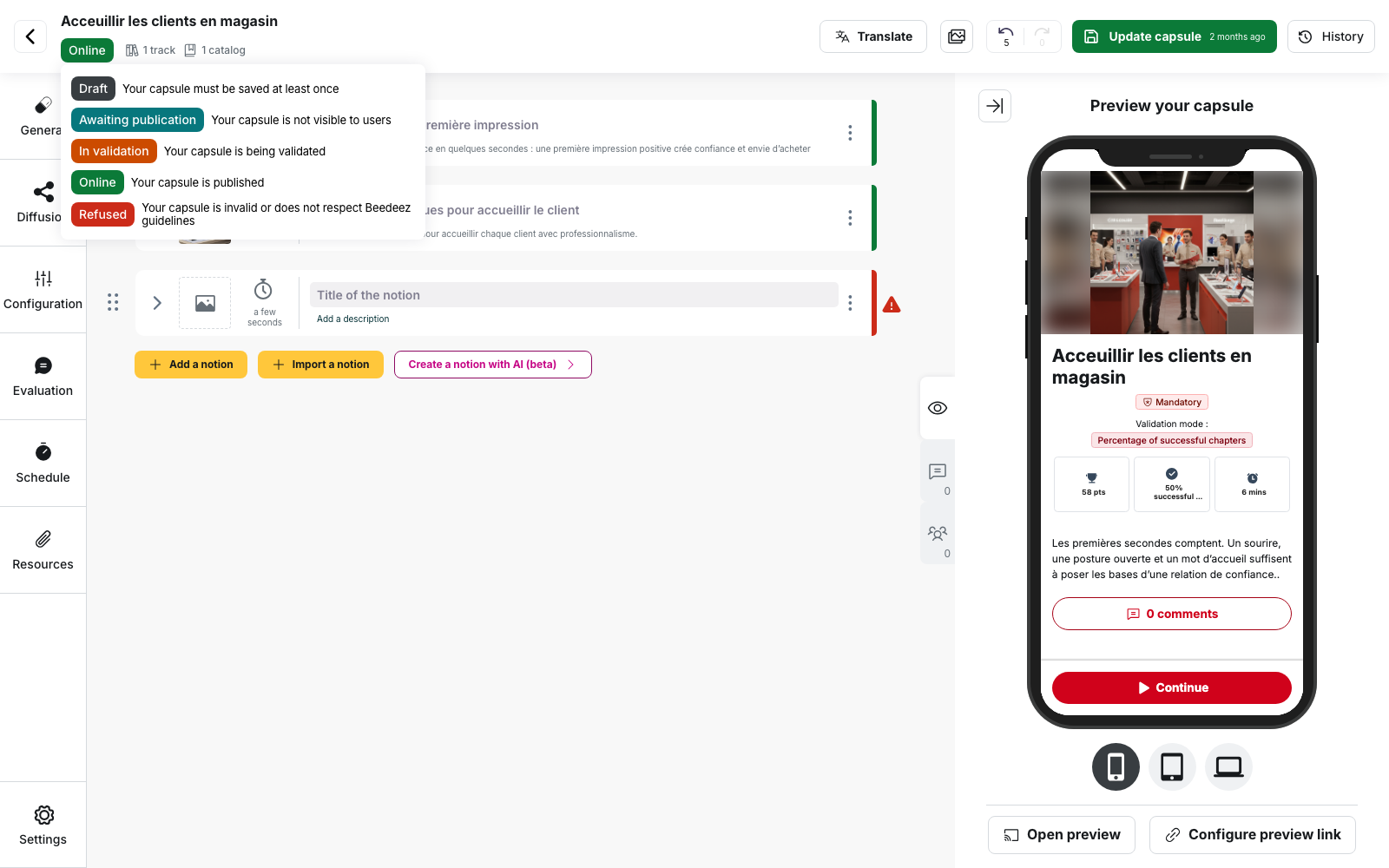
A capsule can have five different statuses. To see what each status means, hover over the status label at the top of the editor.
- Draft: the capsule has not been saved yet
- Awaiting publication: the capsule is saved but not visible to users
- Awaiting approval: the capsule is waiting for approval
- Online: the capsule is published and available to learners who have access to it
- Rejected: this status cannot be assigned from the back office. It refers to a capsule considered invalid or not compliant with the guidelines
Find capsules awaiting approval
To view capsules awaiting approval, go to My content > Capsules to approve.
This tab only appears when at least one capsule is awaiting approval.
If you do not have permission to approve capsules, the tab is called Capsules awaiting approval. It only allows you to monitor the relevant capsules.
Capsules are displayed as cards. You can find information such as:
- the capsule title
- the points to earn
- the number of notions
- the number of views
- the rating
Authors can also find their own capsules under My capsules awaiting approval.
Click a card to open the capsule in the editor and review its content before approving it.
Approve a capsule
- Go to My content > Capsules to approve
- Click the capsule you want to review
- Review its content in the editor
- Return to the Capsules to approve tab
- Click Approve in the card’s green bar
- Confirm the message “Are you sure you want to approve this capsule?”
Once approved, the capsule becomes Online and is available to learners who have access to it.
⚠️ We do not record the approval date or the name of the person who approved the capsule.
What approval does not do for now
No notifications are sent
No notification is sent when a capsule is awaiting approval.
The author is not notified when their capsule is approved either.
The capsule is not automatically published after a certain period. If several contributors work on the account, remember to check the approval tab regularly.
You cannot reject a capsule
There is no Reject button or field to explain why a capsule is rejected.
If you do not want to publish a capsule, leave it Awaiting approval and contact its author directly to explain what needs to be changed.
An approved capsule does not require approval again
Once a capsule has been approved, changes made by its author do not trigger another approval.
The capsule remains Online, and the changes become visible after they are saved.
Review permission is different from approval permission
The Capsule control section includes the “Can review all capsules” permission.
This permission allows users to view capsules, but it does not give access to the Capsules to approve tab or the Approve button.
To approve a capsule, you need the “Create and edit all capsules” permission.
Points to watch
Scheduled publication does not replace approval
You can schedule the publication of a capsule that requires approval.
It will become Online on the scheduled date, but it will remain invisible to learners until it has been approved.
See Schedule publication and unpublication.
Unpublishing a capsule awaiting approval
If you unpublish a capsule that is Awaiting approval, it is removed from the approval queue.
Its status becomes Awaiting publication.
If you publish it again, it will require approval again.
⚠️ A capsule marked “Awaiting approval” is considered published from the editor’s perspective. If it contains a blocking error, you will not be able to save it until the error is fixed or the capsule is unpublished.