Scheduling publication and unpublication
The Scheduling tab in the capsule editor lets you set two independent deadlines:
On this page
Schedule publication and unpublication
The Scheduling tab in the capsule editor lets you set two independent deadlines:
- the automatic publication date
- the automatic unpublication date
These deadlines automate the actions described in Publish and unpublish a capsule.
A capsule published automatically is subject to the same distribution rules as a capsule published manually.
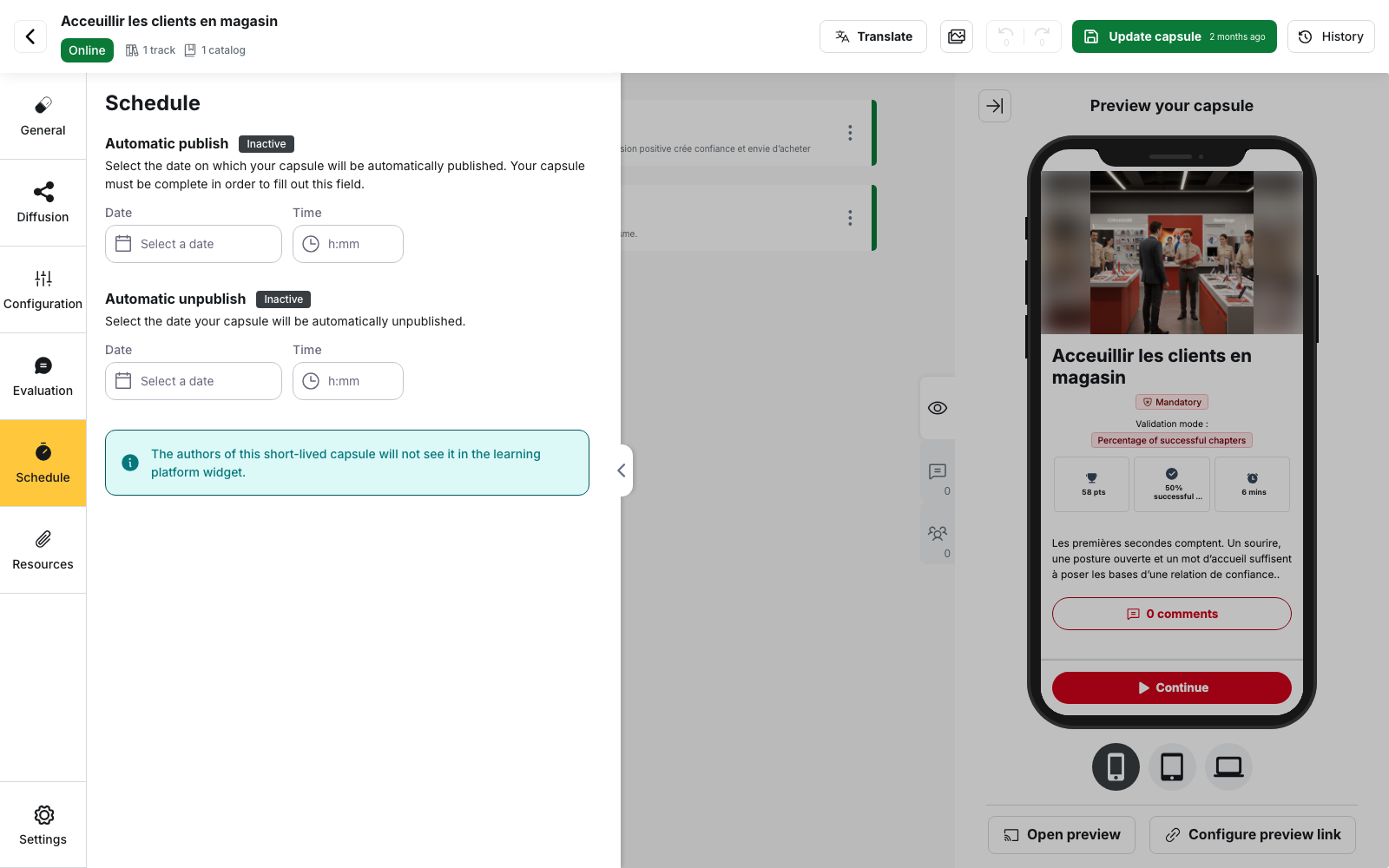
Schedule publication or unpublication
- Open the capsule in the editor, then go to the Scheduling tab
- Under Automatic publication, enter the Date and Time when the capsule should go online
- Under Automatic unpublication, enter the Date and Time when the capsule should be taken offline
- Save the capsule
⚠️ The tab does not have a dedicated save button. Until the capsule is saved, no deadline is stored.
The badge next to each section changes from Inactive to Active as soon as a date is entered. Click Clear to remove a deadline.
Time can be selected in 15-minute increments. A date in the past is not accepted, and unpublication cannot be scheduled before publication.
When does the capsule switch status?
Beedeez checks scheduled deadlines every minute. The capsule therefore switches status within the minute following the scheduled time.
The time you enter corresponds to the timezone of the computer from which the scheduling is configured. The deadline still refers to the same instant for everyone and is displayed according to each user’s local time.
What scheduling does not do
It does not distribute the capsule. Once published, the capsule remains inaccessible to learners until it is distributed through a track, the Display in catalog for field, or a distribution rule targeting groups.
It does not delete the capsule. Automatic unpublication changes the capsule status back to Pending publication. Its content and learner progress are preserved.
It is not recurring. A deadline is consumed when it is triggered and then disappears from the Scheduling tab. A new date must be entered manually.
Manual publication or unpublication can remove the scheduled deadline
If you click Publish capsule while automatic publication is scheduled, the Publication conflict window warns you that the scheduled publication will be removed.
Similarly, clicking Unpublish capsule displays an Unpublication conflict when automatic unpublication is scheduled.
Each action only removes the corresponding deadline. A manual publication therefore leaves the automatic unpublication in place if one was scheduled.
An incomplete capsule cannot keep its publication date
You can enter a date for an incomplete capsule, but the warning “This capsule is incomplete. It cannot be published.” appears below the section.
When you save, the Publication conflict window indicates that the automatic publication will be removed.
⚠️ Fix the capsule errors before saving it, otherwise the publication date will be removed.
If the capsule is prioritized, its prioritization start and end dates must also fall between the publication and unpublication dates. Otherwise, the editor indicates which dates need to be corrected.
What learners see
Before publication, the capsule is not visible to learners and no countdown is displayed.
Once published, if automatic unpublication is scheduled, the capsule card displays an Expires label with the remaining time, for example “in 3 days”. The exact unpublication time is not displayed.
As long as the learner has not completed the capsule, it may also appear in the Capsule of the moment widget on the home page. A capsule without automatic unpublication never appears in this widget.
Capsule authors do not see the capsule in this widget either. A warning in the Scheduling tab explains this.
Scheduling or visibility conditions?
Scheduling is based on a date that is the same for all learners.
Visibility conditions depend on each learner’s progress. For example, a capsule can become accessible after another capsule has been completed.
To let learners progress through content at their own pace based on their entry date, use a campaign track instead.