Question agent
⚠️ Prerequisites: the AI Agents option must be switched on for your platform by Beedeez. Then enable AI Agents enabled, followed by Question Agent, under Configuration > Content. The Enable AI features setting, under Configuration > Content, must also be active.
On this page
- Where the learner meets the agent
- The content the agent draws on
- The content the agent does not read
- Quiz corrections stay invisible to the agent
- Framing the answers with a QA environment
- Reusing, transferring or deleting an environment
- When the agent does not find the answer
- What is kept, and who can read it
- Going further
Question agent
⚠️ Prerequisites: the AI Agents option must be switched on for your platform by Beedeez. Then enable AI Agents enabled, followed by Question Agent, under Configuration > Content. The Enable AI features setting, under Configuration > Content, must also be active.
⚠️ Rights required: Update customization for the configuration, Can access the AI Agents tab for the QA environments.
The Question agent answers a learner’s questions from your content. It does not open from inside a capsule: it is a destination of its own, and it draws on everything the learner is already allowed to see. It is one of the four learning agents.
Where the learner meets the agent
An AI Agents entry, on the home screen and in the menu, opens the screen of that name. Four cards are offered there; this agent’s card is Q/A, subtitled Find the right answer, at the right time. The learner can also type straight into the Ask a question… field. The path is the same on mobile and in a browser: screen width, not the device, decides the layout.
The content the agent draws on
The agent reads the text of your content, within the scope already open to that learner:
- a capsule’s title and summary;
- a chapter’s title and description, and the text of its content pages;
- the front and the back of flashcards;
- the wording of a quiz question and the wording of its answer options;
- the text of an attached document, page by page;
- the text extracted from a SCORM module, when content extraction is enabled on your platform and you have selected the files to extract;
- the entries of your glossary.
ℹ️ Worth knowing. The answer is not limited to the capsule the question came from. The agent searches everything the learner is allowed to open: capsules, learning paths, tips and media. A QA environment narrows that scope.
The content the agent does not read
The agent does not read text placed inside an image: a diagram, a photo of a printed instruction or a screenshot gives it nothing. The same information has to exist as text somewhere else in your content.
Anything said out loud only, in a video or an audio recording, does not produce a reliable answer. It reads neither slideshows, nor H5P content, nor to-do lists, nor embedded web pages, nor the comments your learners post.
Quiz corrections stay invisible to the agent
The agent sees the wording of a quiz question and the wording of the answer options offered, but not which one is correct, nor the explanation attached to the question. Information that exists only in a quiz correction will not come back in the answers, or will come back wrong.
💡 Tip: write that information into a flashcard or a content page as well. It then becomes readable by the agent.
ℹ️ Worth knowing. Without the Enable AI features setting, the agent has nothing to read. That setting governs every AI feature on the platform, including advanced search and capsule or content generation: turning it off makes them all unavailable. Turning it on starts the processing of all your content; capsules created afterwards are processed automatically.
Framing the answers with a QA environment
A QA environment is not mandatory. Without one, the agent answers from all the content accessible to the learner. An environment exists to narrow that scope and to set a conduct for the answers.
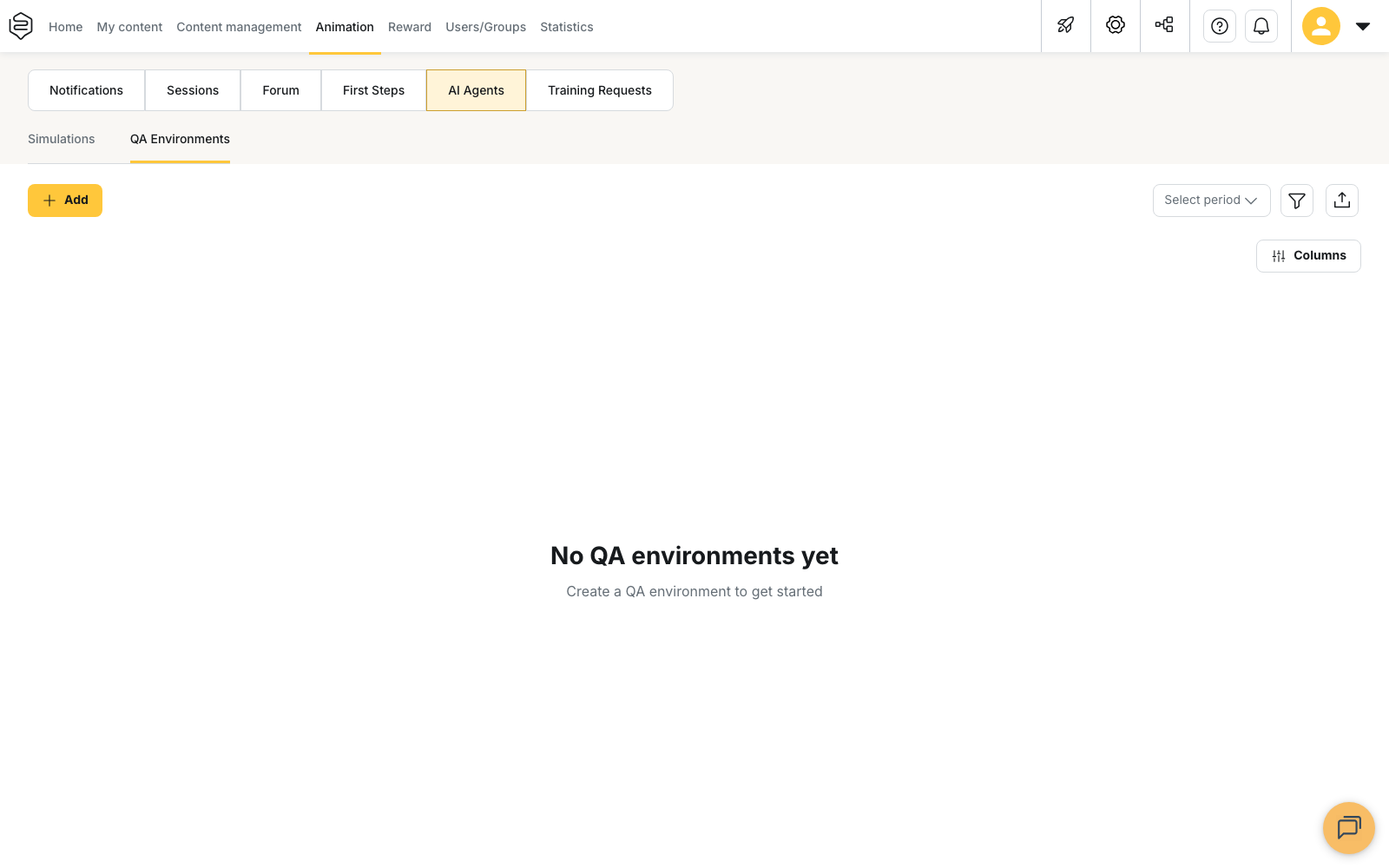
- Open Animation > AI Agents > QA Environments.
- Click Add. The Create QA Environment panel opens on the Subject & Content tab.
- Fill in the Title. This field is required: if you save without it, the panel returns to this tab and flags the missing field.
- Select the User groups the environment is meant for. With no group, it is offered to every one of your learners. The Department field only appears if your platform uses departments.
- Turn on Restrict accessible content to limit the sources. A Topic field and a content search appear: there you select the capsules, tips and media that will stay accessible during the QA session.
- Turn on Add additional documents to supply media as extra context. That selector only offers media.
- Open the Data tab and fill in the Description.
- Set Open Conversation Mode according to the experience you want. Off, the learner moves forward through action buttons after each answer. On, they type follow-up questions freely. The text shown next to the button states which mode is active.
- Check the Scenario. On creation it is pre-filled with a default scenario, which differs depending on the mode chosen in the previous step. Replace it with the conduct you expect from the agent.
- Fill in Tone, Guidelines - Do, Guidelines - Don’t, Q&A - Topic redirections, Q&A - Forbidden topics and Q&A - Response rules. In these six fields, every line you type counts as a separate instruction: write one instruction per line.
- At the bottom of the panel, choose the status, then click Save.
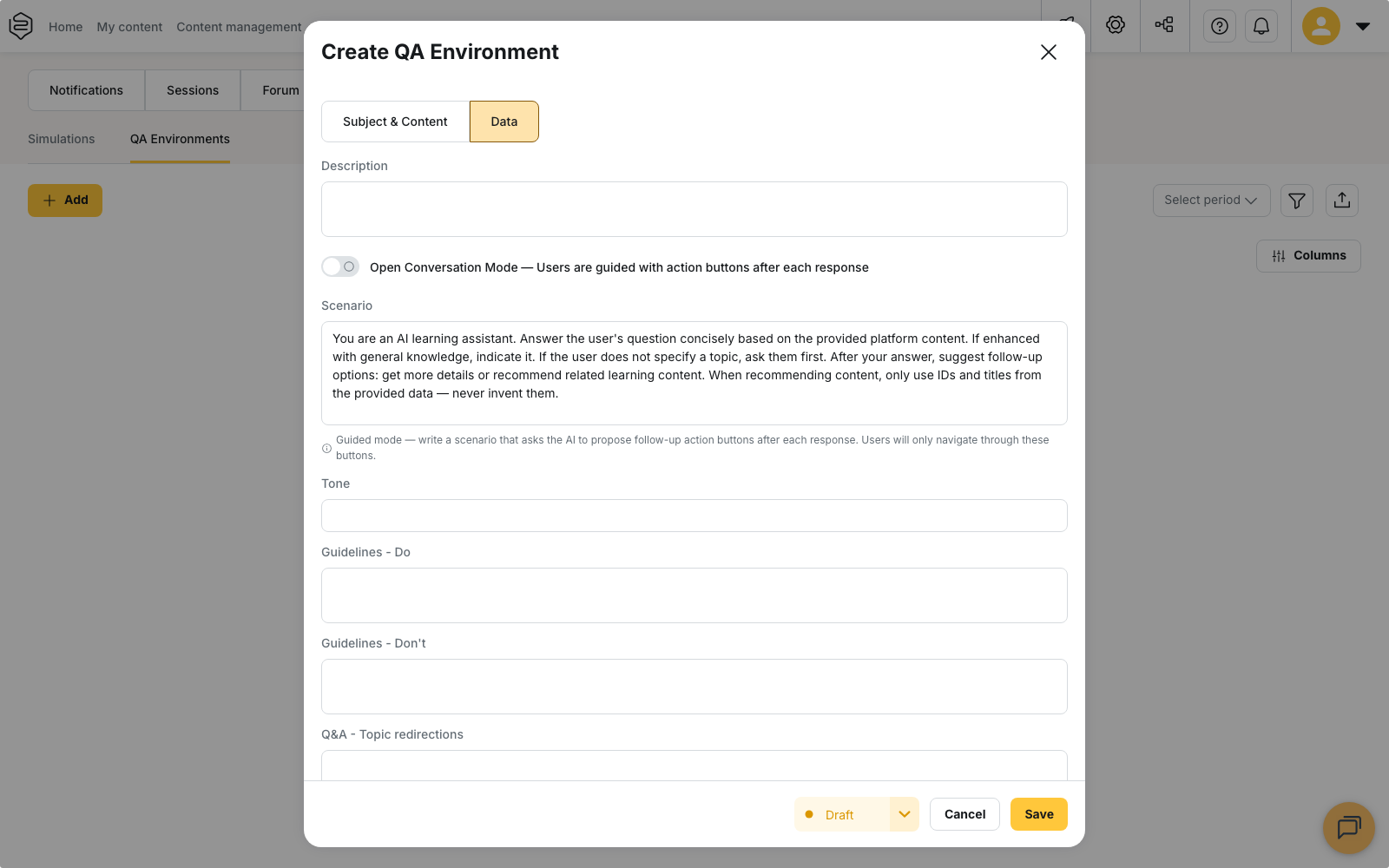
An environment exists under three statuses: Draft, Online and Inactive. It is offered to learners only at status Online; from the list, the toggle action moves the environment from Inactive to Online, and back.
💡 Tip: on regulated subjects, fill in Q&A - Forbidden topics and Q&A - Topic redirections. These are the fields that decide what the agent must decline to handle and who it should point the learner to instead.
Reusing, transferring or deleting an environment
From the QA Environments list:
- Duplicate creates a copy of the environment, which you then adapt to another group or another subject;
- Export opens the Export QA environment window. You select the content to include in the export, then confirm with Export: a file is downloaded;
- Import, in the list header, creates an environment from an exported file;
- Delete asks for confirmation. The action cannot be undone.
When the agent does not find the answer
The wording of the refusal changes from one answer to the next, but it always means the same thing: the information is not present in your content, or it is not there in a readable form. Check that it exists as text, and not only inside an image or a video.
A message saying that the response is taking longer than expected signals a technical incident, not missing information. The Retry button replays the request.
What is kept, and who can read it
Conversations are recorded and do not clear themselves. An administrator holding the Can access the AI Agents tab right reads them under Statistics > AI Agents, sub-tab Conversations.
The report shows the Conversation topic, the Agent concerned — Q/A for this one —, the Conversation start date, the learner’s Email, the Time spent and the Activity result. The Conversation column holds a View button that opens the full transcript.
Three columns account for what learners reported through Report invalid information: Reported states whether the answer was reported, Report reason gives the motive (Unrelated, Harmful or offensive, Too short, Too long) and Report comment shows the text the learner left.
💡 Tip: tell your learners that their exchanges with the agent are kept and can be read by authorised administrators.
Going further
- Who are our learning agents?: the two levels of access that decide who sees this one.
- The glossary: the setting that weighs most on answer accuracy.
- AI agent statistics: what the questions asked tell you about the gaps in your content.
- Common problems: the agent missing from the app, answers that miss the point.