Categories
⚠️ Rights needed: You need either Create categories and sub-categories or Update categories permission, available under Edition rights. Without either permission, the Categories tab is not available in Content management.
Categories
⚠️ Rights needed: You need either Create categories and sub-categories or Update categories permission, available under Edition rights. Without either permission, the Categories tab is not available in Content management.
Categories help learners find content by theme. They do not grant access to content: access is determined by tracks and distribution rules. To learn more, see Understanding distribution.
Categories are mandatory for one content type only: a capsule cannot be published until it belongs to at least one category.
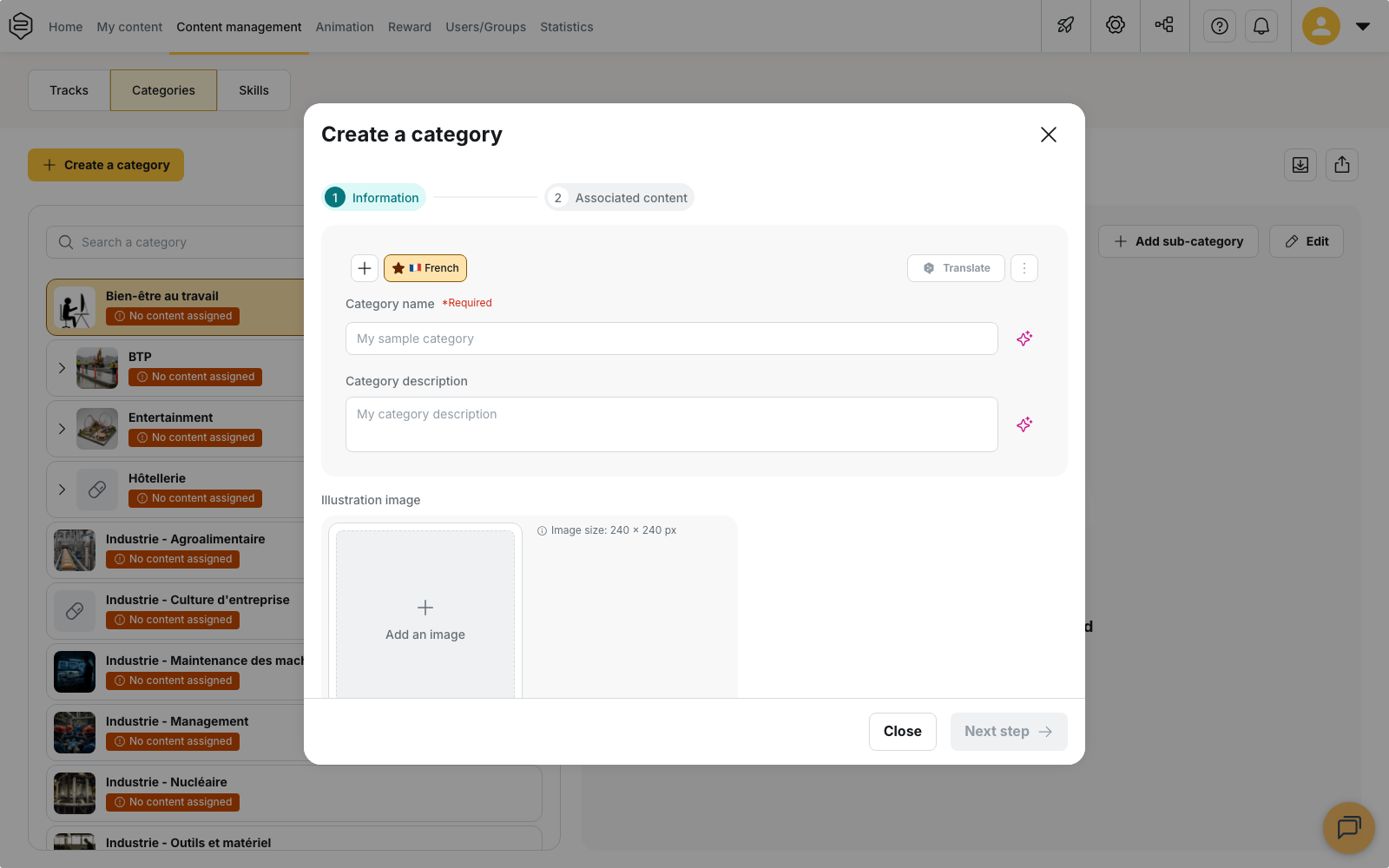
The screenshot below shows the category tree on the left and the Create a category dialog open on its first step.
Create a category
- Open Content management > Categories
- Click Create a category. The dialog has two steps, Information and Associated content, which become editing tabs once the category exists.
- In Information, fill in Category name. It is the only required field. Like the rest of your content, you enter it separately for each language
- Add a Category description if it helps your teams identify the category. This field is optional
- Under Illustration image, click Add an image if you want one. The field shows the hint Image size: 240 × 240 px, and the image you upload is cropped to that square format
- Click Next step to open Associated content, then select the capsules, tips, product sheets and tracks to attach. A category only accepts these four content types
- Click Create category
💡 Tips: Keep category names short and use the terms your learners use. Learners can browse and filter content by category in the app, so internal training terminology may make content harder to find.
Organise categories and sub-categories
Categories can have one level of sub-categories.
To create a sub-category:
- Select a category in the category tree
- Click Add sub-category
A sub-category cannot contain further sub-categories. When editing a sub-category, the Parent category field only lists top-level categories.
Categories are sorted alphabetically in the tree. You cannot change their order manually.
Browse and export categories
Use Search a category to filter the category tree. Select Expand all or Collapse all to show or hide all branches.
Each category displays the number of associated capsules, tracks, tips, and product sheets. Empty categories display No content assigned.
The counts shown for a parent category include content assigned to its sub-categories. A parent category therefore displays totals for its entire branch.
Select Export Excel to download a file containing one row per category, including archived categories and sub-categories. The export includes:
- the category ID, name, description, and external ID;
- parent categories;
- creation date and last update date;
- archive status;
- the number of published items and the total number of capsules, tracks, tips, and product sheets.
Content counts in the export are calculated in the same way as in the category tree.
Add a category before publishing a capsule
When you try to publish a capsule that has no category, the Save & Publish capsule panel displays the following warning:
The capsule is not in any category
This warning appears under Warning, your capsule is incomplete. As long as the warning remains, the Publish capsule button is unavailable. You can still save the capsule as a draft without assigning it to a category.
This rule does not apply to other content types: tracks, tips and product sheets can be published without a category.
Where learners see categories
Learners see categories on the Explore page and in the Catalogue widget on the home page. In the Catalogue filters, Categories and Subcategories are two separate filters.
To enable the Explore page or the Catalogue widget, see The home page and the menu.
Delete and restore a category
Deleting a category archives it and removes all its content associations.
Before you confirm, the deletion dialog lists the affected items:
- sub-categories that will be deleted;
- capsules, tracks, tips, and product sheets from which the category will be removed
For each capsule that is currently online, the dialog indicates that the capsule will be unpublished.
⚠️ Review this list carefully before confirming. If a capsule is left without a category, it cannot be published again until you assign a new category. You must do this separately for each affected content item.
To restore a category:
- Open Archived categories
- Select the categories you want to restore
- Click Restore the selection
The restoration dialog confirms that you can restore the category and all of its sub-categories. The category is restored empty. You must reassign its content manually.
Going further
- Creating a capsule from scratch: learn about publication requirements, including assigning a category
- Understanding distribution: understand what gives learners access to content
- Importing a capsule: learn what to check after importing a capsule.