Recommended tracks: promoting content
A recommendation displays a track in a dedicated home page widget, for the groups you designate and for the period you set. The content of the track does not change. The other ways to put a track in front of your learners are summarised in Tracks.
Recommended tracks: promoting content
A recommendation displays a track in a dedicated home page widget, for the groups you designate and for the period you set. The content of the track does not change. The other ways to put a track in front of your learners are summarised in Tracks.
⚠️ Prerequisite: the Recommended tracks widget must be active on the account. While it is off, a recommendation is saved but no learner sees it.
⚠️ Rights needed: Allowed to update tracks, or the per-track equivalent when your access is restricted to a list. See Who can distribute what.
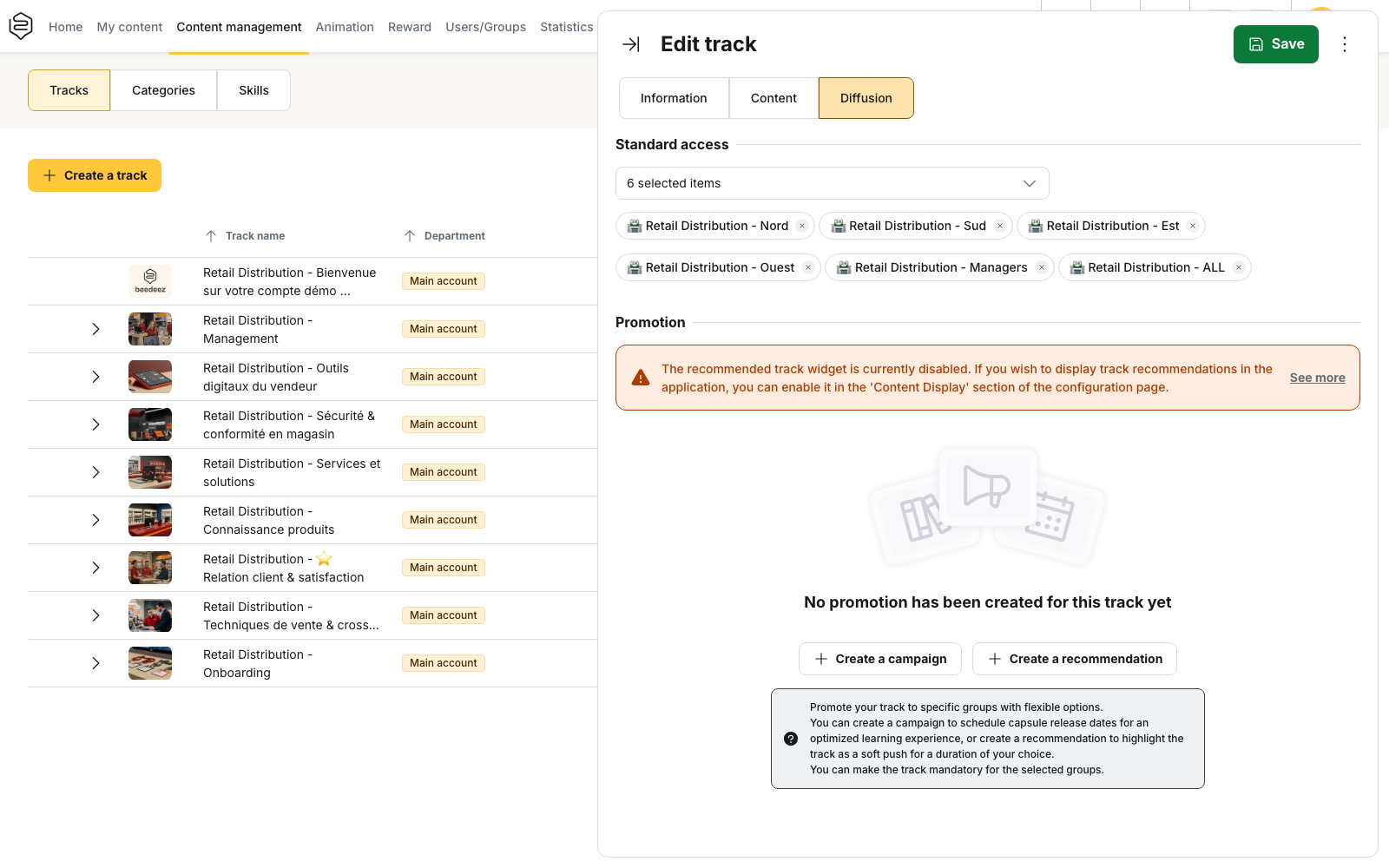
Creating a recommendation
- Open the track, then go to the Diffusion tab.
- In the Promotion block, click Create a recommendation.
- Set a Start date and an End date. Both are required. They come pre-filled with today at 9 am and 31 days later at 6 pm.
- Select at least one group under Target groups.
- Turn on Mandatory for all selected groups if the track must be mandatory for those groups. This switch is optional.
- Click Validate. The button stays inactive until both dates and at least one group are filled in.
What the learner sees
A recommendation counts for a learner only between its start date and its end date, and only if that learner belongs to one of the target groups. A track whose capsules the learner has completed leaves the widget.
⚠️ The widget shows two tracks at most. When one or two recommendations are valid for a learner, both are displayed. From three onwards, two are drawn at random, and the draw favours the tracks that learner has already started.
The See more link appears only when more recommendations are valid than the widget displays. It opens the full list, where mandatory tracks come first and, among them, the tracks already started come first.
💡 Tip: keep the number of recommendations valid at the same time low. Beyond two, the widget never shows more than two of them, and nothing guarantees that a given learner meets a particular track. If a track matters, leave it alone on its period, then rotate.
Turning the widget on
While the widget is off, the Promotion block displays the alert “The recommended track widget is currently disabled”. The recommendation is still saved, but nobody sees it.
The widget is set under Content > General customization, in the Homepage widgets block: open Tracks, then select the Recommended tracks checkbox.
What it does to standard access
Saving a recommendation adds the target groups to the track’s Standard access. You do not have to add them there beforehand.
⚠️ While the recommendation exists, those groups can no longer be removed from Standard access: the back office refuses with the message “You cannot deselect promotion groups from the track access.”
Deleting the recommendation therefore asks what to do with that access, through two buttons: Delete and keep track accessible leaves the track open to those groups, Delete and remove access closes it again.
Limits
- A recommendation feeds the Recommended tracks widget only. It does not change the order of the other track widgets.
- A recommendation does not stagger the release of the capsules. Spreading capsules over time is the role of a campaign.
- A group cannot receive a campaign and a recommendation on the same track at the same time. The window states it: “A group can only be assigned to either a campaign or a recommendation for the same track, not both at the same time.”
- Past the end date, the row leaves the Promotion table. The track stays accessible to the groups and becomes an ordinary track again.
Going further
- Campaign tracks: supporting an onboarding: the other promotion in the same block, the one that unrolls capsules over time
- Distributing a track to groups: the standard access a recommendation fills in along the way
- The home page and the menu: where to switch on the widget without which nothing shows
- Who can distribute what: the right that opens a track’s Diffusion tab