Distributing by link, QR code or barcode
A link, a QR code or a barcode is a shortcut to content that is already distributed, not an extra distribution channel. Whoever scans needs an account, and the capsule must already reach them through a track or a custom diffusion rule. See Understanding distribution.
Distributing by link, QR code or barcode
A link, a QR code or a barcode is a shortcut to content that is already distributed, not an extra distribution channel. Whoever scans needs an account, and the capsule must already reach them through a track or a custom diffusion rule. See Understanding distribution.
⚠️ Rights required: the Generate the link option appears only if your authorisation grants Display links to web app.
What a code does not do
A code does not bypass distribution. If the capsule does not reach the learner who scans, the app answers “Content not found or you don’t have access to it. Please try again later.” and nothing opens. A code is a fast way to reach content you are already entitled to, never a way to open content you are not.
There is no anonymous reading either: with no account signed in, neither a link nor a code opens anything. A QR code on a wall does not replace creating the accounts.
Sharing from the capsule list
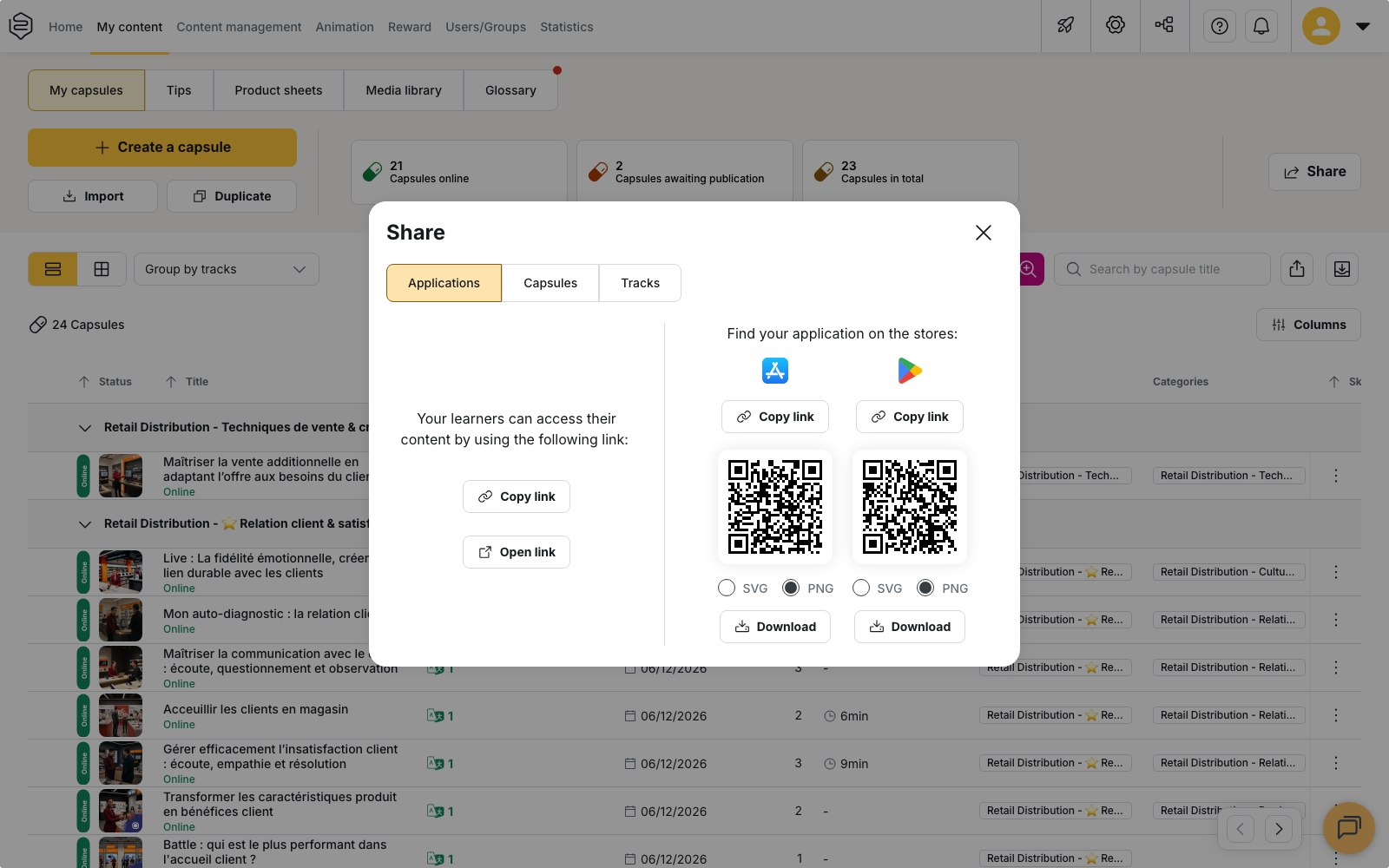
- Open My content > My capsules, then click Share.
- Select the tab that matches what you want to share: Applications for the store links to the apps, Capsules or Tracks for one piece of content.
- Select the capsule or the track in the list.
- Click Share with, then choose the option.
Generate the link produces the URL to paste into an email or an internal announcement. QR Code produces a QR code that holds that same link. Both work for a capsule and for a track.
The QR code is exported as SVG or PNG. Choose SVG for large-format printing, PNG for screen use.
💡 The Limit browsing checkbox changes what the link opens. The interface states its effect: “By checking this box, the learner will only be able to see the content shared via the link”.
The Share capsule dialog in the capsule editor
In the capsule editor, the Diffusion panel carries a share icon that opens Share capsule. That dialog gives two different things, and they are often confused:
- Share URL with the Copy link button: the link that opens the capsule in the web app.
- QR Code: an image that holds the capsule’s code, not that link. Download QR Code exports it as PNG or SVG, and the copy icon next to the code copies the code itself.
⚠️ The two QR codes do not behave the same way.
| Where the QR code comes from | What it holds | What reads it |
|---|---|---|
| Share with menu, then QR Code | The link to the content | A phone camera, and the app scanner |
| Share capsule dialog in the editor | The capsule’s code | The scanner inside the app |
A QR code printed on a poster and scanned with a phone camera must therefore come from the Share with menu. The one generated in the editor is read as plain text by a camera app: it only resolves inside the Beedeez app.
The QR Code block appears in Share capsule only when the capsule already has a QR code.
Codes and barcodes attached to a capsule
A capsule can carry several codes. In the Share capsule dialog, the field Add or edit capsule bar codes attaches as many barcodes to the capsule as you need. That is the field case: a salesperson scans the product code on the shelf and gets the matching capsule. A product sheet is found the same way, through its reference code.
⚠️ Codes are not created automatically. If you set a capsule’s visibility or activation to the code mode while it has none, the back-office warns you: “You have chosen the CODE mode for the visibility/activation of the capsule. But no QR code or barcode were generated/added. Add them via the advanced options of the capsule.”
⚠️ A track has neither a code nor barcodes. It is shared by link or by QR code only.
On the learner side
The entry point is called Search by code, and it is switched on from the menu customisation. What it offers depends on the device:
- In the mobile app, the camera scans QR codes and product barcodes, and a field also accepts a code typed by hand.
- In the web app there is no camera. Typing the code is the only option.
Codes are matched without case sensitivity: a code typed in lower case is recognised.
💡 A capsule unlocked by code stays unlocked. When a capsule is reserved to whoever holds the code, the unlocking is recorded on the learner’s account: they can come back to it later without scanning again.
Two things to anticipate
⚠️ A printed code outlives the content. A code stops resolving as soon as the capsule goes offline or stops being distributed to the group that scans it: the poster stays on the wall, and the scan returns nothing. Before unpublishing a capsule displayed in a workshop or a store, plan its replacement.
⚠️ On a shared device, access follows the account signed in. Scanning does not change who the session belongs to: the learner signed in on the phone is the one who gets access, and the one whose history records the reading.
Going further
- Capsule visibility and activation conditions: to reserve a capsule for whoever holds the code, with the By code / QR code option.
- Understanding distribution: the perimeter a code does not bypass.
- Testing before publishing: the preview link, which is there to proofread, not to distribute.
- Exporting to SCORM: the other way to take content out of the platform.