Assigning roles in a group: team leader, coach, validator, animator
Required permission: Authorized to edit distribution lists.
Assign roles within a group: manager, coach, validator, community facilitator
Required permission: Authorized to edit distribution lists.
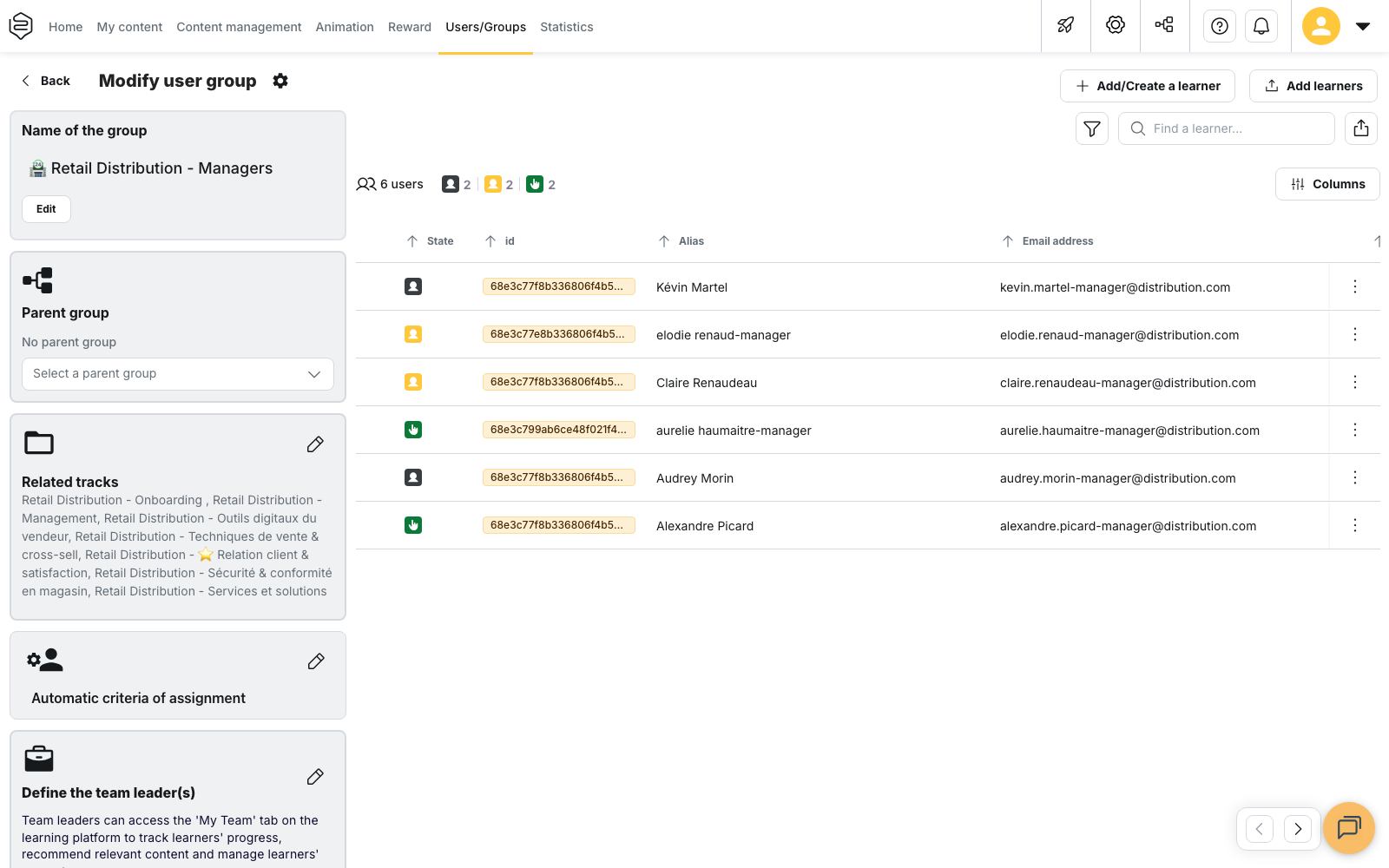
Roles are assigned from the group’s edit page and apply only to learners within that group.
The four roles
| Role | Function in the application |
|---|---|
| Team manager | Accesses My team to track team progress, handle learner requests and, depending on the Social Learning configuration, pin a tip to a community feed |
| Coach | Accesses Coaching to support learners individually, milestone by milestone |
| Validator | Receives requests that require approval, such as session registrations or external training requests |
| Community facilitator | Can pin a tip to the group’s community feed |
A learner can have several roles and different roles depending on the groups they belong to.
Assign a role
- Open the group in edit mode, then go to the Roles tab.
- Add or remove people in the section corresponding to the role:
- Define team manager(s)
- Define coach(es)
- Define validator(s)
- Define community facilitator(s)
- Save the group.
The Roles tab is not available for a disabled group.
The Define community facilitator(s) section is only available for groups configured as communities.
⚠️ Removing a community facilitator takes effect immediately, without waiting for the group to be saved. Other role changes take effect after saving.
Notifications
Adding a role may trigger a notification:
- Team manager: email + in-app notification, including the name of the relevant group.
- Validator: email only.
- Coach and Community facilitator: no notification.
Role vs. permission: what is the difference?
A role applies within the application and is limited to a group’s scope. It does not provide any back-office access.
A permission profile applies to the back office and determines what actions a person can perform there.
A team manager therefore does not need administrator access to perform their role.
See Understanding custom permissions.
What roles do not automatically provide
Team manager
The team manager role alone does not allow the user to:
- distribute content: this depends on the account’s Social Learning configuration;
- create or delete accounts from the application: the Learner management by managers from the application option must be enabled for the group.
See Content distribution by team managers and Create and organize groups.
Validator
The validator role only allows the user to receive and process requests that require their approval. It does not provide any administrative permissions.
Display the corresponding tabs
Assigning a role does not automatically display the corresponding tab in the application.
Coaching
For a coach to access Coaching, the tab must be available in the application menu:
Configuration > Personalization > Menu.
Team management
For a team manager to access My team, the tab must be available in the menu and team management must be enabled in the Social Learning configuration.