Configuring coaching
Coaching lets a coach follow their learners individually, through a private conversation and through milestones that record skill levels. Setting it up takes two steps: display the Coaching entry in the learner platform menu, then appoint coaches inside a group. No account option has to be opened for you beforehand.
Configuring coaching
Coaching lets a coach follow their learners individually, through a private conversation and through milestones that record skill levels. Setting it up takes two steps: display the Coaching entry in the learner platform menu, then appoint coaches inside a group. No account option has to be opened for you beforehand.
⚠️ Required rights: the Update customization right to change the menu, and the Allowed to update diffusion groups right to appoint coaches.
⚠️ Prerequisite: the skills framework and its level scale must exist before a coach can assess a milestone.
Display the Coaching entry
- Open Configuration, then the Customization tab.
- Open the Menu page.
- Enable the Coaching entry, described as “Access all the coaching features for coaches and learners”.
On this page you also set the default home page and the order of the entries shown in the learner platform menu.
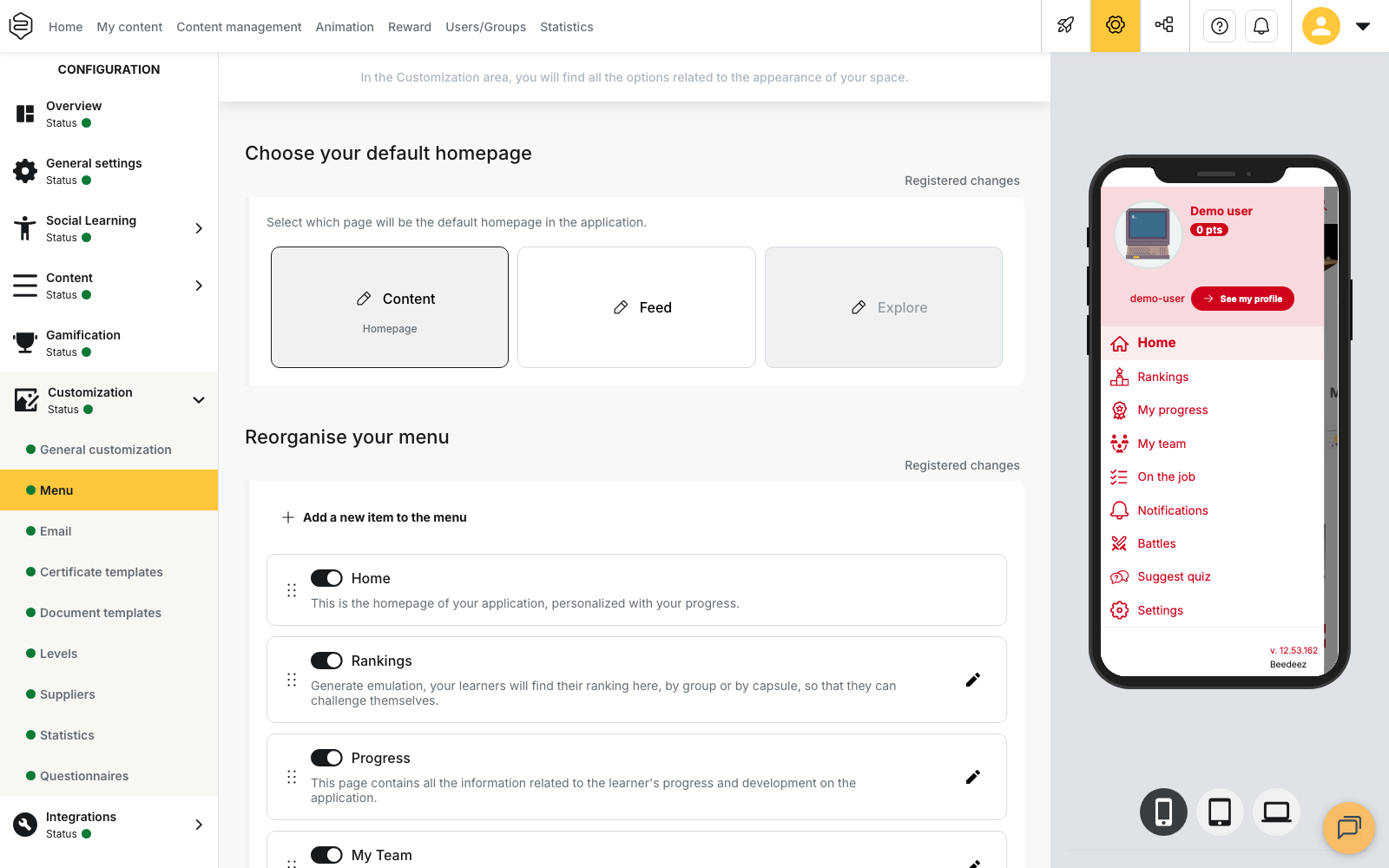
This entry controls the whole feature. While it stays hidden, the coaching page sends everyone back to the home screen, coaches included. See Customising the learner platform.
ℹ️ Good to know. Displaying the entry does not show it to everyone. It appears for coaches, and for learners whose group has at least one coach.
Appoint the coaches in a group
- Open Users/Groups, then open the group you want to edit.
- In the Define the coach(es) block, search for the person to appoint and select them.
The search covers every user on the account, not only the members of the group: a coach does not have to belong to the group they coach. You can appoint several coaches for one group, and the same person can be a coach in several groups.
What the coach finds in the learner platform
The coach works in the learner platform, on mobile and in the browser alike. The role opens no back-office access.
In their Coaching space, the coach opens My learners to see the people they follow. A Filter by group control appears when they coach several groups. The list holds the members of the group, coaches excluded. The learner finds their own coaches under My coaches. Once a person is selected, two tabs are available: Conversation and Milestones.
A conversation belongs to one coach, one learner and one group. A pair present in two groups therefore has two separate conversations.
What appointing a coach does not do
Appointing a coach does not add them to the group. They receive none of the content distributed to it: the role opens the follow-up of the members, and nothing else.
Coaching does not create the skills. The framework and its level scale must exist before the first milestone. See Building the skills framework.
The role opens no back-office statistics. Reading skills there requires the Skills Statistics right, with the option “Can view detailed skills statistics, but only for groups where they are coach”.
Coaching is not the team leader role. A team leader is appointed in the neighbouring Define the team leader(s) block and works in the My team tab. A team leader assigns no skill level; only a coach does, and only through a milestone.
Assessments cannot be undone
An assessed milestone cannot be taken back. The app states it before you confirm: “Once confirmed, milestone validation cannot be changed.” The level itself can only move up: “You can assign the current level or a higher one”.
A level given by mistake therefore remains, and the learner is notified of the assessment. On a setup that feeds certification or internal mobility, weigh this consequence before opening the feature.
💡 Tip: freeze the level scale before the first milestone, and have a coach assess one milestone on a test account. You will see the exact wording and the notification the learner receives before any real assessment is recorded.
Check the setup before opening coaching
Test with a coach account and a learner account, not from the back office. See Signing in as one of your learners.
- Check that the coach sees My learners, with the expected people.
- Check that the learner sees My coaches.
- Create a milestone and check that the expected skills are available.
- Send a message from each side and check that the Conversation works both ways.
Going further
- The coach and their role: what a coach does day to day, milestone by milestone
- Assigning roles in a group: the four roles and their perimeter
- Mastery levels: building the scale, and why to freeze it
- Common problems: coaching: what to check when a coach cannot see their learners